Ambient light layer
Configure the ambient light layer to control atmospheric lighting on a 3D Earth component.
Chart style
The ambient light layer is a sub-component of the 3D Earth. You can adjust its light intensity and color independently to simulate atmospheric lighting effects. 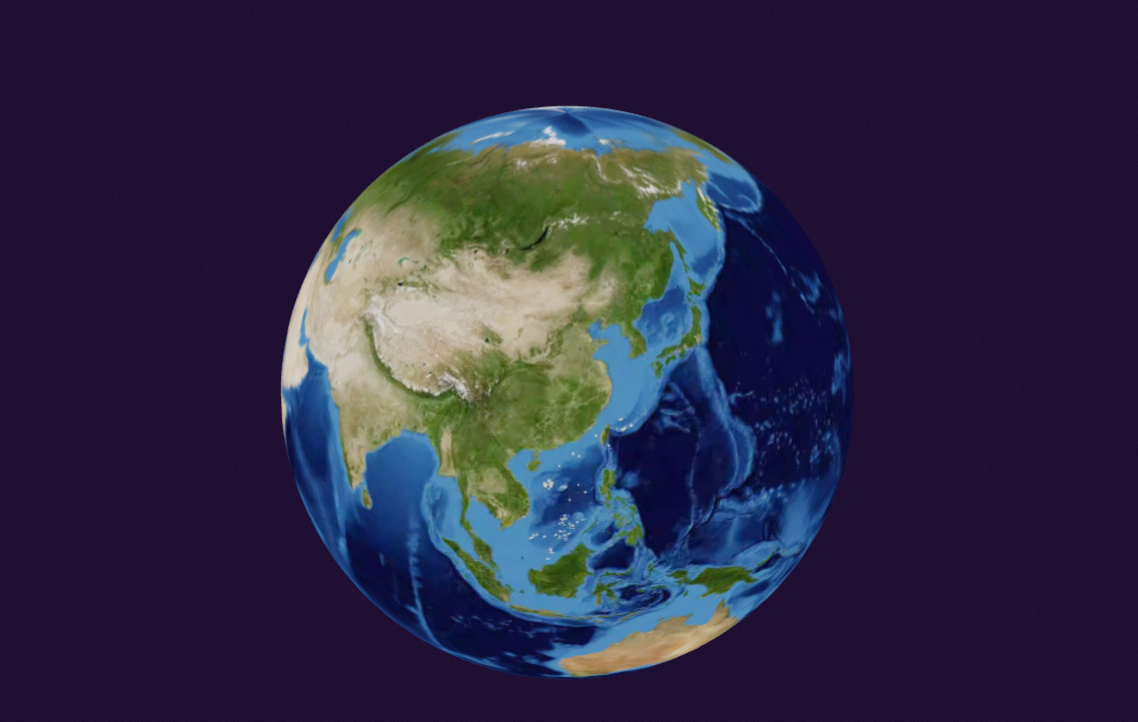
Style panel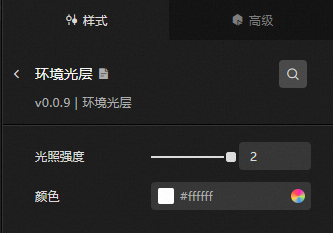
-
Search Configuration: Click the Style icon
 in the upper right corner of the panel to enter the name of the configuration item you wish to locate in the search field. The system supports fuzzy matching. For more information, see Search configuration item.
 -
Light Intensity: The brightness of the ambient light.
-
Color: The color of the ambient light. For more information, see the color picker description.
Data source panel
This component does not require data configuration.
Advanced panel
This component does not support interactions.
Blueprint interaction
-
To access the Blueprint page, click the
 icon in the upper left corner.
 -
In the Layer Node tab, add the component to the main canvas.
-
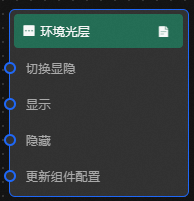
Review the blueprint configuration parameters.
-
Event: None.
-
Action
Action
Description
Toggle Visibility
Toggles the component between visible and hidden. No parameters are required.
Show
Shows the component. Refer to the following data example.
{
  "animationType": "",//Animation type. Optional value: fade. No animation if not filled.
  "animationDuration": 1000,//Animation latency in ms.
  "animationEasing": ""//Animation curve
}
Hide
Hides the component. Refer to the following data example.
{
  "animationType": "",//Animation type. Optional value: fade. No animation if not filled.
  "animationDuration": 1000,//Animation latency in ms.
  "animationEasing": ""//Animation curve
}
Update Component Configuration
Dynamically updates the component style. Click Copy Configuration To Clipboard in the Style panel to copy the configuration data, then modify the required style fields in the data processing node on the blueprint editor page.
-