instructions-of-conditional-tree
Condition trees specify logical decisions for components to apply conditional style modifications or set filter styles.
The condition tree uses two layers of nested and or or connectors to combine conditions into complex logical judgments. You can combine arbitrary conditions by using conjunctive normal form or disjunctive normal form. 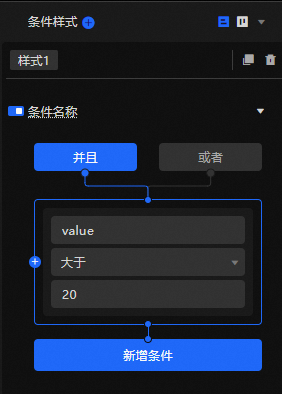
Condition Tree Example Description
Condition trees are commonly used to define conditional styles for elements that meet specific requirements, replacing the previous component series feature. Conditional styles offer richer options than series and can simultaneously change multiple mapping channels, including size, color, and shape. This example uses a bubble chart widget.
-
Log on to the DataV console.
-
On the console page, select a dashboard and click Edit. The Canvas Editor page appears.
-
In the left-side navigation pane, click the Component Library tab. On the Component Library tab, click the Bubble Chart tab and add the chart to the canvas.
-
Click the Style tab and click Label in the lower-left corner.

-
Click the switch below the
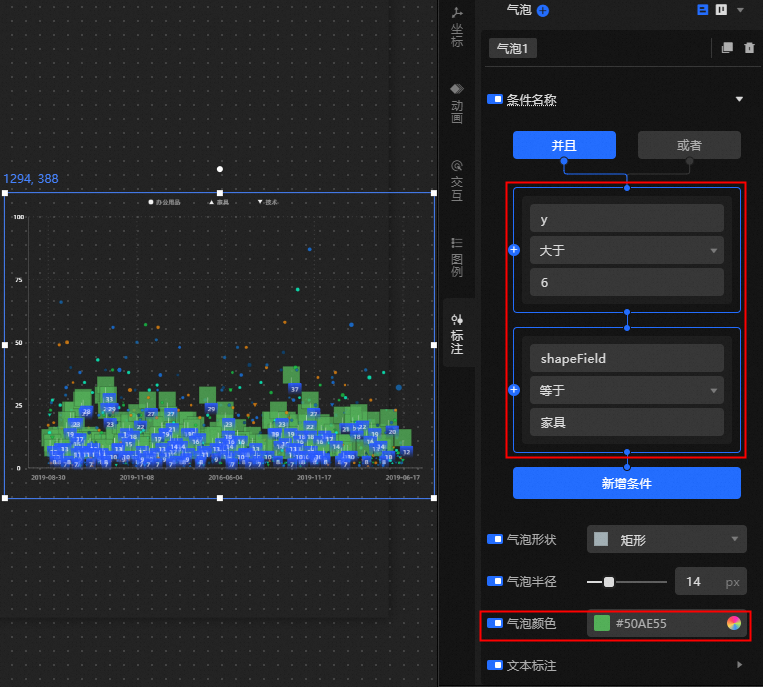
 condition style, and in the current condition style panel, configure the condition tree style, set the specified conditions, and set the bubble point of y>6 and shapeField and furniture to the style of green fill and white thick border, as shown in the following figure.