ECharts Stacked Bar Chart
This topic describes the styles and configuration options for the ECharts stacked bar chart.
Chart style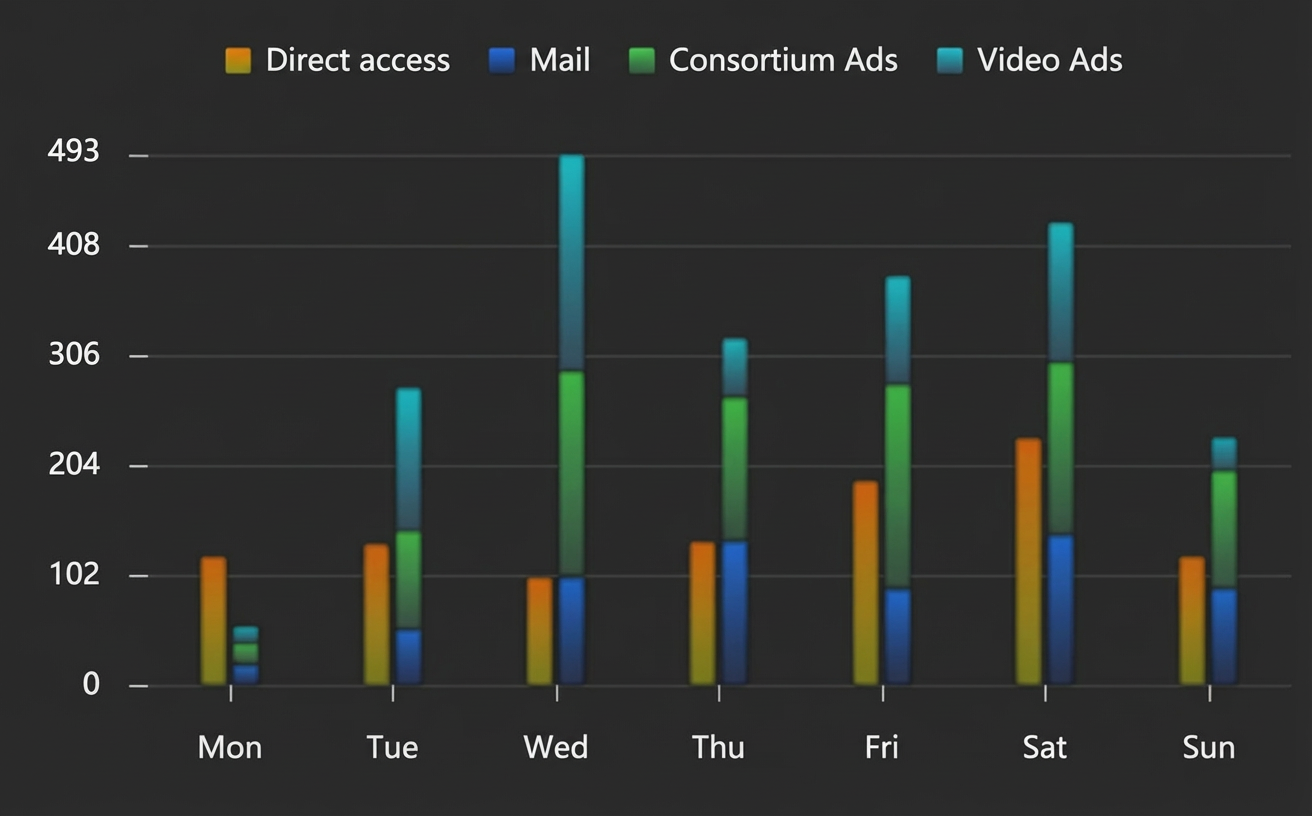
Style panel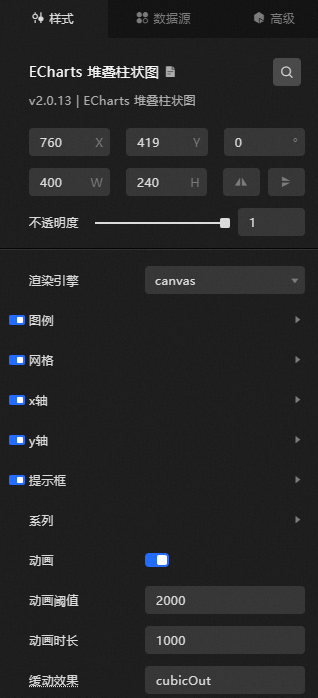
-
Search Configuration: Click the Style icon
 in the upper right corner of the panel to enter the name of the configuration item you wish to locate in the search field. The system supports fuzzy matching. For more information, see Search configuration item.
 Size: The width and height of the component in pixels (px).
Position: The component's x-coordinate and y-coordinate in pixels (px). The x-coordinate is the horizontal distance from the page's left edge to the component's top-left corner. The y-coordinate is the vertical distance from the page's top edge to the component's top-left corner.
Rotation: The rotation of the component around its center point, in degrees (°).
Enter an angle value to control the component's rotation.
Click the
 icon to flip the component horizontally.
Click the
 icon to flip the component vertically.
Opacity: The value ranges from 0 to 1. A value of 0 is completely transparent, while a value of 1 is fully opaque. The default is 1.
Interaction passthrough: When enabled, mouse interactions pass through this component, preventing it from blocking interactions with other components layered underneath it on a dashboard.
Alignment: The alignment of the component within the editor.
Render engine: Sets the rendering engine for the bar chart. Options include canvas and svg.
Legend: Click the eye icon to display the legend settings.
Width: Enter a value to set the legend width. The default value is auto, which automatically adjusts the width.
Height: Enter a value to adjust the height of the legend. The default value is auto, which automatically adjusts the height.
Orientation: Select the legend's layout orientation.
Horizontal: The legend items are arranged horizontally.
Vertical: The legend items are arranged vertically.
Align: Select the alignment of the legend markers and text from the drop-down list. The default is Auto, which is determined by the component's position and orientation.
Auto
Left
Center
Right
Padding: Click + or -, or enter a value to adjust the padding of the legend in pixels (px). The default padding for all sides is 5.
Item Gap: Click + or -, or enter a value to adjust the distance between legend items. This sets the horizontal gap for a horizontal layout and the vertical gap for a vertical layout.
Item Width: Click + or -, or enter a value to adjust the width of the legend markers.
Item Height: Click + or -, or enter a value to adjust the height of the legend markers.
Select Mode: Click the eye icon to display the select mode options.
Inactive Color: See Color picker to change the color of a deselected legend item. This effect is visible only when you click a legend item on the preview or published page.
Text Style
Color: See Color picker to change the color of the legend text.
Font Style: The font style of the legend text.
Font Weight: The font weight of the legend text.
Font Family: The font family of the legend text.
Font Size: Click + or -, or enter a value to change the font size of the legend text.
Background Color: See Color picker to change the background color of the legend.
Border Color: See Color picker to change the border color of the legend.
Border Width: Click + or -, or enter a value to adjust the thickness of the legend border.
Align: Select the alignment of the legend relative to the chart from the drop-down list. The alignment is determined by the component's position and orientation.
Left
Center
Right
Grid: Click the eye icon to display the grid settings.
Left: The distance from the grid's left edge to the component's left edge. The default value is 3%. The following input formats are supported:
A specific pixel value, such as 20.
A percentage of the container's width, such as 20%.
The keywords left, center, or right, which automatically align the component.
Top: The distance from the grid's top edge to the component's top edge. The default value is 60. The following input formats are supported:
A specific pixel value, such as 20.
A percentage of the container's height, such as 20%.
The keywords top, center, or bottom, which automatically align the component.
Right: The distance from the grid's right edge to the component's right edge. The default value is 4%. The following input formats are supported:
A specific pixel value, such as 20.
A percentage of the container's width, such as 20%.
The keywords left, center, or right, which automatically align the component.
Bottom: The distance from the grid's bottom edge to the component's bottom edge. The default value is 3%. The following input formats are supported:
A specific pixel value, such as 20.
A percentage of the container's height, such as 20%.
The keywords top, center, or bottom, which automatically align the component.
Width: The width of the grid. The default value is auto, which enables adaptive width.
Height: The height of the grid. The default value is auto, which enables adaptive height.
Adaptive Layout: If selected, the bar chart uses an adaptive layout. If cleared, the chart uses the layout defined by your style settings.
Background Color: See Color picker to change the background color of the grid. The default is transparent.
Border Color: See Color picker to change the border color of the grid. The default is transparent.
Border Width: Click + or -, or enter a value to adjust the grid border thickness.
x-axis: Click the eye icon to display the x-axis settings.
Offset: The offset of the x-axis from its default position. The default value is 0.
Name: A custom name for the x-axis.
Name Position: The position of the x-axis name. Options include Start, Center, and End. The default is End.
Name Style
Color: See Color picker to change the color of the x-axis name text.
Font Style: The font style of the x-axis name.
Font Weight: The font weight of the x-axis name.
Font Family: The font family of the x-axis name.
Font Size: Click + or -, or enter a value to change the font size of the x-axis name.
Name Gap: Click + or -, or enter a value to change the distance between the axis name and the axis line.
Name Rotate: Click + or -, or enter a value to change the rotation angle of the axis name.
Inverse: If selected, reverses the order of the axis.
Boundary Gap: If selected, adds blank space to both ends of the axis.
Min: The minimum value of the axis scale. The default is dataMin, which uses the minimum data value on the axis as the minimum scale. If not set, the minimum value is automatically calculated to ensure a uniform distribution of axis ticks.
Max: The maximum value of the axis scale. The default is dataMax, which uses the maximum data value on the axis as the maximum scale. If not set, the maximum value is automatically calculated to ensure a uniform distribution of axis ticks.
Scale: If selected, the axis scale is not forced to include the zero tick. This setting is valid only for numerical axes and is ignored if a Min or Max value is set.
Split Number: Click + or -, or enter a value to set the number of segments for the axis. If not set, this value is calculated automatically to ensure a uniform distribution of ticks. This value is an estimate. The actual number of segments is adjusted to ensure the axis scale remains readable. This setting is not applicable to category axes.
Min Interval: Click + or -, or enter a value to set the minimum interval for the axis. For example, you can set it to 1 to ensure that the axis tick labels are integers. This setting is valid only for numerical or time axes.
Log Base: Specifies the base of the logarithm for a log axis.
Axis Line: Click the eye icon to display the x-axis line.
On Zero: Specifies whether the x-axis or y-axis line should be placed on the 0 tick mark of the other axis. This is valid only when the other axis is a numerical axis and includes a 0 tick.
Line Style
Color: See Color picker to change the color of the x-axis line.
Width: Click + or -, or enter a value to change the width of the x-axis line.
Type: The type of the axis line. Options include Solid and Dashed.
Opacity: Click + or -, or enter a value to change the opacity of the x-axis line. The value must be between 0 and 1.
Axis Tick: Click the eye icon to display the x-axis ticks.
Align With Label: If selected, the tick marks are aligned with the labels. This is valid for category axes only if Boundary Gap is also selected.
Interval: Click + or -, or enter a value to set the display interval for axis tick marks. This is valid for category axes.
Inside: If selected, the axis ticks face inward. If cleared, they face outward.
Length: Click + or -, or enter a value to set the length of the axis ticks.
Line Style
Color: See Color picker to change the color of the tick marks.
Width: Click + or -, or enter a value to change the width of the tick marks.
Type: The type of the axis line. Options include Solid and Dashed.
Opacity: Click + or -, or enter a value to change the opacity of the tick marks. The value must be between 0 and 1.
Axis Label: Click the eye icon to display the x-axis labels.
Split Interval: The display interval for axis tick labels. This setting applies only to category axes. By default, labels are displayed at intervals to prevent them from overlapping. You can set the value to 0 to force all labels to be displayed. If you set the value to 1, every other label is displayed. If the value is 2, every third label is displayed, and so on.
Inside: If selected, the axis labels face inward. If cleared, they face outward.
Rotate: The rotation angle of the labels, from -90 to 90 degrees. You can rotate labels to prevent them from overlapping on a category axis.
Margin: The distance between the axis labels and the axis line.
Show Min Label: If selected, the minimum tick label is always shown. By default, this is determined automatically; the minimum label is hidden if it overlaps with other labels.
Show Max Label: If selected, the maximum tick label is always shown. By default, this is determined automatically; the maximum label is hidden if it overlaps with other labels.
Text Style
Color: See Color picker to change the color of the axis labels.
Font Style: The font style of the axis label text.
Font Weight: The font weight of the axis label text.
Font Family: The font family of the axis label text.
Font Size: The font size of the axis label text.
Align: The horizontal alignment of the axis label text. The default is Auto. Options include:
Auto
Left
Center
Right
Vertical Align: Options include Top, Middle, and Bottom.
Split Line: Click the eye icon to display the split lines.
Split Interval: Click the + or - icon, or manually enter a value to change the display interval of axis split lines. This setting is effective for category axes. By default, split lines are displayed at an interval that prevents them from overlapping. You can set this parameter to 0 to force all split lines to be displayed. If you set the value to 1, it means that every other split line is displayed. If you set the value to 2, it means that one of every three split lines is displayed, and so on.
Line Style
Width: Click + or -, or enter a value to change the line width of the x-axis split lines.
Type: The type of the x-axis split lines. Options include Solid and Dashed.
Opacity: Click + or -, or enter a value to change the opacity of the x-axis split lines. The value must be between 0 and 1.
Split Area: Click the eye icon to display the split areas.
Split Interval: Click the + or - icon, or manually enter a value to change the display interval of the split areas. This setting is available only for category axes. By default, the interval is automatically calculated to prevent the split areas from overlapping. Set the value to 0 to display all split areas. A value of 1 indicates that every other split area is displayed. A value of 2 indicates that one of every three split areas is displayed, and so on.
Area Style
Opacity: Click + or -, or enter a value to change the opacity of the split areas. The value must be between 0 and 1.
Axis Pointer: Click the eye icon to display the axis pointer.
Type: The type of pointer. Options include Line and Shadow.
Snap: If selected, the axis pointer automatically snaps to data points. This feature is useful for numerical and time axes, as it helps to locate specific data points.
Value: The initial position of the axis pointer. The default is 0.
Status: Toggles the visibility of the axis pointer.
Label: Click the eye icon to display the axis pointer's label.
Precision: The decimal precision for numerical values in the text label. By default, this is determined automatically based on the current axis value. You can also specify an integer, such as 2, to display values with two decimal places.
Margin: If selected, a margin is added between the axis pointer label and the axis. If cleared, there is no margin.
Text Style
Color: See Color picker to change the color of the axis pointer's label text.
Font Style: The font style of the axis pointer's label text.
Font Weight: The font weight of the axis pointer's label text.
Font Family: The font family of the axis pointer's label text.
Font Size: The font size of the axis pointer's label text.
Background Color: The background color of the axis pointer's text label.
Border Color: The border color of the axis pointer's text label.
Border Width: The border thickness of the axis pointer's text label.
Shadow Style
Color: See Color picker to change the color of the shadow.
Opacity: Click + or -, or enter a value to change the opacity of the shadow. The value must be between 0 and 1.
Handle: Click the eye icon to display the drag handle.
Size: Click + or -, or enter a value to change the size of the drag handle.
Margin: Click + or -, or enter a value to change the distance between the center of the drag handle and the axis.
Color: The color of the drag handle.
Throttle: The update frequency in milliseconds when dragging the handle. Increasing this value can improve performance but may reduce responsiveness.
y-axis: For configuration details, see the x-axis settings.
Tooltip: Click the eye icon to display the tooltip settings.
Trigger: Sets the event that triggers the tooltip. Options include Mouse move, Click, and Move and click.
Background Color: See Color picker to change the background color of the tooltip.
Border Color: See Color picker to change the border color of the tooltip.
Border Width: Click + or -, or enter a value to change the border thickness of the tooltip.
Padding: Click + or -, or enter a value to adjust the padding of the tooltip in pixels (px). The default padding for all sides is 5.
Text Style
Color: See Color picker to change the color of the tooltip text.
Font Style: The font style of the tooltip text.
Font Weight: The font weight of the tooltip text.
Font Family: The font family of the tooltip text.
Font Size: The font size of the tooltip text.
Series: Click the
 or icon to add or delete a series. Click the or icon to change the order of multiple series. Click the icon to duplicate the currently selected series.
Name: A custom series name. This must match the value of the
sfield in the data.Legend Hover Link: If selected, hovering over a legend item highlights the corresponding series.
Stack: To stack data, assign the same stack value to series that share the same category axis.
Bar Width: The width of the bars. If not set, the width is adaptive. You can set this as a percentage of the category width. The default is 15%.
Bar Gap: The distance between bars of different series, specified as a percentage of the bar width (for example, 30% means 30% of the bar width). To make bars from two series overlap, you can set Bar Gap to -100%, which is useful for creating a background effect.
Bar Category Gap: The distance between bars within the same series. The default is 20% of the category gap. You can also set a fixed value.
Label
Normal: Click the eye icon to show labels for items in their default state.
Position: Sets the label's position relative to the bar. Options include top, left, and inside.
Text Style
Color: See Color picker to change the color of the label text for normal items.
Font Style: The font style of the label text for normal items.
Font Weight: The font weight of the label text for normal items.
Font Family: The font family of the label text for normal items.
Font Size: The font size of the label text for normal items.
Emphasis: Click the eye icon to show labels for items in their hovered state.
Position: Sets the label's position relative to the bar. Options include top, left, and inside.
Text Style
Color: See Color picker to change the color of the label text for emphasized items.
Font Style: The font style of the label text for emphasized items.
Font Weight: The font weight of the label text for emphasized items.
Font Family: The font family of the label text for emphasized items.
Font Size: The font size of the label text for emphasized items.
Item Style
Normal
Color: See Color picker to change the background color of normal items.
Border Color: See Color picker to change the border color of normal items.
Border Width: Click + or -, or enter a value to change the border thickness of normal items.
Border Type: The border stroke type. Options include Solid and Dashed. The default is Solid.
Border Radius: Click + or -, or enter a value to change the border radius for the bars of normal items.
Opacity: Click + or -, or enter a value to change the opacity of normal items. The value must be between 0 and 1.
Emphasis
Color: See Color picker to change the background color of emphasized items.
Border Color: See Color picker to change the border color of emphasized items.
Border Width: Click + or -, or enter a value to change the border thickness of emphasized items.
Border Type: The border stroke type. Options include Solid and Dashed. The default is Solid.
Opacity: Click + or -, or enter a value to change the opacity of emphasized items. The value must be between 0 and 1.
Mark Line
Color: See Color picker to change the color of the mark line.
Style: The border stroke type. Options include Solid and Dashed. The default is Solid.
Animation: If selected, animation effects are enabled.
Animation Threshold: Click + or -, or enter a value to change the animation threshold in milliseconds. When the number of graphics displayed in a single series exceeds this threshold, the animation effect is disabled to maintain performance.
Animation Duration: Click + or -, or enter a value to change the duration of the initial animation in milliseconds.
Easing effect: Select the easing effect for the data update animation from the drop-down list. The default is cubicOut.
 or
or  icon to add or delete a series. Click the
  or
or  icon to change the order of multiple series. Click the
  icon to duplicate the currently selected series.
Data panel
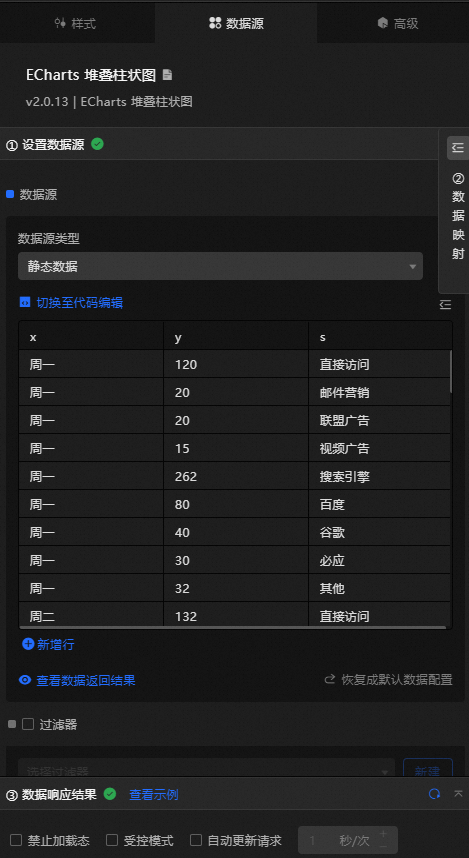
Field | Description |
| Configures the category for each item on the x-axis, which corresponds to the x-axis values. |
| Configures the value for each data point in the bar chart. |
| (Optional) The series value. This is used in conjunction with the Series settings in the style panel. |
Parameter | Description |
Controlled mode | If enabled, the component requests data only when triggered by a Blueprint action or callback ID. |
Auto update | If selected, you can enable dynamic polling and set the polling frequency. If cleared, auto-update is disabled. You must manually refresh the page or use the Blueprint editor or callback ID events to trigger data updates. |
Data source | Click Configure Data Source to open the Set Data Source panel. In this panel, you can change the data source type and data query code, preview the result from the data source, and view the data response. For more information, see Configure asset data. |
Data filter | A data filter transforms the data structure, filters data, or performs simple calculations. Click Add Filter to configure a data filter script in the Set Data Source panel. For more information, see Filter User Guide. |
Data response | Displays the response from the data request. When the data source changes, click the |
 icon on the right to view the live data response.
Advanced panel
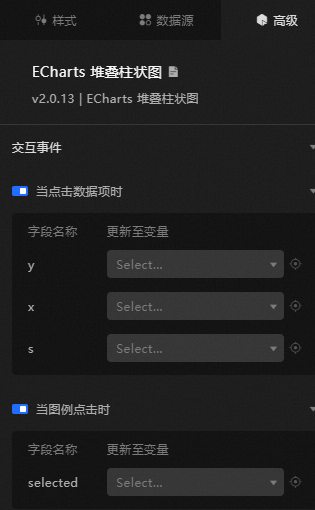
Interaction | Description |
When data item is clicked | If enabled, clicking a data item triggers a callback. By default, the |
When legend is clicked | If enabled, clicking a legend item triggers a callback. By default, the |
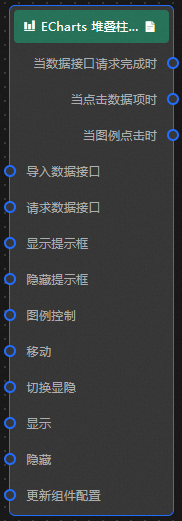
Blueprint interaction
Click the
icon in the upper-left corner of the page to go to the Blueprint editor.On the Layer Node tab, add the current component to the main canvas.
View the Blueprint configuration parameters.
Events
Event
Description
When data request is complete
This event triggers when a data request is complete and the response has been processed by the data filter. The event's payload is the processed data in JSON format. For a sample of the data structure, see the Data response section in the data panel.
When a data item is clicked
This event triggers when a data item in the stacked bar chart is clicked. The event payload contains the corresponding data item.
When a legend is clicked
This event triggers when a legend item in the stacked bar chart is clicked. The event payload contains the corresponding data item.
Actions
Action
Description
Request data
Triggers a new data request from the server. Data passed from upstream data processing nodes or layer nodes is used as request parameters. For example, if the API data source is set to
https://api.testand the data{ id: '1'}is passed to the request data action, the final request URL will behttps://api.test?id=1.Import data
Imports data to the component and redraws it. For a sample of the data structure, see the Data response section in the data panel.
Show tooltip
The data passed to this action must be an object with parameters including
dataindex(data index),name(data name),x(x-coordinate position), andy(y-coordinate position). See the following data sample:{ "dataIndex": 1, "name": "", "x": 1, "y": 1 }Hide tooltip
Hides the tooltip. No parameters are required.
Legend control
The data passed to this action must be an object with parameters including
type(legend action type) andname(legend name). See the following data sample:{ "type": "", // Legend action types include: legendSelect, legendUnSelect, legendToggleSelect "name": "" }Move
Moves the component to a specified position. See the following data sample:
{
      // Movement type. 'to' for absolute positioning, 'by' for relative positioning. Default: 'to'.
        "positionType": "to",
      // Target position, specified by x and y coordinates.
      "attr": {
        "x": 0,
        "y": 0
      },
      // Animation settings.
      "animation": {
        "enable": false,
        // Animation duration in milliseconds.
        "animationDuration": 1000,
        // Easing curve. Options: 'linear', 'easeInOutQuad', 'easeInOutExpo'.
        "animationEasing": "linear"
      }
    }
Toggle visibility
Toggles the visibility of the component. No parameters are required.
Show
Shows the component. See the following data sample:
{
  "animationType": "", // Animation type. Optional value: 'fade'. No animation if left blank.
  "animationDuration": 1000, // Animation duration in ms.
  "animationEasing": "" // Easing curve.
}
Hide
Hides the component. See the following data sample:
{
  "animationType": "", // Animation type. Optional value: 'fade'. No animation if left blank.
  "animationDuration": 1000, // Animation duration in ms.
  "animationEasing": "" // Easing curve.
}
Update component configuration
Dynamically updates the component's style configuration. To use this action, provide the modified configuration data. First, copy the base configuration by clicking Copy Configuration to Clipboard in the component's style panel. Then, use a data processing node in the Blueprint editor to modify the values as needed before passing them to this action.
 icon in the upper-left corner of the page to go to the Blueprint editor.