Grouped Column Chart
Describes the configuration items available for the Grouped Column Chart widget when all options are selected.
Chart style
A grouped column chart is a type of column chart that automatically groups and displays data by category. It clearly highlights data differences both between and within categories, but occupies more space on a data dashboard. 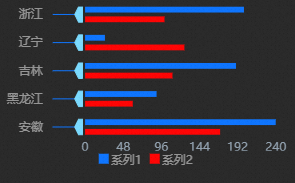
Style Panel 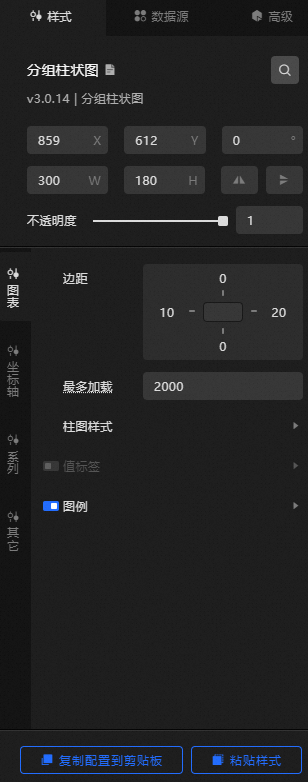
-
Search Configuration: Click the Search configuration items icon
 in the upper-right corner of the Style panel. In the Search Configuration panel, enter the name of the configuration item to locate it. Fuzzy match is supported. For more information, see Search configuration items.
 -
Size: the width and height of the widget, in pixels.
-
Positioning: the x-axis and y-axis coordinates of the widget, in pixels. X-coordinate is the pixel distance between the upper-left corner of the widget and the left border of the canvas. Y-coordinate is the pixel distance between the upper-left corner of the widget and the upper border of the canvas.
-
Rotate: the rotation angle of the widget, in degrees.
-
Enter the degrees in the Rotation Angle spin box or click the plus sign (+) or minus sign (-) to adjust the value.
-
Click the
 icon to flip the widget style.
 -
Click the
 icon to flip the widget style.
-
-
Opacity: valid values: 0 to 1. A value of 0 hides the widget. A value of 1 fully displays the widget. Default value: 1.
-
Chart name
-
Margin: the distance between the column chart area and the four boundaries of the widget, in pixels. Default value: px.
-
Maximum Load: the maximum number of input data records to load. The system uses this limit for layout, drawing, and computing to ensure optimal visual performance.
-
column chart Style: the style of each column in the chart.
Decoration
Parameter
Description
Decorative line
The color of the decorative line.
decorative shape
The fill color and border color of the decorative pentagon shape.
-
Value Label: the style of the value label of each column. You can click the
 icon to display or hide the value label.
 Parameter
Description
Text
The font style, text weight, font size, and color of the value label text.
Location
The position of the value label text. Valid values: Left, Middle, and Right.
Nullable data
If you turn on the switch, the value tag data is still displayed in the widget column. If you turn off the switch, the value tag data is not displayed in the widget column.
-
Legend: the legend style of the column chart. You can click the
icon to display or hide the legend. Parameter
Description
Text
The font style, text weight, font size, and color of the legend text.
Layout
The positional layout of the legends.
-
Spacing
-
Left and Right Spacing: the horizontal distance between adjacent legends. This parameter takes effect only when multiple series exist.
-
Distance: the vertical distance between the legend and the upper and lower boundaries of the widget and column chart.
-
-
Position: the position of the legend relative to the start coordinates of the widget. Valid values: Top Left, Top Center, Top Right, Bottom Left, Bottom Center, and Bottom Right.
-
-
-
Axis: You can specify two axes: x-axis and y-axis.
-
X Axis
-
X Axis Visible: toggle to show or hide the x-axis in the widget.
-
Range: the range of the minimum and maximum values on the x-axis.
Item
Example value
Minimum value
The minimum value of the x-axis. You can enter a custom value or select from the following options:
-
Automatic Rounding: automatically calculates the maximum value, minimum value, and the number of metric points from the data.
-
Minimum Data Value: the minimum value in the data.
Maximum value
The maximum value of the x-axis. You can enter a custom value or select from the following options:
-
Automatic Rounding: automatically calculates the maximum value, minimum value, and the number of metric points from the data.
-
Maximum Data Value: the maximum value in the data.
-
-
Axis Label: the style of the x-axis label. You can click the
icon to show or hide the x-axis label. Parameter
Description
Display Format
The display format of the x-axis label value. You can select Default, 11 (integer), 11.1 (floating-point), 11.11 (floating-point), 11%, 11.1%, or 11.11%. For more information about data display formats, see Data display formats.
Text
The font style, weight, font size, and color of the x-axis label text.
Axis Label Display
The number and units of the x-axis labels.
-
Axis: the style of the x-axis. You can click
the icon to show or hide the x-axis. Color: the color of the x-axis.
-
Gridlines: the style of the x-axis gridlines. You can click the
icon to show or hide the x-axis gridlines. Color: the color of the x-axis grid lines.
-
-
Y-axis
-
Y Axis Visible: toggle to show or hide the y-axis in the widget.
-
White Space: the distance between the upper and lower sides of the y-axis. Valid values: 0 to 1.
-
interval: the spacing between columns on the y-axis. A larger value produces thinner columns and wider gaps. Valid values: 0 to 0.95.
-
Axis Label: the style of the y-axis label. You can click the
icon to show or hide the y-axis label. Parameter
Description
Text
The font style, text weight, font size, and color of the y-axis label text.
Axis Label Display
The angle of the y-axis label. You can select Horizontal, Tilt, or Vertical. The number and units of the y-axis labels.
-
Axis: the style of the y-axis. You can click
the icon to show or hide the y-axis. Color: the color of the y-axis.
-
Gridlines: the style of the y-axis gridlines. You can click the
icon to show or hide the y-axis gridlines. Color: the color of the grid lines on the y-axis.
-
-
-
Edition
-
Series value mapping: toggle to enable or disable field mapping value for the series. When disabled, the field mapping value is not applied.
-
data series: Click the
or icon on the right to add or delete a data series. Click the or icon to configure the arrangement style of multiple data series. Click the icon to copy the selected data series configurations and add a data series with the same configurations. Parameter
Description
field mapping value
The mapping value of the data series. You can enter a custom value. If not specified, the system uses the value of the s field in the component data. If specified, you must ensure the data is returned in the correct order.
Name
The display name of the data series. You can enter a custom value.
Color
The column colors for this series.
-
-
Remarks
-
Emotion Animation: the animation effect of the column chart. You can click the
icon to enable or disable the animation. Parameter
Description
Animation Settings
-
EASING: the easing effect of the animation. Multiple common easing effects are available.
-
Sequential animation of each series: when enabled, each series plays the animation in sequence; when disabled, all columns play the animation simultaneously.
Admission Animation
The duration of the initial animation when the widget first renders, in milliseconds.
Update Animation
-
Update Animation Duration: the animation duration when the widget data is updated, in milliseconds.
-
Start From Previous Position: when enabled, the animation starts from the previous position on data update. When disabled, the animation starts from the initial position.
-
-
dialog box: the style of the dialog box that appears when you hover over or click a column on the preview or publish page. Click
the icon to enable or disable the dialog box. Parameter
Description
Disappearing Delay Time
The delay before the dialog box disappears after the trigger condition is no longer met, in milliseconds.
Trigger
-
Trigger Type: the type of target that triggers the dialog box. Valid values: Data Item and Axis.
-
Trigger Action: the action that triggers the dialog box. Valid values: Hover and Click.
Text Style
The font style, weight, font size, and color of the dialog box text.
Background Box Style
The background box style of the dialog box.
-
Background Color: the background color of the dialog box.
-
Custom: the width and height of the dialog box, in pixels. Click the
icon to enable or disable custom sizing. -
Pin: the inner margin of the dialog box, in pixels.
-
Offset
-
Horizontal Offset: the horizontal offset of the dialog box relative to the mouse arrow. Unit: px.
-
Vertical Offset: the vertical offset of the dialog box relative to the mouse arrow. Unit: px.
-
-
Borders
-
Border: the border thickness of the dialog box, in pixels.
-
Border Color: The border color of the dialog box.
-
-
-
 icon to display or hide the value label.
  or
or  icon on the right to add or delete a data series. Click the
  or
or  icon to configure the arrangement style of multiple data series. Click the
  icon to copy the selected data series configurations and add a data series with the same configurations.
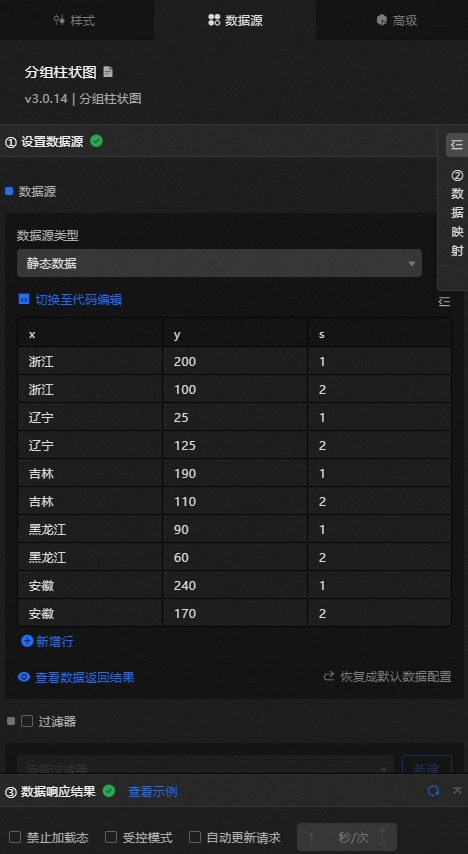
 Data Sources panel
|
Field |
Description |
|
|
The category of each column in the column chart. |
|
|
The value of each column in the column chart. |
|
|
Optional. The data of the corresponding series. |
|
Configure data items |
Description |
|
DataSource |
You can use the code editor or visual editor to view and edit the data fields of the widget. You can also change the Data Type parameter to flexibly configure the data source. |
|
Data Mapping |
To customize chart field configurations, set different field mapping content in the Data Mapping module to map data to the corresponding widget fields. This allows you to match data without modifying the data source fields. You can also click the |
|
Configure a filter |
Turn on Filter, select an existing data filter or create a data filter, and configure a data filter script to filter data. For more information, see Manage data filters. |
|
Data Response Result |
The Data Response Result section displays widget data in real time. If the data source changes, the latest data is shown. If the response is delayed, click the |
|
Forbid Loading |
If selected, loading indicators are hidden during component initialization when you update the widget and preview the data kanban. By default, the check box is cleared. |
|
Controlled Mode |
If selected, the widget does not request data during initialization and only requests data through global variables or methods configured in Blueprint Editor. If cleared, the widget uses automatic update to request data. By default, the check box is cleared. |
|
Auto Data Request |
Select the check box and enter a polling interval to enable dynamic data polling. If cleared, the page is not automatically updated, and you must manually refresh the page or use Blueprint Editor and global variable events to trigger a data request. |
 icon to configure the field style.
  icon to view the data response result. You can also click the
  icon to fetch the latest data, or click View Example to see a sample response.
 Advanced Panel
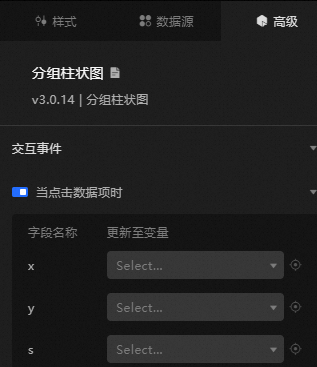
When you click a data item: toggle to enable widget interaction. When you click a column in the grouped column chart, a data request is triggered and a temporary variable is passed to dynamically load different column data. By default, the x, y, and s values in the data are displayed. For more information, see Component interaction configuration.
Blueprint Interaction
-
Click the
icon in the upper-left corner to go to the Blueprint page. -
On the Layer Nodes tab, add the widget to the main canvas.
-
View blueprint configuration parameters.
-
Event
Event
Description
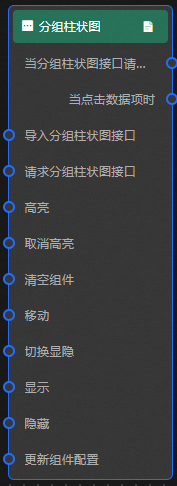
When the request for the group bar interface is completed
The event is triggered with the processed JSON data after a data interface request is responded to and processed by a filter. For specific data examples, see the Data Response Result section of the Data Source tab in the right-side configuration panel of the canvas editor.
When a data item is clicked
The event that is raised when a column of the grouped column chart is clicked, along with the data item corresponding to that column.
-
Action
Action
Description
Import a group bar chart
After widget data is processed in its drawing format, the widget is imported for redrawing without requesting server data again. For specific data examples, see the Data Response Result section of the Data Source tab in the right-side configuration panel of the canvas editor.
Request Group Histogram API
Requests server data again, using data from an upstream data processing node or layer node as parameters. For example, if the API data source is
https://api.testand the data passed to request group histogram interface is{ id: '1'}, the final request URL ishttps://api.test?id=1.Highlight
data: the data item to be highlighted.
{
  x: 'Zhejiang'
}
Reference data example
{
  "data": {},
  "options": {}
}
Unhighlight
data: the data item that needs to be unhighlighted. If the
datafield is not specified, all highlighted data is unhighlighted.{ x: 'Zhejiang' }Reference data example
{
  "data": {},
  "options": {}
}
Clear components
Clears the widget data. No parameters are required.
Move
Moves the widget to a specified location. See the data example below.
    {
      // The positioning type. to indicates absolute positioning, whereas by indicates relative positioning. The default value is to.
        "positionType": "to",
      // The location, which is indicated by the x and y coordinates.
      "attr": {
        "x": 0,
        "y": 0
      },
      // The animation type.
      "animation": {
        "enable": false,
        // The animation delay. Unit: milliseconds.
        "animationDuration": 1000,
        // The animation curve, which can be set to linear|easeInOutQuad|easeInOutExpo.
        "animationEasing": "linear"
      }
    }
Switch Display /Hide
Toggles the widget between displayed and hidden states. No parameters are required.
Display
Displays the widget. See the data example below.
{
  "animationType": "",// The animation method. Valid value: fade. If you do not set this parameter, no animation is available.
  "animationDuration": 1000,// The animation delay. Unit: ms.
  "animationEasing": ""// animation curve
}
Hide
Hides the widget. See the data example below.
{
  "animationType": "",// The animation method. Valid value: fade. If you do not set this parameter, no animation is available.
  "animationDuration": 1000,// The animation delay. Unit: ms.
  "animationEasing": ""// animation curve
}
Update component configurations
Dynamically updates widget style configurations. On the Style tab of the widget, click Copy Configurations to Clipboard to obtain the configuration data. Then, modify the style field for the data processing node in Blueprint Editor.
-
 icon in the upper-left corner to go to the Blueprint page.