percentage-bar-charts
Configure the appearance, data sources, and interactions of a percentage bar chart widget.
Chart style
A percentage bar chart uses horizontal bars to compare numerical values across one or more groups of categorical data. You can select dataset fields and configure data mapping styles.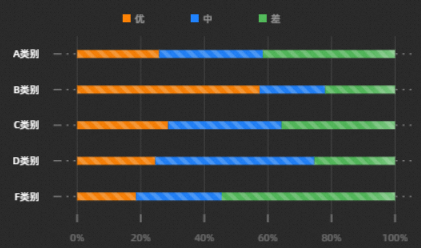
Style Panel 
-
Search Configuration: Click the Search configuration items icon
 in the upper-right corner of the Style panel. In the Search Configuration panel, enter the name of the configuration items that you want to search for and locate the configuration items. Fuzzy match is supported. For more information, see Search configuration items.
 -
Size: the width and height of the widget. Unit: pixels.
-
Positioning: the x-axis and y-axis of the component. Unit: pixels. X-coordinate indicates the pixel distance between the upper-left corner of the widget and the left border of the canvas. Y-coordinate indicates the pixel distance between the upper-left corner of the widget and the upper border of the canvas.
-
Rotate: The widget is rotated around the center of the widget. Unit: degrees.
-
Directly enter the degrees in the Rotation Angle spin box or click the plus sign (+) or minus sign (-) to increase or decrease the value in the Rotation Angle spin box.
-
Click the
 icon to flip the widget style.
 -
Click the
 icon to flip the widget style.
-
-
Opacity: Valid values: 0 to 1. If this parameter is set to 0, the widget is hidden. If this parameter is set to 1, the widget is completely displayed. Default value: 1.
-
Graphics
Parameter
Description
Chart Margins
Click the
 icon to show or hide chart margin settings. If you turn on the switch, you can configure the distance between the chart area and the four edges of the widget. Unit: px.
Column Width
The width of the column, in px. Click the
icon to show or hide column width settings.Column color
The color of the column. For more information, see Use the color mapper.
Pillar glow
The glow effect of the column. Click the
icon to show or hide column glow settings.-
Luminous Color: Includes the synchronize-with-column toggle and opacity. When the synchronous column switch is turned off, you can set the glow color separately.
-
Ambiguity Coefficient: Set the blur coefficient of the column glow. Valid values: 0 to 50. A larger value produces a wider glow range between columns.
-
Shadow Offset: The horizontal and vertical shadow offsets of the column glow. Unit: px.
Column Label
The label style of the column. Click the
icon to show or hide label settings.-
Label Field: The content of the label field must match the content of the field on the Data tab. By default, the content of the x field is retrieved.
-
Pre-Suffix: the prefix and suffix of the column tag.
-
Label Position: Select the position of the label content. You can select Top, Middle, or Bottom.
-
Relative Offset: the vertical and horizontal offsets of the column labels. Unit: pixels.
-
Text Style: the text style of the column tag, including the font style, weight, font size, and color of the text.
-
Text Stroke: the stroke style of the column, including the thickness and color of the stroke.
Map
The texture pattern of the column. Click the
icon to show or hide texture pattern settings.NoteThe texture pattern background does not support gradient colors.
-
Type: the type of the sticker. Valid values: Point, Line, Square, and Image.
-
Fill Style: the fill style of the texture map. See the color picker instructions to configure the color style of the map.
-
Stroke Style: Specify the stroke style of the map. See the color picker instructions to configure the color style of the map. This parameter is displayed when you set Type to Dot or Square.
-
Extra Style: Other styles of the map, including Graphics Size, Graphics Spacing, Line Spacing, Rotation Angle, and Stagger. If you set Type to Image, you can set the Image Address, Tile Width, Tile Height, Tile Spacing, and Rotation Angle settings.
-
-
Coordinates: the x-axis and Y axes of a widget.
-
X-axis
-
x-axis Display: If the switch is turned on, the x-axis style in the widget is visible. If the switch is turned off, the x-axis style in the widget is invisible.
-
Axis: the x-axis style of the column chart, including the shape, thickness, and color of the line. You can click
the icon to display or hide the x-axis style. NoteWhen the line type is selected as dotted line or dotted line, the value of the break length of the line and the distance between each break line can also be configured.
-
Axis Title: the column chart x-axis title style. You can click the
icon to control the display of the x-axis title. Parameter
Description
Title Display
The text content of the axis title display.
Display mode
The display mode of the axis title, including the angle value of the title and the offset value of the title.
Text Style
The font style, text weight, font size, and color of the axis title text.
-
Axis Label: the x-axis label style of the column chart. You can click
the icon to control the display of the x-axis label. Parameter
Description
Display Format
x-axis the style of the label value display format. You can select Default, 11 (integer), 11.1 (floating point), 11.11 (floating point), 11%(percentage), 11.1%(percentage), 1,111 (thousands separator), and 1,111.1 (thousands separator). For more information about data display formats, see Data display formats.
End Spacing
The distance between the x-axis label and the two ends of the axis, in %.
Label Display
The display style of the label, including the expected number of ticks for the axis label, the prefix and suffix of the label, the angle value of the label, the offset, and the alignment of the label.
Text Style
The font style, text weight, font size, and color of the axis label text.
-
Tick Mark: the x-axis tick mark style of the column chart, including the length, thickness, and color of the tick mark. You can click
the icon to control whether to x-axis tick mark style. -
Gridline: the style of the column chart x-axis gridline, including the line style, thickness, color, length, and spacing value of the gridline. You can click the
icon to control the visibility of the x-axis gridline. NoteWhen the line type is selected as dotted line or dotted line, the value of the break length of the line and the distance between each break line can also be configured.
-
-
Y-axis
-
Y-Axis Display: If you turn on the switch, the Y-axis display in the widget is visible. If you turn off the switch, the Y-axis display in the widget is invisible.
-
Data Type: the data type of the y-axis. Valid values: Numeric, Category, and Time.
-
Display Range: the display range of the minimum and maximum values of the Y-axis. This parameter is available only when you select Numeric configuration items Data Type.
Parameter
Description
Minimum Runtime Duration
The minimum value of the y-axis. You can specify a custom value. You can also select Minimum Value to obtain the minimum value of the data.
Maximum Runtime Duration
The maximum value of the y-axis. You can specify a custom value. You can also select Maximum Data Value to obtain the maximum value in the data.
-
Axis: the Y-axis style of the column chart, including the line type, line thickness, and line style. You can click
the icon to control whether the Y-axis style is visible or hidden. NoteWhen the line type is selected as dotted line or dotted line, the value of the break length of the line and the distance between each break line can also be configured.
-
Axis Title: the column chart style of the y-axis title. You can click
the icon to control whether the y-axis title appears or not. Parameter
Description
Title Display
The text content of the axis title display.
Display mode
The display mode of the axis title, including the angle value of the title and the offset value of the title.
Text Style
The font style, text weight, font size, and color of the axis title text.
-
Axis Label: the column chart style of the Y-axis label. You can click the
icon to display or hide the Y-axis label. Parameter
Description
Display Format
The display format of the Y-axis label value. You can select Default, 11 (integer), 11.1 (floating-point), 11.11 (floating-point), 11%(percentage), 11.1%(percentage), 1,111 (thousands separator), and 1,111.1 (thousands separator). For more information about data display formats, see Data display formats. This parameter is available only when you set the Data Type parameter to Numeric.
End Spacing
The distance between the two ends of the Y-axis label from the axis, in %.
Label Display
The display style of the label, including the number of axis labels, the prefix and suffix of the label, the angle value of the label, the offset, and the alignment of the label.
Text Style
The font style, text weight, font size, and color of the axis label text.
-
Tick Mark: column chart the Y-axis tick mark style, including the length, thickness, and color of the tick mark. You can click the
icon to display or hide the tick mark style. -
Gridlines: the style of the column chart's y-axis gridlines, including the line style, weight, color, length, and spacing value of the gridlines. You can click the
icon to control whether the gridlines appear or hide. NoteWhen the line type is selected as dotted line or dotted line, the value of the break length of the line and the distance between each break line can also be set.
-
-
-
Animation: The animation effect of the percentage bar chart.
-
Animation: The animation style of the chart. Click the
icon to enable or disable the animation.-
Animation Effect: The type of animation effect. Options include Zoom, Move, Horizontal Growth, and Vertical Growth.
-
Animation Duration: the duration of the component animation effect. Unit: ms.
-
-
Sweep Animation: The sweep animation style of the chart. Click the
icon to enable or disable the sweep animation.ImportantAfter the sweep animation is enabled, interactive features such as Selected become invalid.
-
Highlight Style: Set the highlight height and intensity of the sweep animation.
-
Dynamic Effect: The animation duration and gap of the sweep animation. Unit: ms.
-
-
-
Interactive: The interactive effect of the percentage bar chart widget.
-
Carousel: After you enable the carousel feature, the dialog box settings are applied automatically and no longer triggered by user interactions. Click the
icon to enable or disable the carousel effect. -
dialog box: The dialog box that appears when you hover over or click a column on the preview or publish page. Click
the icon to enable or disable the dialog box.Parameter
Description
Trigger
The method by which the dialog box is triggered. You can select Hover or Click.
Display Position
The position style of the dialog box display. Valid values: Up, Down, Left, and Right.
Title Spacing
The spacing between titles in the dialog box. Unit: px.
Title Text
The style of the title text in the dialog box, including the font style, text weight, font size, and color.
Content Spacing
The spacing between the text of the dialog box content. Unit: px.
Content Text
The style of the content text in the dialog box, including the font style, text weight, font size, and color.
Pop-up background
The dialog box pop-up background style.
-
Background Margin: The horizontal and vertical margins of the dialog box pop-up background.
-
Background Color: The background color of the dialog box.
-
Border Style: The border style of the dialog box, including border line type, corner radius, line width, and border color.
Axis indicator
The style of the dialog box axis indicator, including the axis indicator type, thickness value, and axis indicator color. Click the
icon to turn the axis indicator on or off. NoteWhen the line type is selected as dotted line or dotted line, the value of the break length of the line and the distance between each break line can also be configured.
Activate a range
The active area style of the dialog box, including fill color, opacity, and additional width adjustment values.
-
-
Connected Area: the style of the connected area between columns of different categories and the same series of data. It can be triggered by hovering or clicking. Click the
icon to control the display of the connected area configuration items. -
Selected: the selected column. You can click the
icon to enable or disable the selected column. ImportantWhen the Sweep Animation feature is enabled, the selected feature is disabled.
Parameter
Description
Trigger
The trigger mode of the selected column. This parameter is optional, including Hover and Click.
Select Method
The selection mode of the column. Valid values: Single and Multiple. If you select Single-choice, the click event only throws one piece of data. The data format is an object and only one column can be highlighted. If you select Multiple-choice, the click event throws multiple pieces of data. The data format is an array and multiple columns can be highlighted.
Column color
The color of the column in the selected state.
Pillar Stroke
The stroke line style of the column, including the stroke line type, line thickness, and stroke line color.
NoteWhen the line type is selected as dotted line or dotted line, the value of the break length of the line and the distance between each break line can also be configured.
-
Interactive Enhancement: If the percentage bar chart contains a large amount of data, you can configure interactive enhancement to improve usability. Click the
icon to enable or disable interactive enhancement.ImportantWhen Sweep Animation is enabled, the interaction enhancement feature is disabled.
Parameter
Description
How to run the commands
The data interaction mode. Valid values: Thumbnail Axis and Scroll Bar.
NoteThe time data type does not support the interactive enhancement feature.
Default Range
The range of data displayed on the thumbnail axis, from 0 to 1. This option is available only when the thumbnail axis is enabled.
Rail Style
The style of the thumbnail axis rail, including rail height, foreground color, and background color. This option is available only when the thumbnail axis is enabled.
Text Style
The text style on the thumbnail axis, including font, weight, font size, and color. This option is available only when the thumbnail axis is enabled.
Handle Style
The handle style at both ends of the thumbnail axis, including handle width, height, default and highlight background colors, corner radius, and border color.
NoteThis option is available only when the Thumbnail style is enabled.
Roller Width
The width of the scroll bar. Unit: pixels.
NoteThis option is available only when the Scrollbar style is enabled.
Roll bar color
The color of the scroll bar, including the foreground color and background color of the scroll bar.
NoteThis option is available only when the Scrollbar style is enabled.
-
-
Legend: The legend style of the percentage bar chart.
Parameter
Description
Legend Switch
Turn on the switch to configure the legend style. Turn off the switch to hide the legend.
Legend Position
The position of the legend relative to the widget. Valid values: Top Left, Top Center, Top Right, Bottom Left, Bottom Center, Bottom Right, Left Top, Left Center, Left Bottom, Right Top, Right Center, and Right Bottom.
Text Style
The font style, text weight, font size, and color of the legend text.
Category Legend
The style of the sub-type legend. The component type legend is displayed only when the Color Mapping Type of Graphic Column field is set to Noun Classification in the Component Style panel.
-
Legend Marker: the size and shape of the legend marker.
-
Legend Spacing: the horizontal and vertical distance between the legends of different categories.
-
Maximum Width: the maximum width of the legend. Unit: pixels.
-
Page Flip Allowed: If you turn on the switch, the page number style and arrow style of the legend are enabled. If you turn off the switch, the legend content is displayed on one page and cannot be flipped.
-
Page Style: the style of the page number, including the font, weight, font size, and color of the page number.
-
Arrow Style: the size, default color, and disabled color of the arrows in the page-turning style.
-
-
-
Dimension: The dimension style settings.
-
Auxiliary Line: Click the
or icon on the right to add or delete an auxiliary line series. Click the or icon to configure the arrangement style of multiple guide line series. Click the icon to copy the currently selected auxiliary line series configuration and add an auxiliary line series with the same configuration. -
Type: the type of the auxiliary line, including horizontal lines and slashes.
-
Data Value: the data values of auxiliary lines, including the average line, median line, maximum line, and minimum line.
-
Linetype Style: the linetype style of the auxiliary line, including the linetype, thickness, length, spacing, and color of the auxiliary line.
-
Text: specifies the content style of the guide line, including the text, data display switch, rotation angle, horizontal and vertical offset, and alignment position.
-
Text Background: specifies the background of the guide line, including the color of the background and the radius of the rounded corner.
-
Text Style: the text style of the guide line.
-
-
Auxiliary Frame: Click the
or icon to add or delete an auxiliary frame series. Click the or icon to configure the arrangement style of multiple auxiliary frame series. Click the icon to copy the auxiliary frame series configuration and add an auxiliary frame series with the same configuration. -
End Point Position: Set the start time horizontal /y-axis of the auxiliary frame and the horizontal /y-axis of the end point.
-
Background Fill: Set the background color of the auxiliary frame.
-
Line Style: the line style of the auxiliary frame, including the line type, weight, length, spacing, and color of the auxiliary frame.
-
Area Coloring: Set the area coloring value of the auxiliary frame series. If you turn on Sweep Animation or Column Background Color, this parameter becomes invalid.
-
Text: Set the content style of the auxiliary frame, including the text, horizontal and vertical offset, rotation angle, and display position.
-
Text Background: Set the background of the auxiliary frame, including the color of the background and the radius of the rounded corners.
-
Text Style: the text style of the auxiliary frame.
-
-
Column Style: Click the
or icon to add or delete a conditional style. Click the or icon to configure the arrangement style of multiple conditional styles. Click the icon to copy the current conditional style configuration and add a conditional style with the same configuration. For more information about how to configure conditional patterns, see Use conditional trees. -
Column Color: If you turn on the switch, you cannot configure the column color in the condition style. If you turn off the switch, you cannot configure the column color in the condition style.
-
Text Labeling: the style of text labeling under the current conditions.
-
Text Content: specifies the text annotation content.
-
Offset: the horizontal and vertical offsets of the text annotation. Unit: pixels.
-
Orientation: the orientation of the text annotation relative to the text annotation point, including top, right, bottom, and left.
-
Text Background: specifies the background of the text annotation, including the color of the background and the radius of the rounded corners.
-
Text Style: the text style of the text content.
-
Text Line: specifies the line style of the text annotation, including the line type, color, weight, and length.
-
Text Label Point: Set the Fill Color and Radius of the text label point.
NoteThe stroke style is the same as the line style.
-
-
-
 icon to show or hide chart margin settings. If you turn on the switch, you can configure the distance between the chart area and the four edges of the widget. Unit: px.
 or
or  icon on the right to add or delete an auxiliary line series. Click the
  or
or  icon to configure the arrangement style of multiple guide line series. Click the
  icon to copy the currently selected auxiliary line series configuration and add an auxiliary line series with the same configuration.
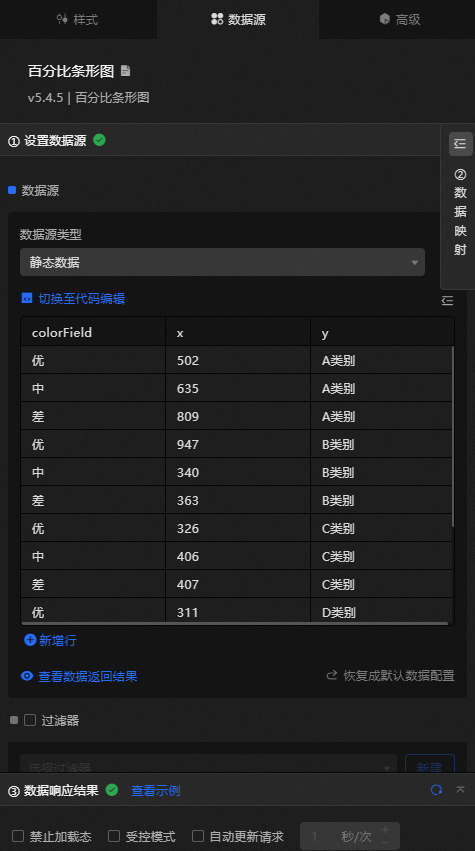
 Data Sources panel
|
Column |
Description |
|
|
The category of each column in the percentage bar chart, mapped to the x-axis value. |
|
|
The value of each bar in the percentage bar chart. |
|
|
The color mapping field, used to set the color mapping style for each column. |
|
Configure data items |
Description |
|
Data sources |
Use the code editor or visual editor to view the data fields in the widget. You can also change the data type to flexibly configure the component data. |
|
Data Mapping |
To customize chart field configurations, set field mappings in the Data Mapping module to map content to the corresponding widget fields. This allows you to match data without modifying the data source fields. You can also click the |
|
Configure a filter |
Turn on Filter, select an existing data filter or create a data filter, and configure a data filter script to filter data. For more information, see Manage data filters. |
|
Data Response Result |
Displays the widget data in real time. If the data source changes, this section shows the latest data. Click the |
|
Forbid Loading |
Select the check box to prevent loading indicators from appearing during component initialization when you update the component and preview the data dashboard. By default, the check box is cleared. |
|
Controlled Mode |
Select the check box to prevent the component from requesting data during initialization. In this mode, data is requested only through global variables or methods configured in Blueprint Editor. If cleared, automatic data updates are used. By default, the check box is cleared. |
|
Auto Data Request |
Select the check box and specify a polling interval to enable automatic data refresh. If cleared, you must manually refresh the page or use Blueprint Editor and global variable events to trigger data updates. |
 icon to configure the field style.
 icon to view the data response result, or the
  icon to refresh the data. You can also click View Example to view a sample response.
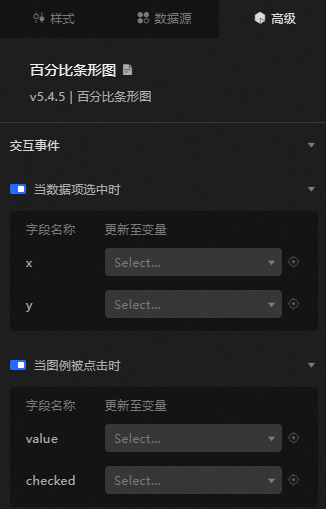
Advanced Panel
|
Interaction |
Description |
|
When a data item is selected |
Turn on the switch to enable the widget interaction feature. The Percentage Bar Chart widget has an interactive configuration. When you click to select a data item, a temporary variable is thrown. By default, the |
|
When the legend is clicked |
Turn on the switch to enable the widget interaction feature. The Percentage Bar Chart widget has interactive configurations. When a legend is clicked, a temporary variable is thrown. By default, the |
Blueprint Interaction
-
Click the
icon in the upper-left corner to go to the Blueprint page. -
On the Layer Nodes tab, add the widget to the main canvas.
-
Refer to the blueprint configuration parameters.
-
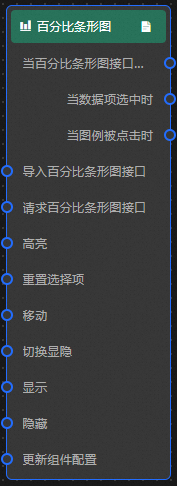
Event
Event
Description
When the percentage bar chart interface request is completed
The event is triggered with the processed JSON data after a data interface request is responded and processed by a filter. For more information about specific data examples, see the Data Response Result section of the Data Source tab in the right-side configuration panel of the canvas editor.
When a data item is selected
The event that is raised when a bar of a percentage bar chart is clicked, along with the data item corresponding to the bar.
When the legend is clicked
The event that is raised when the legend of a percentage bar chart is clicked, along with the data item corresponding to the bar.
-
Action
Action
Description
Import Percentage Bar Chart
After data is processed in the widget's drawing format, the widget is imported for redrawing without requesting server data again. For specific data examples, see the Data Response Result section of the Data Source tab in the right-side configuration panel of the canvas editor.
Request percentage bar chart interface
This action is performed to request the server data again. The data sent by an upstream data processing node or layer node is used as a parameter. For example, if the API data source is set to
https://api.testand the data transferred to the Request Percentage Bar Chart interface is set to{ id: '1'}, the final request interface ishttps://api.test?id=1.Highlight
data: the data item to be highlighted.
-
Single highlight
{ x: 'Shanghai', y: 100 } -
Bulk Highlight
[
  {
    x: 'Shanghai',
    y: 100},
  {
    x: 'Shenzhen',
    y: 75
  }
]
style: Select a style. such as fillStyle, stroke, and opacity. If you do not specify the highlight style, the default style is used.
Reference data example
{
  "data": {},
  "style": {}
}
Reset selections
Clear the selected data of the component. No parameters are required.
Move
Move the widget to a specified location. See the data example.
    {
      // The positioning type. to indicates absolute positioning, whereas by indicates relative positioning. The default value is to.
        "positionType": "to",
      // The location, which is indicated by the x and y coordinates.
      "attr": {
        "x": 0,
        "y": 0
      },
      // The animation type.
      "animation": {
        "enable": false,
        // The animation delay. Unit: milliseconds.
        "animationDuration": 1000,
        // The animation curve, which can be set to linear|easeInOutQuad|easeInOutExpo.
        "animationEasing": "linear"
      }
    }
Switch Display /Hide
Toggle the visibility of the widget. No parameters are required.
Display
Show the widget. See the data example.
{
  "animationType": "",// The animation method. Valid value: fade. If you do not specify this parameter, no animation is generated.
  "animationDuration": 1000,// The animation delay. Unit: ms.
  "animationEasing": ""// animation curve
}
Hide
Hide the widget. See the data example.
{
  "animationType": "",// The animation method. Valid value: fade. If you do not specify this parameter, no animation is generated.
  "animationDuration": 1000,// The animation delay. Unit: ms.
  "animationEasing": ""// animation curve
}
Update component configurations
Dynamically update the style configurations of the widget. In the Style panel, click Copy Configuration to Clipboard to obtain the widget configuration data. Then modify the style field for the data processing node in Blueprint Editor.
-
-
 icon in the upper-left corner to go to the Blueprint page.