Manage blocks
Blocks are advanced functional modules built from basic widgets. They function as black boxes that define how data is transferred. A block contains widget styles, layouts, default data (excluding dynamic data sources), and blueprint logic. It also defines external data interfaces for your business. This topic describes how to create and manage blocks to help you design and use them efficiently.
Limits
The block feature is available only in the Professional and Premium Editions. To use this feature, upgrade to the Professional or Premium Edition.
Go to the block management page
Access the DataV console.
On the Workbench page, in the left navigation pane, choose Widget Development > Blocks to open the block management page.
Create a block
You can create blank blocks and template blocks. You can design a block from scratch or use a preset template to quickly build a functional module.
Create a blank block
On the Blocks page, click New Block.
In the Select Block Template dialog box, click Create Directly in the lower-right corner.
In the New Block dialog box, enter the block information.
Parameter
Description
English Name
(Required) Enter an English name for the block. The name can be up to 20 characters long and can contain letters, digits, and hyphens (-). Spaces are not allowed. This name cannot be changed after creation. Example:
block-test-xz. The English name must be unique and cannot be the same as any other block in the system.Display Name
(Required) Enter a display name for the block. The name can be up to 20 characters long and cannot contain special characters. You can change this name at any time. Example: Test Block. The display name can be the same as other blocks in the system.
Preset Size
Set a preset size for the block. The system provides several default options:
Landscape (for PC) 480 × 260 px
Landscape (for PC) 900 × 260 px
Portrait layout (for large screens) 260 × 940 px
Portrait layout (for large screens) 380 × 940 px
Portrait layout (for large screens) 480 × 940 px
Enter the block information and click OK. This creates a blank block and automatically redirects you to the block editor.
The new block appears on the Blocks page.
Create a template block
At the top of the Blocks page, click New Block.
In the Select Block Template dialog box, hover over a template block and click New Block.
In the Create Block dialog box, enter the block information.
Parameter
Description
English Name
(Required) Enter an English name for the template block. The name can be up to 20 characters long and can contain letters, digits, and hyphens (-). Spaces are not allowed. This name cannot be changed after creation. Example:
block-test-xz. The English name must be unique and cannot be the same as any other block in the system.Display Name
(Required) Enter a display name for the template block. The name can be up to 20 characters long. You can change this name at any time. Example: Test Block. The display name can be the same as other blocks in the system.
After you enter the block information, click OK. The block is created, and you are automatically redirected to the block editor.
The new block appears on the Blocks page.
Add a block
You can add custom block resources to your DataV visualization projects and configure the required application styles.
On the Blocks page, hover over the target block and click View Block.
In the Widget Library, click the Blocks tab to expand it and view all the blocks.
In the block list, find the desired block and click it to add it to the canvas.
NoteAfter a block is added to the canvas, you can move it or drag the dots on its edges to resize it.
You can select a block on the canvas to view its Style, Data Source, and Advanced tabs in the panel on the right. The configuration for a block is identical to widget configuration.
Edit a block
You can configure and use blocks in the block editor.
Manage blocks
Block management supports operations such as copying, deleting, and granting permissions. This lets you flexibly manage and adjust block content, which improves the efficiency and collaboration of dashboard design.
Delete a block
On the Blocks page, click the
 icon to the right of the target block, and then select Delete.
Click OK in the lower-right corner of the dialog box to delete the block. Click Cancel to cancel the operation.
After you delete a block, existing instances of it on a visualization canvas can still be used. However, you cannot add the deleted block from the asset list again.
Copy a block
On the Blocks page, click the
icon to the right of the target block and select Copy.In the Copy dialog box, enter the English Name, Display Name, and Preset Size for the block. Click OK in the lower-right corner to copy the block to your current workspace and open the block editor.
Rename a block
On the Blocks page, click the  icon to the left of the block name. In the input box, enter a new name. To save the new name, press Enter or click a blank area.
Authorize and copy blocks
The block feature integrates permission management and sharing capabilities to provide a secure and controllable solution for block collaboration.
Authorize a block
You can flexibly configure block access permissions to achieve fine-grained data security management and control.
On the Blocks page, click the
icon to the right of the target block's name and select Authorize.In the Block Authorization dialog box, enter the transfer ID of the target user, set an Expiration Time for the block, and click the Authorize button in the lower-right corner. This grants the target user permission to use the block.
NoteTo obtain your transfer ID, navigate to the console home page and click the drop-down menu next to your account in the upper-right corner.
The default permission level for block authorization is Subscriber. Subscribers can only view and use published blocks from the block list in the editor.
After granting authorization, you can click Authorize next to the block name to open the Block Authorization dialog box and view the authorization records. To revoke authorization, click Revoke Authorization in the Operation column. In the confirmation dialog box, click OK.
Copy a block to others
You can copy blocks to other users. This provides a flexible way to manage blocks and an efficient team collaboration experience.
On the Blocks page, click the
icon to the right of the target block and select Copy to Others.In the dialog box, enter the target user's transfer ID and click Confirm to copy the block to their account.
To obtain your transfer ID, navigate to the console home page and click the drop-down menu next to your account in the upper-right corner.
If the user to whom you are copying the block lacks permissions for the widgets within the block, the copy operation fails.
Publish and preview a block
The publish and preview features in block management allow you to preview a block before its official release to ensure that the content and style meet your expectations. By previewing the block, you can see the real-time effect, make necessary adjustments and optimizations, and improve the block's quality and consistency.
Preview a block
On the Blocks page, hover over the target block and click View Block to open the block editor.
On the block editor page, click the
 icon in the upper-right corner to preview the block.
On the preview page, you can preview the block and configure features such as Style, Data, Events, and Actions in the right-side panel. The following table provides examples.
Name
Operation
Style
On the Style tab, configure different styles. For more information, see Configuration item description.
For example, as shown in the following figure, on the Style tab, set the Background Color for the Table Header of the List Carousel widget to red.
Data
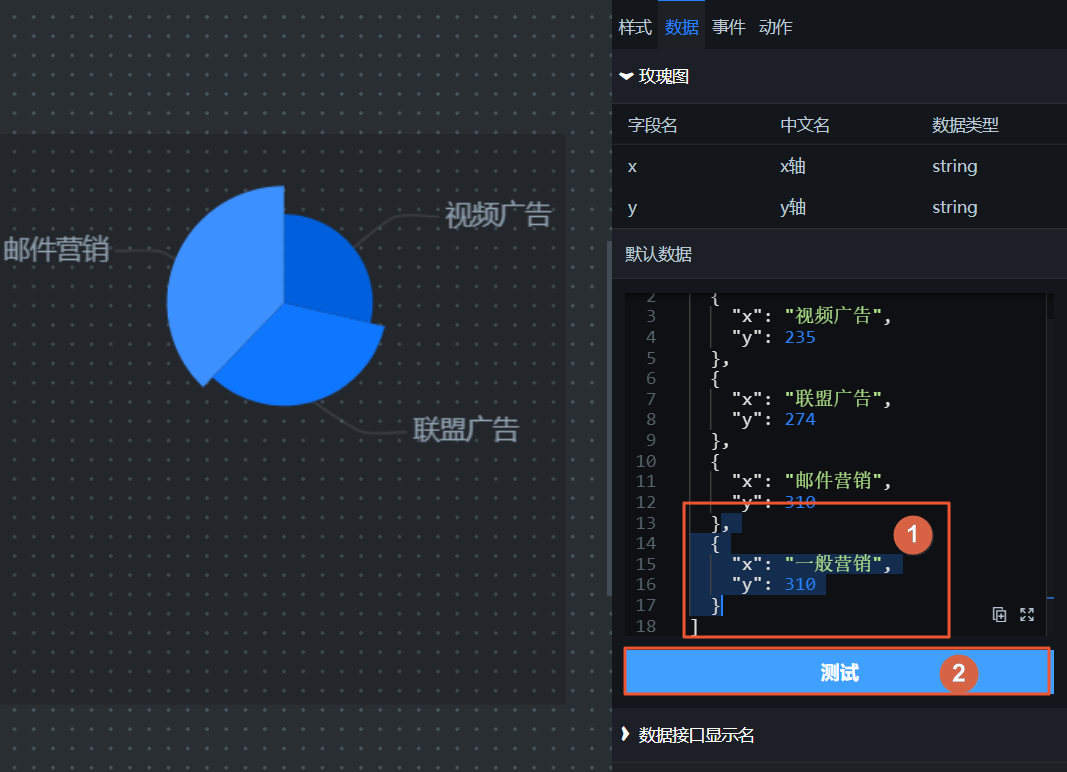
On the Data tab, enter different data content and check whether the data configuration and corresponding styles of the internal widgets meet your expectations.
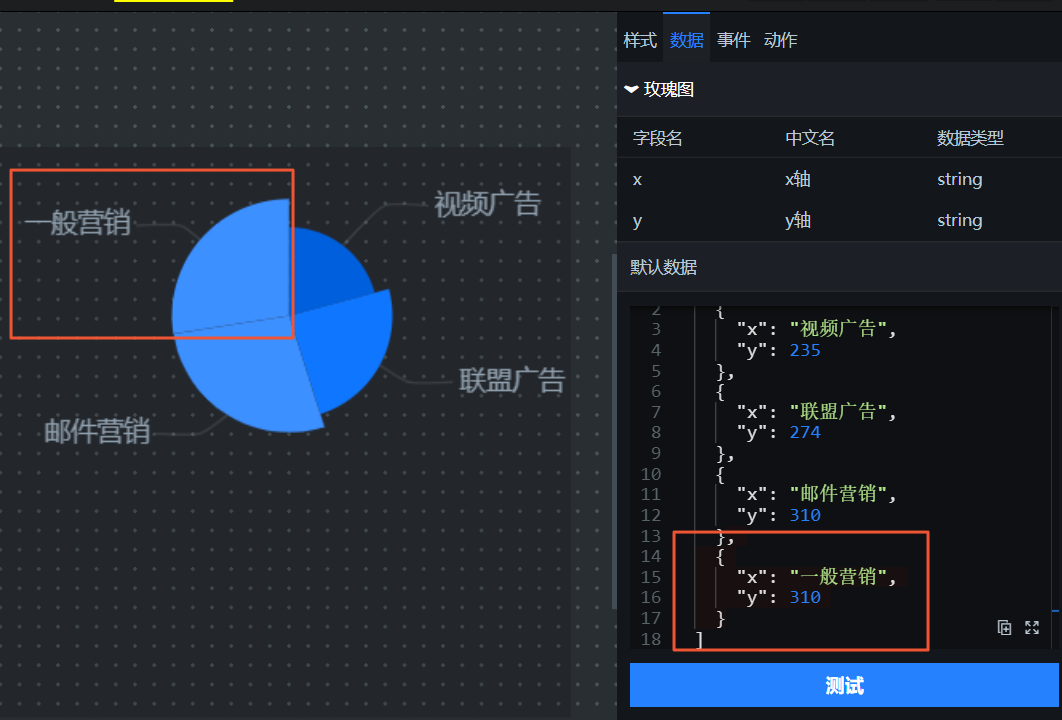
For example, you can enter additional data on the Data tab on the right. Click the Test button below to see the changes in the data displayed in the corresponding widget.
Enter different data
Test the result of new data
Events
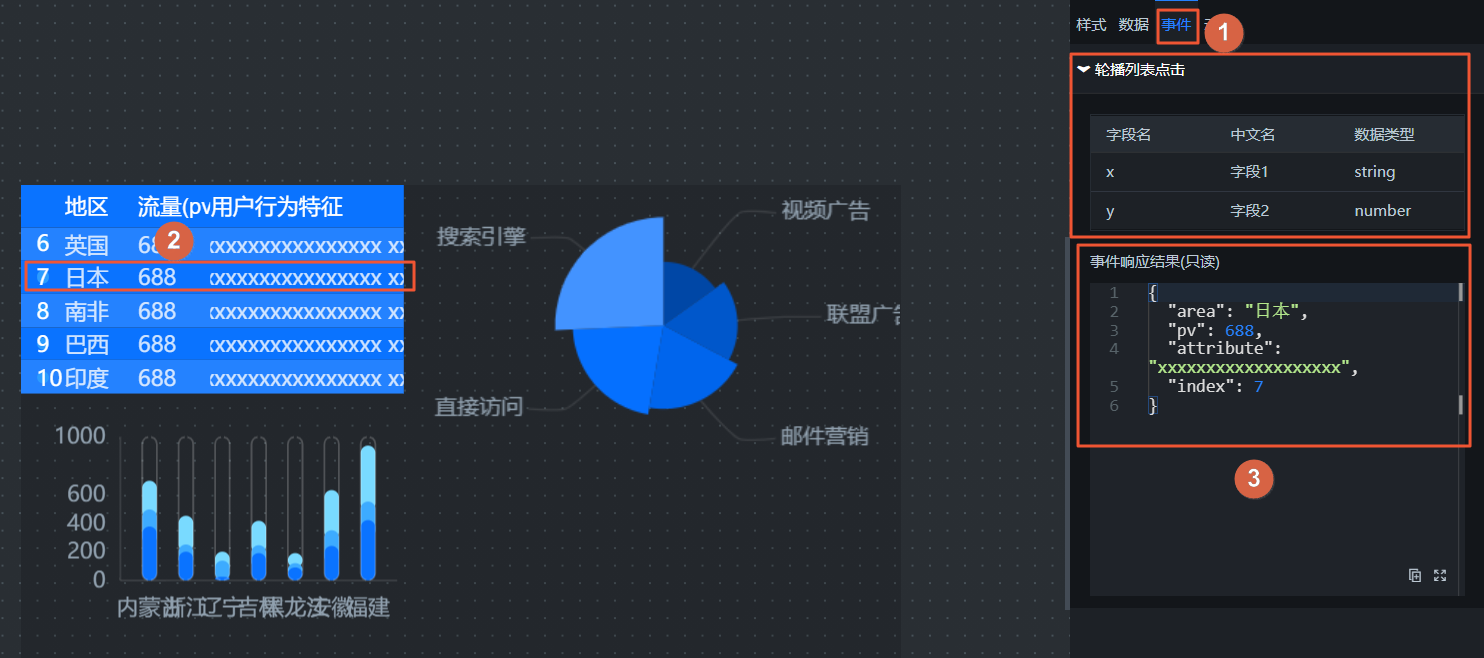
On the Events tab, click a widget in the block that corresponds to an event. Check whether the data emitted by the widget is correctly displayed on the Events tab.
For example, as shown in the following figure, click a row in the List Carousel widget. In the Event Response section of the List Carousel Clicked event tab on the right, you can listen for the data emitted when the List Carousel widget is clicked.
Actions
On the Actions tab, enter different parameters for an action to check whether the behavior of the corresponding internal widget meets your expectations.
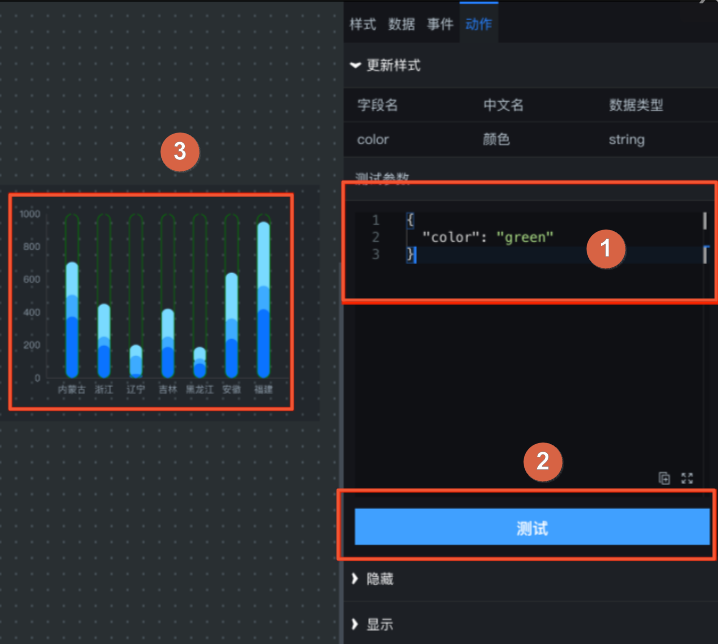
For example, as shown in the following figure, you can enter a color parameter in the Test Parameters input box under Update Style on the Actions tab on the right to change the border color of the bars in the Vertical Capsule Column Chart to green.
Click the
icon in the upper-right corner of the preview page to return to the block editor.If the preview is successful and the block's features work as expected, you can publish the block to the online environment. Other users can then add it directly to their visualization applications.
 icon in the upper-right corner to preview the block.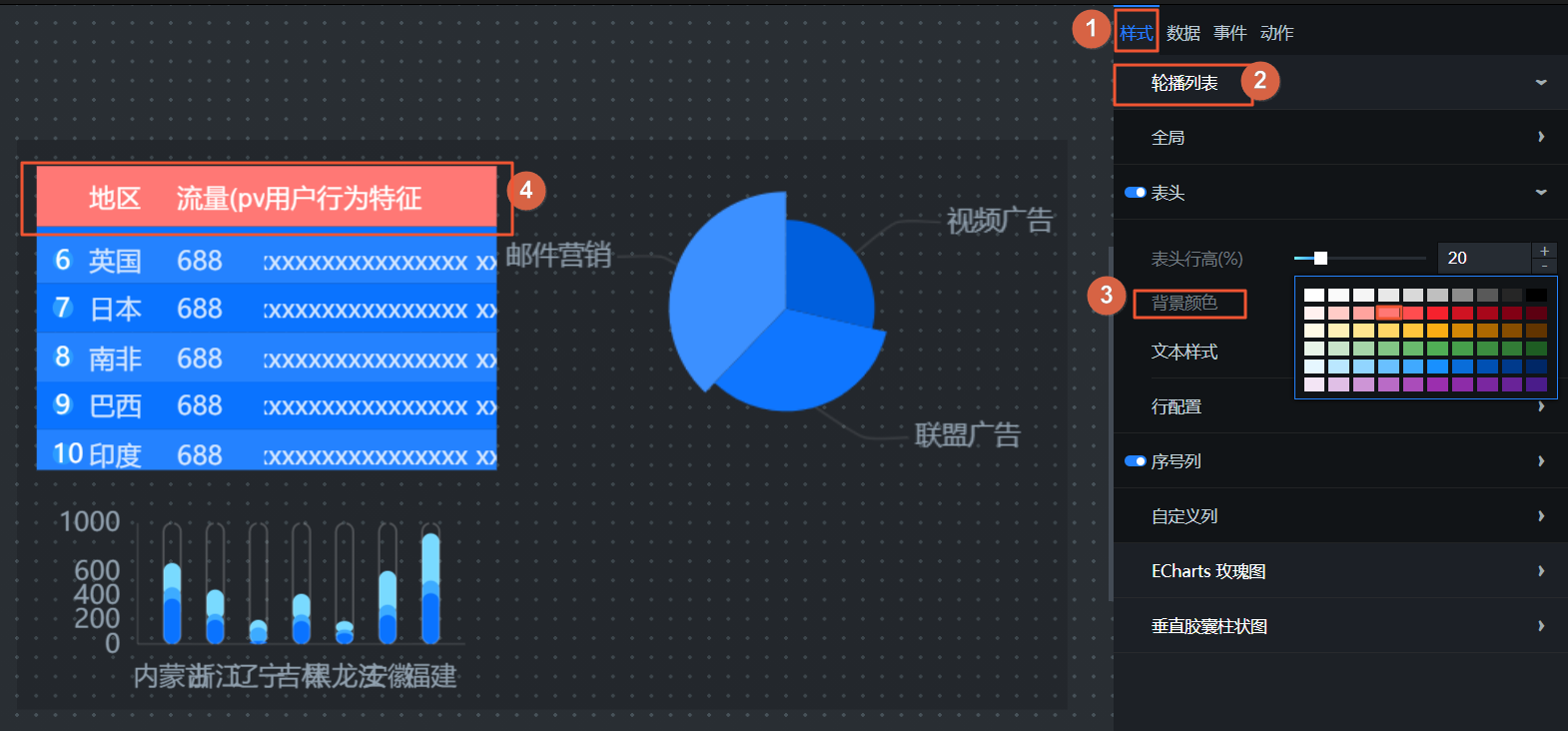
 icon in the upper-right corner of the preview page to return to the block editor.
Publish a block
On the Blocks page, click the target block to open the block editor. To publish the block, click the
icon in the upper-right corner.In the Publish Block dialog box, enter a custom description for the release and click Confirm in the lower-right corner.
NoteIf this is not the first time you are publishing the block, you can view the version number and publish time of the previous release.
After a block is published, you can go to the My Assets > Blocks tab in the DataV console. Click View History for the block to view its version history.
 icon in the upper-right corner.
Block version and asset management
Manage block version history
The version history feature is available only after a block is published. Each time you publish a block, a snapshot of its current content is created and assigned a new version number. Blocks that have never been published do not have a version history.
On the Blocks page, click View History for the relevant block.
In the version history panel on the right, you can view all versions of the block with details such as Version Number, Publish Time, Description, Status, and Operation.
Block Version Information
Description
Version Number
Each block supports multiple versions. The latest version number is the highest number among all published versions. To update, click Upgrade to Latest Version in the canvas editor.
Publish Time
The detailed time when each version of the block was published.
Description
The custom description set when the block was published.
Status
The online or offline status of the block version.
Operation
You can perform a Publish or Unpublish operation on historical versions of blocks, depending on their state.
Publish: Click the
icon to the right of a block in the Unpublished state.Unpublish: Click the
icon to the right of a block in the Published state.
NoteBy default, a block is in the Online state after it is published. You can then click the Upgrade button in the canvas editor of the visualization application to update the block to the latest version.
 icon to the right of a block in the Unpublished state.
 icon to the right of a block in the Published state.
Upgrade a favorite asset to a block
On the Workbench page, in the navigation pane on the left, choose Resource Management > Favorite Widgets.
Hover over a favorite widget and click the
icon to open the Upgrade to Block page.On the page, enter the English Name and Display Name for the block. The names must meet the naming requirements.
ImportantOnly favorite assets that are configured with a static data source or an API data source can be upgraded to blocks. You must also configure the internal data transfer logic.
After you configure the block, click OK to upgrade the asset to a block.
The upgraded block is automatically displayed on the Blocks management page.
 icon to open the Upgrade to Block page.