Page settings & widget settings
Configure overall page appearance when no widget is selected, or adjust general settings for a selected widget in the canvas editor.
Page settings
Access the DataV console.
-
On the Workbench page, select a data dashboard and click Edit to open the canvas editor.
-
On the right side of the canvas editor, configure the page settings.
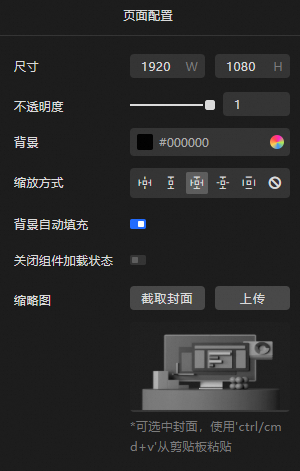
The following table describes the available parameters.
Parameter
Description
Size
The canvas size. Default: 1920 × 1080 px.
Opacity
The opacity of the canvas. A smaller value makes the canvas more transparent. Valid values: 0 to
1.Background
The background color of the canvas. For more information, see Color picker.
Scaling mode
The scaling mode for the data dashboard display. If your data dashboard is displayed on a non-standard screen, use the Full Screen mode.
Auto Fill Background
When enabled, blank areas on the preview or published page are automatically filled with the Background style.
Disable Widget Loading Status
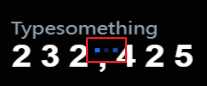
Specifies whether to show the data loading status for widgets on the preview or published page. Enable this option to monitor the data request status of each widget.
For example, if a ticker board updates data every second, its data loading status appears as shown below.
Thumbnail
Click Capture Thumbnail to use the current page as the dashboard thumbnail on the Workbench page, or click Upload Thumbnail to use a custom image.
Widget settings
Widget settings cover style, data source, and advanced configurations. For more information, see Description of configuration items.