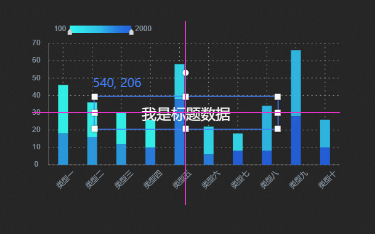
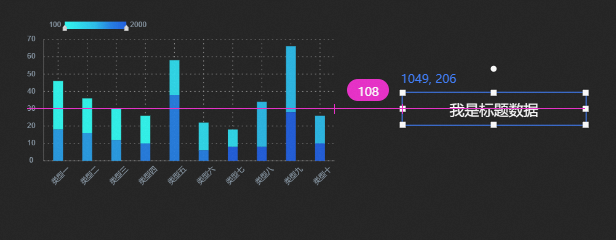
widget-coordinates-and-auxiliary-lines
Widget coordinates and auxiliary lines help you accurately position and arrange widgets on the DataV canvas.
Coordinates
Add a widget to the canvas and click it. A blue coordinate line appears in the upper-left corner of the widget, showing its position relative to the upper-left corner of the canvas.
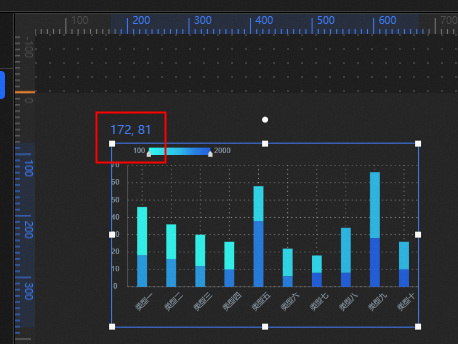
Use this coordinate line to precisely adjust the widget position.
auxiliary-line
The DataV canvas supports auxiliary lines. To use auxiliary lines:
-
Move the pointer to the left or top ruler.
-
Click a point on the ruler to display a guide.
-
Double-click the guide to remove it.
-
In the upper-left corner of the canvas, click the Hide Auxiliary Lines icon
 to hide all auxiliary lines. and click it again to show the guides.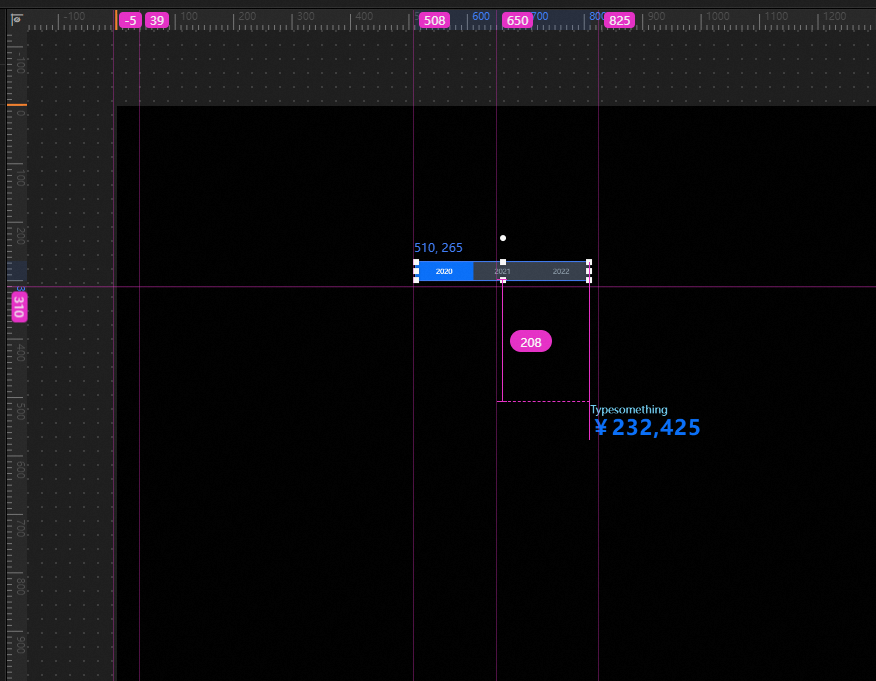
Alignment Line
The snapline feature is available in DataV 7.0. You can use this feature in the new version of the console.
The DataV canvas supports snaplines for alignment. To use snaplines:
-
Add any two components and move one of them.
-
Snapline and distance dimensions appear when the moved component is above (including layer above ), below, left, and right (including close and display distance) of the unmoved component.