Table with Progress Charts

更新时间:
复制 MD 格式

The table with progress charts combines tabular data with inline progress indicators, letting you compare task status at a glance.

Component overview

Each row represents a task, and each column displays a property such as name, progress, or deadline. Progress is shown through bar length, percentage, and color, so you can quickly compare task status. You can customize the table content and style, add hyperlinks and carousel animations, configure row-level operations such as editing and deleting, and apply conditional filtering to highlight specific rows or cells.

Scenarios

Use this component to compare execution or running status across multiple tasks. For example, a work progress report can show the completion of each employee side by side.

Effect display

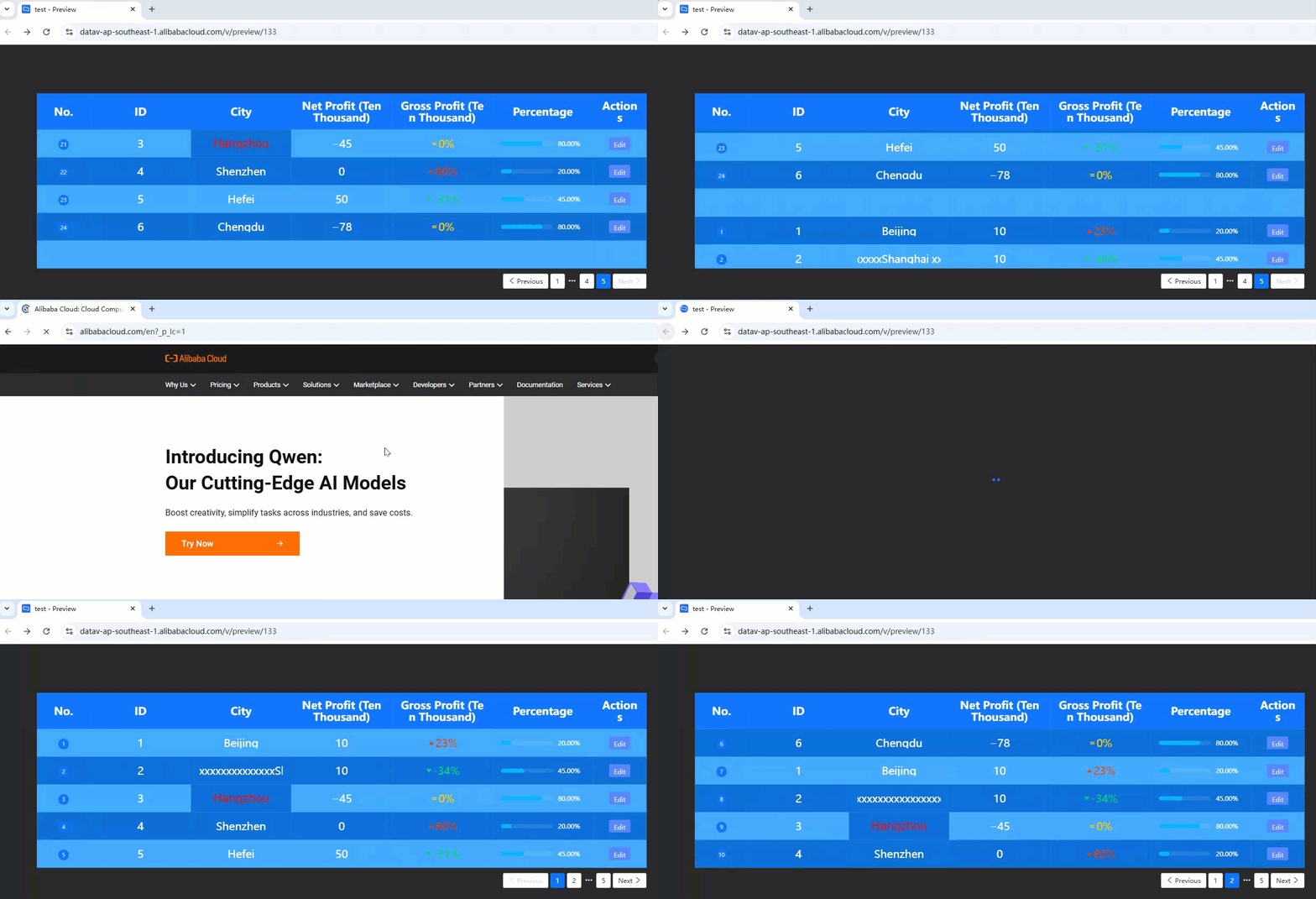
The following example shows carousel display, with the first row containing a hyperlink and the "Hangzhou" cell highlighted through conditional control.
D69A1F86-3D2B-4E6E-921D-BB371D2CBE3E

Prerequisites

Add table with progress charts

  1. Access the DataV console.

  2. On the Workbench page, in the Data Dashboards area, hover over the target dashboard and click Edit. The canvas editor opens.

  3. In the Component Library > Table list on the left-side navigation pane, click the Table With Progress Charts component to add it to the canvas.

You can also use global search to add related components.

Connect business data

After adding the component, connect your business data. Click the table with progress charts, and in the right-side Data Source tab, select the data source for the component. image

  • The table with progress charts accepts the following data fields.

    Field

    Description

    Custom parameter

    Table content supports multiple custom fields. Each field must match a corresponding entry in Style > Table Column > Column Configuration > Column Field Name.

    The data structure of the sample table with progress charts is as follows.

    [
      {
        "id": 1,
        "value": "https://img.alicdn.com/imgextra/i3/O1CN01WlrRFN1NsIPslloOW_!!6000000001625-2-tps-180-108.png",
        "sales": 23,
        "proportion": 20,
        "city": "Beijing",
      },
      {
        "id": 2,
        "value": "https://img.alicdn.com/imgextra/i2/O1CN01Sh9r2s1FAJSLux0h0_!!6000000000446-2-tps-180-108.png",
        "sales": -34,
        "proportion": 45,
        "city": "Shanghai"
      },
      {
        "id": 3,
        "value": "https://img.alicdn.com/imgextra/i3/O1CN01vyRtik1JCq6bvTVwd_!!6000000000993-2-tps-180-108.png",
        "sales": 24,
        "proportion": 80,
        "city": "Hangzhou"
      },
      {
        "id": 4,
        "value": "https://img.alicdn.com/imgextra/i3/O1CN01WlrRFN1NsIPslloOW_!!6000000001625-2-tps-180-108.png",
        "sales": 80,
        "proportion": 20,
        "city": "Shenzhen"
      },
      {
        "id": 5,
        "value": "https://img.alicdn.com/imgextra/i3/O1CN01vyRtik1JCq6bvTVwd_!!6000000000993-2-tps-180-108.png",
        "sales": -31,
        "proportion": 45,
        "city": "Hefei"
      },
      {
        "id": 6,
        "value": "https://img.alicdn.com/imgextra/i3/O1CN01WlrRFN1NsIPslloOW_!!6000000001625-2-tps-180-108.png",
        "sales": 55,
        "proportion": 80,
        "city": "Chengdu"
      }
    ]
  • This section describes the core configuration items for the data source.

    Configuration

    Description

    Select Data Source

    Supports various data types, such as CSV files, APIs, and different databases. For more information, see Supported data source types. Edit data fields in a visual table or in code.

    Configure Filter (Optional)

    Customize filter code to transform, filter, display, and perform simple calculations on data. For more information, see Manage data filters.

    Configure Data Mapping

    Map fields from the selected data source to the widget's fields. This enables real-time data matching. Click the image icon to configure field styles.

    View Response Result

    Displays the data connected to the widget in real time. When the widget's data source changes, this section shows the latest data.

    • Click the data response result to view the data field code.

    • Click View Example to see the array type and sample code that the data source accepts. You can write your fields based on the example.

    Other data request configurations:

    • Disable Loading State: If you check this box, the widget's initial loading content does not appear when the widget updates or when you preview the data dashboard.

    • Controlled Mode: If you check this box, the widget does not request data when it initializes. Data requests can only be started by the blueprint editor or by global variable events.

    • Auto Update Request: If you check this box, the platform polls for data updates at the interval you set. If you do not check this box, you must refresh the page manually or use the blueprint editor or global variable events to trigger data updates.

Configure table with progress charts

Click the table with progress charts component and use the right-side panel to configure its style, global variables, interaction events, and advanced settings, as well as blueprint interactions.

Style configuration

In the Style panel, configure table details, text fonts, background colors, carousel animations, and other visual properties.

Note

Click the image icon to quickly locate configuration items through keyword search, which supports fuzzy match. For more information, see search configuration items.

Configuration item

Description

Illustration

Global configuration

Defines the widget's position, transparency, and interaction passthrough in the data dashboard.

  • Opacity: The smaller the value, the more transparent the widget. The value ranges from 0 to 1.

  • Interaction Passthrough: If you turn this on, mouse events pass through the widget. This is useful when many widgets are on the dashboard and you need to interact with widgets in lower layers.

image

Table configuration

Controls the carousel effect, table content and header style, hover style, and ordinal number column style.

  • Carousel: When enabled, the table cycles through rows with animation. You can set the interval, carousel mode, and choose between full-screen scrolling (page-turning effect) and row-by-row scrolling.

  • Number Of Rows Per Page: The number of rows displayed per page.

  • Table content style: Configure the text, background, border, and cell padding styles.

    • Text style: Set the font family, color, font size, and weight.

    • Basic style: Set the background color, row height, content alignment, and zebra stripes. When zebra stripes are enabled, odd rows use the table background color, and you can set a different background color for even rows.

      Note

      This setting controls global text alignment. To set alignment for a specific column, use the Table Column configuration item instead.

      image

    • Empty data style: Customize the display when the table contains empty data. The default style is a blue background with the text No data available.

    • Overflow text: Controls whether overflow text scrolls. You can set the scrolling speed or duration. If scrolling is disabled, overflow text is truncated.

  • Table Header: When enabled, a table header is added. You can set the content alignment, text style, sorting selected style, border style, background color, and row height. When disabled, the table has no header.

    Note

    Sorting Selected Style sets the color shown when a column's sort button is clicked during preview or after release. This setting takes effect only when the Table Column Configuration enables Sorting for the corresponding column.

  • Hover Highlight: Controls whether a row is highlighted when the mouse hovers over it during preview or after release. You can configure the following highlight styles:

    • Text font, weight, size, and color.

    • Row background color, shadow offset degree, and shadow color.

  • Ordinal Number Column: When enabled, an ordinal number column appears at the far left of the table.

    • General configuration: Configure the column name, column width, text font, color, font size, and background.

    • Special items: To display special content (such as images) in the first N rows of the ordinal number column, enable this configuration. image

      • Custom Field: Must match the image field in the data source. For example, if the data source contains imgSrc: 'https://xxxx.png', enter imgSrc here.

      • Custom Image: Upload a custom image link for the corresponding row. To use dynamic images, configure image-related fields in the data source.

      Note
      • Custom image fields in the data source take priority over images configured here.

      • Click the image or image icon to add or delete an image data. Click the image or image icon to configure the arrangement style of multiple image data. Click the image icon to copy the currently selected image data.

image

Pager configuration

The pager image, typically located below the table, provides manual page navigation. Configure its size, page count, text, margin, and other styles here.

  • Pager visibility settings:

    • Hide Pager: Hides the pager when enabled.

    • Hide Single Page: Hides the pager when the table has only one page of content.

  • General settings: Set the size, position, and display style of the pager.

  • Page number style settings:

    • Number Of Page Numbers: Sets how many page numbers the pager displays when there are many pages. Intermediate page numbers are replaced by an ellipsis .... image

    • Input Box: When enabled, you can jump to a specific page by entering its number.

    • Page number style: Sets the text and background color of page numbers in different states. image

    • Custom Text: Sets the display text for the previous and next page buttons.

image

Table column configuration

Configures the columns of the table (excluding the ordinal number column). The editor renders data based on the custom column settings. The order of columns here determines their display order. You can adjust the order as needed.

  • Column Style: Configure the field name, display name, column width, and sort options.

    • Column Field Name: Must match a field name in the data source. The column displays the corresponding field value.

    • Column Display Name: The text shown as the column header.

    • Column Width: A value of 0 makes the column width adaptive. Set a specific width when content exceeds the default size.

    • Sorting: When enabled, the column data can be sorted in ascending or descending order. Sorting is not supported when the column data type is progress chart.

    • Text Style: Set the font family, size, and color.

      Note

      When the Data Type is Image, this parameter is not involved in the configuration.

    • Alignment: Set the content alignment of the column.

  • Data Type: Specifies the type and display style of the column data. Different types have different configuration options. Refer to the interface for details.

    • Numeric type: Set the number precision.

    • Category type: Represents a limited set of categories, such as cities (Beijing, Shanghai).

    • Time type: Supports multiple formats, typically YYYY/MM/DD HH:mm:ss.

    • Image: Set the width, height, and border radius.

    • Trend chart: Visually displays the trend of an indicator. Configure trend icons, colors for different trends, and indicator display styles.

      • Indicator settings: Set the base value and numeric suffix (such as %). Base Value is the reference point for calculating the trend, with a default of 0. We recommend using the initial value in your data as the base value.

      • Thousands separator: The separator can be at most one character long. If more than one character is entered, only the first is used. Numbers cannot be used as separators.

      • Display: Controls whether non-compliant data types are shown. When enabled, data that does not match the trend chart format is still displayed in the table.

    • Progress chart: Display data as a bar chart or ring chart. The data is typically of the Number type. Configure the precision, suffix, color, and font.

  • Other operations: Click the image or image icon to add or delete a column. Click the image or image icon to change the arrangement style of the custom column configuration area. Click the image icon to copy the currently selected column.

image

Advanced configuration

Configure selection columns, operation columns, hyperlinks, and virtual scrolling. image

  • Selection Column: When enabled, a selection column appears at the far left of the table. Users can check specific rows for further operations.

    • Default selection: Set the default selected rows, separated by commas ,. This matches the id field in the data source. Enter the corresponding id value to trigger selection.

      Note

      If there is no id field in the data source or the id field content is empty, this configuration item is invalid.

    • Related styles: Configure the size, background color, and the color and size of the checkmark in the selected state.

  • Operation Column: When enabled, an operation column appears at the far right of the table. Configure the style and operation types (such as editing and deleting) as needed.

    • Column style: Set the column display name, column width, and the text and button styles for normal and hover states.

    • Column operation: Define the operations to perform. Operations can be displayed as buttons or text. Click the image or image icon to add or delete an operation. Click the image or image icon to change the layout of multiple operations. Click the image icon to copy the selected operation. image

  • Hyperlink Configuration: When enabled, hyperlinks configured in the data source take effect.

    • Hyperlink field name: Must match the hyperlink field in the Data Source panel (for example, link). When a row has a hyperlink, clicking anywhere in the row opens the corresponding link. Data source example:

      {
        "link": "https://www.aliyun.com/"
      }
    • Open in a new window: When enabled, clicking a hyperlink during preview or after release opens the link in a new browser tab. When disabled, the link opens in the current page.

  • Virtual Scrolling: When enabled, you can scroll through the table content with the mouse. Configure the scrolling area height and border style. Ensure that each row's id value is unique.

    Note

    This setting is available only when the Carousel function is disabled.

image

Conditional configuration

Control the selection of cells or rows that meet specified conditions and apply custom styles to them.

  • Condition Name: Define the condition to evaluate. For example, filter cells where the city field equals Hangzhou. For more information, see condition tree usage instructions.

  • Selected Range: Select whether to apply the condition to a specific cell or the entire row. image

    When Selected Range is set to cell and Custom Display Column is enabled, the specified column's cell is rendered. The Column Display Name must match a field in the data source.

    image

  • Data Type: Choose Progress Chart or Trend Chart. Configure the color, font, and other styles based on the selected type.

  • Other operations: Click the image or image icon to add or delete a condition style. Click the image or image icon to configure the arrangement style of multiple conditions. Click the image icon to copy the currently selected condition style.

image

Advanced configuration

Define interaction and data transmission relationships between the table with progress charts and other components.

Configuration item

Description

Illustration

Interaction Occurrence

Define interaction behavior with other components for component linkage. Click the image icon to define interaction events and actions.

image

Associate Global Variables

Associate global parameters to enable data transmission between components. Click the image icon to enable the corresponding instruction and associate a global variable.

  • When Clicking A Single Row: Emits a temporary variable when a row is clicked. By default, it emits the id, value, sales, proportion, and city fields.

    Note

    These are default example fields. Refer to your actual data for specific field names.

  • When Clicking Pagination: Emits a temporary variable when the pagination button is clicked. By default, it emits the current field.

  • When Clicking Sorting: Emits a temporary variable when a column's sort button is clicked. By default, it emits the columnName and order fields.

  • When Clicking Multiple Selections: Emits a temporary variable when multiple rows are checked. By default, it emits the id, value, sales, proportion, and city fields.

  • When Clicking Operation Item: Emits a temporary variable when an operation item in the operation column is clicked. By default, it emits the operateType and dataItem fields.

For more information, see component interaction configuration.

Blueprint interaction

Use the blueprint editor to visually define interaction relationships and logic between components.

Procedure

  1. On the canvas editing page, click the image icon at the top menu bar's left side to enter the blueprint editor.

  2. In the layer node list, hover over the table with progress charts component and click the image icon to add the component to the main canvas.

  3. Configure the blueprint interaction effects of related components as needed using the connection method.

    Here is an example. image

Configuration item introduction

The interaction events and actions are described below.

Note

Click the image icon next to an event or action in the blueprint configuration panel to view detailed parameter descriptions.

Category

Subcategory

Description

Event

When Data Is Updated

Emitted when the component data is updated.

When Data Request Status Changes

Emitted when the data request status changes. Status values: Void, Loading, Success, Error.

When Clicking A Single Row

Emitted when a row is clicked. The content changes with the data response result. Data example:

{
  "id": 1,
  "value": 1,
  "sales": 1,
  "proportion": 1,
  "city": "Beijing"
}

When Clicking Pagination

Emitted when a pagination button is clicked, returning the current page data. Data example:

{
  "current": 1  //The pagination number displayed in the pager.
}

When Clicking Sorting

Emitted when a column's sort button is clicked, returning the current sorting data. Data example:

{
  "columnName": "id",  //The field being sorted.
  "order": "desc"  //The order of sorting, desc indicates descending order, asc indicates ascending order.
}

When Clicking Multiple Selections

Emitted when multiple rows are checked. The content changes with the data response result. Data example:

{
  "id": 1,
  "value": 1,
  "sales": 1,
  "proportion": 1,
  "city": "Beijing"
}

When Clicking Operation Item

Emitted when an operation item in the operation column is clicked, returning the current operation data. Data example:

Note

The operateType field value corresponds to the content of Style > Advanced Configuration > Operation Column > Column Configuration.

{
  "operateType": "edit", 
  "dataItem": 
    {
  "id": 1,
  "value": 1,
  "sales": 1,
  "proportion": 1,
  "city": "Beijing"
  }
}

Action

Import Data

Import data that has been processed to match the component format, and redraw the component without requesting server-side data again.

Request Data

Re-request server-side data. Data from the input processing node or layer node is used as a parameter. For example, if the API data source is https://api.test and the data passed to Request Data is { id: '1'}, the final request becomes https://api.test?id=1.

Jump To

Jumps the component to a specified page, starting from 0 by default. Data example:

{
  "current":3       //Indicates jumping to the 4th page.
}

Highlight Table Row

Specifies which table row data to highlight and sets the highlight style. Data example:

{
  "data": {   //The data that needs to be highlighted.
    id:3,          
    name:'Zhang San' 
  },
  "style": {  //The style of the highlighted data.
    color:'#ff0',   
    background:'#f00'
  }
}

Cancel Row Highlight

Cancels the highlight effect on the table row.

Clear Highlight

Clears all highlight effects on the component. No parameters required.

Open Selection Column and Close Selection Column

Opens or closes the selection column. No parameters required.

Open Operation Column and Close Operation Column

Opens or closes the operation column. No parameters required.

Set Selected Value

Sets the selected column parameter using the id field in the data source to match the value. Data example:

{
  "value": 3  //Indicates selecting the row with id=3.
}

Move

Moves the widget to a specified position. The following code shows a data example.

{ 
  // Movement type. Absolute positioning: to, relative positioning: by. Default: to.
    "positionType": "to",
  // Specified position. x-coordinate, y-coordinate.
  "attr": {
   "x": 0,
   "y": 0
   },
  // Animation method.
  "animation": {
    "enable": false,
    // Animation duration.
   "animationDuration": 1000,
    // Animation curve. Optional values: linear|easeInOutQuad|easeInOutExpo.
   "animationEasing": "linear"
  }
}

Toggle Visibility

Toggles the widget's visibility between shown and hidden. The following code shows a data example.

{
  "animationType": "fade",
  "animationDuration": 1000,
  "animationEasing": "linear"
}
  • animationType: The animation method. You can set this to appear (appear/disappear), fade (fade in/fade out), or slideToUp (fly in/fly out). If not configured, there is no animation.

  • animationDuration: The animation duration. The default is 1000 ms.

  • animationEasing: The animation curve. You can set this to linear (constant speed), easeInOutQuad (smooth), or easeInOutExpo (slow-fast-slow).

Show

Hide

Update Component Configuration

Dynamically updates the widget's style configuration.

  1. On the widget's Style panel, click Copy Configuration to Clipboard to get the widget's configuration data.

  2. In the data processing node on the blueprint editor's configuration page, change the field values for the corresponding styles as needed.