Radar charts
This topic describes the chart style and configuration panel of a radar chart in a mobile widget.
Chart style
A radar chart is a widget on the mobile side. It allows you to use the angle axis and the polar axis to display categories and values respectively. You can customize text, graphics, and animation styles. You can configure multiple series of data. You can use a radar chart to visually display the comparison of category data in multiple dimensions. 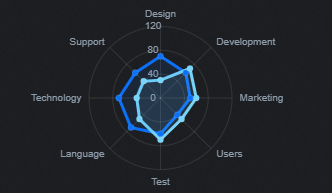
Configuration Panel 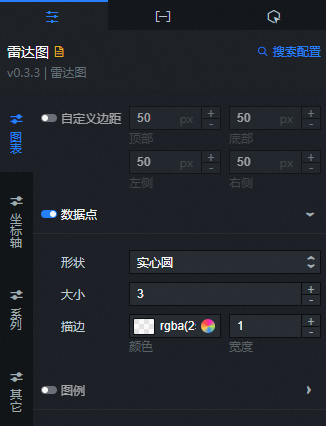
Search Configuration: Click Search Configuration in the upper-right corner of the Configuration panel. In the Search Configuration panel, enter the name of the configuration items that you want to search for to quickly locate the configuration items. Fuzzy match is supported. For more information, see Search for asset configurations.
Chart name
Custom margin: the distance between the radar chart area and the four boundaries of the widget. The default unit is px. You can click the
 icon to specify the custom margin.
 Data Point: the style of the data points in the radar chart. You can click the
icon to control the display of the data points. Parameter
Description
Shape
The shape of the data point. Validity values: Circle and Square.
Size
The size value of the data point.
Stroke
The stroke style of the data point, including adjusting the color of the data point and the width of the stroke.
Legend: the legend style of the radar chart. You can click the
icon to display or hide the legend. Parameter
Description
Click to filter
If you turn on the switch, when the widget is configured with multiple series data, use a mobile device in the preview or publish state of the widget, and click a legend of a series in the widget to switch the current series to the selected or unselected state, thus filtering and displaying data of different series in the visualization application. If you turn off the switch, data of different series cannot be filtered and displayed, and legend data of all series is displayed at the same time.
No Color Selected
The legend color of each series when it is not selected.
Layout
The layout style of the legend. You can adjust the position and alignment of the legend layout.
Marker shape
The shape of the legend. Valid values: Circle and Square.
Text
The text style of the legend.
Font Size: the size of the legend text.
Text Width: the weight of the legend text.
Color: the color of the legend text.
Alignment: the alignment of the legend text. Valid values: Center, Left, and Right.
Axis: the Angle Axis and Radial Axis styles of the radar chart.
Angle Axis: the style of the angle axis.
Angle: the values of the start and end angles of the chart.
Display: If you turn on the switch, the angle axis style in the widget is visible. If you turn off the switch, the angle axis style in the widget is invisible.
Type: the type of the angle axis data. Valid values: Numerical, Category, and Time.
NoteIf the data format and specified data types are not consistent, the widget is displayed abnormally.
Parameter
Description
Numerical Type
Supports numeric data such as integers and floating-point numbers.
Category Type
Data of category types such as character and string is supported.
Time Type
The data of the time type needs to be configured data format.
Number of Scales: the number of scales on the angle axis of the widget.
Axis Label: You can click the
 icon to display the axis label of the angle axis.
 Parameter
Description
Display Format
The style of the content display format of the angle axis label. If the angle axis type is numeric, you can select Original, 11 (integer), 11.1 (floating point), or 11.11 (floating point). If the angle axis type is Time, you can select different time display styles. This parameter is displayed only when you set the Angle Axis Type parameter to Numerical or Time.
Label Style
The font style, font weight, font size, and color of the axis label text.
Axis Label Offset
The offset of the axis label. Unit: px.
Grid: the style of the grid lines on the angle axis. You can click the
icon to display or hide the grid lines on the angle axis. Parameter
Description
Color
The color of the angle axis grid lines.
Width
The width value of the angle axis grid line.
Linetype
The shape of the angle axis grid line. You can select Solid, Dashed, or Dotted.
Axis: the style of the axis of the angle axis. You can click
the icon to display the axis of the angle axis. Parameter
Description
Color
The color of the angle shaft axis.
Width
The width value of the angle shaft axis.
Linetype
The line shape of the axis of the angle axis. You can select solid, dashed, or dotted.
Tick mark: the style of the tick mark on the angle axis. You can click the
icon to display the tick mark on the angle axis. Parameter
Description
Color
The color of the angle axis tick marks.
Linetype
The line shape of the scale mark on the angle axis. You can select solid lines, dashed lines, or dotted lines.
Width
The width value of the angle axis tick marks.
Length
The length value of the angle axis tick marks.
Radial axis
Radius
Parameter
Description
Outer radius
The distance from the outermost side of the radial axis ring to the axis center. The value is the proportion of the component height. The value ranges from 0 to 1.
Inner radius
The distance from the innermost side of the radial axis ring to the axis center. The value is the proportion of the component height. The value ranges from 0 to 1.
Display: If the switch is turned on, the radial axis pattern of the component is visible. If the switch is turned off, the radial axis pattern of the component is invisible.
Scale Quantity: the number of scales on the inner radial axis of the assembly.
Scale Optimization: If you turn on the switch, the inner radial axis of the component is automatically optimized. If you turn off the switch, you must specify the maximum and minimum values for the inner radial axis of the component. This parameter is displayed only when you select Numerical Type for Radial Axis Type.
Leave White: the ratio of the space between the two ends of the radial axis. Valid values: 0 to 1.
Axis Label: the label style of the radial axis. You can click the
icon to display or hide the label. Parameter
Description
Display Format
The display format of the radial axis label. Valid values: Original, 11 (integer), 11.1 (floating point), and 11.11 (floating point).
Label Offset
The up and down displacement distance of the radial axis axis label, in px.
Text
The font size, text weight, color, and alignment style of the radial axis label text.
Grid: the style of the radial axis grid lines. You can click the
icon to display or hide the radial axis grid lines. Parameter
Description
Color
The color of the radial axis grid lines.
Width
The width value of the radial axis grid line.
Linetype
The shape of the radial axis grid line. You can select Solid, Dashed, or Dotted.
Axis: the style of the radial axis. You can click
the icon to control the visualization of the radial axis. Parameter
Description
Color
The color of the radial shaft axis.
Width
The value of the width of the radial shaft axis.
Linetype
The line shape of the radial axis. You can select solid, dashed, or dotted.
Tick mark: the style of the radial axis tick mark. You can click the
icon to show or hide the radial axis tick mark. Parameter
Description
Color
The color of the radial axis tick marks.
Linetype
The line shape of the scale mark on the radial axis. You can select solid lines, dashed lines, or dotted lines.
Width
The value for the width of the radial axis tick marks.
Length
The length value of the radial axis tick marks.
Edition
data series: Click the
or icon on the right to add or delete a data series. Click the or icon on the right to configure the arrangement style of multiple data series. Click the icon to copy the selected data series configuration and add a data series with the same configuration. Smooth Curve: If you turn on the switch, data points in the current series are connected by a smooth curve. If you turn off the switch, data points in the current series are connected by a polyline.
Area Style: the color of the area block in this series.
Line Style: the style of the line in the series.
Parameter
Description
Color
Color of the offline current series
Width
The width value of the current series under the line.
Remarks
Ease Animation: the animation effect style of the chart. You can click the
icon to enable or disable the animation effect. Parameter
Description
Easing Effect
The easing effect of animation. The system provides a variety of common easing effects for you to choose from.
Entry Animation Duration
The duration of the first animation rendered by the component. Unit: ms.
Update the animation duration
The duration of the animation when the component data is updated. Unit: ms.
dialog box: The style of the dialog box that appears when you move the pointer over or click a data point in the radar chart when you preview or publish the page. You can click
the icon to turn the dialog box effect on or off. Parameter
Description
Series Name
dialog box the font size and name color of the displayed series names.
Value
dialog box the font size and color of the displayed values.
Background Box
The background box style of the dialog box.
Fillet: the fillet size of the dialog box background frame. Unit: pixels. When the value is 0, there is no rounded corner, and the background box is square. The larger the setting value, the larger the radian value of the rounded corner.
Color: The background color of the dialog box.
 or
or  icon on the right to add or delete a data series. Click the
  or
or  icon on the right to configure the arrangement style of multiple data series. Click the
  icon to copy the selected data series configuration and add a data series with the same configuration.
 Data Panel
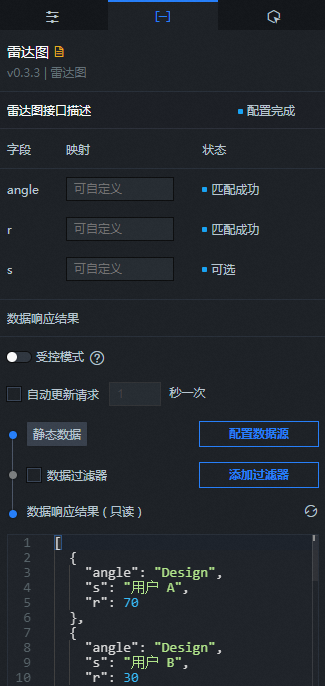
Column | Description |
| The value of the angle axis, which corresponds to the text content of the angle axis. |
| The radial axis value, which corresponds to the actual value of each class. |
| (Optional) The series value. |
Parameter | Description |
Controlled Mode | If you turn on the switch, data is not requested when a widget is initialized. Data requests are triggered only based on callback IDs or the method configured in Blueprint Editor. If you turn off the switch, data requests are automatically triggered. By default, the switch is turned off. |
Auto Data Request | After you select the Auto Data Request check box, you can enable dynamic polling, and manually specify the polling interval. If you clear the check box, the data is not automatically updated. You must manually refresh the page or use the Blueprint Editor and callback ID events to trigger a request to update the data. |
Data source | Click Configure Data Source. In the Configure Data Source panel, modify the data source type and query code, preview the response of the data source, and view the response results. For more information, see Configure a component data source. |
Data Filter | If you select the Data Filter check box, you can convert the data structure, filter data, and perform simple calculations. Click Add Filter. In the Set Data Source panel, configure a data filter script. For more information, see Use a data filter. |
Data Response Result | The response to a data request. If the data source changes, you can click the |
 icon on the right to view the response results in real time.
 Interactive Panel
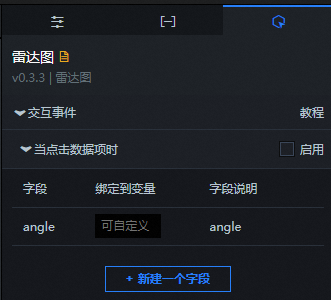
Select the Enable check box to enable interactions between widgets. When you click a radar boundary point of a radar chart, a data request is triggered, a callback value is thrown, and data of different radar boundary points is dynamically loaded. By default, the angle field in the data is displayed. For more information, see Component interaction configuration.
Blueprint Interaction
In Canvas Editor, right-click a widget in the Layer panel and select Add to Blueprint Editor.
Click the
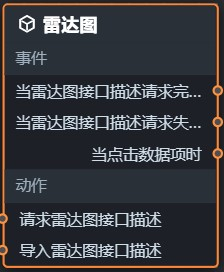
icon in the upper-left corner of the page. In Blueprint Editor, click the Radar Chart widget in the Import Nodes pane. On the canvas, you can configure the parameters for the radar chart, as shown in the following figure.
Event
Event
Description
When the radar map interface description request is completed
The event that is returned when the data interface request is completed and is processed by the filter. The event also throws the processed JSON-formatted data. For more information about specific data examples, see the Data Response Result section of the Data tab in the right-side configuration panel of the canvas editor.
When the radar map interface description request fails
The event that is returned when a data interface request fails (such as network problems or interface errors) and is processed by the filter. The event also throws the processed JSON data. For more information about specific data examples, see the Data Response Result section of the Data tab in the right-side configuration panel of the canvas editor.
When a data item is clicked
The event that is raised when a data point in a radar chart is clicked. The event also raises the data item corresponding to the data point.
Action
Action
Description
Description of the request radar chart operation
This action is performed to request the server data again. The data sent by an upstream data processing node or layer node is used as a parameter. For example, if the API data source is set to
https://api.testand the data passed to the Request Radar Chart interface is set to{ id: '1'}, the final request interface ishttps://api.test?id=1.Import Radar Chart Interface Description
After data of a widget is processed in accordance with its drawing format, the widget is imported for redrawing. You do not need to request server data again. For more information about specific data examples, see the Data Response Result section of the Data tab in the right-side configuration panel of the canvas editor.
 icon in the upper-left corner of the page.