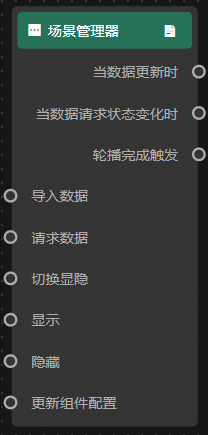
Scene Manager
Configure the Scene Manager to define camera positions and create animated scene transitions on the 3D Earth globe.
Overview
The Scene Manager is a subcomponent of 3D Earth with independent style, data, and interaction settings. Use data to define camera positions and create animated pan-and-zoom effects that showcase different locations on the globe.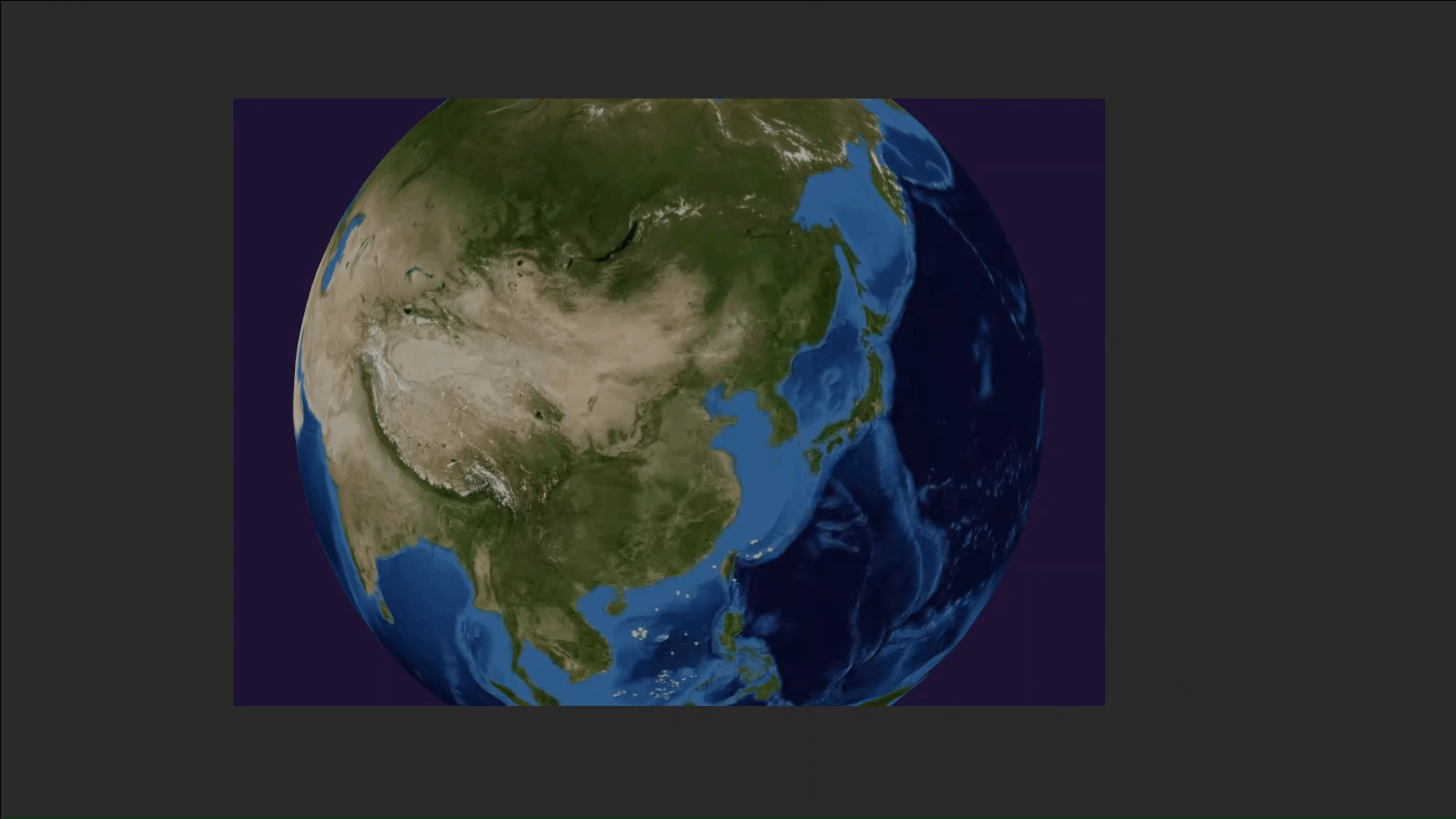
Style panel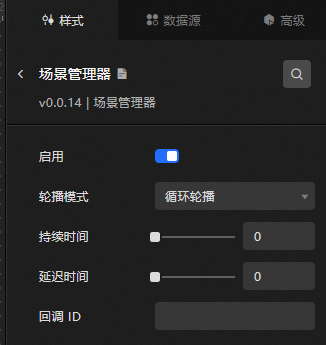
-
Search Configuration: Click the Style icon
 in the upper right corner of the panel to enter the name of the configuration item you wish to locate in the search field. The system supports fuzzy matching. For more information, see Search configuration item.
 -
Enable: Enables the Scene Manager. You must enable this option to configure its other settings.
-
carousel mode: The animation playback mode. Options are single rotation and loop rotation.
-
duration: The animation duration, in milliseconds (ms), ranging from 0 to 30,000. If your data includes a
durationfield, its value overrides this setting. -
delay: The delay between animations, in milliseconds (ms), ranging from 0 to 30,000. If your data includes a
delayfield, its value overrides this setting. -
callback ID: A variable for data-driven interactions between components. This ID must be set to a field from your data source.
ImportantThis feature has moved to the Advanced panel and is deprecated in the Style panel. Migrate your configurations to the new panel, which supports multiple fields.
Data Source panel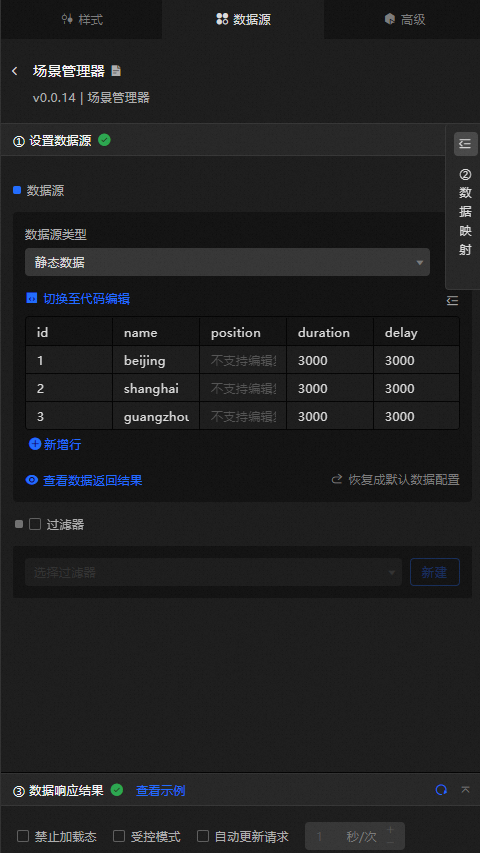
|
Field |
Description |
|
|
The name of the scene. |
|
|
Coordinates and camera settings for the scene. Contains four properties: |
|
|
(Optional) The scene animation duration. Equivalent to the duration style setting. If both are configured, this data field takes precedence. |
|
|
(Optional) The interval between scene animations. Equivalent to the delay style setting. If both are configured, this data field takes precedence. |
|
Data Item Configuration |
Description |
|
Data Source |
The component's data source displays the data fields contained within the component using code editing or visual editor. You can also modify the data type to flexibly configure the component's data. |
|
Data Mapping |
When you need to customize chart field configurations, you can set different field mappings in the Data Mapping module to map these fields to the corresponding fields of the component. This allows for real-time data matching without altering the data source fields. Additionally, click the |
|
Filter |
Open the Filter to select an existing data filter or create a new one, and configure the data filter script to achieve data filtering capabilities. For more information, see manage data filters. |
|
Data Response Result |
This feature displays the component's data in real-time. When the component's data source changes, the data response result will display the latest data accordingly. In case of a delayed system response, you can click the |
|
Disable Loading State |
Check the check box to hide the loading content during component updates and data dashboard previews. Unchecking will display the loading content. The default setting is unchecked. |
|
Controlled Mode |
Check the check box to prevent data requests upon the component's initialization. Data requests will only be initiated through global variables or methods configured in the blueprint editor. Unchecking allows for automatic update requests. The default setting is unchecked. |
|
Automatic Update Request |
Check the check box to manually set the polling frequency for dynamic polling. Clearing this option disables automatic updates, requiring manual page refreshes or data request triggers through the blueprint editor and global variable events for updates. |
 icon to configure field styles individually.
 icon on the right to check the current data response result, or click the
  icon on the right to obtain the most recent data for the component. You can also click to view examples to see sample response results for the current component.
Advanced panel
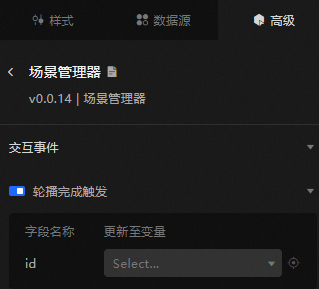
Configure interaction events or associate global variables for filter interactions between widgets. Configure widget interactions.
Blueprint interaction
-
Click the
icon in the upper-left corner of the page to open the Blueprint editor. -
On the layer node tab, add the component to the Blueprint canvas.
-
View the Blueprint configuration parameters.
-
Events
Event
Description
Data updated
Triggered after a successful data request is processed by a filter. Outputs the processed data in JSON format. For an example, see the data response section in the Data Source tab of the component's configuration panel.
When data request status changes
Triggered when a data request status changes. The callback parameter is the current status. For an example, see the data response section in the Data Source tab of the component's configuration panel.
When carousel rotation is complete
Triggered when a scene animation completes.
-
Actions
Action
Description
Import Data
Imports data in the required format and redraws the component without re-requesting data from the server. For an example, see the data response section in the Data Source tab of the component's configuration panel.
Request data
Sends a new data request to the server. Data from an upstream data processing node or layer node is appended as parameters. For example, if a scatter layer's API data source is
https://api.testand the data passed to the Request data action is{ id: '1'}, the final request URL becomeshttps://api.test?id=1.Toggle visibility
The Toggle visibility, Show, and Hide widget actions do not require parameters by default. You can add animation configurations as needed. See the reference data example.
{
  // Animation type. Options: appear, fade, slideToUp. Default: fade. If left blank, there is no animation.
  "animationType": "fade",
  // Animation duration. Default: 1000. Unit: ms.
  "animationDuration": 1000,
  // Animation curve. Options: linear, easeInOutQuad, easeInOutExpo. Default: linear.
  "animationEasing": "linear"
}
Show
Hide
update component configuration
Dynamically updates the component's style configuration. To use this action, click Copy configuration to clipboard in the Style panel to obtain the configuration data, then modify the field values in the data processing node of the Blueprint editor.
-
 icon in the upper-left corner of the page to open the Blueprint editor.