Scan line layer
Configure the style, data source, and blueprint interaction settings of the scan line layer.
Chart style
The scan line layer is a 3D Earth component that simulates a dynamic scanning effect by looping an animation texture. You can customize the radius, scan speed, texture, and position. 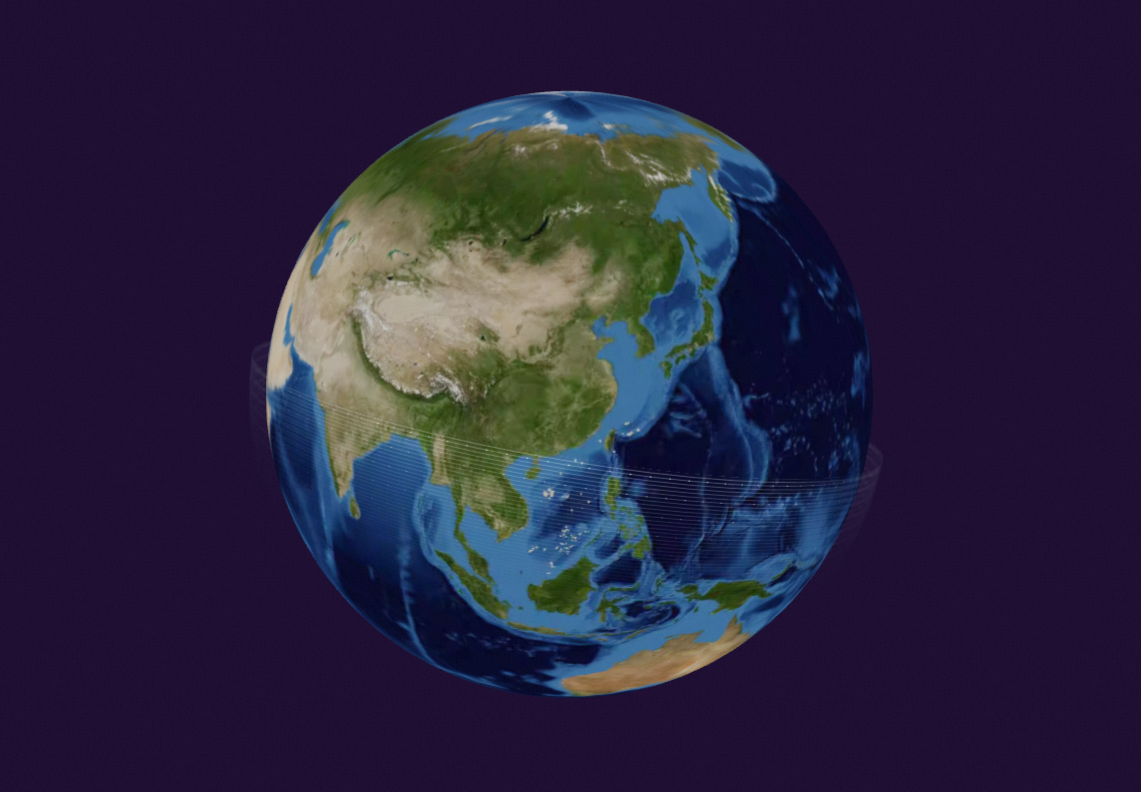
Style panel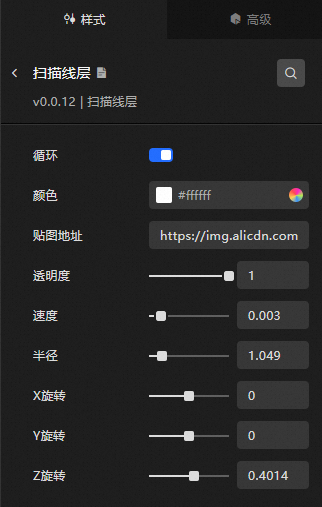
-
Search Configuration: Click the Style icon
 in the upper right corner of the panel to enter the name of the configuration item you wish to locate in the search field. The system supports fuzzy matching. For more information, see Search configuration item.
 -
Loop: Turn on the switch to loop the scan animation continuously.
-
Color: Set the color of the scan line layer. For details, see the color picker description.
-
Texture URL: Enter the URL of a texture image to apply to the scan line layer.
-
Transparency: Adjust the transparency of the scan line layer.
-
Speed: Set the animation speed of the scan line layer.
-
Radius: Set the radius of the scan line layer.
-
X Rotation, Y Rotation, Z Rotation: Set the rotation angles along the X, Y, and Z axes to position the center of the scan line layer in the right-hand coordinate system.
Data source panel
No data configuration is required for this component.
Advanced panel
No interaction events are available for this component.
Blueprint interaction
-
Click the
 icon in the upper left corner of the page to access the Blueprint page.
 -
In the Layer Node tab, add the current component to the main canvas.
-
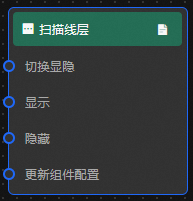
View the blueprint configuration parameters.
-
Event: None.
-
Action
Action
Description
Toggle Visibility
Toggle the component's visibility without requiring parameters.
Show
Show the component. Refer to the following sample data.
{
  "animationType": "",//Animation type. Optional value: fade. No animation if not filled.
  "animationDuration": 1000,//Animation latency in ms.
  "animationEasing": ""//Animation curve
}
Hide
Hide the component. Refer to the following sample data.
{
  "animationType": "",//Animation type. Optional value: fade. No animation if not filled.
  "animationDuration": 1000,//Animation latency in ms.
  "animationEasing": ""//Animation curve
}
Update Component Configuration
Update the component's style configuration dynamically. Click Copy Configuration To Clipboard in the component's Style panel to obtain the configuration data, and then modify the field values as needed in the data processing node on the blueprint editor page.
-