Trajectory layer
Configure the trajectory layer to simulate motion paths between geographic locations on a 3D Earth component.
Chart style
The trajectory layer is a 3D Earth subcomponent with independent styling and data configurations, including trajectory line dimensions, motion speed, and trajectory point coordinates. 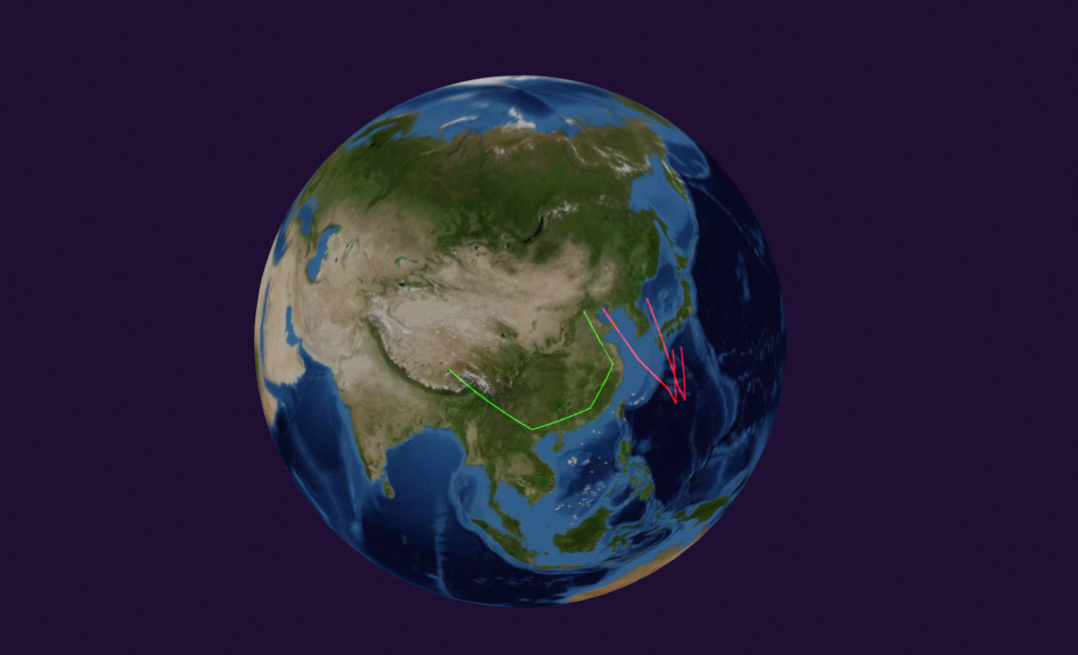
Style panel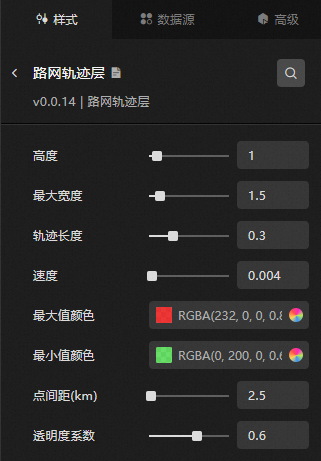
-
Search Configuration: Click the Style icon
 in the upper right corner of the panel to enter the name of the configuration item you wish to locate in the search field. The system supports fuzzy matching. For more information, see Search configuration item.
 -
Height: The trajectory layer's height relative to Earth.
-
Maximum Width: The maximum width of the trajectory line, determined by the value field in the data.
-
Trajectory Length: The length of the motion trajectory line.
-
Speed: The motion speed of the trajectory line.
-
Maximum Value Color: The line color for the maximum value in the data. For modifications, see the color picker description.
-
Minimum Value Color: The line color for the minimum value in the data. For modifications, see the color picker description.
-
Point Pitch (km): The distance between points on the trajectory layer. This affects the number of segments and their distinctiveness.
-
Transparency Coefficient: The color transparency of trajectory line points. Valid values: 0.01 to 1.
Data source panel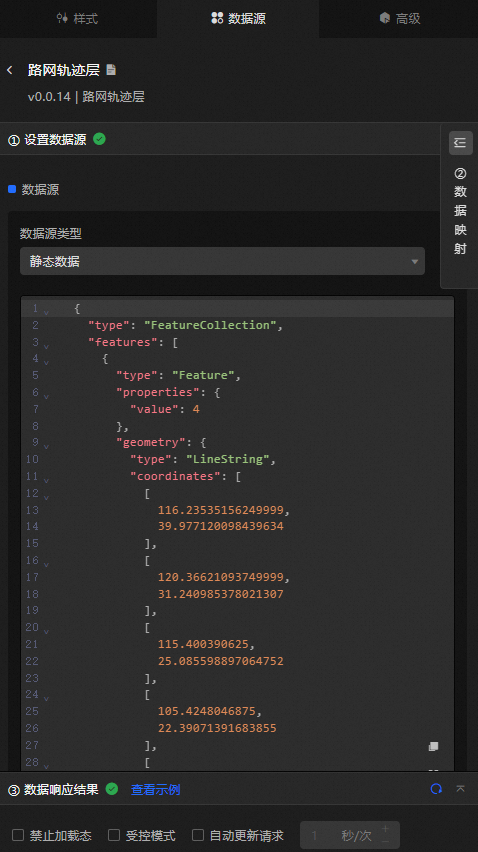
|
Field |
Description |
|
|
The type, which is "LineString". |
|
|
Two or more sets of latitude and longitude coordinates. |
|
|
The trajectory line thickness, used together with the Maximum Width setting. |
The field descriptions are based on a data sample and are for reference only.
|
Data Item Configuration |
Description |
|
Data Source |
The component's data source displays the data fields contained within the component using code editing or visual editor. You can also modify the data type to flexibly configure the component's data. |
|
Data Mapping |
When you need to customize chart field configurations, you can set different field mappings in the Data Mapping module to map these fields to the corresponding fields of the component. This allows for real-time data matching without altering the data source fields. Additionally, click the |
|
Filter |
Open the Filter to select an existing data filter or create a new one, and configure the data filter script to achieve data filtering capabilities. For more information, see manage data filters. |
|
Data Response Result |
This feature displays the component's data in real-time. When the component's data source changes, the data response result will display the latest data accordingly. In case of a delayed system response, you can click the |
|
Disable Loading State |
Check the check box to hide the loading content during component updates and data dashboard previews. Unchecking will display the loading content. The default setting is unchecked. |
|
Controlled Mode |
Check the check box to prevent data requests upon the component's initialization. Data requests will only be initiated through global variables or methods configured in the blueprint editor. Unchecking allows for automatic update requests. The default setting is unchecked. |
|
Automatic Update Request |
Check the check box to manually set the polling frequency for dynamic polling. Clearing this option disables automatic updates, requiring manual page refreshes or data request triggers through the blueprint editor and global variable events for updates. |
 icon to configure field styles individually.
 icon on the right to check the current data response result, or click the
  icon on the right to obtain the most recent data for the component. You can also click to view examples to see sample response results for the current component.
Advanced panel
This component has no interaction events.
Blueprint interaction
-
To access the Blueprint page, click the
 icon in the upper left corner.
 -
In the Layer Node tab, add the current component to the main canvas.
-
View the blueprint configuration parameters.
-
Event
Event
Description
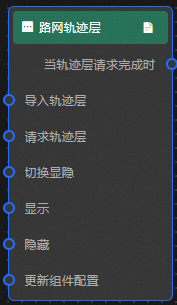
When The Trajectory Layer Request Is Completed
Triggered after the trajectory layer request is processed and returned by the filter. The processed data is provided in JSON format. For data examples, refer to the Data Source tab in the right-side configuration panel of the canvas editor for the Data Response Result section.
-
Action
Action
Description
Request Trajectory Layer
Sends a new data request to the server, using data from the input data processing node or layer node as parameters. For example, if the trajectory layer uses an API data source such as
https://api.test, and the data passed to the Request Trajectory Layer action is{ id: '1'}, the final request URL becomeshttps://api.test?id=1.Import Trajectory Layer
Imports data directly into the component and redraws it without sending another server request. For data examples, refer to the Data Source tab in the configuration panel on the right side of the component in the canvas editor for the Data Response Result section.
Switch Visibility
Toggles the component visibility. No parameters are required.
Show
Displays the component. For data examples, refer to the provided data.
{
  "animationType": "",//Animation method. Optional value: fade. No animation if not filled.
  "animationDuration": 1000,//Animation delay in ms.
  "animationEasing": ""//Animation curve
}
Hide
Hides the component. For data examples, refer to the provided data.
{
  "animationType": "",//Animation method. Optional value: fade. No animation if not filled.
  "animationDuration": 1000,//Animation delay in ms.
  "animationEasing": ""//Animation curve
}
Update Component Configuration
Dynamically updates the component's style configuration. To obtain the configuration data, click Copy Configuration To Clipboard in the Style panel, then modify the style field values as needed in the data processing node on the blueprint editor configuration page.
-
 icon in the upper left corner.