Manage applications
This topic describes how to manage digital twin applications, including how to edit, move, copy, and delete them.
Prerequisites
You have logged in to the DataV-TwinFabric console.
Find an application
In the search box under the application list, enter the name of the application that you want to find. The system automatically displays the digital twin applications that match the search criteria.
NoteThe search feature supports fuzzy match.
Group applications
Under the application list, you can click All Groups to quickly switch between groups. Click Edit Group to manage groups.
Create a group
Click Create Group, enter a Group Name, and then click OK.
Search for a group
In the Edit Group window, enter the name of the group that you want to find in the search box and press Enter to view the search results.
Rename a group
Hover the mouse pointer over the group that you want to rename and click the  icon. Enter a new name for the group and click OK.
Delete a group
Hover the mouse pointer over the group that you want to delete, click the  icon, and then click OK.
After you delete a group, its applications are automatically moved to the Ungrouped section.
Mobile application
Hover the mouse pointer over an application in the application list and click the
 icon.
icon.In the Move Group window, select the destination group and click OK.
You can switch to the destination group to view the moved application.
Copy an application
Hover the mouse pointer over an application in the application list and click the
 icon.
icon.You can view the copied result.
Download an application
Before you can download an application, you must publish a snapshot on the scenario editor page.
Hover the mouse pointer over an application in the application list and click the
 icon.
icon.In the Select Snapshot window, select the snapshot that you want to package and download, and then click OK.
Click the
 icon on the right side of the application list. In the Packaging and Download List, select the packaged snapshot and click Click to Download.
 icon on the right side of the application list. In the Packaging and Download List, select the packaged snapshot and click Click to Download.
Delete an application
Hover the mouse pointer over an application in the application list and click the
icon.In the confirmation message that appears, click OK.
ImportantAfter an application is deleted, it cannot be recovered. Proceed with caution.
 icon.
icon.Preview an application
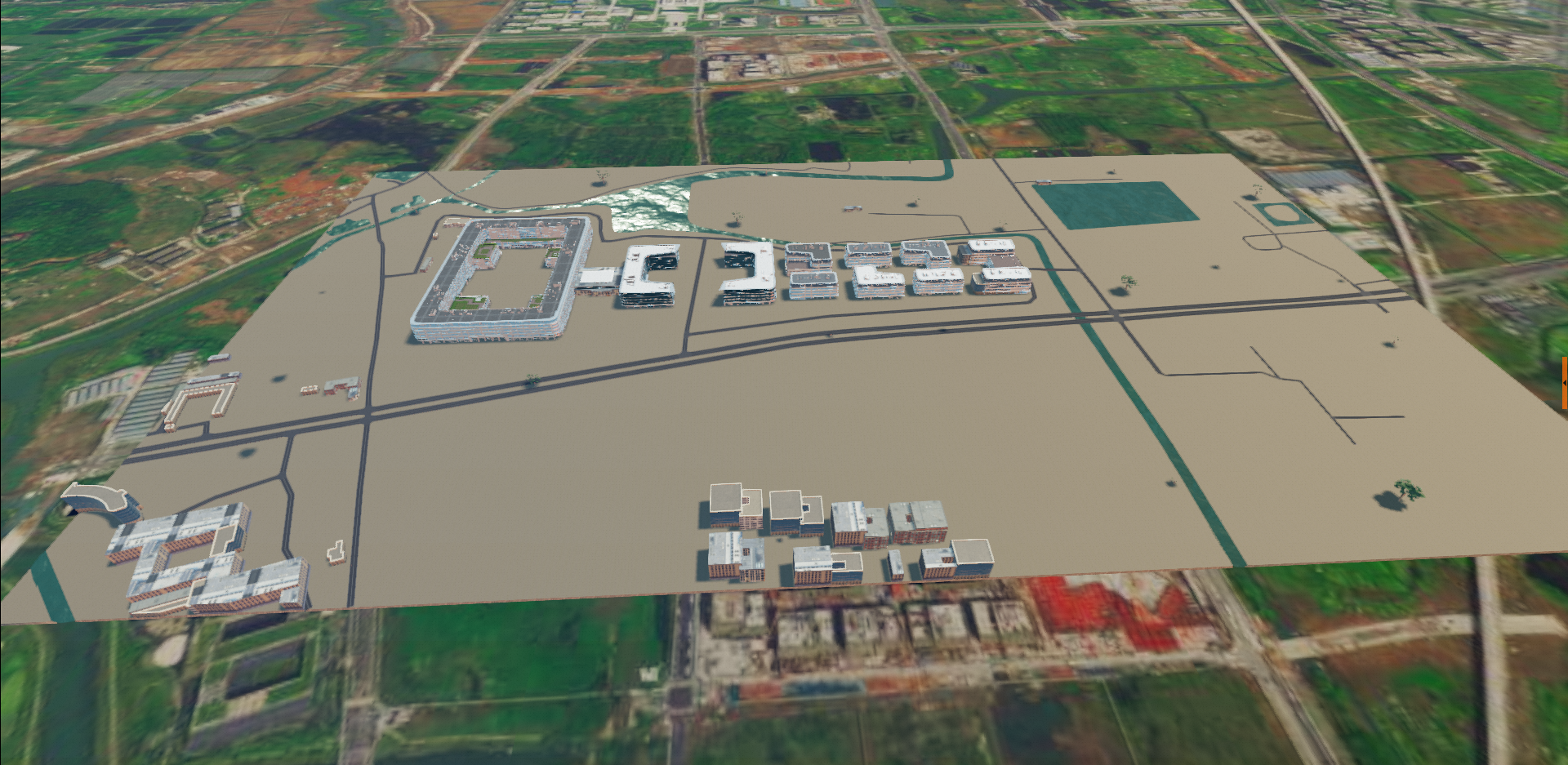
Hover the mouse pointer over an application in the application list and click Preview.
After the scenario loads, you can view the result.
Rename an application
Hover the mouse pointer over the name of an application in the application list and click the
icon.Enter a new name for the application and click OK.
 icon.
icon.Edit an application
Hover the mouse pointer over an application in the application list and click Edit.
On the Scenario Editor page, you can edit the application. For more information, see Manage the scenario editor.