DataService Studio approval policies
You can define a publishing approval process for DataService Studio APIs at the workspace level.
Limitations
DataService Studio request processing policies are available only in DataWorks Enterprise Edition.
Create an approval policy
Log on to the DataWorks console. In the target region, click in the left-side navigation pane. Select a workspace from the drop-down list and click Go to Data Development.
-
Click the
 icon in the upper-left corner and choose to open the Approval Center page.
 -
On the Approval Center page, choose in the left-side navigation pane to open the policy management page for DataService Studio.
On this page, you can view, edit, or delete existing request processing policies.
-
Click Create Policy in the upper-right corner. On the Create Policy page, configure the policy settings.
Step 2: Enter basic information

Enter a Policy Name and a Purpose that describe the business scenario this policy covers.
Select the configuration scope
Define the scope of data that the policy applies to. Once created, the policy processes all permission requests for data within that scope.
From the Select a workspace drop-down list, choose the workspace you want to manage. An Alibaba Cloud account or a RAM user granted the AliyunDataWorksFullAccess policy can manage the scope for all workspaces. A Workspace Administrator can only manage the scope for workspaces they belong to.
Step 4: Configure notification methods
DataWorks supports four notification methods:
| Method | Setup notes |
|---|---|
| Text messages | Add approvers as alert contacts in DataWorks. See Configure and view alert contacts. |
| Emails | Add approvers as alert contacts in DataWorks. See Configure and view alert contacts. |
| DingTalk chatbot | In the Add Robot dialog box, set Security Settings to Custom Keywords and enter DataWorks as the keyword. Clear all other check boxes under Security Settings. If you skip this step or select additional check boxes, approvers will not receive DingTalk notifications. |
| Webhook URLs | — |

When a permission request is submitted, DataWorks notifies all approvers using the methods you configure here. You assign specific approvers in the next step.
Configure approval nodes
In the Configure Processing Links section, define the approvers and their roles for each processing node.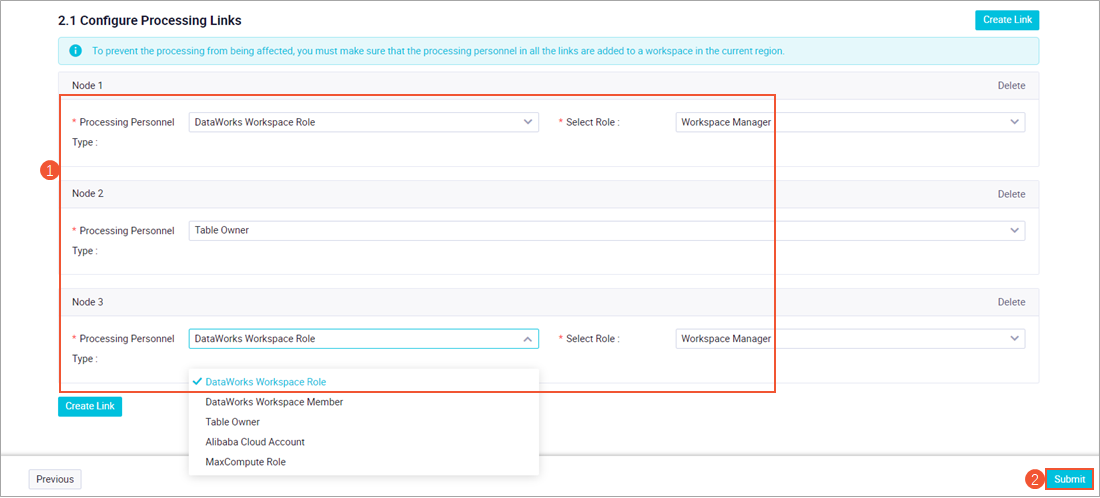 Consider the following when you configure processing nodes:
-
Approval flow: The approval process proceeds sequentially through the nodes you define, from top to bottom. The approver at the next node receives a notification only after the approver at the current node grants approval.
-
Approver definition: You can select different types of approvers for each node. For MaxCompute, supported approver types include DataWorks workspace-level roles, DataWorks workspace member, table owner, Alibaba Cloud account, and MaxCompute role. For Hologres, supported approver types include table owner, Alibaba Cloud account, and RAM user.
Note-
When an approval task is generated, DataWorks sends notifications to the designated approvers using the methods you configured. To ensure that approvers can receive notifications by text message or email, you must add them as alert contacts in DataWorks. For more information, see Configure and view alert contacts.
-
If a role assigned to a node includes multiple people, all of them receive the notification. However, the process continues to the next node after just one person grants approval.
-