CLI integration example for DMS
Alibaba Cloud CLI lets you automate Data Management (DMS) tasks from the command line without opening the console. This tutorial walks you through installing and configuring Alibaba Cloud CLI, then calls two DMS API operations: --help to list available operations, and UpdateUser to update a user's system role.
For complex automation, compile your CLI commands into a shell script and run the script directly.
Prerequisites
Alibaba Cloud CLI is a generic command-line tool built on OpenAPI. It enables automated management and maintenance of DMS. For more information, see What is Alibaba Cloud CLI?.
For complex tasks, we recommend that you organize CLI commands into a shell script before running them to improve efficiency.
Before you begin, ensure that you have:
-
An Alibaba Cloud account with DMS access
-
A Resource Access Management (RAM) user with the
AliyunDMSFullAccesspolicy attached — see Create a RAM user and Grant permissions to a RAM user. For supported permission policies, see Data Management System permission policies -
An AccessKey pair for the RAM user — see Create an AccessKey pair
-
The region ID for the DMS endpoint you want to use — see Endpoints
Do not use your Alibaba Cloud account directly to call API operations. Create a RAM user and grant only the permissions required (principle of least privilege). For supported permission policies, see DMS custom policies.
Step 1: Install Alibaba Cloud CLI
Install Alibaba Cloud CLI on your operating system:
Alternatively, use Cloud Shell. Alibaba Cloud CLI is pre-installed in Cloud Shell, and Cloud Shell automatically configures an identity credential for you — no setup required. For details, see What is Cloud Shell?
Step 2: Configure Alibaba Cloud CLI
Configure your identity credentials using the RAM user's AccessKey pair. This creates a credential profile named AkProfile.
For a full list of supported credential types, see Credential types. For step-by-step configuration examples, see Configuration examples.
Two options you will use frequently:
| Option | Description |
|---|---|
--region |
Run a command in a specific region. Overrides the region in your default credential configuration and environment variable settings. |
--help |
List available operations or show parameter details for a command. |
For all supported options, see Command line options for API calls.
Step 3: Generate a CLI command from OpenAPI Explorer
OpenAPI Explorer generates ready-to-use CLI commands from your parameter inputs. Use it to quickly build commands for any DMS API operation.
-
Open the operation in OpenAPI Explorer.
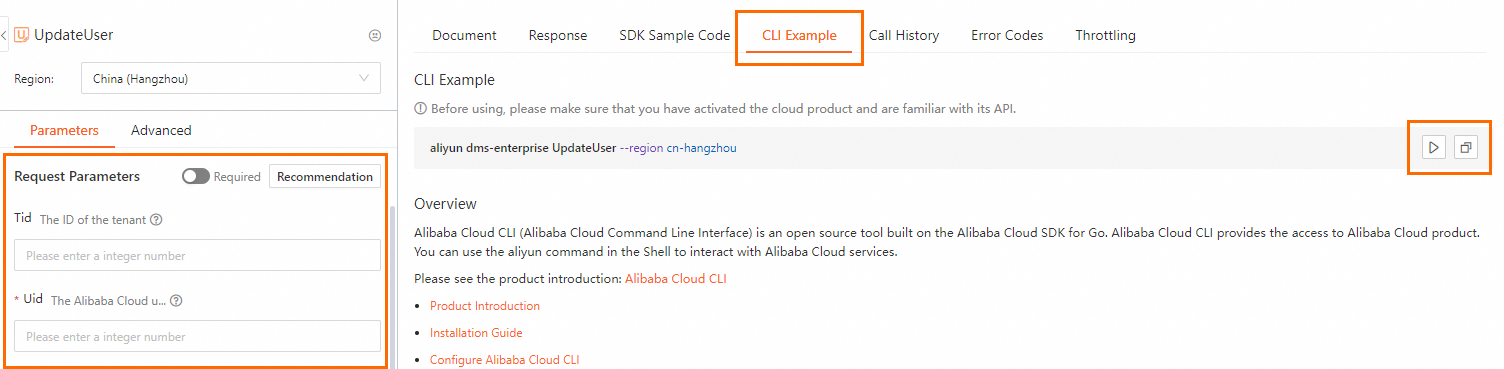
Click the CLI Example tab. In the left-side parameter section, enter Tid (tenant ID) and Uid (UID of the user to update). The CLI command is automatically generated on the right side. Click the run button to execute the command, or click the copy button to copy the command.
-
On the Parameters tab, fill in the request parameters. Then click CLI Example to view the generated command.
-
Copy or run the command:
-
Click
 to run the command in Cloud Shell. You can quickly debug the command in the Cloud Shell window.
 -
Click
 to copy the sample command to the clipboard. Then paste the sample command into your on-premises shell to run it.
-
OpenAPI Explorer adds --region to generated commands by default. When you run the command locally, Alibaba Cloud CLI uses this region and ignores the region in your default profile. Remove --region if you want to use your profile's default region. For parameter formatting requirements, see Parameter formats.
Step 4: Call DMS API operations
Example 1: List available API operations
Use the --help option to list all DMS API operations available in Alibaba Cloud CLI.
aliyun dms-enterprise --helpThe output lists all operations you can call, grouped by function:
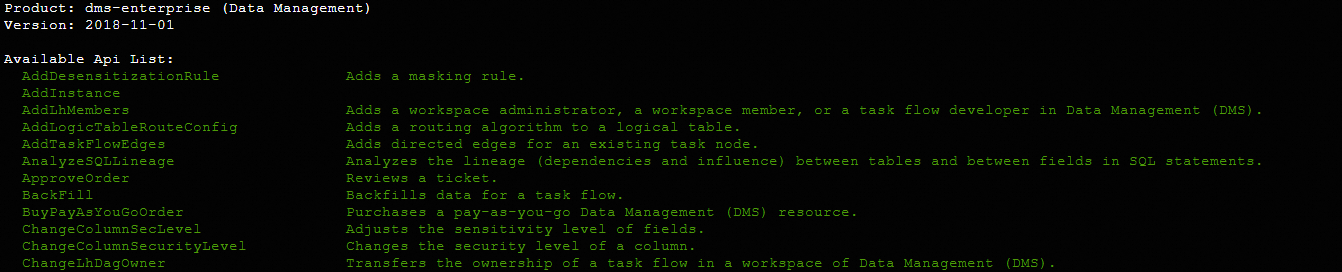
For the full reference, see List of operations by function.
Example 2: Update a user's system role
The following example calls the UpdateUser operation to assign the ADMIN and DBA roles to a user.
aliyun dms-enterprise UpdateUser --Uid 21400447956867**** --RoleNames 'ADMIN,DBA'A successful response looks like this:
{
    "RequestId": "B94173EF-0AEE-5B38-84A9-E6BDEF2B84F3",
    "Success": true
}
For the full parameter reference, see UpdateUser.
Troubleshooting
If an API call returns an error, check that your request parameters and values are valid based on the error code.
For self-service diagnostics, go to the page and enter the RequestId or SDK error information from the error response.
What's next
-
Explore all DMS API operations: List of operations by function
-
Learn about Alibaba Cloud CLI: What is Alibaba Cloud CLI?