Use Terraform to create a permission template in DMS
This topic describes how to use Terraform to create a permission template in Data Management (DMS) using a Resource Access Management (RAM) user.
Before you begin
If you are not familiar with Terraform, see Introduction to Terraform.
This sample code supports one-click execution. Run with one click
Prerequisites
-
An Alibaba Cloud account has full permissions on all its resources. This poses a high security risk if the account's identity credentials are leaked. We recommend that you use a Resource Access Management (RAM) user and create an AccessKey for that user. For more information, see Create a RAM user and Create an AccessKey.
-
Grant permissions to the RAM user. The RAM user must have the AliyunDMSFullAccess permission to manage Data Management (DMS) resources. For more information, see Grant permissions to a RAM user.
{ "Version": "1", "Statement": [ { "Effect": "Allow", "Action": "dms:*", "Resource": "*" } ] } -
Prepare a Terraform runtime environment. You can use one of the following methods.
Use Terraform in Terraform Explorer. Alibaba Cloud provides Terraform Explorer, which is an online runtime environment for Terraform. You can use Terraform online after you log on without needing to install it. This method is ideal for quickly and easily testing and debugging Terraform at no cost.
Use Cloud Shell. Cloud Shell has Terraform preinstalled and your identity credentials configured. You can run Terraform commands directly in Cloud Shell. This method is ideal for accessing and using Terraform quickly, easily, and at a low cost.
Install and configure Terraform locally: This method is suitable for scenarios where you have poor network connectivity or require a custom development environment.
Make sure that your Terraform version is 0.12.28 or later. To check your current version, run the terraform --version command.
Resources used
alicloud_dms_enterprise_authority_template: Creates a permission template.
Use Terraform to create a permission template
In this example, a permission template is created in DMS.
-
Create a working directory. In the working directory, create a configuration file named
main.tf. The main.tf file is the main Terraform file and defines the resources to deploy.variable "region" { default = "cn-heyuan" } provider "alicloud" { region = var.region } variable "name" { default = "terraform-example" } variable "description" { default = "For terraform" } # Get the DMS user tenant data "alicloud_dms_user_tenants" "default" { status = "ACTIVE" } # Create a permission template resource "alicloud_dms_enterprise_authority_template" "default" { # Tenant ID tid = data.alicloud_dms_user_tenants.default.ids.0 # (Required) Permission template name authority_template_name = var.name # Description description = var.description } -
Run the following command to initialize the
Terraformruntime environment.terraform initThe following output indicates that the initialization is successful.
Initializing the backend... Initializing provider plugins... - Finding latest version of hashicorp/alicloud... - Installing hashicorp/alicloud v1.234.0... - Installed hashicorp/alicloud v1.234.0 (signed by HashiCorp) Terraform has created a lock file .terraform.lock.hcl to record the provider selections it made above. Include this file in your version control repository so that Terraform can guarantee to make the same selections by default when you run "terraform init" in the future. Terraform has been successfully initialized! You may now begin working with Terraform. Try running "terraform plan" to see any changes that are required for your infrastructure. All Terraform commands should now work. If you ever set or change modules or backend configuration for Terraform, rerun this command to reinitialize your working directory. If you forget, other commands will detect it and remind you to do so if necessary. -
Create an execution plan and preview the changes.
terraform plan -
Run the following command to create a permission template.
terraform applyAt the prompt, enter
yesand press the Enter key. The following output indicates that the permission template is created.Plan: 1 to add, 0 to change, 0 to destroy. Do you want to perform these actions? Terraform will perform the actions described above. Only 'yes' will be accepted to approve. Enter a value: yes alicloud_dms_enterprise_authority_template.default: Creating... alicloud_dms_enterprise_authority_template.default: Creation complete after 0s [id=5073****] Apply complete! Resources: 1 added, 0 changed, 0 destroyed. -
Validation results.
Run the terraform show command
Run the following command to query the details of the resources that Terraform created:
terraform show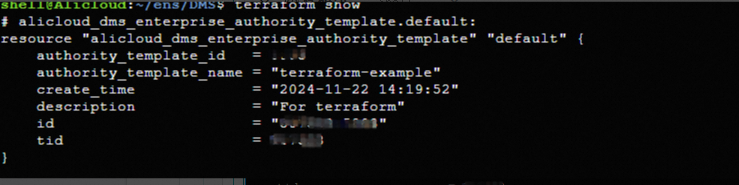
Log on to the Data Management (DMS) console
After the template is created, you can use OpenAPI or an SDK to verify the result. You can also log on to the Data Management (DMS) console. In the upper-left corner, click the
 icon and choose to verify that the permission template was created.

Clean up resources
If you no longer need the resources that Terraform created or manages, you can run the following command to release them. For more information about the terraform destroy command, see Common commands.
terraform destroyComplete example
This sample code supports one-click execution. Run with one click
Sample code
To try more complete examples, go to the folder of the corresponding product in More complete examples.