This topic describes how to use SOFAStack MSMQ to create resources, configure endpoints, and use SDKs to send and receive messages.
The procedure is as follows:
Create resources
Precautions
When you use SOFAStack MSMQ, note the following network access restrictions:
Topics and group IDs must be created in the same workspace in the same region to communicate with each other. For example, if a topic is created in Workspace A in the China (Hangzhou) region, the topic can be accessed only by the producer and consumer that correspond to the group ID created in Workspace A in the China (Hangzhou) region.
Currently, Internet access is not supported. The production end and the consumer end need to be deployed on ECS instances in the same region or ensure network connectivity.
Create a workspace
To use MSMQ, you need to make sure that at least one workspace has been created in the SOFAStack console. For more information about how to create a workspace in SOFAStack, see Create a workspace. After the workspace is created, a MSMQ instance is automatically created for you.
Create a topic
A topic is the first-level classification of messages in a MSMQ. A message producer sends messages to a topic, and a message consumer subscribes to the topic to obtain and consume messages.
Log on to the SOFAStack console.
In the left-side navigation pane, choose Middleware > MSMQ > Topics.
Click Create Topic. In the Create Topic dialog box, configure the following information about the topic:
Parameters
Required
Description
Topic
Required
The format of the topic is as follows:
A topic can contain only letters, digits, hyphen (-), and underscores (_). You must use one of letters and digits. hyphen (-) and underscores (_) are optional.
The name must be 3 to 64 characters in length.
The name cannot start with "CID" or "GID".
Message Type
Required
Supported message types include normal messages, ordered messages, transactional messages, and scheduled messages. For more information about message types, see Message types.
Description
Optional
The description of the topic. The description must be 256 characters in length.
Click OK.
Create a group ID
After creating a topic, you need to create a client ID for the consumer or producer of the message, that is, a group ID as the identifier.
The relationship between a group ID and a topic is N:N. A consumer can subscribe to multiple topics, and multiple consumers can subscribe to the same topic. A producer can send messages to multiple topics, and a topic can receive messages from multiple producers.
The consumer must have a corresponding group ID. The producer does not make this mandatory.
Log on to the SOFAStack console.
In the left-side navigation pane, choose Middleware > MSMQ > Group Management.
Click Create Group ID. In the Create Group ID dialog box, configure the following information:
Parameters
Required
Description
Group ID
Required
The group ID format must meet the following requirements:
The name starts with "GID_" or "GID-".
It can contain only letters, numbers, hyphen, and underscores.
The name must be 7 to 64 characters in length.
NoteAfter a group ID is created, it cannot be modified.
Description
Optional
The remarks of the group ID must be up to 256 characters in length.
Click OK.
Obtain the AccessKey ID and AccessKey secret.
An Alibaba Cloud AccessKey pair is used for account authentication when you send and receive messages.
When you call the SDK to send and subscribe to messages, you must specify the topic and group ID, as well as the AccessKey pair that you created in the RAM console. The information about an AccessKey includes the AccessKeyId and AccessKeySecret.
RAM is an Alibaba Cloud service. Therefore, you can use Ant IAM to create an AccessKey pair for authentication in environments that are not exported by Apsara system.
For more information about how to create an AccessKey pair, see Create an AccessKey pair.
Obtain access configurations
After you create resources in the console, you must obtain the endpoint of the workspace through the console. When you send and receive messages, you must configure the endpoint for the producer and consumer to access services in a specific workspace or region.
In the left-side navigation pane, choose Middleware > MSMQ > Overview.
On the Access Configuration page, find the Instance ID and Internal Access Point.
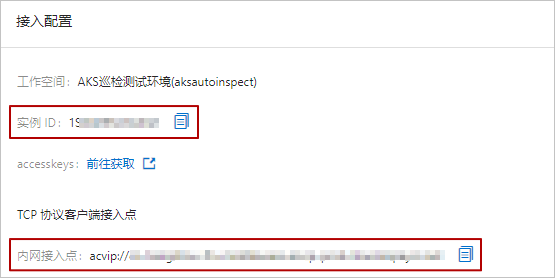
The ENDPOINT parameters of the SDK code that is used to configure the internal endpoint to the client.
The INSTANCE_ID parameter of the SDK code that configures the instance ID to the client.
Send a message
You can send a test message from the console or by calling the TCP Java SDK.
Send a test message
It is used to quickly verify the availability of topic resources and is mainly used for testing.
In the left-side navigation pane, choose Middleware > MSMQ > Topics.
On the Topics page, find the topic that you created and click Send Test Message in the Actions column.
In the Send Test Message dialog box, enter the message content in the message body field and click OK. The console returns a notification that the message was successfully sent and the corresponding message ID.
Call the SDK to send messages
Introduce dependencies by using Maven. For more information about the latest version of SDK for Java, see SDK release notes.
<dependency>
    <groupId>com.alipay.sofa</groupId>
    <artifactId>sofamq-client-all</artifactId>
    <version>"XXX"</version>
    // Set the value to the latest version of the SDK for Java.
</dependency>
<repositories>
    <repository>
        <id>antcloudrelease</id>
        <name>Ant Cloud</name>
        <url>http://mvn.cloud.alipay.com/nexus/content/groups/open</url>
    </repository>
</repositories>
Set relevant parameters and run the sample code according to the following instructions:
import java.util.Properties;
import com.alipay.sofa.sofamq.client.PropertyKeyConst;
import io.openmessaging.api.Message;
import io.openmessaging.api.MessagingAccessPoint;
import io.openmessaging.api.OMS;
import io.openmessaging.api.OMSBuiltinKeys;
import io.openmessaging.api.Producer;
import io.openmessaging.api.SendResult;

public class Main{
    public static void main(String... args){
        Properties credentials =new Properties();
        // The AccessKey pair of an Alibaba Cloud account has permissions to access all API operations. This is a high risk. We strongly recommend that you create and use a RAM user for API access or routine O&M. Log on to the RAM console to create a RAM user.
        // Save the AccessKey pair and AccessKeySecret in environment variables.
        // We strongly recommend that you do not save the AccessKey and AccessKeySecret in the code. This may cause key leakage.
        credentials.setProperty(OMSBuiltinKeys.ACCESS_KEY, "SOFA_AK_ENV");
        credentials.setProperty(OMSBuiltinKeys.SECRET_KEY, "SOFA_SK_ENV");

        // Set the TCP endpoint and go to the Overview page in the console to view the endpoint configuration.
        MessagingAccessPoint accessPoint = OMS.builder().driver("sofamq").endpoint("$endpoint")
        .withCredentials(credentials).build();

        Properties properties =new Properties();
        // Specify a user instance and go to the Overview page in the console to view the endpoint configuration.
        properties.setProperty(PropertyKeyConst.INSTANCE_ID,"$instanceId");
        // The group ID that you created in the console.
        properties.setProperty(PropertyKeyConst.GROUP_ID,"YOUR_GROUP");
        Producer producer = accessPoint.createProducer(properties);

        producer.start();

        Message message =new Message("$topic","YOUR_TAG","hello world".getBytes());
        SendResult sendResult = producer.send(message);
        System.out.println(sendResult);
    }
}
After the message is sent, you can view the message sending status in the console. The steps are as follows:
In the left-side navigation pane, choose Middleware > MSMQ > Message Query.
Click Search by Message ID. In the search box, enter the message ID that is returned after the message is sent. Click Search to query the message sending status.
The storage time indicates the time when the MSMQ server stores the message. If this message is found, the message has been sent to the server.
ImportantThis step demonstrates the scenario of using the MSMQ for the first time. At this time, the consumer has never been started, so the message status shows that no consumption data is available. To start the consumer and subscribe to the message, proceed to the next step to subscribe to the message. For more information about the message status, see Query messages and Query message traces.
Subscribe to messages
After a message is sent, you must start a consumer to subscribe to the message.
Call the TCP Java SDK to subscribe to messages. You can run the following sample code to start the consumer and test the function of subscribing to messages. Follow the instructions to correctly set the relevant parameters.
import java.util.Properties;
import com.alipay.sofa.sofamq.client.PropertyKeyConst;
import io.openmessaging.api.Action;
import io.openmessaging.api.ConsumeContext;
import io.openmessaging.api.Consumer;
import io.openmessaging.api.Message;
import io.openmessaging.api.MessageListener;
import io.openmessaging.api.MessagingAccessPoint;
import io.openmessaging.api.OMS;
import io.openmessaging.api.OMSBuiltinKeys;

public class Main{
    public static void main(String... args){
        Properties credentials =new Properties();
        // The AccessKey pair of an Alibaba Cloud account has permissions to access all API operations. This is a high risk. We strongly recommend that you create and use a RAM user for API access or routine O&M. Log on to the RAM console to create a RAM user.
        // Save the AccessKey pair and AccessKeySecret in environment variables.
        // We strongly recommend that you do not save the AccessKey and AccessKeySecret in the code. This may cause key leakage.
        credentials.setProperty(OMSBuiltinKeys.ACCESS_KEY, "SOFA_AK_ENV");
        credentials.setProperty(OMSBuiltinKeys.SECRET_KEY, "SOFA_SK_ENV");

        // Set the TCP endpoint and go to the Overview page in the console to view the endpoint configuration.
        MessagingAccessPoint accessPoint = OMS.builder().driver("sofamq").endpoint("$endpoint")
        .withCredentials(credentials).build();

        Properties properties =new Properties();
        // Specify a user instance and go to the Overview page in the console to view the endpoint configuration.
        properties.setProperty(PropertyKeyConst.INSTANCE_ID,"$instanceId");
        // The group ID that you created in the console.
        properties.setProperty(PropertyKeyConst.GROUP_ID,"YOUR_GROUP");

        Consumer consumer = accessPoint.createConsumer(properties);
        consumer.subscribe("YOUR_TOPIC","YOUR_TAG",new MessageListener(){
            @Override
            public Action consume(Message message,ConsumeContext context){
                System.out.println(new String(message.getBody()));
                return Action.CommitMessage;
            }
        });
        consumer.start();
    }
}
After completing the preceding steps, you can check whether the consumer is started successfully in the console, that is, whether the message subscription is successful.
In the left-side navigation pane, choose Middleware > MSMQ > Group Management.
Click the group ID to go to the details page.
Click Subscription.
If Online is displayed as Online and the subscriptions are consistent, the subscription is successful. Otherwise, the subscription fails.