Material management
You can upload images, videos, audio files, and Lottie animations to a material library for your marketing tasks. Materials you upload when creating a marketing task are also saved to the library, which lets you manage all materials from a central location.
Materials are stored for a maximum of 365 days. After 365 days, they are automatically deleted. To use a material for a longer period, save a local copy.
Upload materials
Material requirements:
Images: BMP, GIF, JPG, JPEG, or PNG format. The file size cannot exceed 10 MB. Images between 2 MB and 10 MB are compressed after upload.
Lottie: Lottie animation files in JSON format. The file size cannot exceed 10 MB.
Videos: MP4 format. The file size cannot exceed 10 MB.
Audio: MP3 format. The file size cannot exceed 2 MB, and the duration cannot exceed 60 seconds.
Procedure:
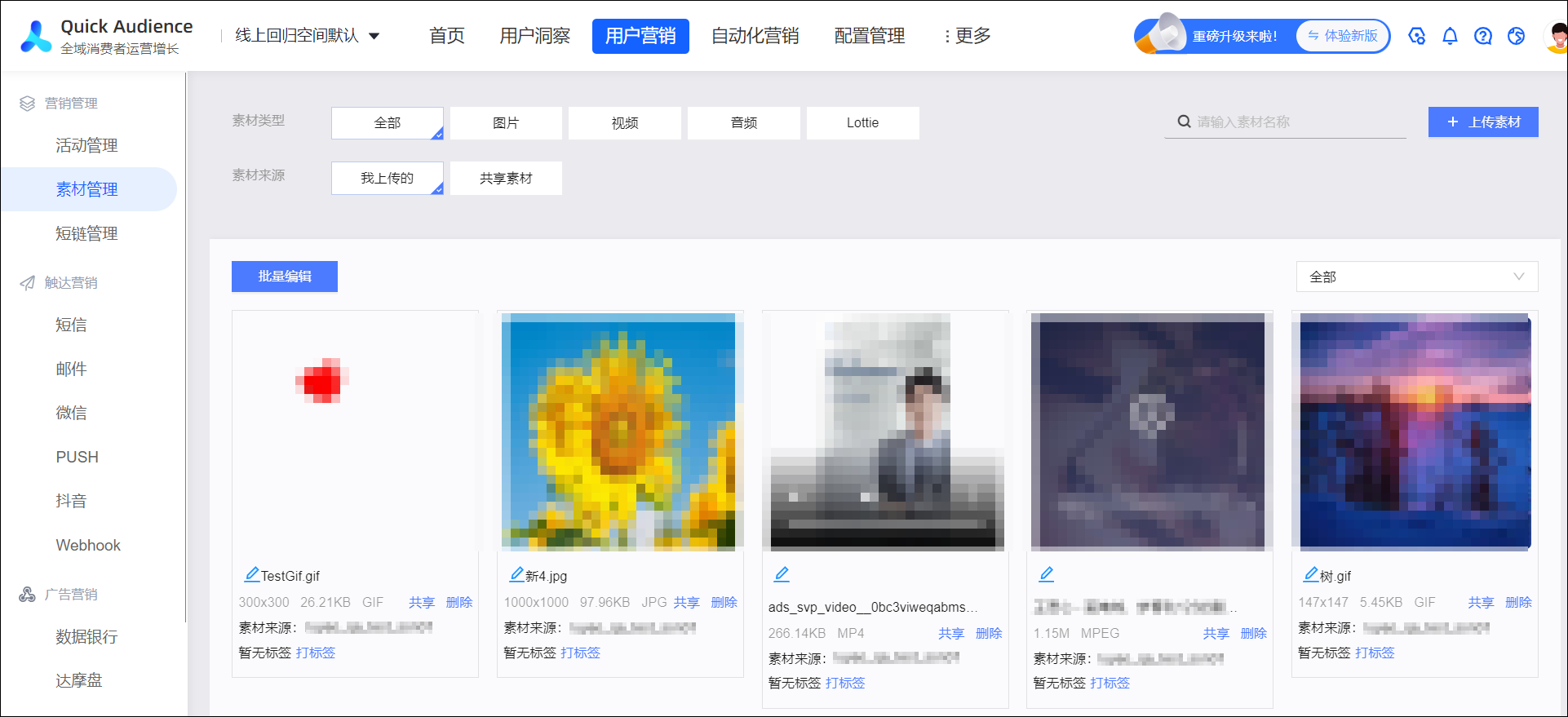
In the navigation pane, choose Workspace > User Marketing > Marketing Management > Material Management. Click Upload Material in the upper-right corner.
In the dialog box that appears, add a local file.

(Optional) To share the material within the workspace, select Enable Sharing.
Click Upload. The file is uploaded to the material library.
Manage materials
The page displays all uploaded materials. Below each material, you can see its name, size, format, and tags.
Select Image, Video, Audio, or Lottie to filter by material type.
Select My Uploads to manage your own materials. Select Shared Materials to use materials shared by others.
From the drop-down list in the upper-right corner, select a tag to display only materials with that tag.
You can rename, add tags to, download, share, and delete materials.
Rename a material
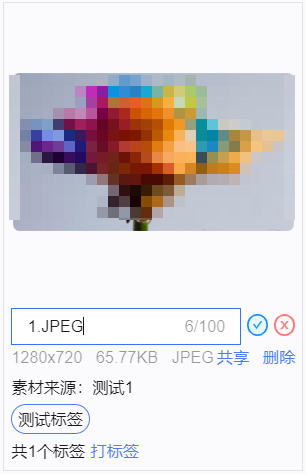
Click the  icon below the material. Enter a new name in the text box and click the
  icon to save the change.
Add tags to materials
Add a tag to a single material:
Click Add Tag below the material. The Add Tag dialog box appears.

Select the tags for the material. You can add up to 10 tags to a material.
Click OK to add the tag.
Add tags to multiple materials in a batch:
In the upper-left corner of the page, click Batch Edit. The buttons for batch operations appear.
Select one or more materials. To select all materials, use the select all option at the bottom of the page.
Click Add Tag. The Add Tag dialog box appears. Follow the same procedure as adding a tag to a single material.

Manage tags
In the Add Tag dialog box, you can also manage tags:
Create a tag: Click Create Tag. Enter a tag name in the text box and click OK.
You can create up to 50 tags.
Delete a tag: Click the
icon next to a tag. After you confirm the deletion, the tag is deleted.This action removes the tag from all materials that use it. The materials are not deleted.

 icon next to a tag. After you confirm the deletion, the tag is deleted.
Download materials
You can only download materials in a batch.
In the upper-left corner of the page, click Batch Edit. The buttons for batch operations appear.
Select one or more materials. To select all materials, use the select all option at the bottom of the page.
Click Download. The selected materials are downloaded to your local computer.
Share or unshare materials
Share or unshare a single material:
Click Share or Unshare below the material.
Share or unshare multiple materials in a batch:
In the upper-left corner of the page, click Batch Edit. The buttons for batch operations appear.
Select one or more materials. To select all materials, use the select all option at the bottom of the page.
Click Sharing Settings.
In the dialog box, select Share or Do Not Share, and then click OK.

Delete materials
Delete a single item:
Click Delete below the material. After you confirm, the material is deleted.
Delete multiple materials in a batch:
In the upper-left corner of the page, click Batch Edit. The buttons for batch operations appear.
Select one or more materials. To select all materials, use the select all option at the bottom of the page.
Click Delete to remove the selected materials. This action cannot be undone.