Batch operations
This feature is available only to paid customers. It is no longer sold to new customers.
Use batch operations to manage multiple customers at once. You can upload a file of customer data to specify the target customers. Then, you can perform operations on them, such as adding tags, removing tags, or issuing coupons. You can also view the details for each batch operation. These details include the target customers, remarks, operator, running time, result, and the specific operation performed. You can also export batch operation records to view detailed information and results.
Batch operation records
In the top navigation bar, click Customer. In the navigation pane on the left, select Batch Operations. The Batch Operations page appears.
The list of operation records is sorted by running time in descending order by default. Each record includes the target customers, remarks, operator, running time, and result. An example is shown in the following figure:
In the list of batch operation records, find an operation record and click View Details in the Actions column. The operation result details page appears. An example is shown in the following figure:
You can export the results of a batch operation. On the operation result details page, click Export to export the data for customers that were not found.
ImportantData from successful operations cannot be exported.
Exported files follow the naming convention Batch_operation_results_export_<timestamp>.
The file export may fail for the following reasons:
Operation failed. No matching data was found.
Operation failed. A system error occurred.
Operation failed. The user is on the blacklist.
Operation failed. The coupons are out of stock.
Operation failed. The user has already received this coupon.
Batch operation details
Batch operations include adding tags, removing tags, issuing coupons, and sending template messages.
On the Batch Operations page, click New Batch Operation. Follow the on-screen instructions to select target customers, enter remarks, and set up the batch operation. An example is shown in the following figure:
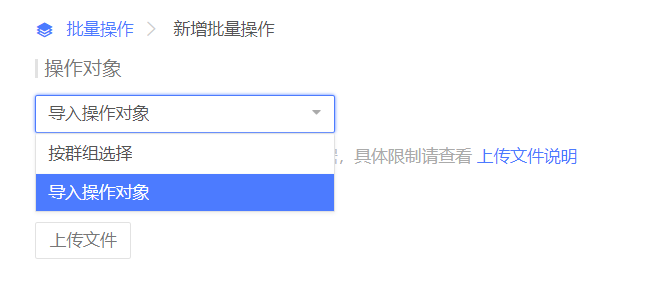
You can import target customers in two ways: Select by audience group or Import customers directly. An example is shown in the following figure:
Click Upload File Instructions to view the required file format. An example is shown in the following figure:
ImportantThe match between the table header in the uploaded Excel file and `OpenID` is case-insensitive. For example, `openid` is also a valid match.
On the Batch Operations page, click the Upload File button to select a file. The upload starts automatically. The following figure shows the result:
Remarks: Enter text in the text box.
ImportantThe limit is 120 characters.
Set up the batch operation.
By default, only one operation is displayed. Click the Please select an operation text box, choose an operation, and configure the corresponding points, tags, coupons, or template messages. An example is shown in the following figure:
You can add up to three operations. Click the Add operation button to add a new operation. Then, select an operation and configure the corresponding tags, coupons, or template messages. An example is shown in the following figure:
After you configure the batch operations, click Execute Now. You are returned to the batch operation records list, and the operation begins. An example is shown in the following figure: