Server Tracking Verification
Updated at:
Verify the accuracy of server-side tracking data by using the tracking verification module in QuickTracking.
Note
Use the tracking verification module to confirm that server-side tracking data is reported accurately when using QuickTracking.
1. Open tracking verification
-
Open the product homepage, click on the top navigation "data collection"
-
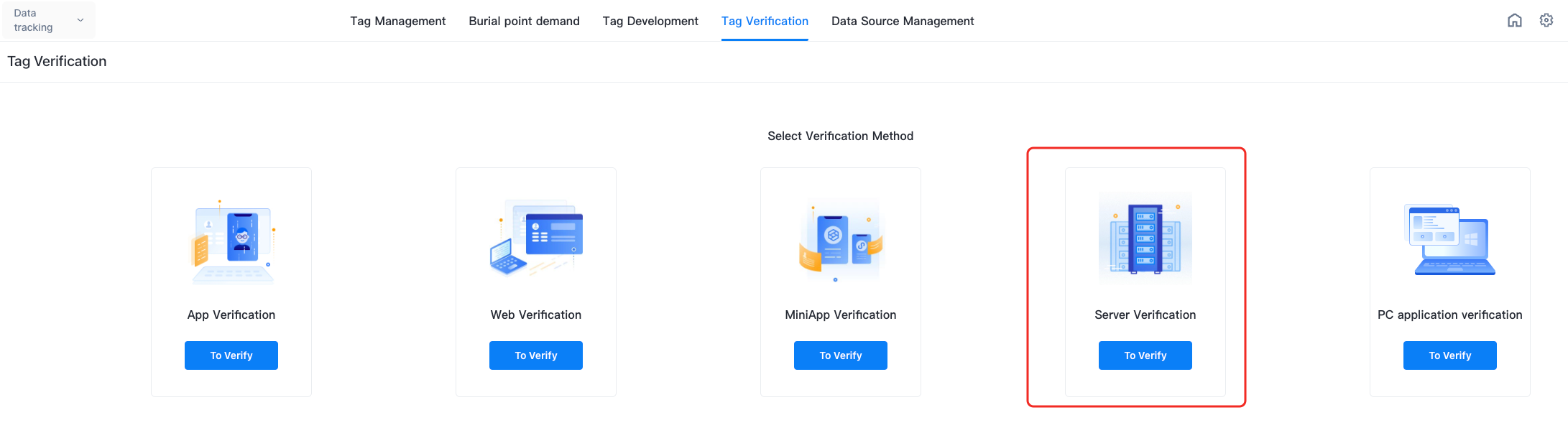
Enter the data acquisition module and click "tracking verification" in the top navigation.
-
In the tracking verification module, select "server verification"
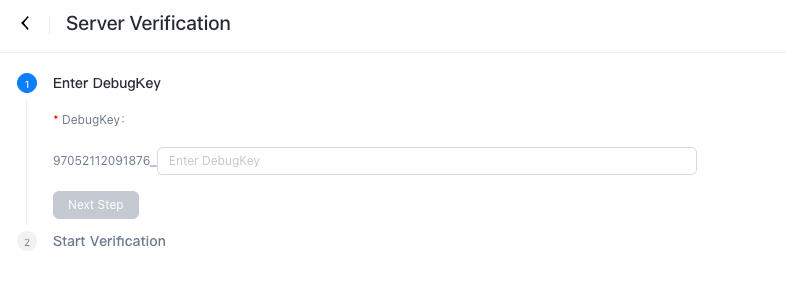
2. Generate a DebugKey
3. Set DebugKey in the code
Configure the DebugKey generated in Step 2 in the reported log. Note that you must delete this field when the code is published:
{
  "sign":"27 c95768438645138cfb010ded871091", // Required. The signature.

  "dk":"59232007235095_xxxxx", //(This field must be deleted when the code is published.) The value of this field is exactly the same as the DebugKey that you entered in the Tag Verification-Server Verification step.
  "app_id":"xxxxxxxxx", // The service ID in the server tracking information.

  "appkey":"1344444", // Optional. The appkey of the application.
  "id" : "get_coupons", // Required. The event code.
  "umid" : "edfafs", // Optional. The ID of the device.
  "puid" : "123456", // Optional. The ID of the logon user.
  "page_name":"home_page", // Optional. The page encoding.
  "ts" : "1614667799165", // Required. The timestamp when the event occurred.
  "cusp" : { // Custom event parameters
    "p1" : "1",
    "p2" : "2",
    "p3" : "3"
  },

  "sdk_type":"httpapi", // static field. The collection service automatically adds this field.
  "server_ts":"1614667799165", // If you specify this parameter, the value of the parameter is used. If you do not specify this parameter, the timestamp of the log collection service is automatically used. The log collection service automatically adds this parameter.
  "_id":'123344' // The unique code of the log. The collection service automatically adds this field.
}
4. Verify the reported data in the tracking verification background
-
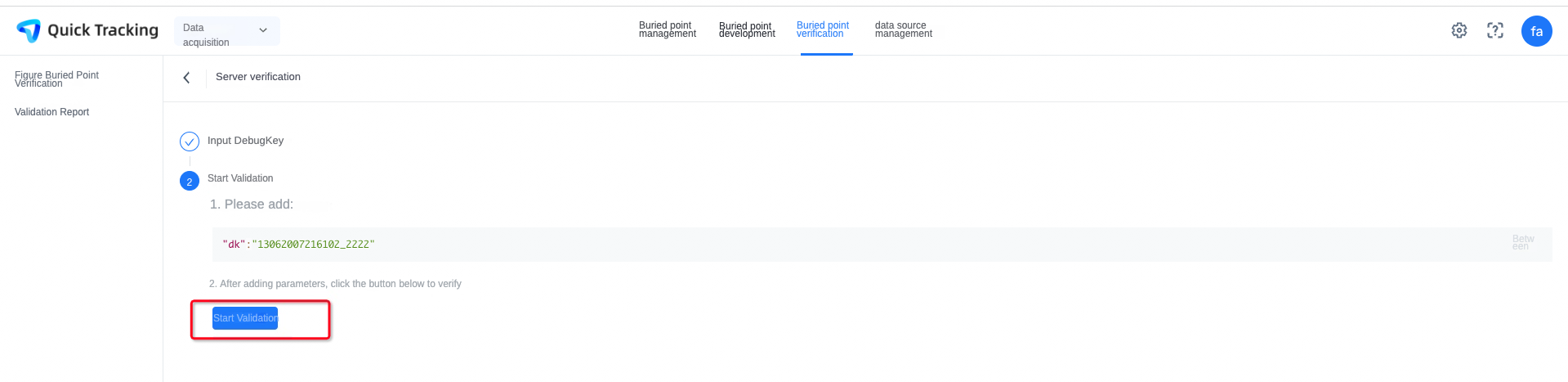
Click Start Verification
-
The reported data can be viewed in the tracking verification background.
Is this page helpful?