Real-time log verification
This article describes how to use the "Real-time Log Verification" module to view the content of tracking logs when you use Quick Tracking real-time log tracking and test device management.
1. Operation guide
1.1 product path
"data collection"-"tracking verification"-"real-time log verification", "test equipment management" 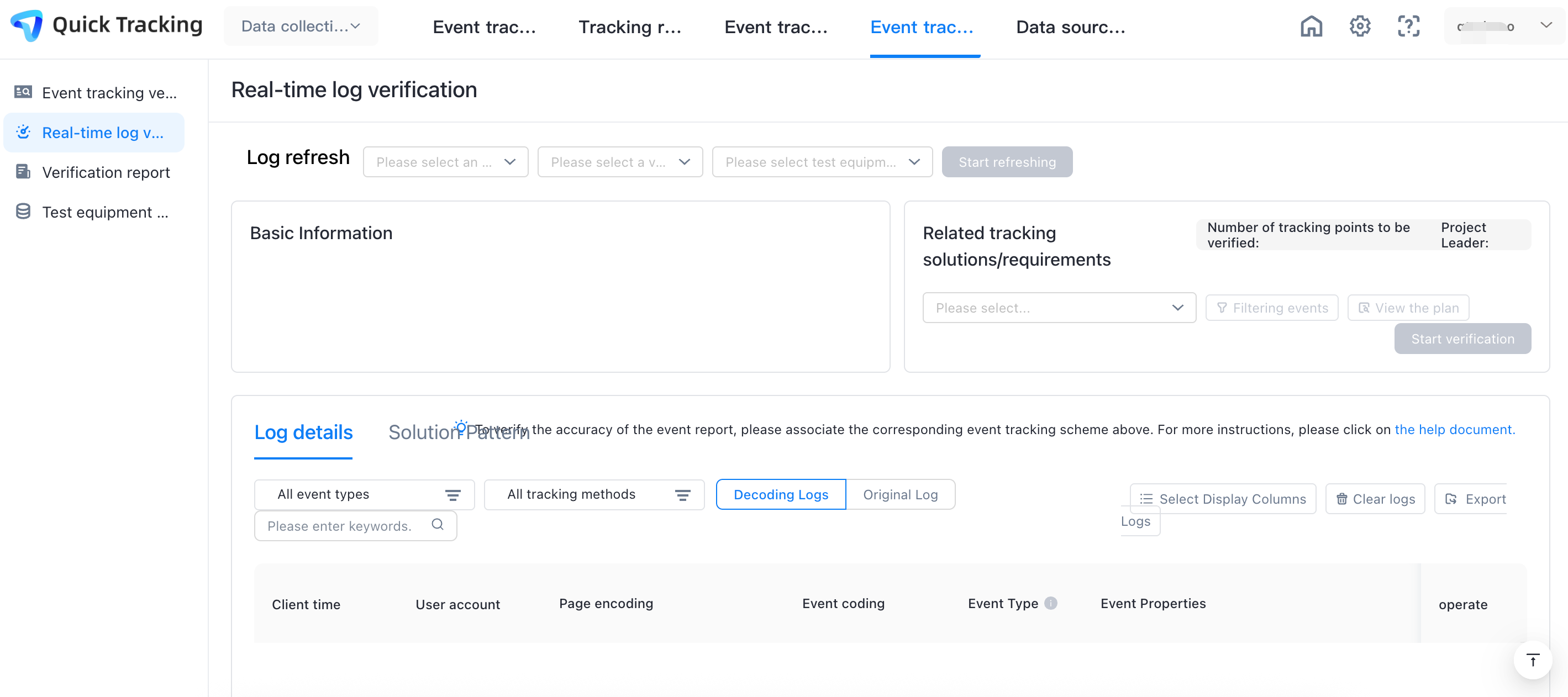
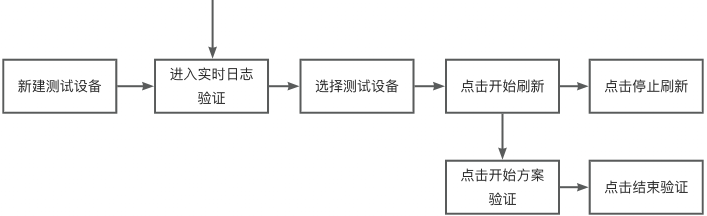
1.2 User Action Path
The following table shows the user operation path process:
2. Test device management
2.1 page composition
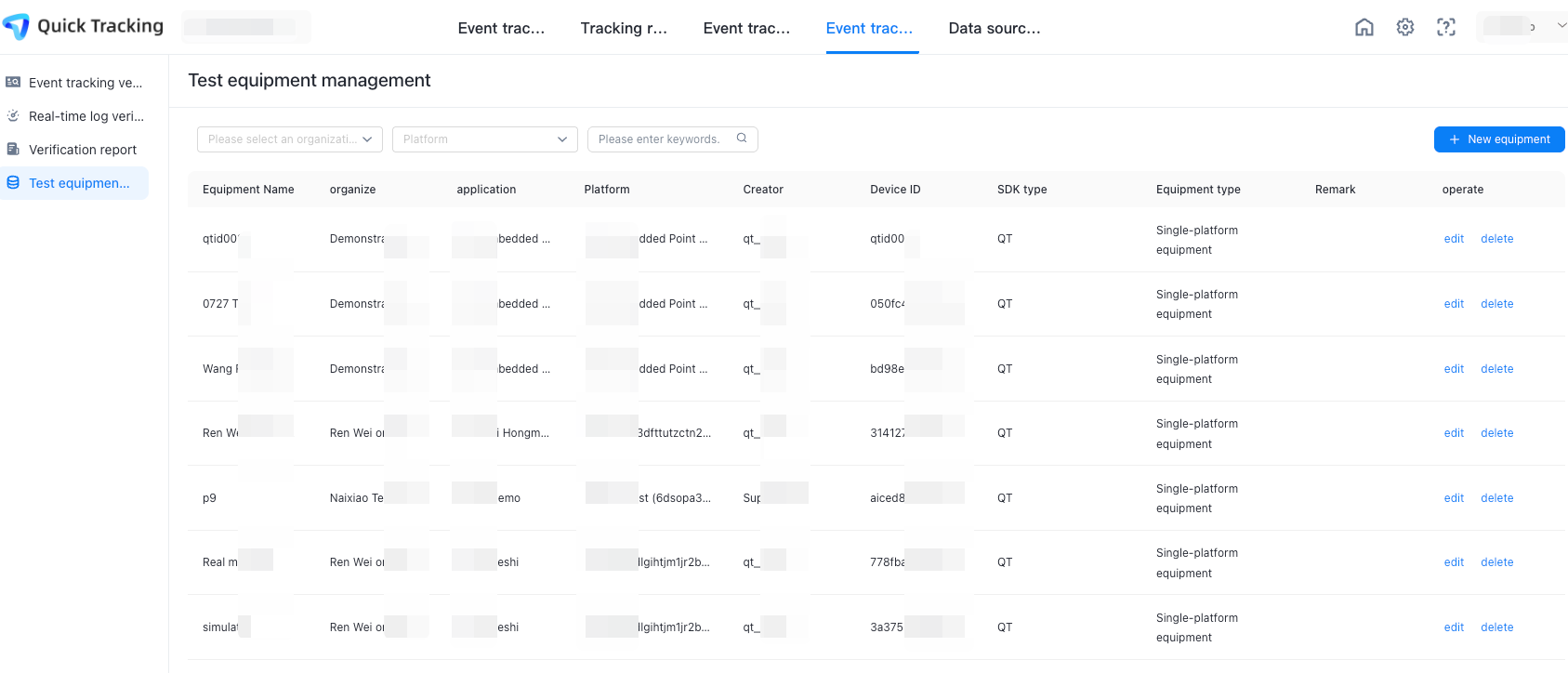
"Test equipment management" is mainly composed of the following parts:
Test Device Management List: On the Test Device Management page, you can view the test devices under the application in the current organization. If you have the management or view permissions on multiple organizations, you can view the test device information of the corresponding organization.
Test Device Filter box: You can select an organization and a platform to filter test device information.
Test equipment management area: operation includes "edit" and "delete" function, can be created to edit and delete the test equipment. Note: The operation function needs to be operated by the person in charge of the equipment.
Add Device: Click Add Device to add a test device.
2.2 New Test Equipment
Click the Add Device button to pop up the Add Test Device pop-up window.
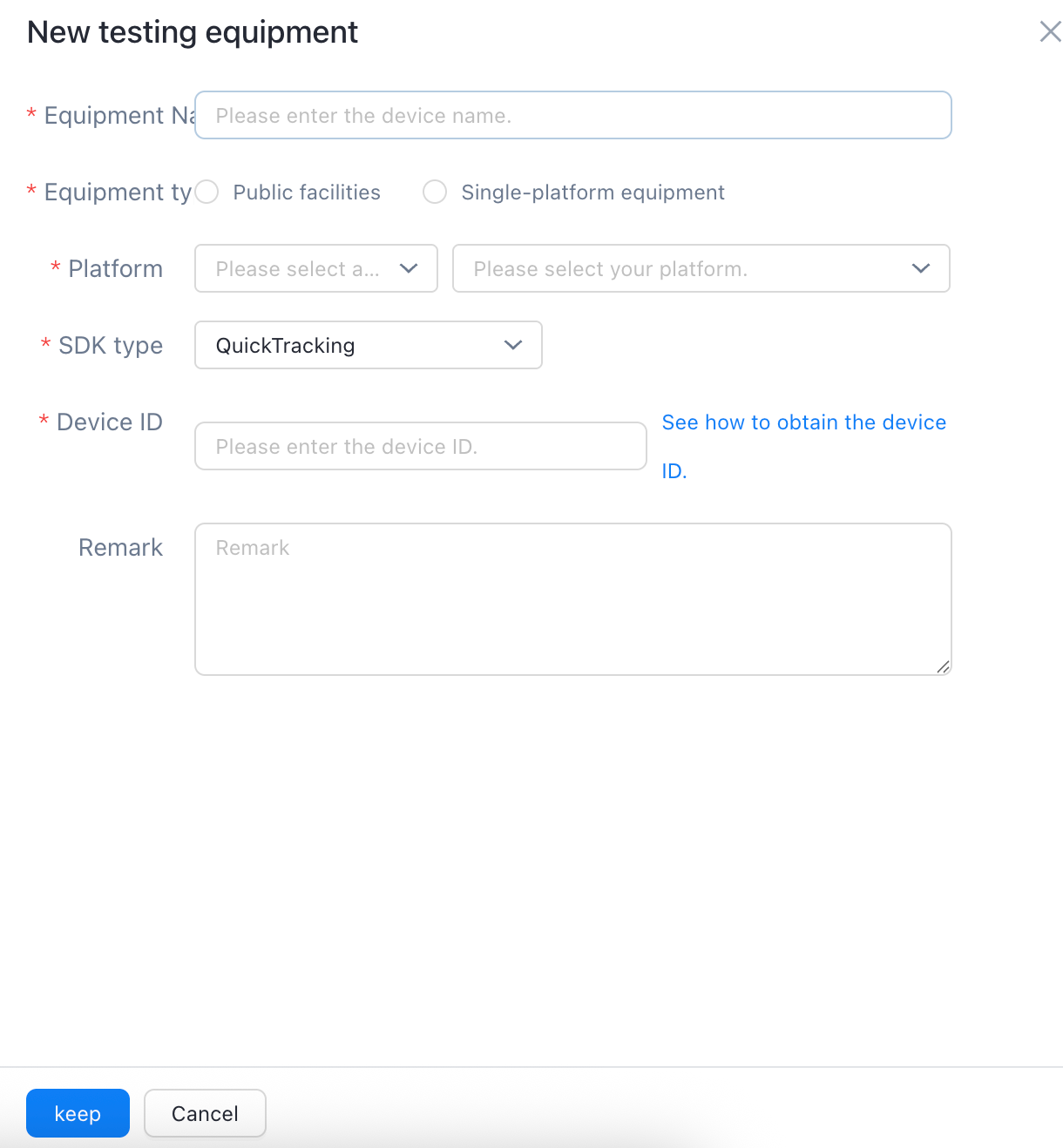
To create a new test device, you need to fill in the following basic information
device name: required. You can customize this parameter.
Device Type: You do not need to select Platform for public devices. You need to select Platform for single-platform devices.
Platform: required. Select an organization and a platform from the drop-down list.
Device ID: required. Note that the Device ID Acquisition Method cannot be repeated on the same platform.
Remarks: not required.
3. Real-time log verification
Page Composition
Log Refresh: You can select an organization from the Log Refresh drop-down list, and verify that the platform and test device information belong to the selected organization.
"basic information": displays the user account information and device ID information carried in the log.
Linked Embedding Scheme: You can select an organization and a scheme from the drop-down list to verify the tracking point.
Log Details: You can filter event types and tracking methods to view tracking log details.
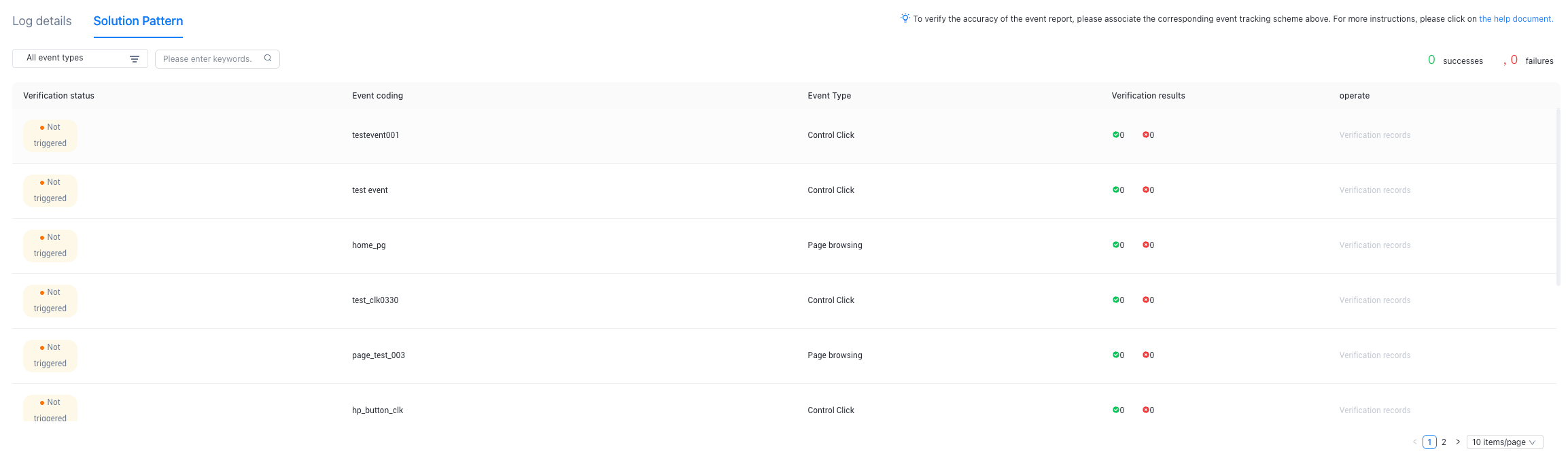
Scenario Mode: You can filter event types to view log details.
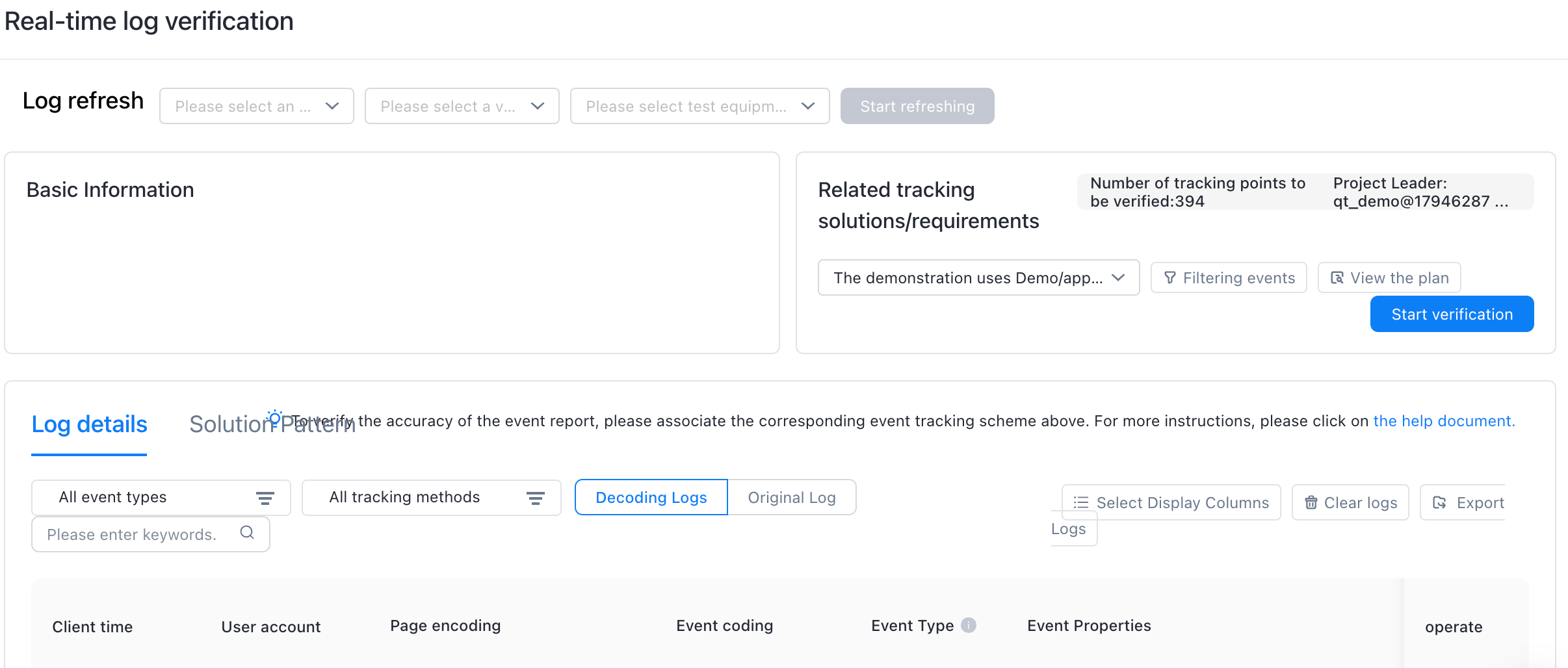
In the log details mode, you can clearly view the details of logs that are correct or incorrect.
The tracking point scheme mode allows you to clearly view which tracking points have been verified and which tracking points need to be triggered.
3.1 Log Detail Mode
Function Operation
Select the organization, verification platform, and test device from the Log Refresh drop-down list and click Start Refresh. The logs are displayed in the log details. For more information about log details, see Log Verification. 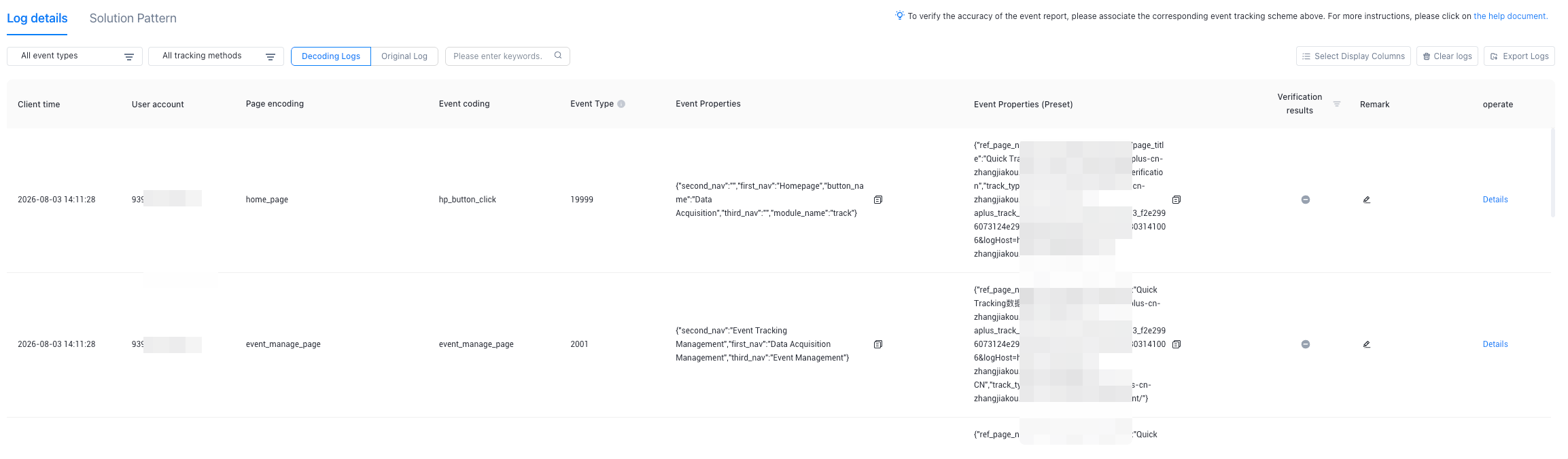
3.2 scheme mode
Function Operation
Select an organization and a scheme from the drop-down list for the tracking point scheme. Click Start Verification to display log details in the scheme mode. Click End Verification to pop up the Generate Report pop-up window. Click Save Report to generate a report and jump to the Verification Report function to view the report details.