Offline deploy and upgrade plugins from the command line
Prerequisites
GoLand 2021.2 or later is installed.
mosn-intellij-1.0.4-all.jar or later is installed.
The JDK for the development environment is updated to JDK 11 or later.
To download JDK 11, see JDK 11.
The mosn-intellij command line is configured.
~/.zshrc or ~/.bashrc configuration
# Specify the local configuration for JDK 11.
export JAVA_11_HOME="/Library/Java/JavaVirtualMachines/jdk-11.0.15.jdk/Contents/Home"

# Set the alias for mosn-intellij. Replace /path/to with the actual local directory name.
alias mecha="$JAVA_11_HOME/bin/java -jar /path/to/mosn-intellij-1.0.4-all.jar"
Cloudmesh is upgraded to version 1.15.0 or later (released in July 2023).
Some features are unavailable in earlier versions. You must upgrade to use all features.
Offline deployment
Offline deployment is used for the full deployment of all plugins. You can include all plugins to be deployed in a specific directory structure. Offline deployment allows for batch uploads, which is useful when the development and staging environments have network isolation. This method lets you perform operations on a jump server or another machine that can communicate with the control plane. The procedure is as follows:
Step 1: Initialize the structure
Create an initialization directory.
When you perform an offline deployment for the first time, you must create a plugin directory structure. To create the initialization directory, run the following command:
mecha offline-deploy -d <project dir> --init <bool>project dir: The folder where the plugins are stored.bool: Specifies whether to initialize the directory. Valid values:true: Initializes the directory.false: Does not initialize the directory.
The following is a sample command:
mecha offline-deploy -d /Users/****/go/src/code.alipay.com/zong/go-plugin-quickstart/build/test/offline --init true
The command creates the following directories to store specific types of plugins:
codecs: Stores plugin packages.stream_filters: Stores interceptor plugin packages.traces: Stores observability plugin packages. Currently, Zipkin and SkyWalking are supported.transcoders: Stores protocol transformation packages.
Place all plugin packages for the offline deployment into their corresponding directories.
NoteIn this scenario, we perform a full offline deployment of the xRPC and SkyWalking plugins, version
1.0.3-dev. We assume that only these two plugins are used.Copy the xRPC plugin package to the
offline/codecsdirectory.Copy the SkyWalking plugin package to the
offline/tracesdirectory.
user@user-4 test % tree
.
└── offline
    ├── codecs
    │   └── xrpc-1.0.3-dev.zip
    ├── stream_filters
    ├── traces
    │   └── skywalking-1.0.3-dev.zip
    └── transcoders

5 directories, 2 files
Step 2: Deploy the plugin
Create a configuration file.
Before deployment, you must create a configuration file, such as
env_conf, that specifies the ACVIP and AccessKey information for the environment connection. The configuration file must contain the following fields:# The address of the ACVIP, excluding the port number. SOFA_ANTVIP_ENDPOINT= # The tenant instance ID. The default ID for a middleware tenant is 000001. SOFA_INSTANCE_ID= # The AccessKey ID for authentication. SOFA_ACCESS_KEY= # The AccessKey secret for authentication. SOFA_SECRET_KEY=Run the following command to deploy the plugin:
mecha offline-deploy -d <project dir> -c <conf file>project dir: The root directory that contains all plugins. For example, theofflinefolder used in Step 1.conf file: The file that contains the environment configuration information. This information is used to locate the Service Mesh address for the upload. For example, theenv_conffile that you just created.
NoteIf you do not use the
-cparameter to specify the location of the configuration file, ensure that the configuration file exists in the destination folder specified by the-dparameter.The following is a sample command:
mecha offline-deploy -d /Users/***/go/src/code.alipay.com/zong/go-plugin-quickstart/build/test/offline -c /Users/**/go/src/code.alipay.com/zong/go-plugin-quickstart/etc/ant/env_confThe following is the execution result:
Step 3: Confirm the plugin package is deployed correctly in the Service Mesh console
After the deployment from the command line is complete, log on to the Service Mesh console. On the Plugin Management page, verify that the deployment package version is correct.
After the plugin package is deployed, you can associate it using a Sidecar injection rule. After the association is complete, the plugin is automatically activated when the Sidecar is injected into the application. For more information about how to use Sidecar injection rules, see the "Associate plugins with Sidecar injection rules" section in Upload and deploy HTTP plugins.
Offline upgrade
Offline upgrade is used for the compatible upgrade of all plugins. You can include all plugins to be upgraded in a specific directory structure. This method allows for batch uploads, which is useful when the development and staging environments have network isolation. It lets you perform operations on a jump server or another machine that can communicate with the control plane.
Prerequisites
The Sidecar image to be upgraded is available on the Sidecar Version Management page in the Service Mesh console.
Step 1: Initialize the structure
Create an initialization directory.
When you perform an offline upgrade for the first time, you must create a plugin directory structure. To create the initialization directory, run the following command:
mecha offline-upgrade -d <project dir> --init <bool>project dir: The folder where the plugins are stored.bool: Specifies whether to initialize the directory. Valid values:true: Initializes the directory.false: Does not initialize the directory.
For example:
mecha offline-upgrade -d /Users/****/go/src/code.alipay.com/zong/go-plugin-quickstart/build/test/upgrade --init true
The command creates the following directories to store specific types of plugins:
codecs: Stores plugin packages.stream_filters: Stores interceptor plugin packages.traces: Stores observability plugin packages. Currently, Zipkin and SkyWalking are supported.transcoders: Stores protocol transformation packages.
Place all plugin packages for the offline deployment into their corresponding directories.
NoteIn this scenario, we perform a full offline upgrade of the xRPC and SkyWalking plugins from version
1.0.3-devto1.0.4-dev. We assume that only these two plugins are used.Copy version 1.0.4 of the xRPC plugin package to the
upgrade/codecsdirectory.Copy version 1.0.4 of the SkyWalking plugin package to the
upgrade/tracesdirectory.
user@user-4 test % tree
.
└── offline
    ├── codecs
    │   └── xrpc-1.0.4-dev.zip
    ├── stream_filters
    ├── traces
    │   └── skywalking-1.0.4-dev.zip
    └── transcoders

5 directories, 2 files
Step 2: Upgrade the plugin
Create a configuration file.
Before you upgrade, you must create a configuration file, such as
env_conf, that specifies the ACVIP and AccessKey information for the environment connection. The configuration file must contain the following fields:# The address of the ACVIP, excluding the port number. SOFA_ANTVIP_ENDPOINT= # The tenant instance ID. The default ID for a middleware tenant is 000001. SOFA_INSTANCE_ID= # The AccessKey ID for authentication. SOFA_ACCESS_KEY= # The AccessKey secret for authentication. SOFA_SECRET_KEY=You can use the following command to deploy the plugin:
mecha offline-upgrade -d <project dir> -c <conf file>project dir: The root directory that contains all plugins. For example, theupgradefolder used in Step 1.conf file: The file that contains the environment configuration information. This information is used to locate the Service Mesh address for the upload. For example, theenv_conffile that you just created.
NoteIf you do not use the
-cparameter to specify the location of the configuration file, ensure that the configuration file exists in the destination folder specified by the-dparameter.The following is a sample command:
mecha offline-upgrade -d /Users/****/go/src/code.alipay.com/zong/go-plugin-quickstart/build/test/upgrade -c /Users/****/go/src/code.alipay.com/zong/go-plugin-quickstart/etc/ant/env_confConfirm the Sidecar injection rule and the ordinal number of the new Sidecar image version.
After you run the upgrade command, you are prompted to enter the Sidecar injection rule to use, which retrieves the associated plugins, and the ordinal number of the new Sidecar image version. After you confirm your selections, press Enter.
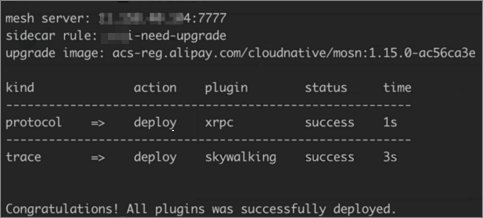
Step 3: Confirm the plugin package is upgraded correctly in the Service Mesh console
Confirm that the plugin package is upgraded correctly.
After the upgrade from the command line is complete, log on to the Service Mesh console. On the Plugin Management page, verify that the deployment package version is correctly upgraded.
Trigger the Sidecar upgrade rule.
On the Sidecar Injection Rules page, find the Sidecar injection rule to upgrade and click Upgrade.
In the Parameter Settings step, select the same image version that you used in the command line. Verify that the versions of the plugin and Trace upgrades are correct.
Re-inject the Sidecar.
For the plugin to take effect, go to the Service Catalog page and click the application name to go to the application details page. If a Sidecar is already injected, click Unpublish and then click Inject. The application then uses the new version of the plugin.