Data cleanup
This document describes how to clean up data by submitting a data cleanup ticket.
Background information
After you archive data from a source database to a target database, ODC can delete the data from the source database. This improves database query performance and reduces storage costs.
This document uses an example to show how to clean up the employee table in the test2 database using ODC.
The data used in this document is for example purposes only. Replace it with your actual data.
Notes
Prerequisites:
The table to be cleaned up must have a primary key. For an OceanBase MySQL data source, you can also perform the cleanup if the table has a unique index.
The database user for the cleanup requires read/write permissions and access permissions to internal views. For more information about how to configure permissions, see View user permissions, Overview of users and permissions, and Modify user permissions.
Supported data sources for cleanup:
OceanBase MySQL data sources.
OceanBase Oracle data sources.
Cleanup is not supported in the following cases:
For OceanBase Oracle data sources, cleanup is not supported if the table does not have a primary key.
Cleanup is not supported if the filter condition contains a LIMIT statement.
Cleanup is not supported if the table contains foreign keys.
Create a data cleanup task
In the SQL development window, go to the Tickets tab in the navigation pane on the left and click Data Cleanup > Create Data Cleanup.

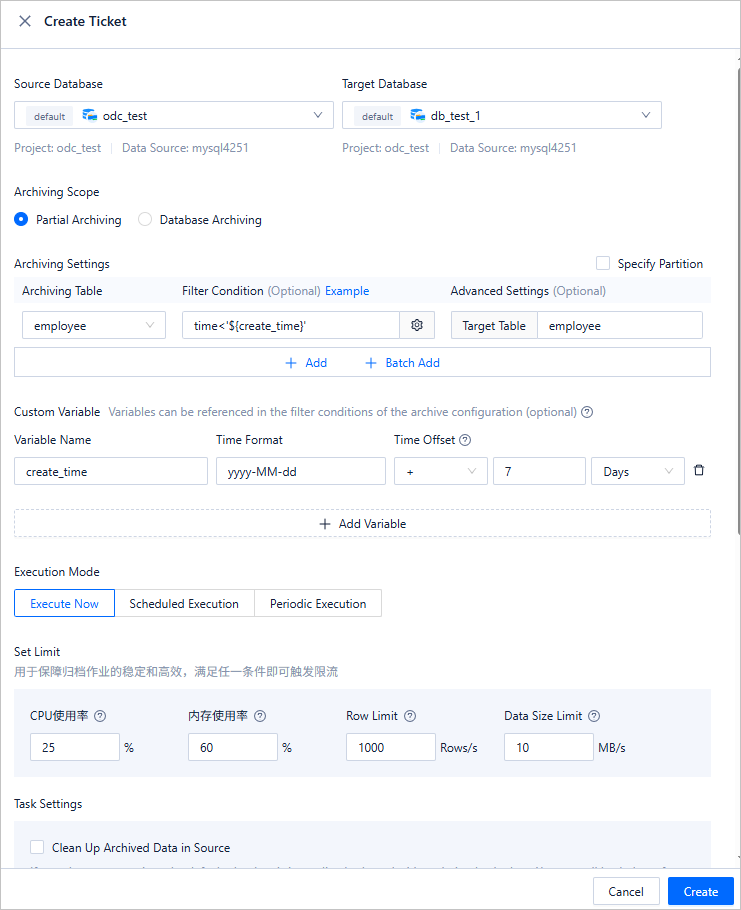
On the Create Data Cleanup page, enter the following information.
Item
Description
Source Database
Select the database where the table resides.
Cleanup Scope
Partial cleanup: Cleans up some tables in the database based on a filter condition.
You can use constants or variables defined in the variable configuration to set the filter condition. For example:
time<'${create_time}', wherecreate_timeis the variable name in the variable configuration, andtimeis a field in the cleanup table.NoteIn the filter condition settings, you can configure conditions for associated tables.
Select Specify partitions to clean up data based on specified partitions.
Full cleanup: Cleans up all tables in the database.
Custom Variables
Optional. Define variables and set time offsets to filter and clean up eligible rows in the table.
Execution Mode
Select Execute Now, Scheduled Execution, or Periodic Execution to set the task execution mode.
Throttling Policy
You can configure the following parameters:
CPU Usage: The program automatically pauses when the CPU usage of the OceanBase database exceeds this value.
Memory Usage: The program automatically pauses when the memory usage of the OceanBase database exceeds this value.
Row Rate Limit: Limits the number of data rows processed per second by the program to within this value.
Data Size Limit: Limits the amount of data processed per second by the program to around this value.
Task Settings
Validate before cleanup: If you select this option, the system checks whether the data in the table to be cleaned up is consistent with the data in the target table. If the data is consistent, the cleanup proceeds. Otherwise, the cleanup does not proceed.
Specify task duration: If the task is not completed after the specified duration, scheduling is paused until the next scheduled time.
Search policy: Supports full table scan and conditional matching.
Clean up using primary key: Select whether to use the primary key to clean up data.
Description
In the Description text box, you can enter a description of up to 200 characters. This is optional.
Click Create. Preview the cleanup SQL statement and click OK to create the data cleanup task.

After the task is created, you can view its details in the Tickets > Data Cleanup list.

View data cleanup tasks
Task information
In the Data Cleanup list on the Tickets page, click View in the Actions column.
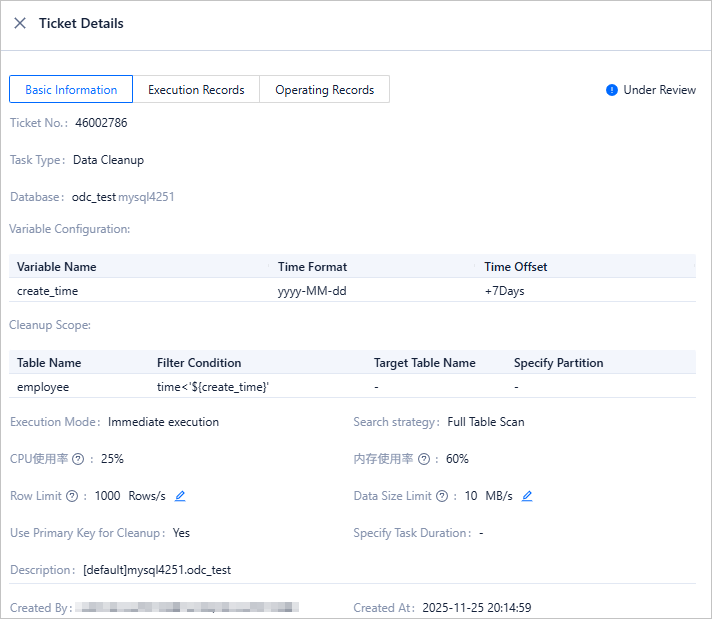
In the task details panel that appears, click the Task Information tab to view information such as the task type, source database, target database, variable configuration, cleanup scope, and execution mode.

Click Relaunch in the lower-right corner. ODC copies the task information to the Create Data Cleanup panel. This lets you quickly create another data cleanup task.
Execution records
In the task details panel, click the Execution Records tab to view the task status and execution details.

Operation records
In the task details panel, click the Operation Records tab to view the task's approval status and change history.

Import data cleanup tasks
After you migrate an instance from ApsaraDB for OceanBase to OB Cloud, you can also migrate the data cleanup tasks from that instance.
Step 1: Export data cleanup tasks from ApsaraDB for OceanBase
In the ApsaraDB for OceanBase management console, click Instance List in the navigation pane on the left.
Click Switch To Alibaba Cloud Marketplace in the Actions column of the desired instance.
After the instance switchover is complete, click Process Data Development Task in the Actions column of the same instance.
On the Process Data Development Tasks page, click View and Export All to export the scheduled tasks to your local computer.


Step 2: Import data cleanup tasks to OB Cloud
Log on to the OB Cloud console and navigate to DataService Studio > Lifecycle. On the Lifecycle page, click the ... icon and select Import Job.
Upload the data cleanup configuration file that you downloaded to your local computer to the import job.


Data cleanup performance
Performance tests and descriptions for data cleanup will be released soon.