Deploying model services on PAI-EAS with PPUs
After training a model, you can deploy it as a service on PAI-EAS to be called by other applications.
PAI-EAS overview
Model Online ServiceEAS (Elastic Algorithm Service) is an online model service platform provided by PAI that allows you to deploy models as online inference services or AI-Web applications with a single click. It provides features such as elastic scaling, resource group management, version control, and resource monitoring to help you run high-concurrency and stable online algorithm model services at a low resource cost. For more information, see EAS Overview.
Prerequisites
Before you begin, make sure you have activated PAI and purchased PPU resources.
Deploy models on PAI-EAS
PAI-Zhenwu 810E image
To help you quickly use
ml.gp7vf.16.40xlarge(Zhenwu 810E) resources on PAI Serverless, PAI provides an official Serverless image. This image integrates the capabilities of Zhenwu 810E, high-speed networking, and PAI to provide an out-of-the-box experience with optimal performance.This image is currently in private preview. Use of this image is subject to confidentiality obligations.
This image can be used only on the PAI Serverless platform, which includes modules such as DSW, DLC, and EAS.
For information about how to obtain the inference image and for detailed instructions, see Introduction to Official PAI-PPU Images.
Prepare the model
You can upload your model to any storage service that you can access for deployment.
Method 1: Upload to OSS
The deployment example in this topic uses this method.
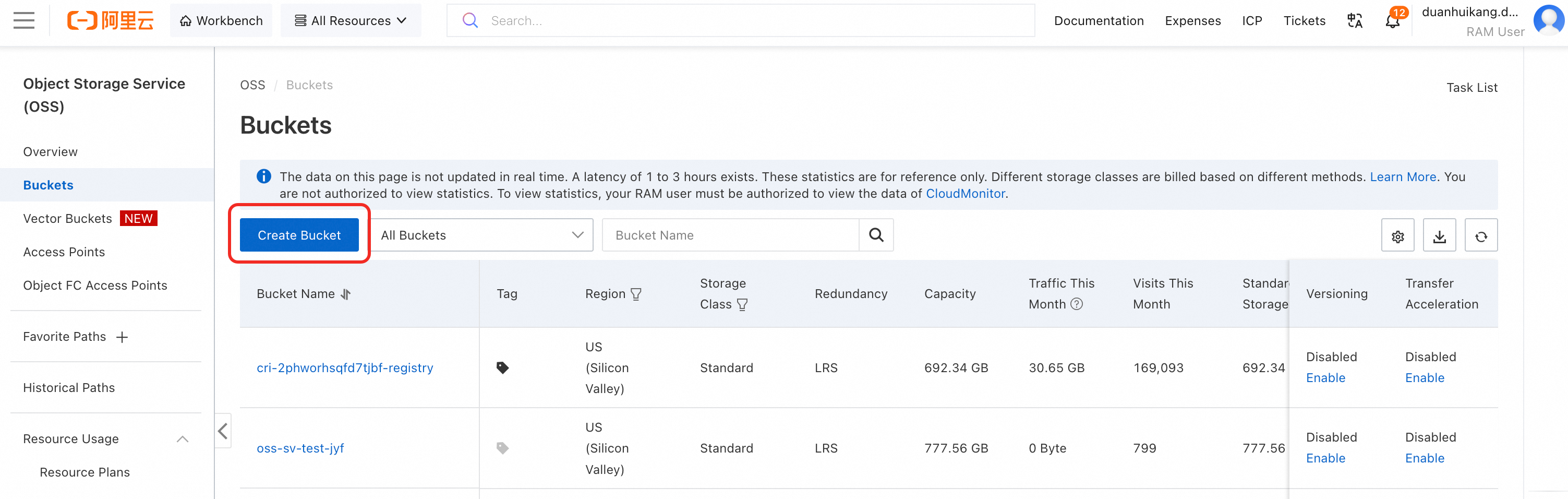
Log on to the OSS console and click Create bucket. For more information about the parameters, see Create a bucket.
Click Create Directory and then click Upload File to upload your model files.

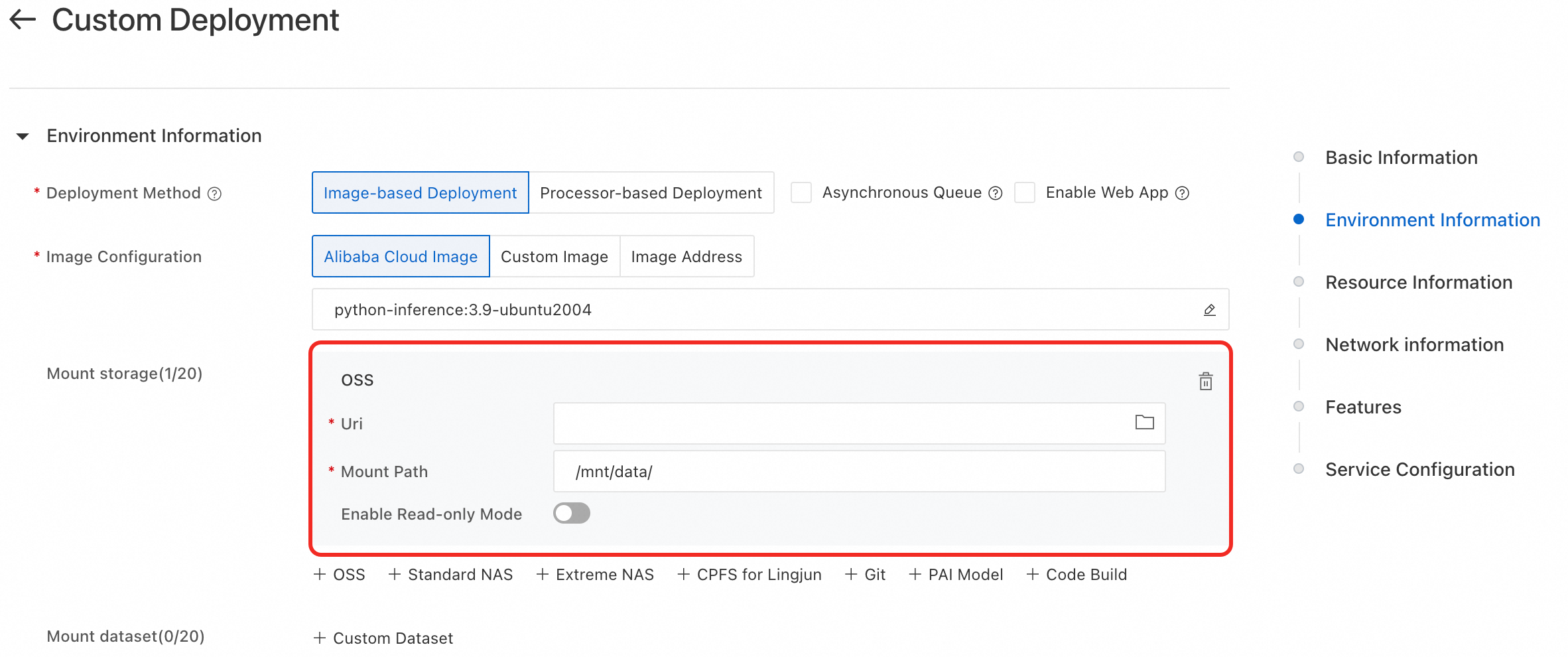
When deploying an EAS service, select OSS for the storage mount to retrieve the model.
Method 2: Use NAS or CPFS
This section describes how to use DSW to save a model to NAS or CPFS.
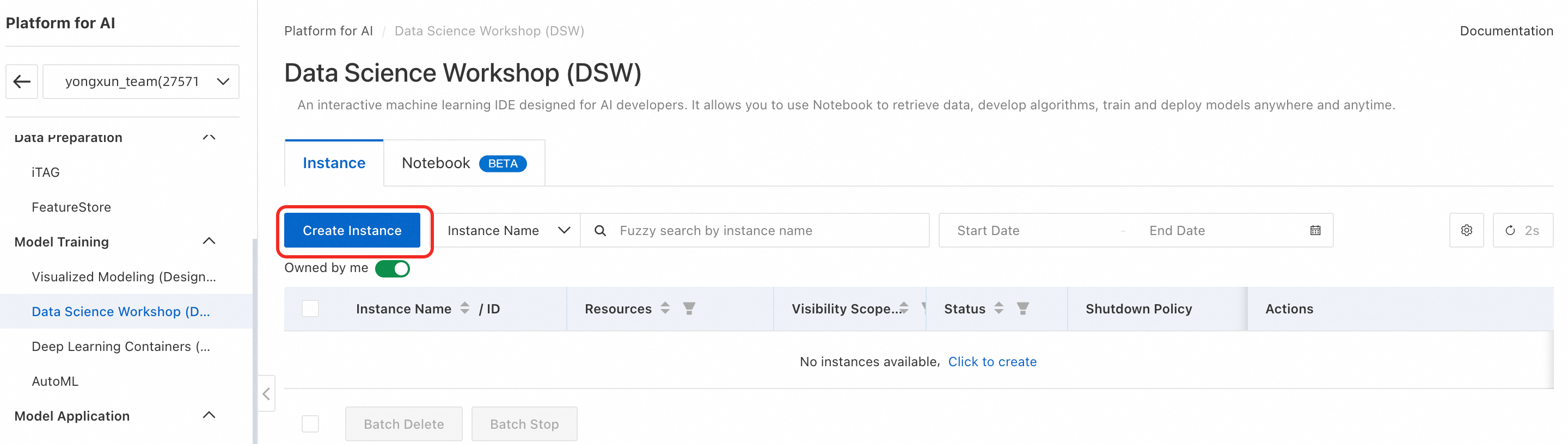
Log on to the PAI console. In the upper-left corner, select a PPU-supported region, such as China (Ulanqab). In the left-side navigation pane, click Interactive Modeling (DSW) > Create Instance. For more information, see Create a PPU development environment by using PAI-DSW.
NoteCurrently, the regions that support PPU resources include China (Ulanqab), China (Beijing), China (Shanghai), and China (Hangzhou).
On the parameter configuration page, in the Mount dataset section, add a Custom Dataset. Then, create a new dataset and select a storage type as needed.
Open the DSW instance and upload the model file in the notebook.

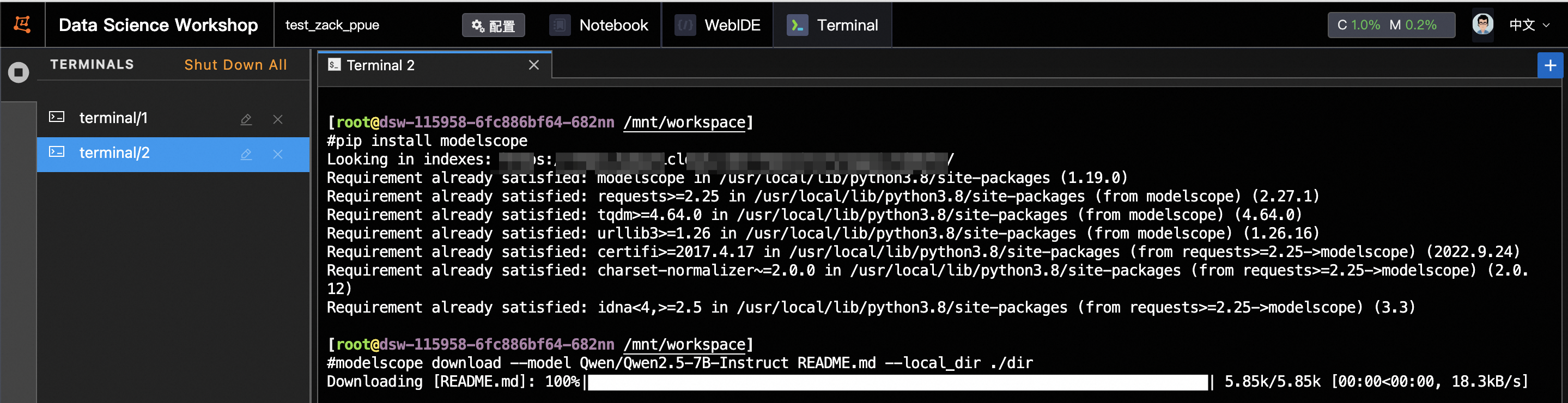
Alternatively, you can use DSW to download the model file to the storage.

pip install modelscope
modelscope download --model Qwen/Qwen2.5-7B-Instruct --local_dir ./
Deploy in the EAS console
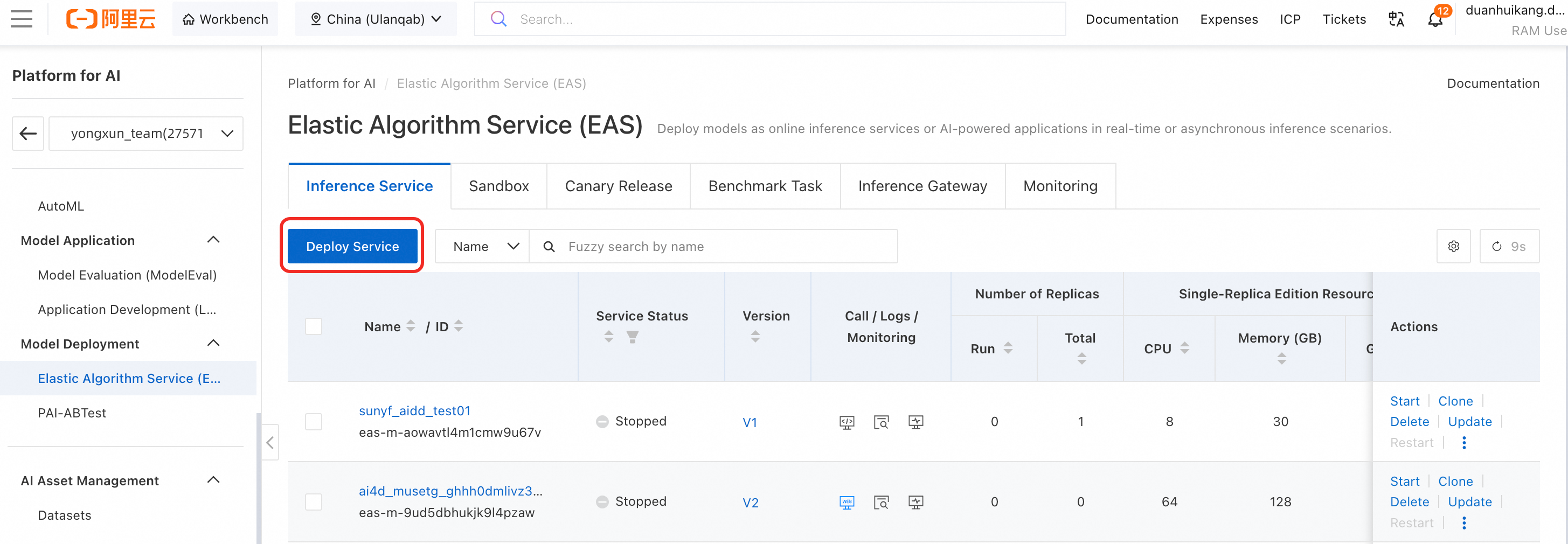
Select a workspace, go to the EAS service page, and click Deploy Service.
Select Custom Deployment to go to the deployment page.
Configure the model service. The following list describes only the key parameters. For more information about other parameters, see Parameters for custom deployment in the EAS console.
Service Name: The name of the deployed model service. The name should include details such as the author, model name, parameter size, resources used, and framework.
Deployment Method: Select Image-based Deployment.
Image Configuration: Use a PPU-specific image. For example, select Alibaba Cloud Image, and then search for and select
vllm:0.10.0-xpu1.6.1. For more information about images, see Introduction to Official PAI-PPU Images.Storage Mount: Suppose the model is stored in OSS and the path is
oss://examplebucket******/modelscope_qwen/Qwen/Qwen3-8B, thenUri: The OSS path where the model is stored, such as
oss://examplebucket******/modelscope_qwen/.Mount Path: You can use the default value
/mnt/data/.
Command to Run: Enter the service startup command based on the framework you are using. Based on the mount path in the preceding example, the startup command is:
vllm serve /mnt/data/Qwen/Qwen3-8B --port 9000.Port:
9000. This port must match the one specified in the startup command and used inside the container.ImportantThe TP value in the startup command must match the number of GPUs per instance. Otherwise, the deployment will fail.
Resource Type: Select Resource Quota.
Resource Quota: Select the PPU resource quota that you created.
Instances: The number of pods that provide the service. The minimum value is 1. Configure this parameter based on your resource requirements.
Deployment: The amount of resources required by each pod, including the number of CPUs, memory size, and the number of Zhenwu 810E cards. Configure specifications such as GPU, CPU, and memory as needed. For example, set GPU to 1 and CPU to 16.
VPC Settings: Select a Virtual Private Cloud (VPC) based on your business requirements. A VPC provides an isolated network environment for your cloud resources and is typically used for integration with other cloud products.
vSwitch: Connects different cloud resources to enable communication. It is a key component of a VPC that enables communication between instances within the same VPC or between instances and external networks.
Security Group: A virtual firewall that provides stateful packet filtering to create security domains. You use inbound and outbound rules to control traffic to instances such as ECI and ECS. To ensure network security, each instance must belong to at least one security group.
After you configure the parameters, click Deploy. The deployment is complete when the service status changes to Running.
(Optional) Deploy with a JSON file
On the deployment page, click the JSON standalone deployment option. Enter the corresponding form configuration as a JSON file in the specified format. For more information, see Custom Deployment.
JSON file example
You can also deploy the service using the following equivalent JSON file.
{
    "metadata": {
        "name": "test_***",
        "instance": 1,
        "workspace_id": "1****",
        "quota_id": "quota120***",
        "resource_burstable": false,
        "cpu": 16,
        "gpu": 1,
        "memory": 64000
    },
    "containers": [
        {
            "image": "eas-registry-vpc.cn-wulanchabu.cr.aliyuncs.com/pai-eas/pai-quickstart:xpu1.6.1-vllm0.10.0",
            "script": "vllm serve /mnt/data/Qwen/Qwen3-8B --port 9000",
            "port": 9000
        }
    ],
    "storage": [
        {
            "oss": {
                "path": "oss://examplebucket******/modelscope_qwen/",
                "readOnly": false
            },
            "mount_path": "/mnt/data/"
        }
    ],
    "options": {
        "priority": 9
    }
}
Service invocation
PAI-EAS model services can be accessed over the public internet or a VPC. Choose the access method based on your client's network environment. For more information, see Overview of invocation methods.
Invocation method
When you deploy a model service in EAS, an endpoint and a token are automatically generated. To find them, click the service name to go to the Overview tab and click View Endpoint Information in the Basic Information section.
You can use this information to test the service. The following examples show how to call the service.
curl -X POST \
    -H "Content-Type: application/json" \
    -H "Authorization: GI1YWYxNmQwYjMzMDM1YTNxxxxYjIzZTVlZGQ0NDJ*******" \
    -d '{"prompt":"hello world", "stream":"true"}' \
http://1095312831******.cn-wulanchabu.pai-eas.aliyuncs.com/api/predict/test****/v1/completionsimport json
import requests
from typing import Dict, List
url = "http://1095312831******.cn-wulanchabu.pai-eas.aliyuncs.com/api/predict/test****/v1/completions"
prompt = "hello world"
req = {
"prompt": prompt,
"stream": True,
"temperature": 0.0,
"top_p": 0.5,
"top_k": 10,
"max_tokens": 300,
}
response = requests.post(
url,
json=req,
headers={"Content-Type": "application/json", "Authorization": "GI1YWYxNmQwYjMzMDM1YTNlMmFmNmEzYjIzZTVlZGQ0NDJ*******"},
stream=True,
)
for chunk in response.iter_lines(chunk_size=8192, decode_unicode=False):
msg = chunk.decode("utf-8")
if msg.startswith('data'):
info = msg[6:]
if info == '[DONE]':
break
else:
resp = json.loads(info)
print(resp['choices'][0]['text'], end='', flush=True)Stress testing
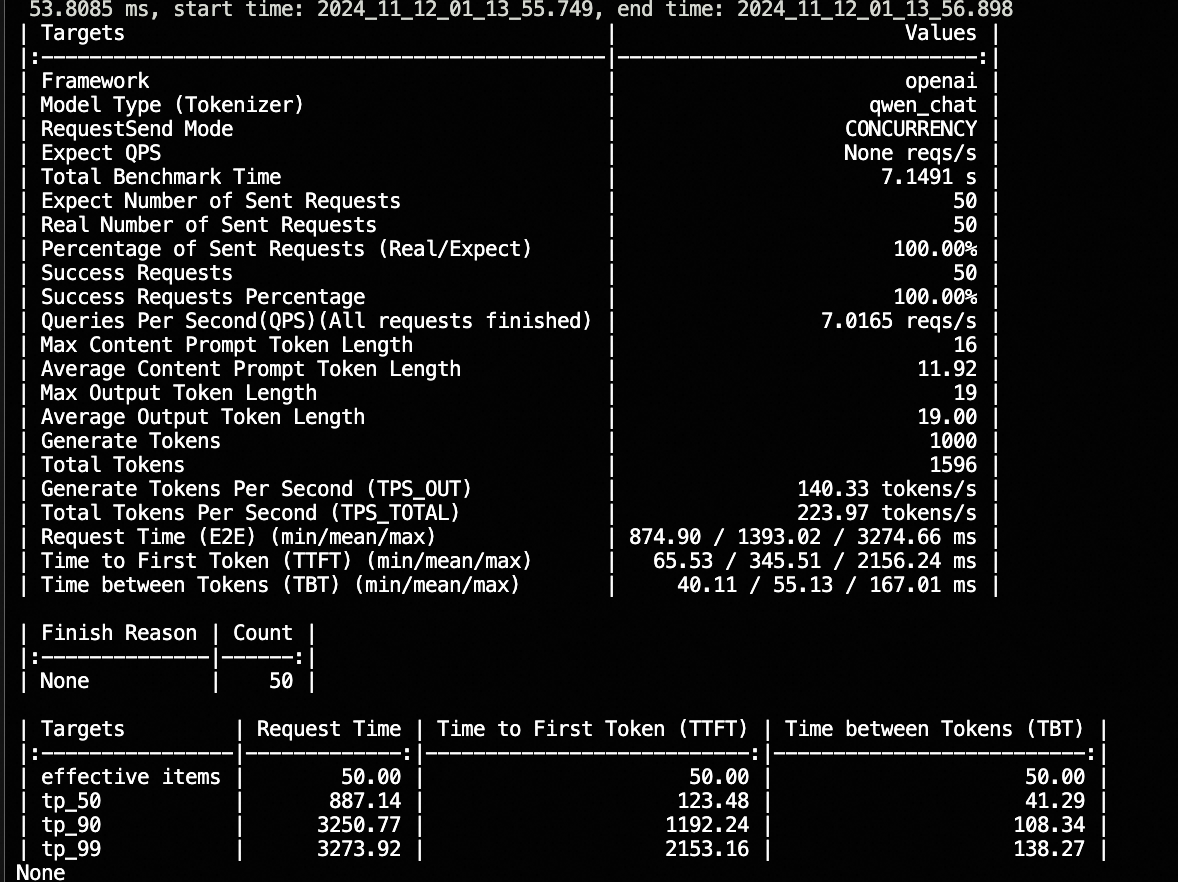
You can use the following scripts for stress testing:
After the script completes, the results will be similar to those shown in the following figure.
Download the complete stress testing toolkit: bench_toolkit.tar.gz.
Stress testing script 2: The output length is randomly selected from [128, 256, 512, 1024, 2048, 4096].
Stress testing script 3: The output length is selected from [128, 256, 512, 1024, 2048, 4096].
Usage notes
vLLM compatibility issues
vLLM has two known issues:
All versions of vLLM use MMA PTX assembly language to implement the AWQ quantization algorithm. This feature is incompatible with Zhenwu 810E and must be commented out from the source code before recompilation.
The custom all-reduce feature, supported since vLLM 0.4.x, is incompatible with Zhenwu 810E, causing the service to hang and report an
asyncio.exceptions.CancelledError: Cancelled by cancel scopeerror.
Solutions:
We recommend using PAI-EAS to directly start the model service on Zhenwu 810E.
If you need to use vLLM, install the Zhenwu 810E version from the pip registry included in the PAI official image, and add the
--disable-custom-all-reduceparameter when you start the service.