Sidecars are installed in applications using injection rules. A Sidecar injection rule defines the scope and parameters for the injection. This lets you control which applications receive a specific type of Sidecar and apply Sidecars with different capabilities in various scenarios.
Create a Sidecar injection rule
Log on to the Service Mesh console.
In the navigation pane on the left, click Sidecar Management, and then click the Sidecar Injection Rules tab.
Click Create Injection Rule.
In the Basic Information step, configure the following parameters and click Next.
Parameter
Description
Rule Name
Enter a name for the rule. The name can be up to 128 characters long.
Cluster
Select the cluster where the injection rule takes effect.
Alternatively, select Global to apply the rule to all clusters.
In the Injection Scope step, configure the Priority and matching conditions, and then click Next.
Priority: Configure the priority of the injection rule. A higher number indicates a higher priority.
Matching Conditions: The matching conditions vary based on the selected cluster. You can use logical operations between multiple rules. Currently, only the AND operation is supported. This means that the rule takes effect only if all configured conditions are met.
Virtual machine clusters
Configuration Scope
Field Name
Logic
Field Value
env scope
Enter a field name
Supports five logical operations: equals, not equals, in, not in, and regex.
Configure the value for the field name.
System scope
Application Name
Configure the application name. For example: crpc-client.
nodeip
Configure the IP address of the node. For example: 192.168.1.112.
Containers
Configuration Scope
Field Name
Logic
Field Value
env scope
Enter a field name
Supports five logical operations: equals, not equals, in, not in, and regex.
Configure the value for the field name.
System scope
Application Name
Configure the application name. For example: crpc-client.
deployment name
Configure the deployment name. For example: crpc-client-deploy.
sts name
Configure the sts name. For example: crpc-client-sts.
label scope
Enter a field name
Configure the label field value. For example:
app: dubbo-client-zxy

app.kubernetes.io/instance: dubbo-client-zxy

app.kubernetes.io/name: dubbo-client-zxy

app.kubernetes.io/version: 1.0.0

cafe.sofastack.io/tenant: ALIPAYCN

cafe.sofastack.io/workspace: middleware
annotation scope
Enter a field name
Configure the annotation field value. For example:
prometheus.io/path: /metrics
prometheus.io/port: "34903"
prometheus.io/scrape: "true"
In the Parameter Settings step, configure the following parameters and click Submit.
Area
Parameter
Description
Required Settings
sidecar version
Select the Sidecar version.
For more information about how to create a version, see Sidecar version management.
Control Panel Connection Settings
acvip address
Enter the ACVIP server address. Click Auto Fill to have the system populate this field with the ACVIP address pushed by DRM.
Advanced Configuration
Registration and subscription configuration
Set the registration and subscription configurations:
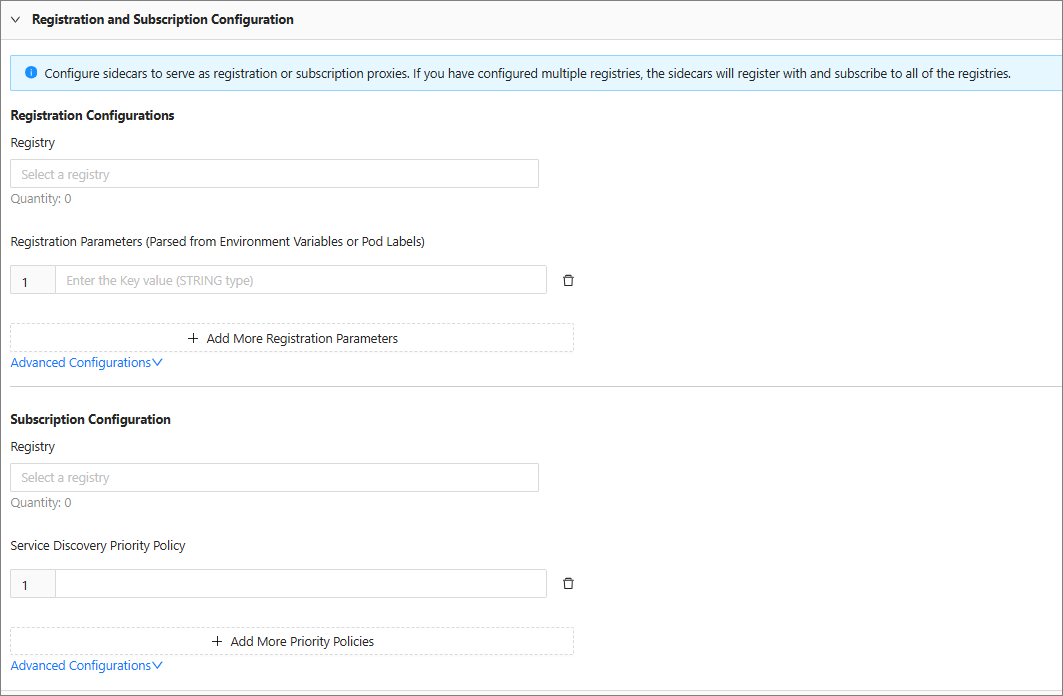
Registration Configuration
Enter the registration parameters for the application:
Registry: To keep the application's original registration behavior, select Use the application's own registration configuration under Advanced Configuration. To change the behavior, configure one or more registries. If you leave this empty, the built-in SOFARegistry is used.
If left empty, the built-in SOFARegistry is used.
Registration Parameters: The parameters you enter are registered as metadata. The value you enter for the Key is retrieved from environment variables or pod labels. Click Add more registration parameters to add multiple parameters.
You can click Add More Registration Parameters to add multiple registration parameters.
Subscription Configuration
Enter the subscription configuration for the application:
Registry: To keep the application's original subscription behavior, select Use the application's own subscription configuration under Advanced Configuration. To change the behavior, configure one or more registries. If you leave this empty, the built-in SOFARegistry is used.
If this field is left empty, the built-in SOFARegistry is used.
Service Discovery Priority Policy: Prioritizes route filtering based on a specified key.
You can click Add more priority policies to add multiple priority policies.
Load balancing algorithm
Set the load balancing algorithm. This specifies the policy used to select a target address after the caller finds a list of available services. The supported algorithms are Polling, Least Requests, and Random.
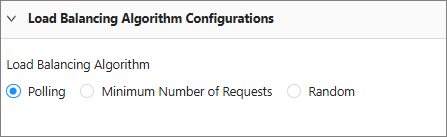
Polling: Selects target addresses sequentially.
Least Requests: Selects the target address with the fewest active requests.
Random: Selects a target address at random.
Custom configuration
Configure a specific Key and Value. This configuration is added as an environment variable on the Sidecar.

Other (Optional)
Default timeout
Set the timeout for the injection rule.
The Sidecar timeout is first obtained from the request. If it cannot be obtained, the default value is used.
Remarks
Add remarks for the rule.
View raw configuration file
After the configuration is complete, click View raw configuration file to preview the final YAML file for the Sidecar.
After you configure the template, it is disabled by default. Click the Enable button to enable it.
Edit an injection rule
In the list of injection rules, click Edit to the right of the target rule.
NoteIf the rule is enabled, you must disable it first.
Modify the injection scope and parameter settings of the rule.
You can modify the injection scope and parameter settings of the rule.
After you finish the configuration, click Submit.
Delete an injection rule
In the list of injection rules, click Delete to the right of the target rule.
NoteIf the rule is enabled, you must disable it first.
Click OK.