Employee QR Code
1. Feature overview
Quick Audience now supports WeCom dynamic codes to help sales associates acquire new customers more efficiently. Sales associates can use a dynamic code to generate a permanent QR code. When a customer scans the code, the system automatically assigns them to a sales associate or group. This feature simplifies customer onboarding and improves the user experience. It ensures that every customer receives personalized service and support.
Key advantages
Efficient acquisition: Simplifies the customer onboarding process and improves acquisition efficiency.
Smart assignment: Automatically assigns customers to different sales associates or groups. This ensures balanced and personalized service.
Permanent validity: The generated dynamic code is permanent and does not require frequent replacement. This simplifies management and use.
Data analytics: Leverages the data analytics capabilities of Quick Audience to help businesses better understand customer behavior and needs. This allows them to optimize marketing strategies.
The WeCom dynamic code feature in Quick Audience helps businesses manage and serve customers more efficiently. This improves overall operational performance.
2. Instructions
2.1 Configure permissions
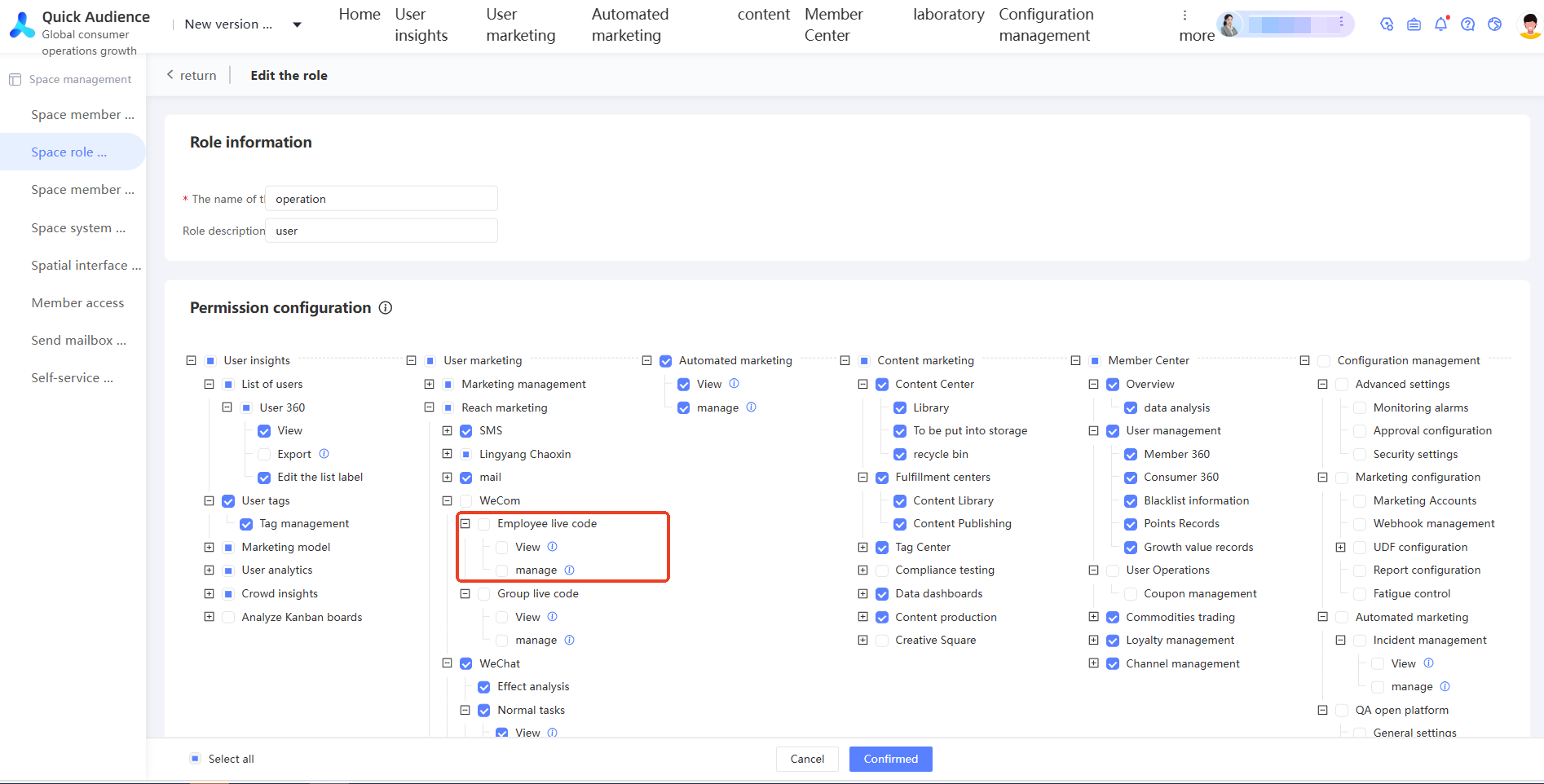
In the Enterprise and Express Editions, you can manage permissions to use WeCom dynamic codes. Go to Storage Management > Space Roles Management. On the Create Role page, new permission controls for dynamic codes are available. Under the WeCom section, you can add view and management permissions for the Employee QR Code.
View: If enabled, users can view employee QR codes but cannot edit, delete, or create new ones.
Manage: If enabled, users have both view and management permissions. Grant this permission with care.
2.2 Create a dynamic code
Before you create a dynamic code, complete the WeCom authorization. For more information, see the WeCom Authorization Configuration Guide.
Configure the WeCom backend. For more information, see the configuration guide in the product interface under WeCom-side Configuration.
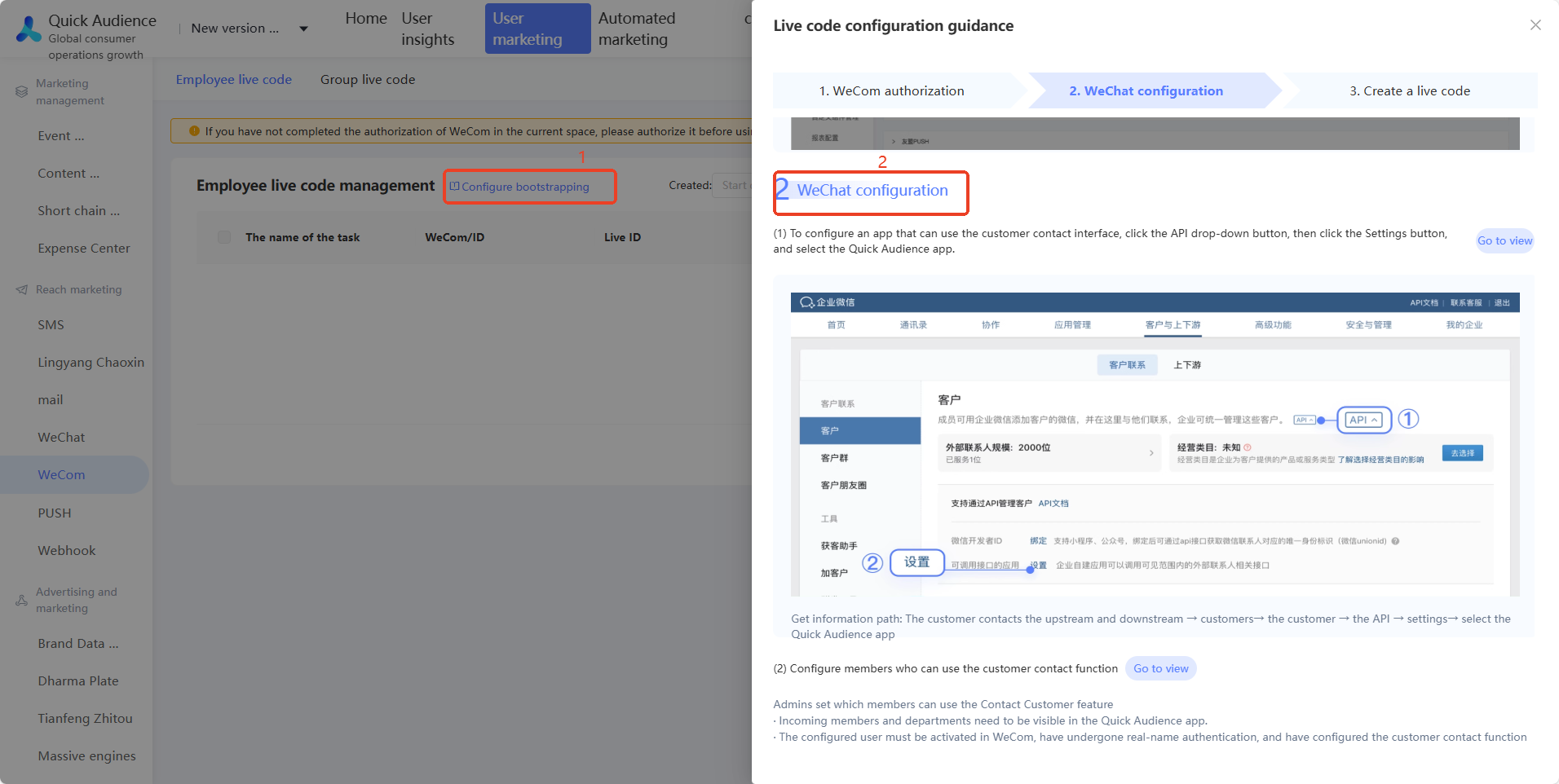
After you complete the configurations, go to User Marketing > WeCom > Employee QR Code and click Create Employee QR Code.
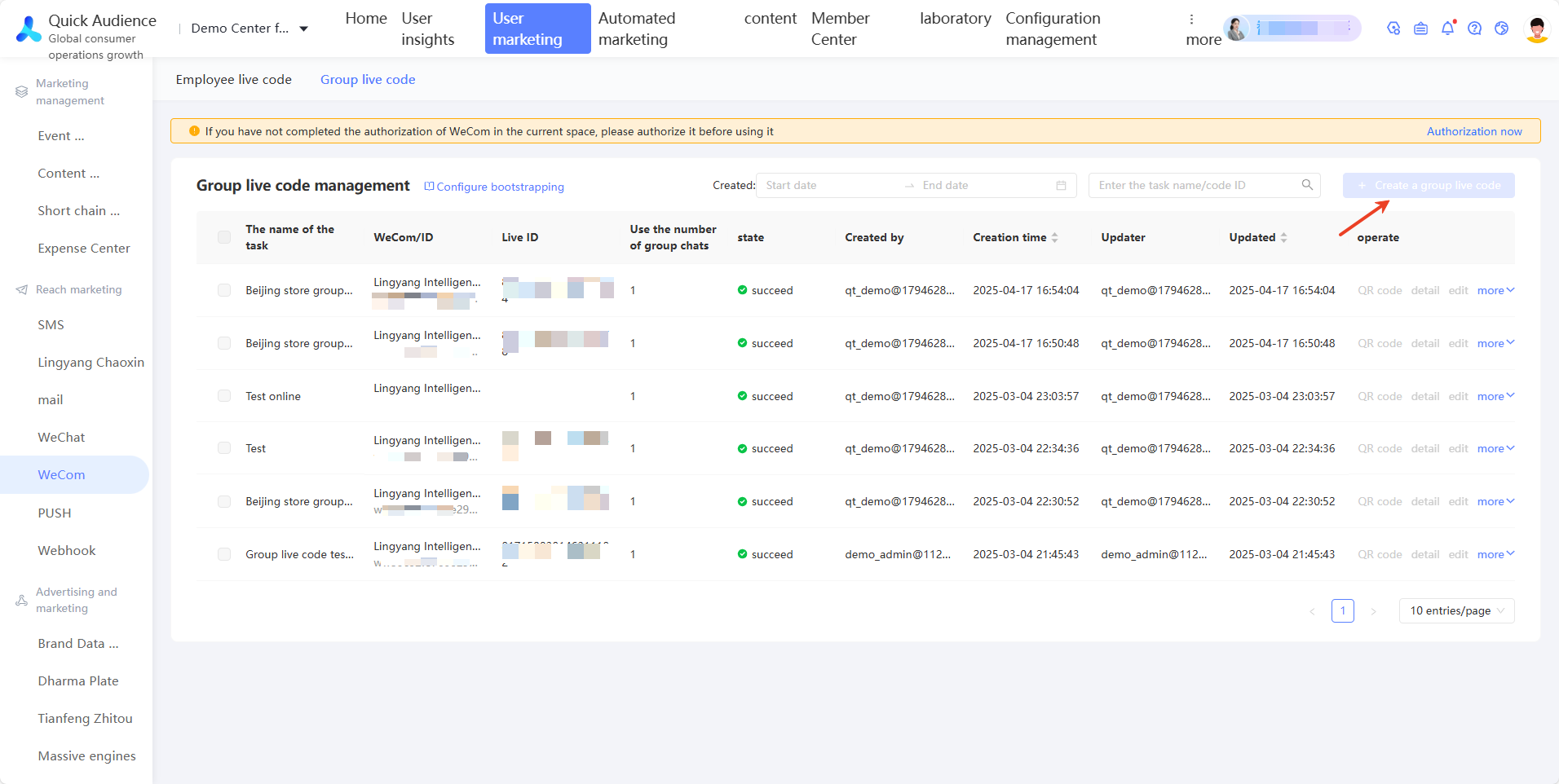
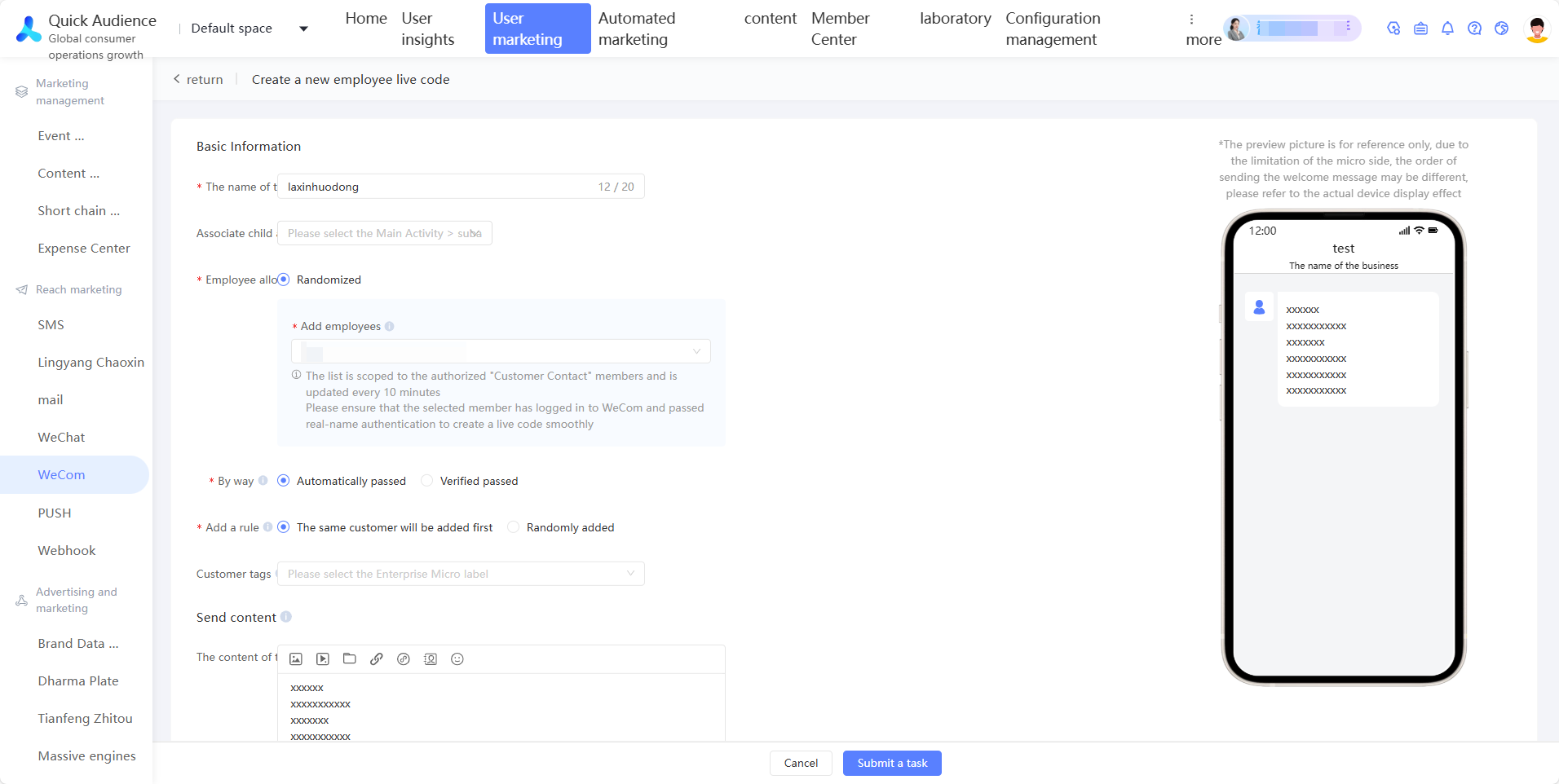
After you click Create Dynamic Code, enter the required information as prompted on the page, such as Task Name and Associated Sub-activity.
Employee Assignment Method: The default method is Random Assignment, which randomly assigns employees throughout the day. If you select Assign by Shift Schedule, you can add selected employees for a specific time range. Customers will not be assigned to the corresponding employees outside the selected time range.
Add Employees: Select at least 1 and up to 100 employees. (Select employees from the list of company members who have the 'Customer Contacts' feature enabled.)
Add Method: Choose between Automatic Approval and Approval with Validation. If you choose Automatic Approval, users can add WeCom members as friends without needing validation.
Add Rule: This option cannot be edited after the dynamic code is created.
Prioritize adding the same customer to the same member: If enabled, a customer is preferentially assigned to the same member.
Random Add: If you add multiple employees, a customer who scans the code is preferentially assigned to the same member they were previously added to. The assignment is random the first time they scan the code.
Customer Tags: Automatically apply tags to users who are added through this QR code.
Set Welcome Message:
After you enter a message, it is sent to an employee's new customers. (If the customer was a previous contact, they must be deleted by both the employee and the customer before the message can be sent again.)
Note: If the company has already configured an active welcome message for the relevant members in the admin console, the dynamic code's welcome message is not sent.
Members who have not logged in to WeCom for an extended period cannot send welcome messages.
After you complete the settings, click Submit Task.
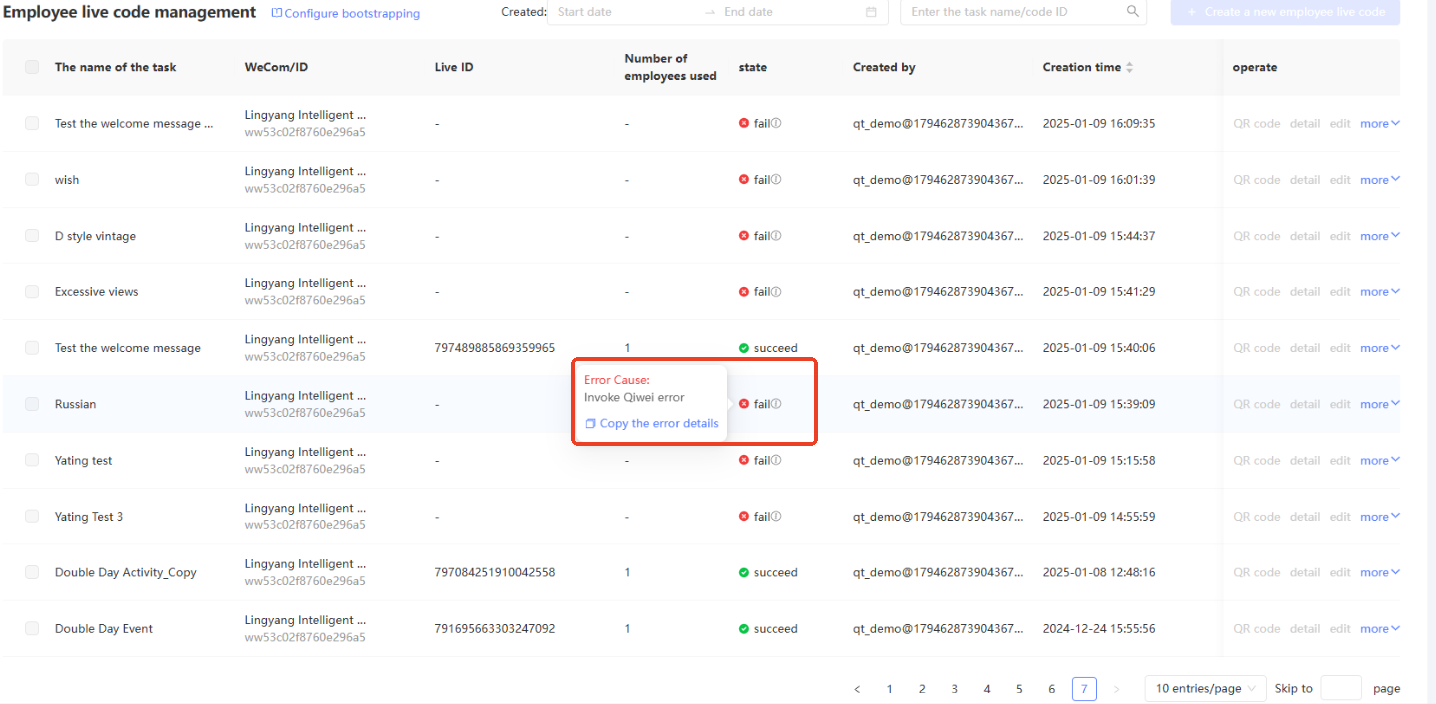
On the Employee QR Code page, you can view the execution status of the task (Successful, Executing, or Failed). Hover over the Failed status to view the reason for the failure.
2.3 Manage employee codes
The employee code list is shown in the figure below. You can filter the list by creation time, task name, and dynamic code ID.
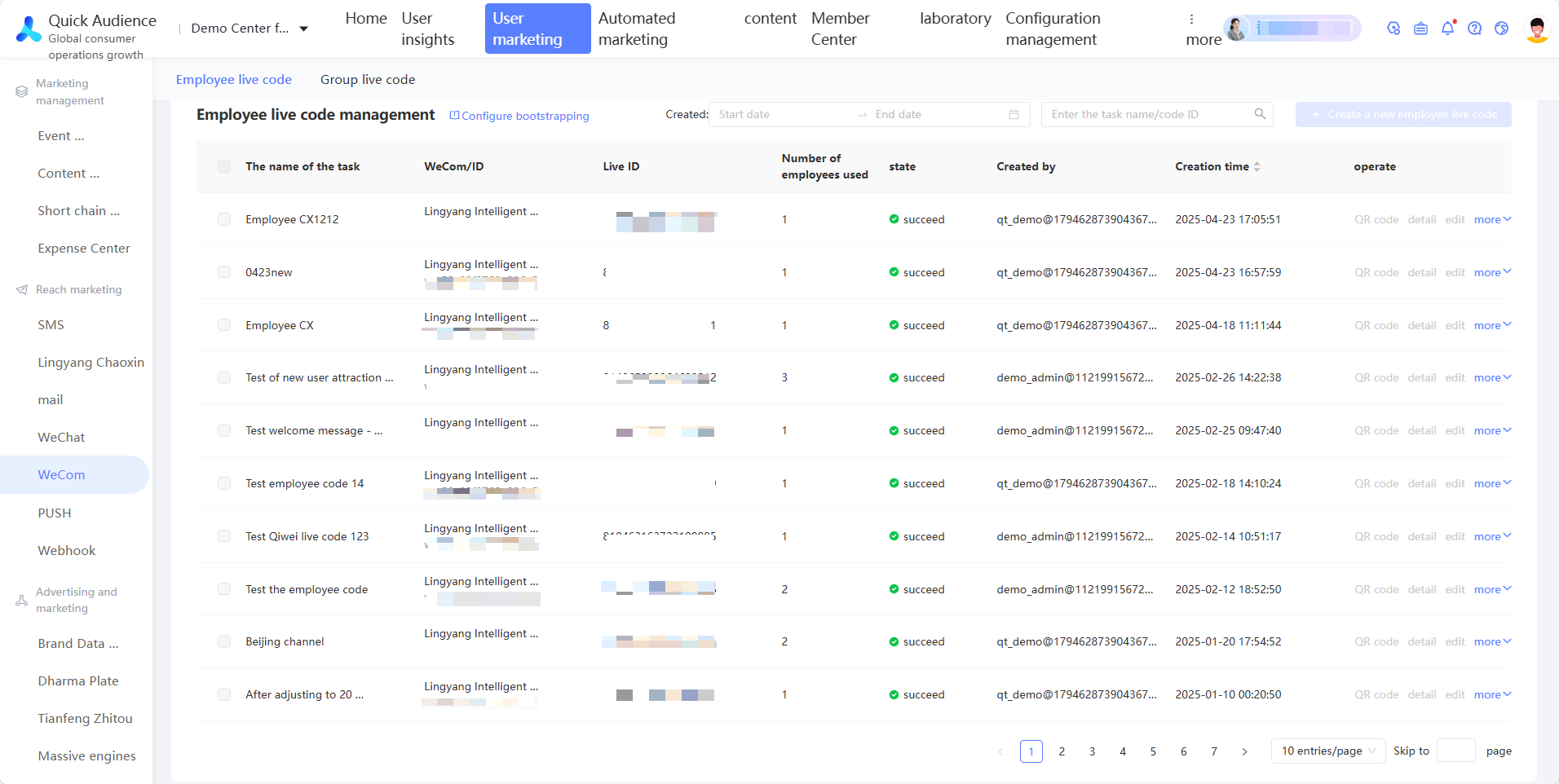
WeCom: The name and ID of the WeCom account that was attached when the dynamic code was created.
Dynamic Code ID: The unique ID that is automatically generated for the dynamic code.
Number of Employees in Use: The number of WeCom members included in the dynamic code.
Creator: The account name of the creator.
Creation Time: The time when the dynamic code was generated.
Operations: Go to User Marketing > WeCom > Employee QR Code. Find the corresponding task and click the QR code icon to display the employee QR code. You can download the QR code and copy the URL.
QR Code: Click to view the QR code, download the QR code, or copy the URL.
Performance Details: Click to go to the data statistics page for the dynamic code.
Edit: You can edit the settings for the current dynamic code. You can edit tasks with a Successful or Failed status, but not those with an Executing status. The 'Prioritize adding the same customer to the same member' option cannot be changed when you edit.
Copy: Copies the configuration of the dynamic code and opens a new editing page. The new task name includes 'Copy'. (Only tasks with a Successful status can be copied.)
Delete: Deletes the dynamic code. You can delete tasks with a Successful or Failed status. If you delete a successful task, the dynamic code is also deleted. If you delete a failed task, only the task record is deleted.
2.4 View details
Click Details to go to the data statistics page for the dynamic code. This page shows basic information and data trends for the code, as shown in the following figure.
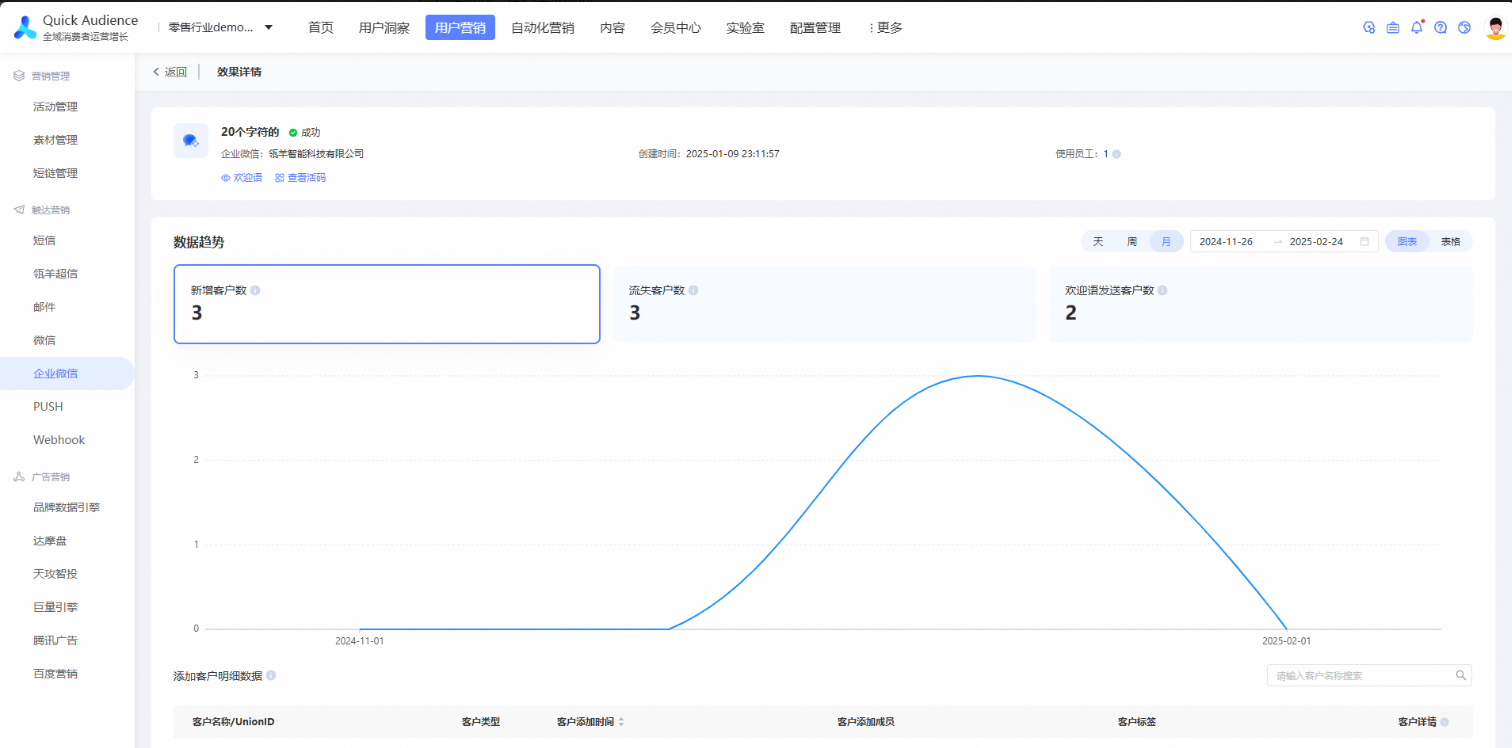
Basic information for the dynamic code: The currently selected task, WeCom account, creation time, and employees in use.

Data trends: You can view data by day, week, or month, or specify a custom time range. You can also switch to a table view. The default view is a chart.
New Customers: The number of external contacts added by scanning the code.
Lost Customers: External contacts who were added by scanning the code but have since deleted the employee.
Customers Who Received Welcome Message: The number of times the welcome message was sent.
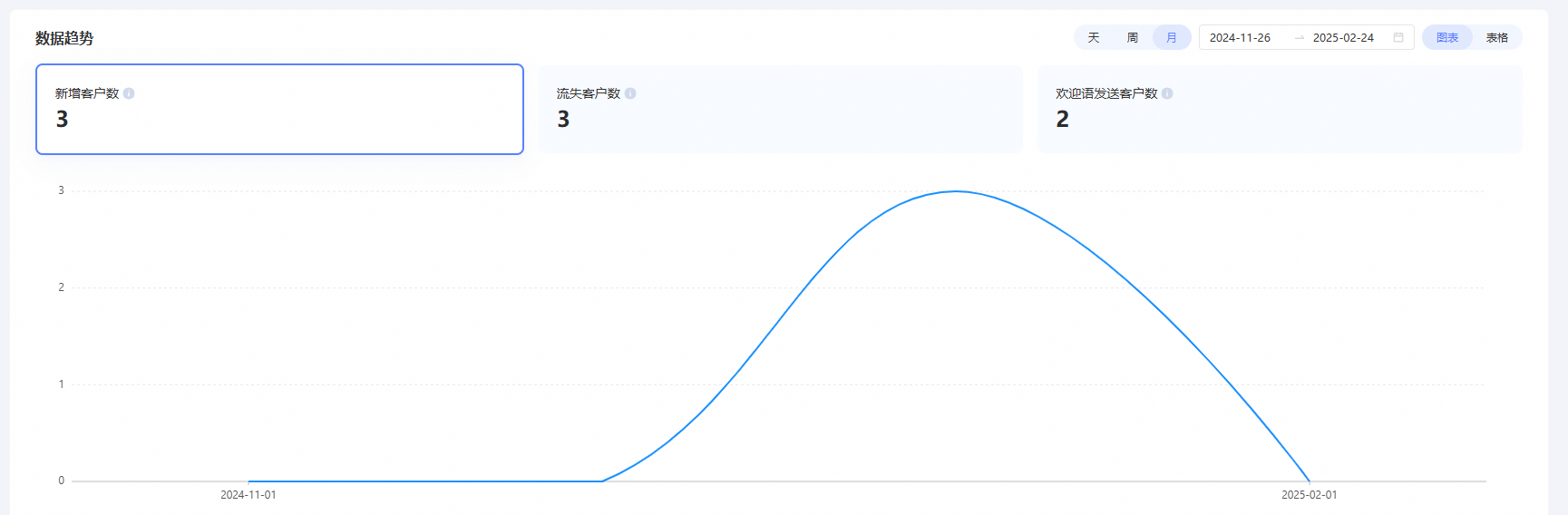
Detailed data of added customers: This section shows the number of times customers were added through this dynamic code. If a customer successfully adds a member multiple times, each record is displayed.
The interface displays the customer's name or UnionID, customer type, time added, the member added by the customer, and customer tags.
Customer Details: Customer details data is synced to User 360 the following day.
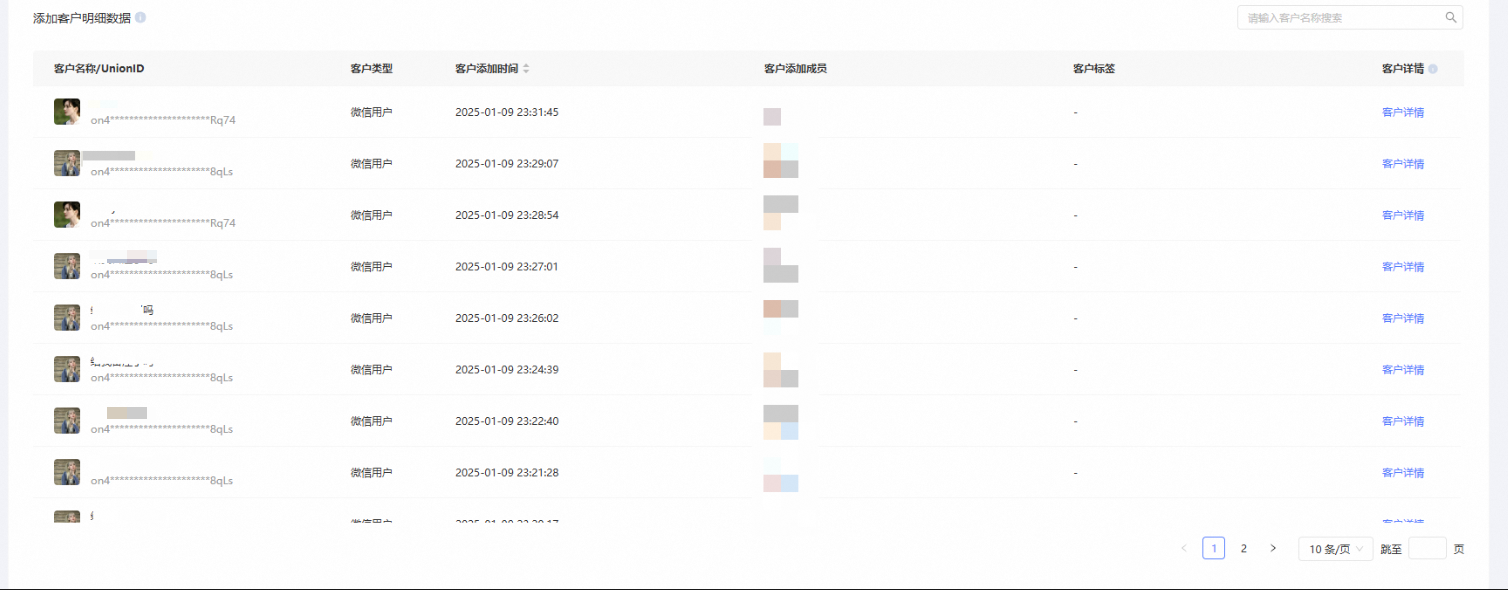
Click Customer Details to go to the User 360 interface, where you can view the user's basic information.