Backup encryption uses the Xtrabackup tool to encrypt backups of ApsaraDB for MyBase for MySQL instances. This feature improves data security.
Prerequisites
- The instance is one of the following types:
- MyBase for MySQL 8.0 High-availability Edition with local SSDs
- MyBase for MySQL 5.7 High-availability Edition with local SSDs
- Purchase a dedicated KMS instance.
Background information
Key Management Service (KMS) generates and manages the keys used for encryption. MyBase does not provide keys or certificates for encryption. You can use keys that are automatically generated by Alibaba Cloud or use your own custom keys.
If you want to use a custom key for backup encryption, you must first create a service-linked role. The MyBase service uses this role to retrieve the KMS key list, key properties, and aliases. This allows the console to display the list of encryption keys and show encryption details after you enable backup encryption.
When you enable the encryption service, the MyBase service marks the key that you select. The backup system then uses this key through the service-linked role to perform backup encryption.
Precautions
- You cannot change the key after backup encryption is enabled.
- After you enable backup encryption, only new backups are encrypted. Existing backups remain unencrypted.
- After you enable backup encryption, if you restore data to a local machine, you must decrypt the data after you download the backup.
Note If you restore data directly from a backup in the console, you do not need to decrypt it manually. The backend automatically decrypts the data before the restore operation.
- When you use an existing custom key, note the following:
- Disabling the key, scheduling the key for deletion, or deleting the key material makes the key unavailable. As a result, maintenance operations for instances that use this key for backup encryption fail, which may affect instance availability. Restore operations from these encrypted backups also fail.
- Use an Alibaba Cloud account or a RAM user that has the following permissions:
{
    "Version": "1",
    "Statement": [
        {
            "Action": [
                "ram:CreateServiceLinkedRole"
            ],
            "Resource": "*",
            "Effect": "Allow",
            "Condition": {
                "StringEquals": {
                    "ram:ServiceName": "backupencryption.rds.aliyuncs.com"
                }
            }
        },
        {
            "Action": [
                "kms:ListResourceTags",
                "kms:TagResource"
            ],
            "Effect": "Allow",
            "Resource": [
                "acs:kms:*:*:*"
            ]
        }
    ]
}
Enable backup encryption
- Log on to the ApsaraDB for MyBase console.
- In the upper-left corner of the page, select the destination region.
- In the navigation pane on the left, click .
- Find the target instance and click Details in the Actions column.
- In the navigation pane on the left, click Backup and Restoration.
- Click the Backup Settings tab. In the Backup Encryption Settings section, turn on the Backup Encryption Status switch.
- Select an encryption setting and click OK. The encryption settings are described as follows:
- Use a key automatically generated by Alibaba Cloud
Alibaba Cloud automatically generates a key for you.
- Use an existing custom key
If this is the first time that you use a custom key, you must grant permissions as prompted. After the authorization is successful, select a custom key. If no custom keys are available, click Create to create a key. For more information, see Create a key.
Note After you enable this feature, new backups are encrypted. When you use backups on Alibaba Cloud, you do not need to manually decrypt them. The backend automatically decrypts the data before it performs operations, such as data restoration. However, if you download an encrypted backup to a local machine, you must manually decrypt it before you can use it. - Use a key automatically generated by Alibaba Cloud
Decrypt data
This section demonstrates the decryption process using an Ubuntu 16.04 system as an example.
-
Percona XtraBackup is installed. If not, see Percona XtraBackup 2.4 (for MySQL 5.7, 5.6, or 5.5 instances) or Percona XtraBackup 8.0 (for MySQL 8.0 instances).
-
The qpress decompression tool is installed. If not, run the following commands to install it.
wget "http://docs-aliyun.cn-hangzhou.oss.aliyun-inc.com/assets/attach/183466/cn_zh/1608011575185/qpress-11-linux-x64.tar" tar xvf qpress-11-linux-x64.tar chmod 775 qpress cp qpress /usr/bin -
Requires Python 3.
Procedure
- Obtain the ciphertext and encryption algorithm of the encrypted backup data.
- Log on to the ApsaraDB for MyBase console.
- In the upper-left corner of the page, select the destination region.
- In the navigation pane on the left, click .
- Find the target instance, click Details in the Actions column, and then click Backup and Restoration in the navigation pane on the left.
- Find the target backup set. In the Actions column, click
 > View Encryption Information to obtain the Ciphertext and Encryption Algorithm.
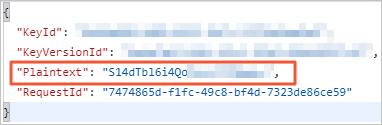
- Call the Decrypt operation. Pass the Ciphertext that you obtained in Step 1CiphertextBlob parameter to retrieve the Base64-encoded binary string Plaintext
-
Base64-decode the
Plaintextstring and convert the resulting bytes to hexadecimal to obtain the decryption key. This example uses a Python 3 script to do this.-
Run
vi decrypt.pyin the command-line interface to open the vi editor. -
Press
ito enter insert mode. Enter the following content, pressESC, and then enter:wqto save the file and exit.import base64 import binascii plaintext = 'S14dTbl6i4Qo**********' # Enter the Plaintext that you obtained in the preceding step between the single quotation marks (''). password = binascii.b2a_hex(base64.b64decode(plaintext)) # Obtain the decryption password and assign it to the password variable. print(str(password, 'utf-8')) # Print the password as a string. -
Run the
python decrypt.pycommand. The command prints the decryption key. The following is a sample key:4b5e1d4db97a********************
-
- Download the encrypted backup data and decrypt it.
- Download the backup data to a local machine.
- Run the following command to create a directory, such as /home/mysql/data, to store the backup data.
mkdir /home/mysql/data - Decompress the package. Select a command based on the file extension of the package.
Backup file type Decompression command tar package (.tar.gz extension) tar -izxvf test1.tar.gz -C /home/mysql/dataxbstream package (.xb.gz extension) gzip -d -c test1.xb.gz | xbstream -x -v -C /home/mysql/dataxbstream file package (_qp.xb extension) ## First, unpack the file. cat test1_qp.xb | xbstream -x -v -C /home/mysql/data ## Then, decompress the file. ### For MySQL 5.6/5.7 innobackupex --decompress --remove-original /home/mysql/data ### For MySQL 8.0 xtrabackup --decompress --remove-original --target-dir=/home/mysql/dataxbstream qpress package (_xb.qp extension) qpress -do test1_xb.qp | xbstream -x -v -C /home/mysql/dataAfter decompression, you will find that almost all data files have the.xbcryptextension. This indicates that the data is encrypted.
- Run the following command to decrypt the data.
xtrabackup --decompress --remove-original --decrypt=AES256 --encrypt-key=4b5e1d4db97a******************** --target-dir=/home/mysql/dataNote The main parameters in the preceding command are described as follows:- decrypt: The Encryption Algorithm that you obtained in Step 1
AES256. - encrypt-key: The decryption password that you obtained in Step 3.
- target-dir: The directory where the backup files are stored.
After you run the command, the.xbcryptextension is removed from the data files. This indicates that the data is successfully decrypted.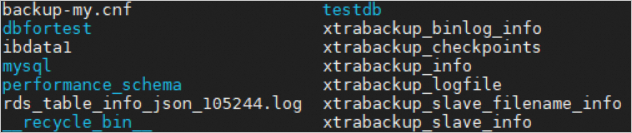
- decrypt: The Encryption Algorithm that you obtained in Step 1