Generate commands with the command helper
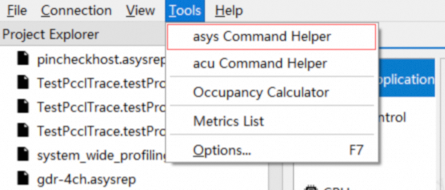
To open the asys Command Helper, select Tools > asys Command Helper from the Asight System GUI menu bar.
The command helper interface consists of the following three areas:
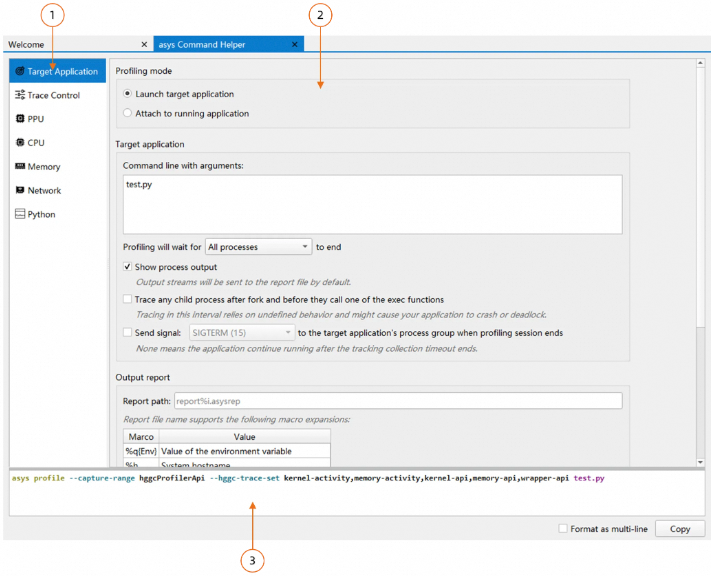
Menu bar: Categorizes parameters by type.
Parameter configuration area: Used for configuring tracing options.
Command generation area: Displays the generated command.
1. Command helper menu bar
Use the menu categories in the following table to find collection options.
Menu item | Description |
Target application | For configuring options related to the target application, such as its path and arguments, the output report path, and environment variables. |
Trace control | For configuring options to control the collection process, such as event-triggered tracing, collection duration control, and report file rotation for long-running collections. |
PPU | For configuring PPU activity tracing options, such as HGGC, PPU metrics, ACDNN, and ACBLAS. |
CPU | For configuring CPU activity tracing options, such as application execution on the CPU and CPU metrics. |
Memory | For configuring tracing of PPU memory, host memory, heap memory, and pinned memory usage. |
Network | For configuring the collection of runtime metrics for RDMA network adapters. |
Python | For configuring Python tracing, such as the collection of Python call stacks and functions. |
2. Parameter configuration area
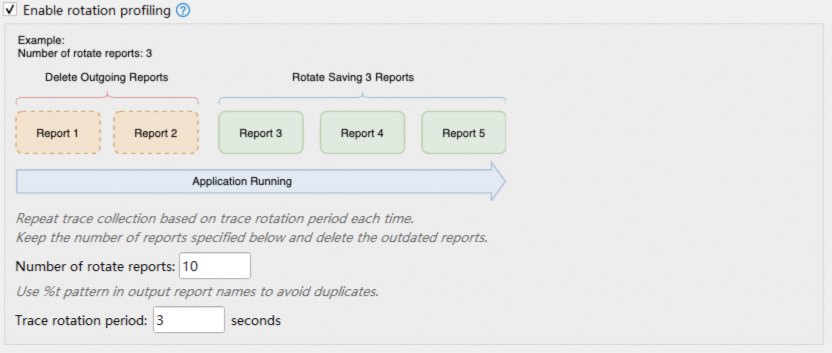
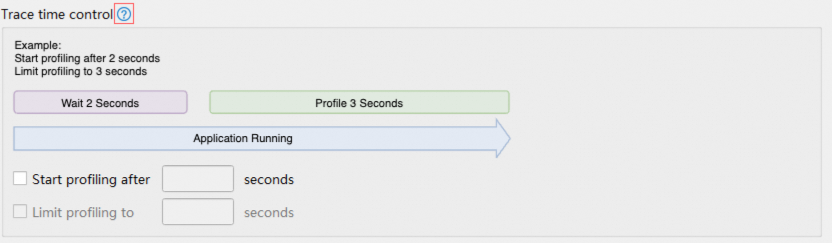
Each collection option includes a description, and some are illustrated with a diagram. Additional details appear in gray italics below the option.
2.1 Input restrictions
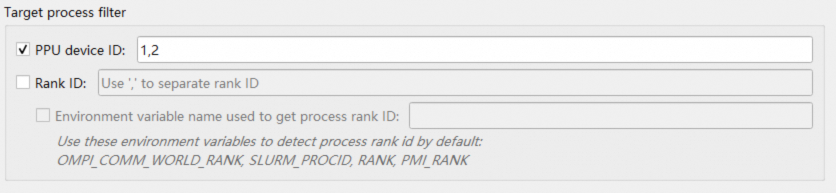
Some input fields accept only specific data formats.
2.2 Error messages
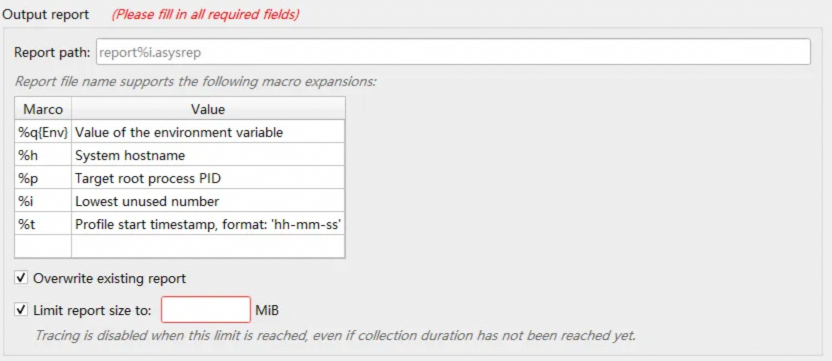
If you leave a required parameter empty, a red error message appears:
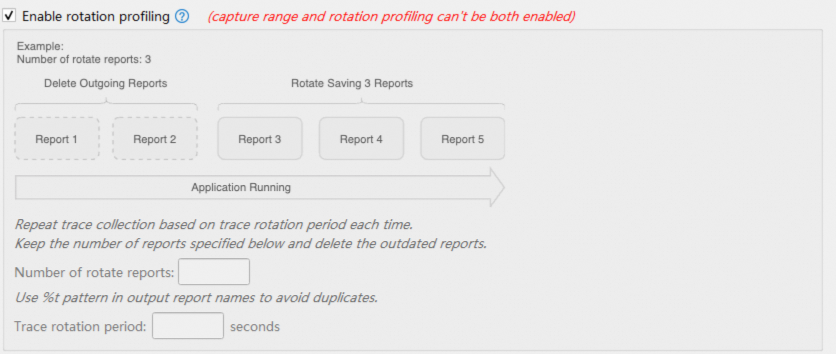
Some options are mutually exclusive. If you try to enable conflicting options, an error message appears on the parent option, and the conflicting choices are grayed out:
2.3 Links to help documentation
Clicking this icon opens the relevant documentation for the option.
2.4 Metrics selection dialog
For options requiring metrics, click the selection button (shown below) to open the Metrics Selection Dialog.
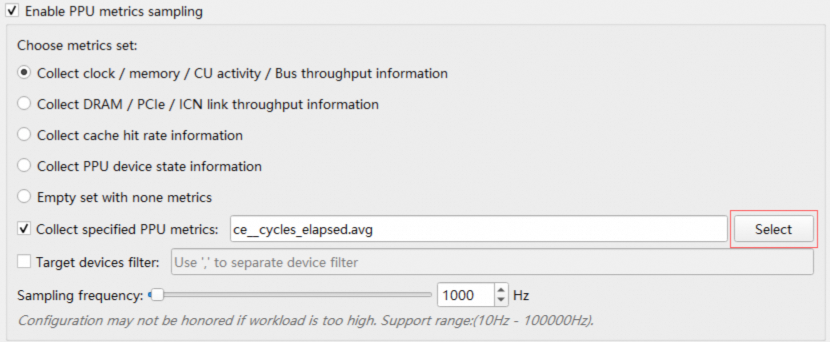
The Metrics Selection Dialog is shown below:
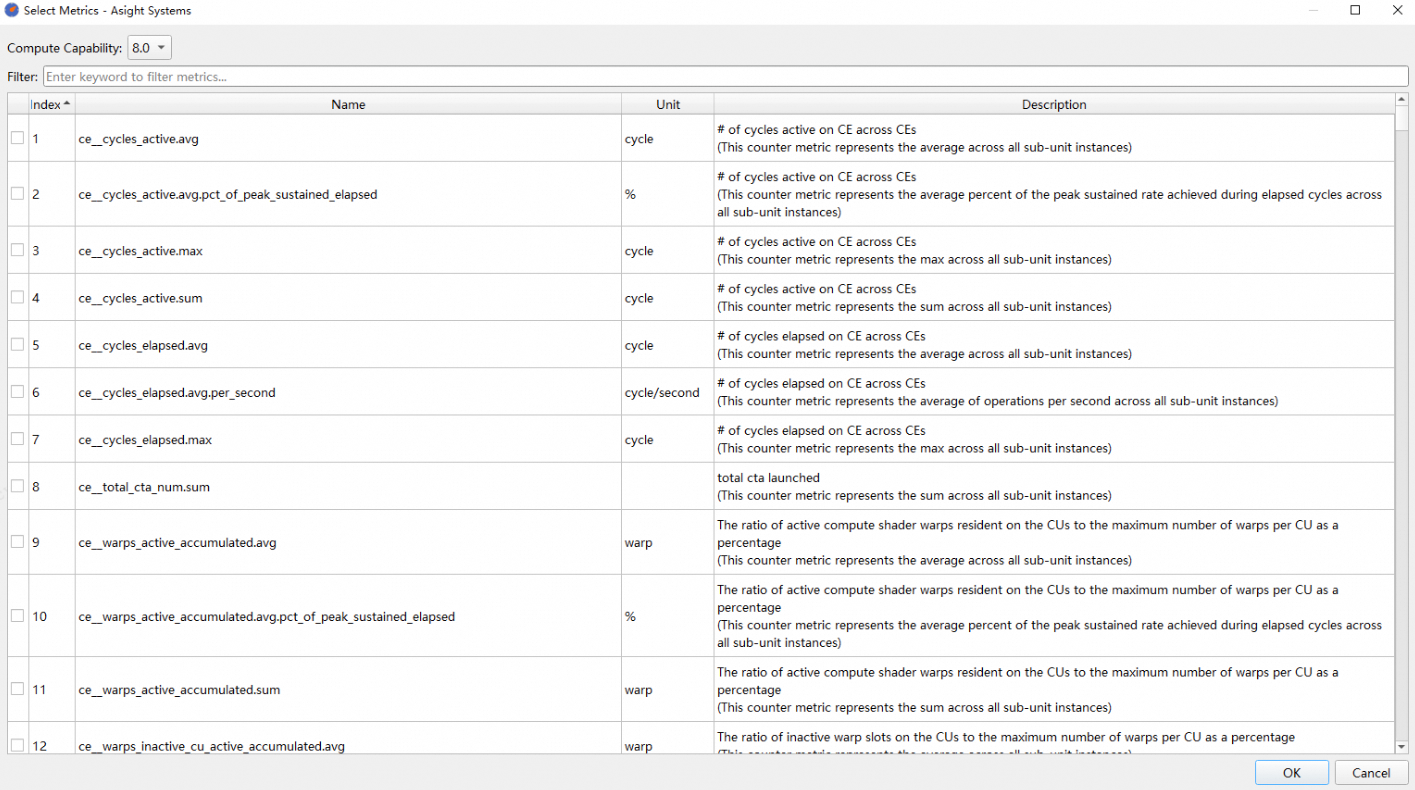
In this dialog, select a compute capability to load the corresponding metric list. The number of metrics you can collect in a single run is limited. Exceeding the limit triggers an error message and disables the OK button.
3. Command generation area
When you change a parameter, the asys command in the command generation area updates automatically:

Select the Format as multi-line checkbox to display the command line across multiple lines:
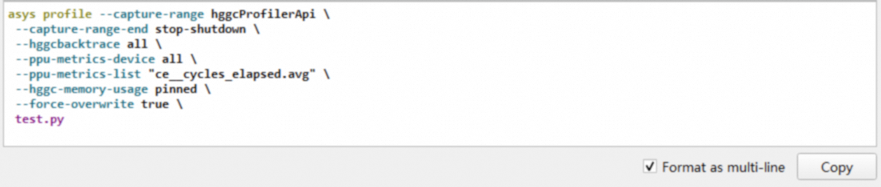
Click the Copy button to copy the command to the clipboard. You can then paste it into a terminal to profile the target application.