This document explains how to validate the remote log feature of the Alibaba Cloud Mobile Monitoring Flutter SDK.
1. Pull logs
Step 1: Identify the device
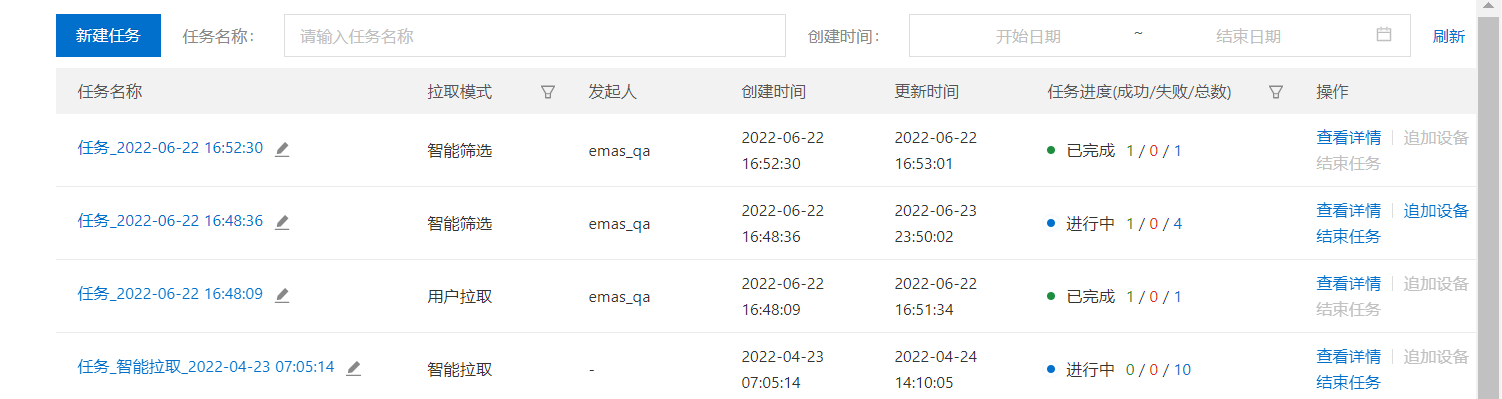
Start the app. In the console, from the left navigation pane, choose remote log > task list to open the task list tab.
On the task list tab, click create task to open the create task page.
In the left navigation pane, choose device log and click Refresh to check if your mobile device has been identified.
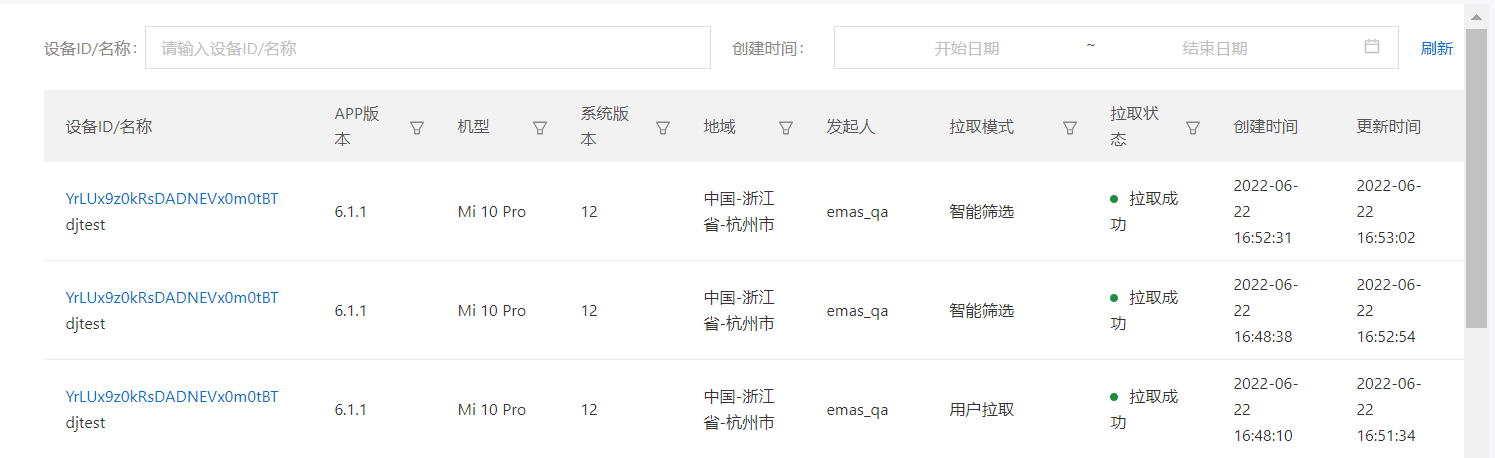
If your device is not identified, possible reasons include:
Network connection issue or latency: Ensure the mobile device is connected to the internet, wait a few moments, and then refresh again.
The SDK failed to send data: Contact Technical Support for assistance.
Step 2: Pull logs
Switch the app between the foreground and background to trigger log output.
Create a task to pull logs from the specified mobile device. For details, see Create a task.
View the task and confirm it is complete. For details, see View and manage tasks.
In the left navigation pane, choose device log to confirm that the logs from the specified mobile device have been pulled successfully.
For details about the device log page, see View logs.
If the expected logs do not appear, contact Technical Support for assistance.
2. Proactive Upload
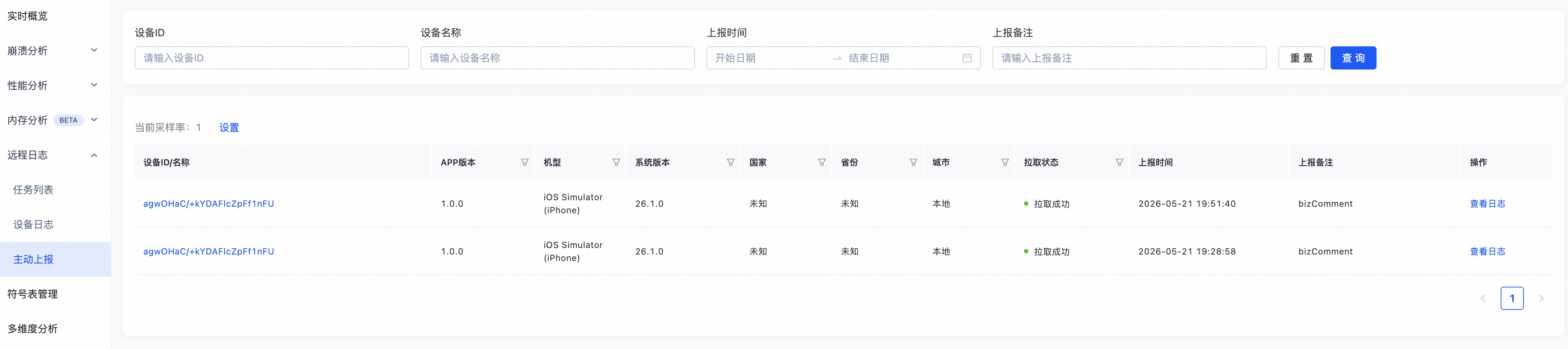
Call the SDK API to proactively upload logs from the current day.
await RemoteLog.uploadLog('Your bizComment');In the console, choose remote log > Proactive Upload to view the uploaded log details.