View logs
After a log pull task is complete, you can view the log pull status and log details for each device on the Device Log tab in the Remote Log Access console.
Prerequisites
A log pull task has been created and run successfully. For more information, see Create a task.
View the log list
In the navigation pane on the left, choose Remote Log Access > Device Log to view the pulled device logs.
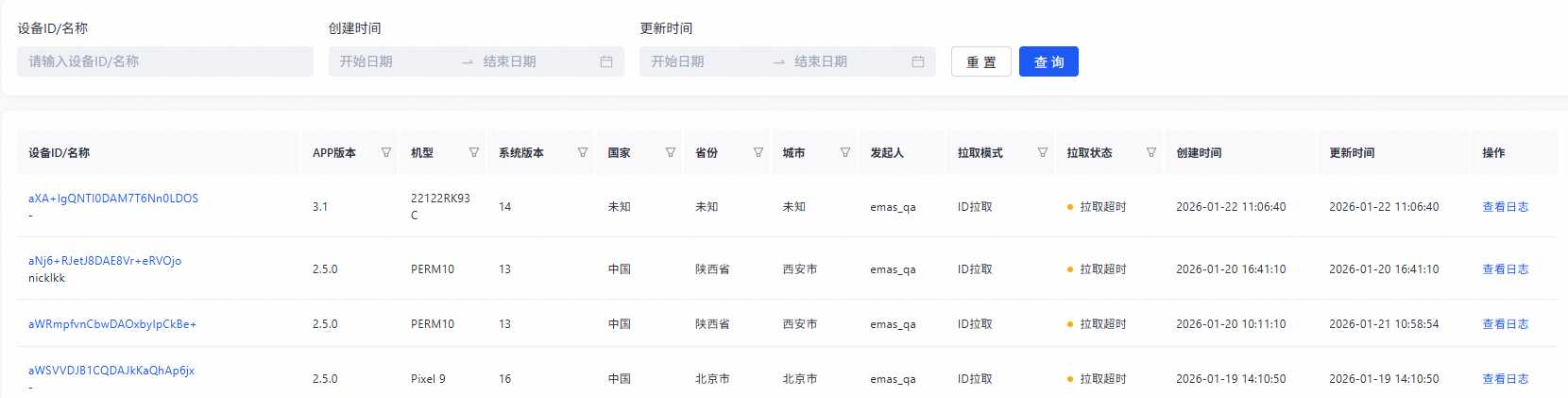
Set filter conditions to find specific device logs.
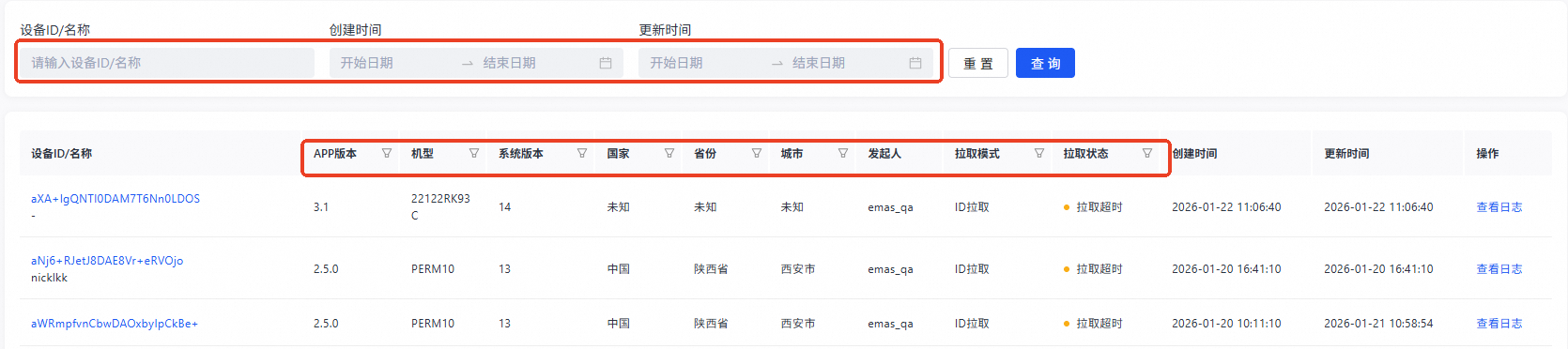
Option
Description
Device ID/Name
Query logs for a device with a specific ID or name.
Creation Time
Select a date and time from the calendar to query device logs related to tasks created at the specified time.
Update Time
Select a date and time from the calendar to query device logs related to tasks updated at the specified time.
App Version/Model/System Version/Region/Pull Mode/Pull Status
Click the filter button and select one or more options from the shortcut menu to filter device logs. For a description of pull statuses, see Terms.
In the Operation column of the task list, click the View Log link to open the log details page for the corresponding device.
Log details
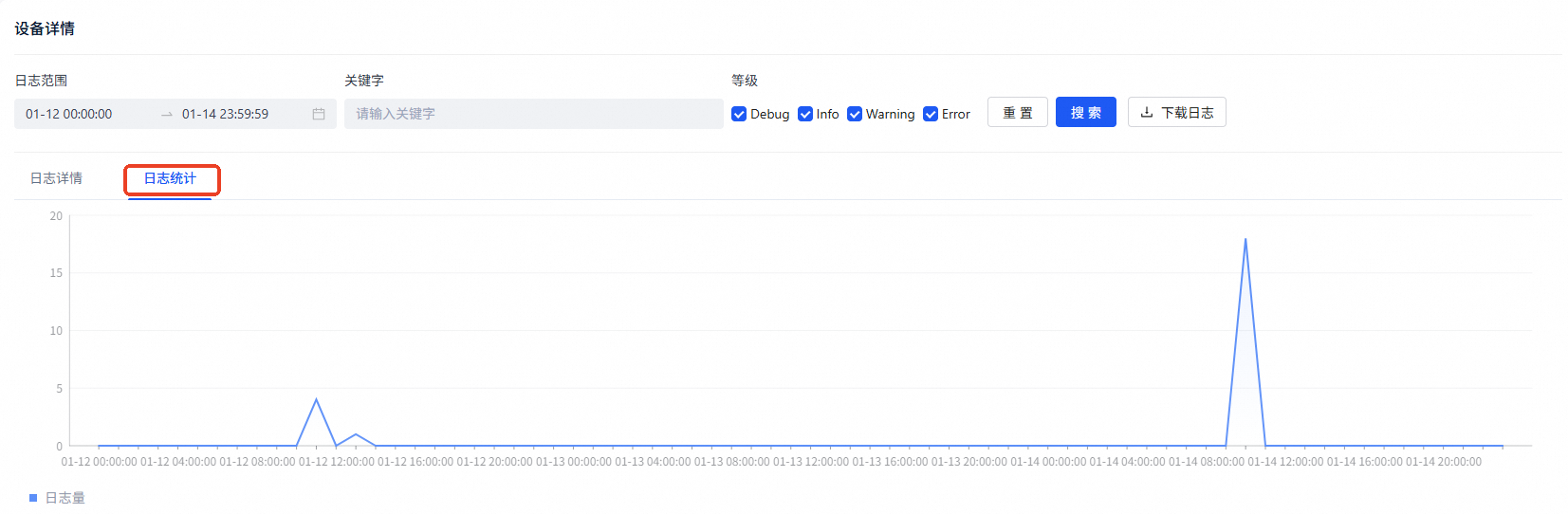
On the device log details page, you can query the log volume trend over time and view log content based on specified conditions.
Conditional settings

Option |
Description |
Time Range |
Specify the start and end times to pull device logs. This displays statistics for device logs within the specified time range. |
Log Level |
Specify the log level. This displays statistics for device logs at or above the specified level. For more information about log levels and sorting, see Terms. |
Keyword |
Specify a keyword. This displays statistics for device logs that contain the specified keyword. |
Download Log |
Download the filtered logs. |
Data display
Option |
Description |
Log Volume |
Displays the trend of log volume over time. |
Log Content |
Displays the content of the pulled device logs in a time series. |
Move the mouse pointer over the trend graph to view the data for a specific point in time.