AI suite
AI suite provides three core capabilities — Data analysis, AI chat, and Smart Translation — to help you build intelligent website applications with multilingual support.
AI suite includes the following core capabilities:
-
Data analysis: A module for collecting and analyzing website access data. You can view website traffic and question-and-answer data.
-
AI chat: An intelligent customer service feature that automatically answers questions, matches common questions, and organizes and manages the knowledge base so that visitors can quickly obtain information.
-
Smart Translation: Enables multilingual support for applications. Its AI-powered translation engine supports translation between major global languages.
AI suite is available in Standard Edition or higher. If you are using Lite Edition, the system prompts you to upgrade to Standard Edition or a higher edition when you enable a feature.
Enable AI suite
Method 1: Enable quickly through chat
In the chat configuration window of an application, enter your request in natural language. For example, enter "Enable multilingual support." The system automatically enables the corresponding tool.
Method 2: Enable in the console
-
Log on to the Wanxiaozhi console and go to Application list. Select the target application and click Go to App.
-
Click Manage. In the left-side navigation pane, click AI suite.
-
On the AI suite page, click Enable All Features.
-
Find the target feature and turn on its switch.
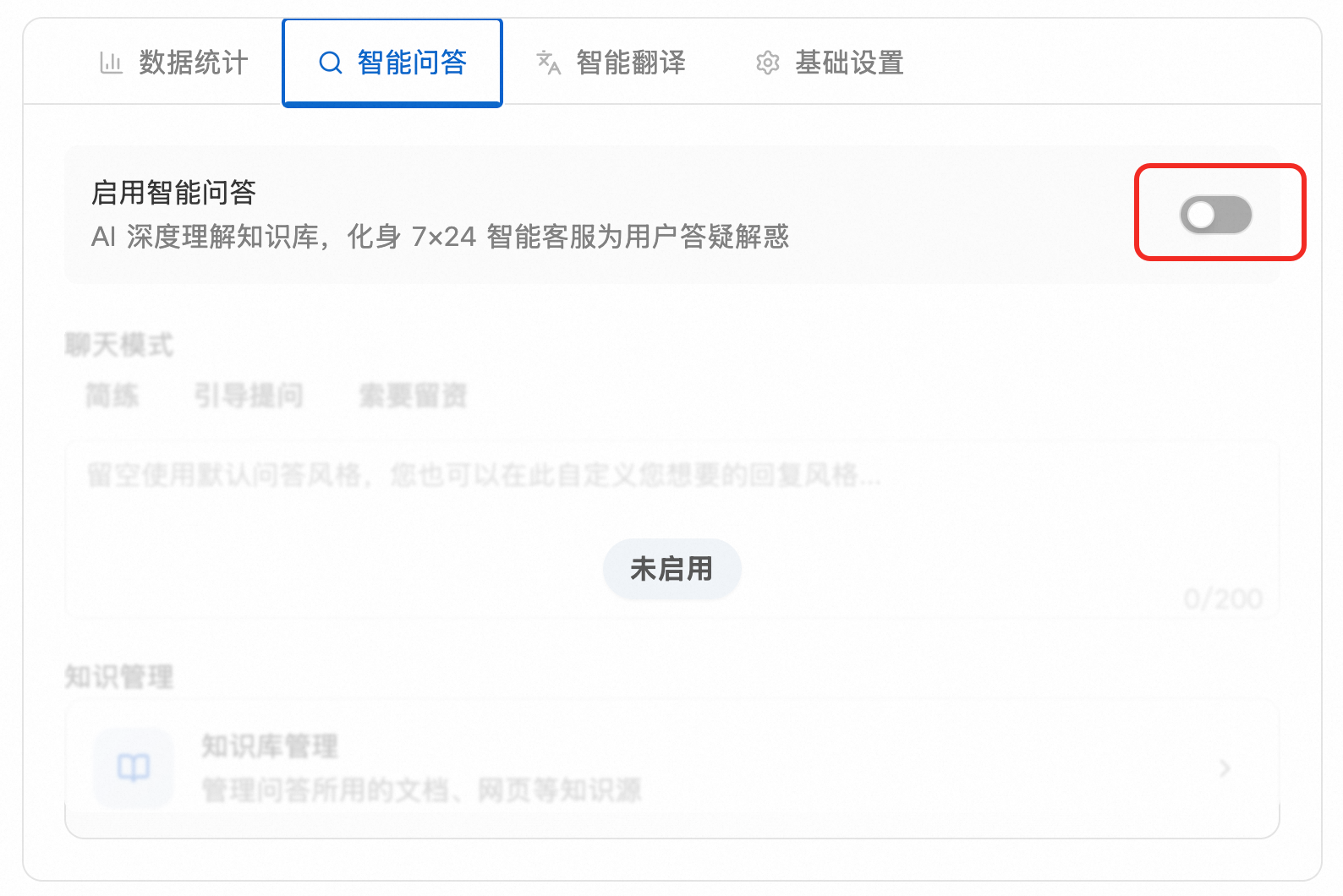
Data analysis
Data analysis provides the following data viewing capabilities:
-
Filters
-
Domain filter: Click the All Domains drop-down list and select the domain whose data you want to view.
-
Time filter: Click the Last 7 Days drop-down list. You can use the shortcut buttons to select Yesterday, Today, Last 7 Days, or Last 30 Days, or use the calendar to select a custom time range.
-
-
Data cards
-
Period PV: Displays the Page View count for the selected time range, including the percentage change from the previous period.
-
Period UV: Displays the number of unique visitors for the selected time range, including the percentage change from the previous period.
-
Total sessions: Displays the total number of sessions. Click View to view detailed session records.
-
Search records: Displays the number of searches. Click View to view detailed search records.
-
-
Trend chart: Displays the trends of PV and UV over time, including period-over-period comparisons.
AI chat
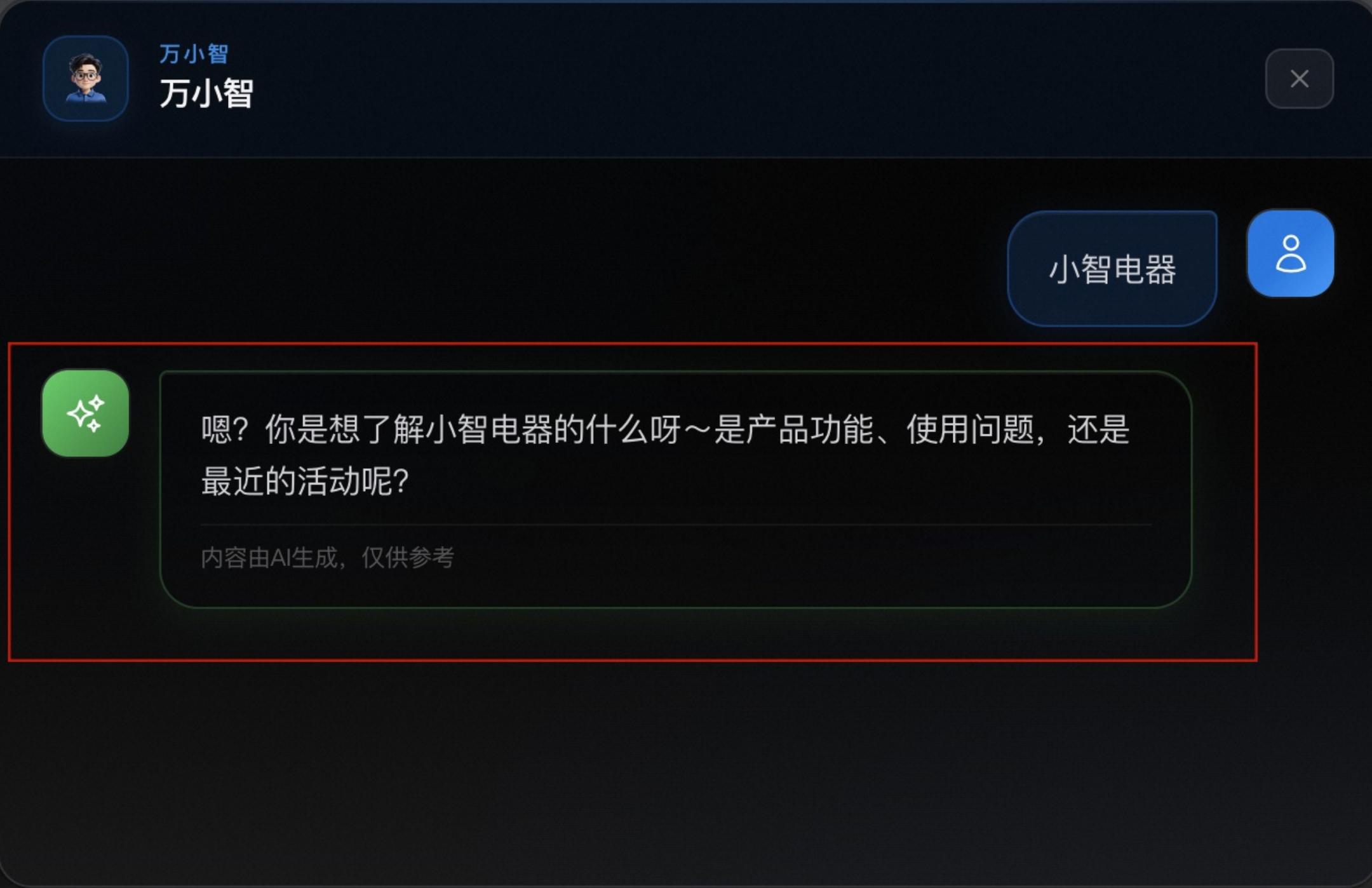
AI chat uses AI to understand the knowledge base in depth and provides 24/7 intelligent customer service to answer questions.
-
Click the Enable AI chat switch to enable or disable AI chat.

-
Chat mode supports the following three modes:
-
Concise: Provides concise answers.
-
Guided questions: Guides users to ask more specific questions.
-
Lead capture: Guides users to leave contact information in responses.
-
-
(Optional) In the Custom Reply Style input box, enter a description of the desired reply style. The description can be up to 200 characters. If you leave it blank, the default question-and-answer style is used.
-
Click the Knowledge Base Management button to manage the documents, web pages, and other knowledge sources used for questions and answers.
-
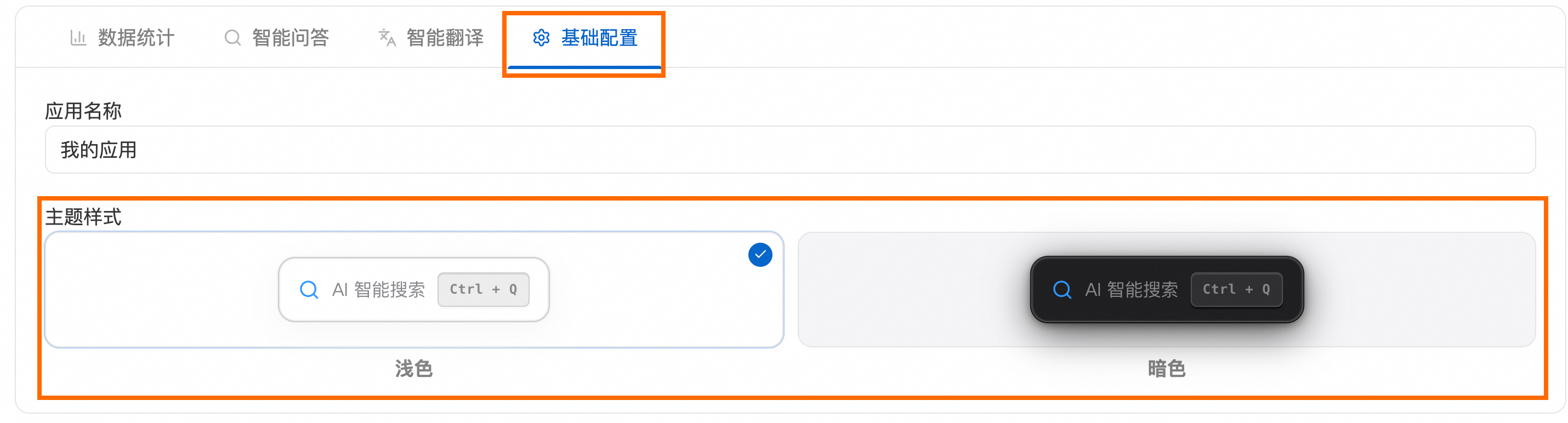
Configure the theme: On the Basic Settings page, select a light or dark theme. The preview card displays the AI chat style for the selected theme.
Smart Translation
Billing
-
Smart Translation consumes Inspiration Credits during use. You can view the remaining Inspiration Credits in the upper-right corner of the console. When Inspiration Credits are depleted, the feature automatically pauses. It resumes after you add more Inspiration Credits.
-
Enabling the feature does not incur charges. The system triggers real-time translation and consumes Inspiration Credits only when a multilingual page is first accessed. The same applies to content that is subsequently added to or modified on the page. Depending on network conditions, there can be a delay of 5 to 10 seconds. Translation results are automatically cached. Subsequent visits to the same page use the cache and do not incur additional charges.
Procedure
Smart Translation automatically translates page text. Configure it as follows:
-
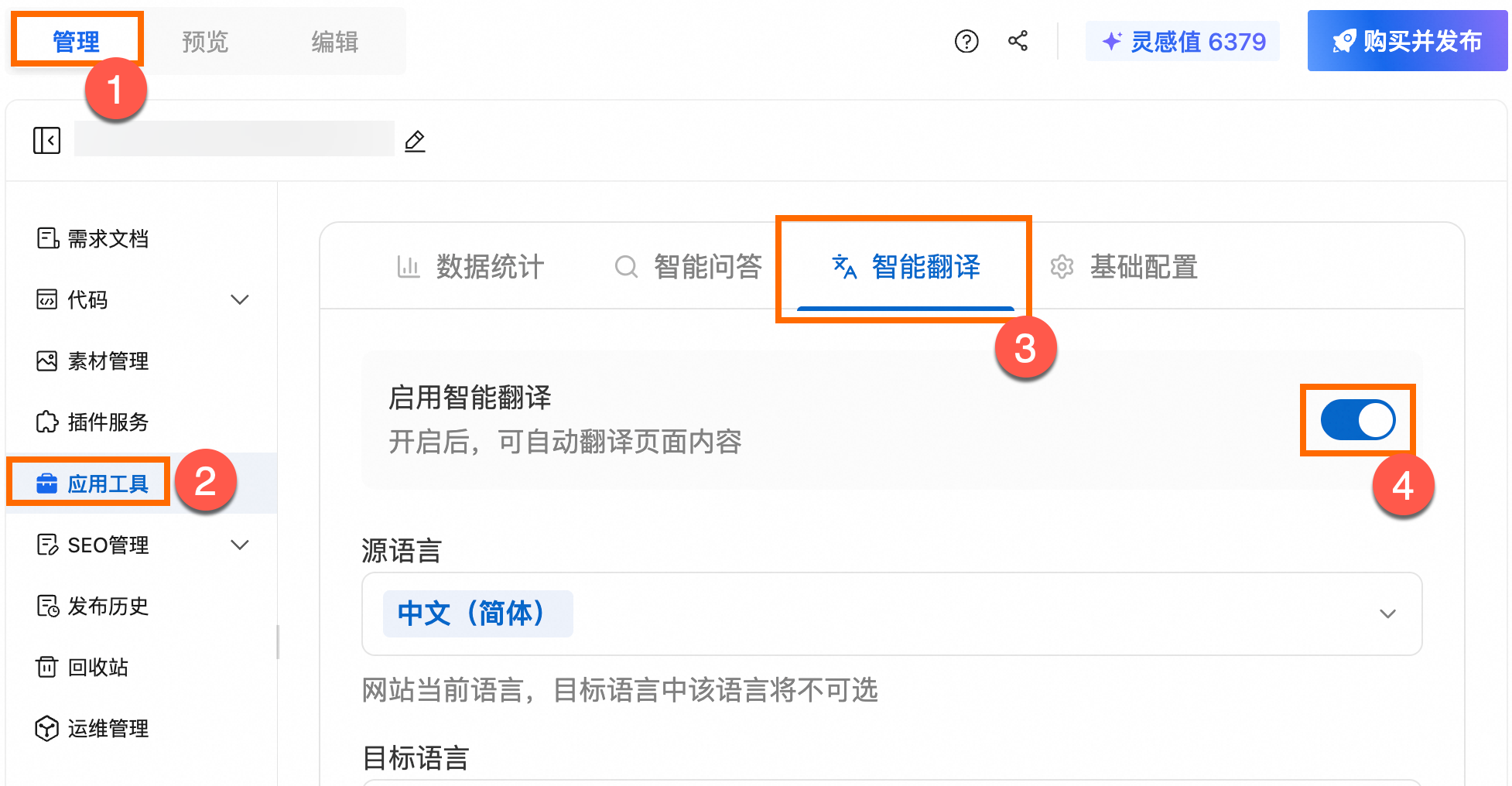
Click the Enable Smart Translation switch to enable or disable Smart Translation.
NoteSmart Translation translates only page text and does not affect image resources.
-
From the Source Language drop-down list, select the website's current language. The visual editing feature is available only for the source language.
The source language is the language currently used by the website and cannot be selected as a target language.
-
From the Target Language drop-down list, select the languages to translate into. Translation into each language consumes Inspiration Credits.
You can select 21 languages, including English, Japanese, Korean, French, German, Spanish, Portuguese, Russian, Italian, Thai, Vietnamese, Indonesian, Malay, Arabic, Turkish, Dutch, Polish, Hindi, and Traditional Chinese. For the complete list, see the Target Language drop-down list in the console.

-
Click Translation Refinement to view and modify translated content. Changes affect only the current language and do not change the source language content.
-
Keep Source Language set to the website's current language. After you switch Source Language, that language appears as the original text column in Translation Refinement. The column is read-only and cannot be edited.
-
Select the language to edit in Target Language. In Translation Refinement, only the translation column is editable; the original text column is read-only.
-
For example, confirm that Source Language is set to Chinese, select English in Target Language, and open Translation Refinement. Click Edit to modify the English translation, and then save. After you save, the entry status changes from machine translation to Refined. The original text column for the source language is not affected.

-

Multilingual support
Wanxiaozhi 3.0 supports multilingual websites. After you enable Smart Translation, AI automatically identifies the required languages based on your requirements, lets you preview different language versions, and controls synchronized translation of multilingual content.
Enable multilingual support
Enable multilingual support through Smart Translation. After it is enabled, AI automatically configures language support and integrates a language switcher into the navigation bar.
-
On the Manage page, click AI suite in the left-side navigation pane, and turn on the switch under Smart Translation.
-
In the chat configuration window on the left side, send Wanxiaozhi the instruction "Enable multilingual support." The system automatically completes multilingual integration, including configuring language support, installing component packages, and integrating a language switcher into the navigation bar.
After the integration is complete, the AI assistant responds with the integration process and result.
Switch language previews
In the language switching area at the top of the page, click to display the drop-down list and select a target language. The preview switches to that language version.
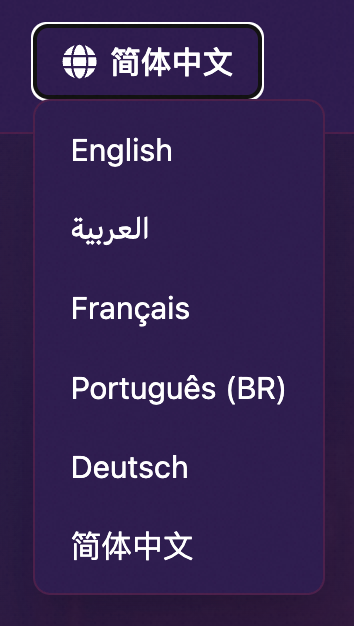
The language switcher is on the right side of the website content navigation bar and can be used only in preview mode. In edit mode, clicking the language switcher enters element editing mode and does not switch the language. To switch languages, first switch to preview mode.
Default website display language
When visitors access the website, the system automatically matches and displays the corresponding language version based on their browser language settings. You cannot force a specific language to be the default display language. To show a visitor the English version, make sure that their browser language is set to English.
After you delete a translated page for a language, the home page might still display content in that language. This occurs because the visitor's browser language setting matches that language version, not because the deletion did not take effect. Change the browser language to the target language and revisit the website to verify the display.
Synchronized translation
The editor enables synchronized translation for multilingual support by default. When you modify and save content in one language, the system automatically synchronizes the translated changes to other language versions.
To edit one language independently, clear the synchronized translation option for that language. After you clear it, content in that language version is not automatically updated when other languages change.
Synchronized translation applies only to text. Non-text elements, such as images and logos, are not automatically translated when you switch languages and remain the same in every language version.
Source language editing restrictions
In multilingual mode, you can edit content only in the source language environment. If you are previewing a non-source language version and click an editable element on the page, the system automatically switches back to the source language for editing.
The source language is the default language used when the website was created and is configured as Source Language in Smart Translation. Content in other language versions is automatically generated through synchronized translation and cannot be edited directly. To adjust one language version independently, first clear the synchronized translation option for that language.
Modify translated content
If AI-generated translations are inaccurate, such as when company names and brand names require fixed translations, or if you need to modify a language display name, review the following methods and considerations:
-
Modify translations: On the AI suite page, open Translation Refinement in Smart Translation. Find the relevant entry, manually modify the translation, and save it. Non-source language content cannot be edited directly on the editor canvas: clicking a non-source language element on the canvas automatically switches back to the source language.
-
Limitation: Translation Refinement does not currently support deleting content in batches. Modify translations one by one.
-
Modify language display names: In the editor, select the language switcher control and click the edit icon to change a language name to the desired display name. For example, change "Indonesian" to "Indonesian language".
-
Effect notice: After you modify a translation or language setting, refresh the page or reopen the website if the page does not update.
-
Recommendation: Before you modify translations in batches, create a long-term backup in Management Console > Website Management > Backup and Restoration to prevent content loss caused by unintended operations.