Display detection
For direct HTTP connections, we recommend using an API key (Bearer). This eliminates the need to calculate an AccessKey signature yourself. Go to the Smart Inspection console to activate the service and create an API key. See Section 3.3 for creation steps and Section 7.2 for curl and Java HTTP call examples. Users who have already connected via AccessKey or STS can continue to use the official SDK.
This guide shows how to use the Aidge Display Detection API for product recognition. It covers how it works, service activation, knowledge base setup, request parameters, code samples, response parsing, exception handling, and billing. The image URLs, product IDs, knowledge base identifiers, and request IDs in the examples are placeholders that you must replace with your actual values.
1 Product overview and use cases
1.1 Product overview
Powered by a multimodal large language model (MLLM) and visual vector retrieval, display detection performs product detection and SKU recognition on in-store images of displays like shelves and floor stacks. The service first locates individual product packaging, obtaining a bounding box and a preliminary name. It then matches the product image against your dedicated SKU knowledge base based on similarity and outputs a structured result for each product.
Your business system can use the returned product locations, SKU codes, names, and similarity scores to perform display audits, stocking verification, remote audits, and manual reviews.
1.2 Use cases
Scenario | Usage |
Display audit for shelves and floor stacks | Identifies visible products in an image and aggregates the detection count by SKU. |
Stocking verification for specific SKUs | Compares the recognition results with a specified SKU list. |
Display compliance inspection | Uses product locations and business rules to check for the presence and correct placement of specified products. |
Remote audit | Processes store-uploaded images in batches and routes results with low confidence scores or anomalies to manual review. |
Recognition for your own products | Maintain your own product knowledge base and use the |
Your business system compares results against stocking lists, determines out-of-stock items, and assesses display compliance based on the recognition results and store-specific task requirements.
1.3 Key capabilities
Coordinated detection and retrieval. The detection phase provides bounding boxes and preliminary names. The retrieval phase provides the SKU code, name, and similarity score from the knowledge base.
Targeted knowledge base retrieval. The
RagIdparameter specifies the product knowledge base for the search. The service enforces access control based on the caller identity.Per-product output. For each detection box, the service returns its location, the top-matching product from the retrieval, and a candidate list. This simplifies business analytics and manual follow-up.
Custom detection rules. Use the
Ruleparameter to define the annotation scope, how individual items are segmented, and the output format, to adapt the service to different display scenarios.Continuous knowledge base maintenance. Maintain your product images through the console or the Content Management API. Once the images are processed and the knowledge base is updated, the knowledge base is ready for recognition tasks.
2 Workflow and integration
2.1 Recognition workflow
In-store photos of shelves or floor stacks
    ↓
The multimodal large model detects each product
    ↓
Outputs product bounding boxes and preliminary names
    ↓
Extracts product images from the boxes and calculates visual vectors
    ↓
Retrieves SKUs from the product knowledge base specified by RagId
    ↓
Returns bounding box coordinates, Top1, TopK, similarity scores, and per-box errors
    ↓
The business system processes results based on thresholds, a target SKU list, and business rules
The preliminary name from the detection phase describes the image's content. During integration, your business system reads the retrieved product name from Top1.SkuName and uses the Top1.Score to validate the match.
2.2 Integration steps
Activate the Aidge service and create an API key in the product console. If you use AccessKey or STS authentication, configure RAM permissions for the calling identity.
Create a new knowledge base in the product console. Select the general-purpose pipeline and the general-purpose model.
Download the template, fill in the product information, and upload it. Wait until the knowledge base is available.
Verify a few samples on the official API debugging page. Check the bounding box positions, names, SKU codes, and similarity scores.
Integrate the service into your business system using the official SDK or an API key over HTTP. Set the read timeout to 60 seconds.
Manage request frequency according to the flow control limits. Handle call exceptions and per-box failures, and continuously maintain the product knowledge base.
Service activation, API Key, and RAM authorization
Activate the service
Before using the API, activate the Aidge service.
RAM authorization for AccessKey or STS
Grant the AliyunAidgeFullAccess system policy to the RAM user or RAM role calling the API. When adding permissions, search for aidge, select the policy, and confirm the authorization.
The permission action for this API is aidge:MerchandisePlacementDetection, and the resource scope is *. If an administrator uses a custom policy, they can configure it based on this API's authorization information. The calling identity must also have access to the target knowledge base.
Configure your Alibaba Cloud credentials on your server. The Python example in this document reads the AccessKey from an environment variable.
Create an API Key (recommended)
First, activate the service on the Intelligent Inspection console, and then create an API Key. In the left navigation pane, choose Quotas and API Keys > API Key Management > Create API Key.
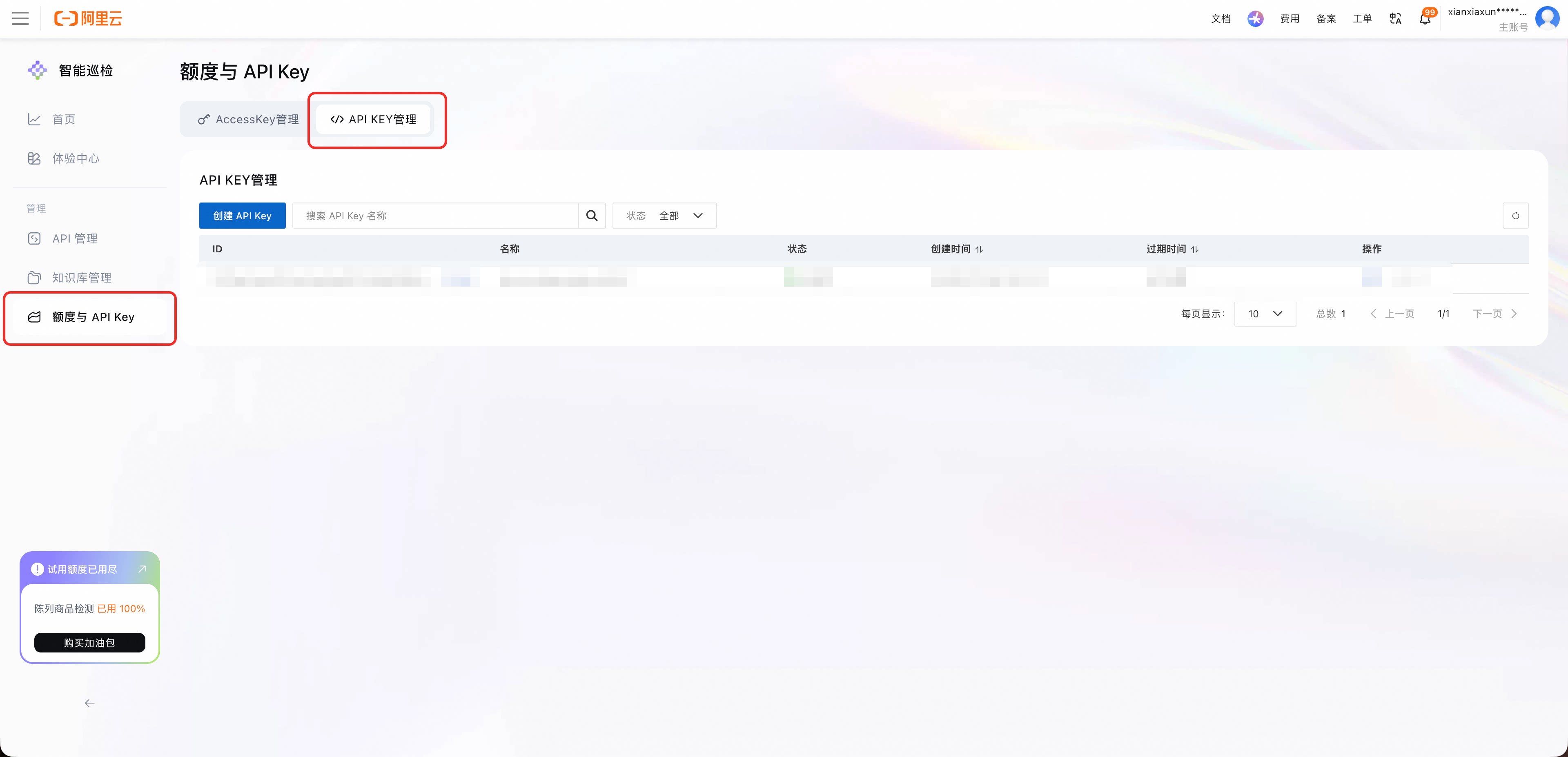
After completing the on-screen steps, copy the displayed API Key and save it in your server-side credentials configuration. For security, the plaintext key is displayed only once upon successful creation. Be sure to save it before you close the page.
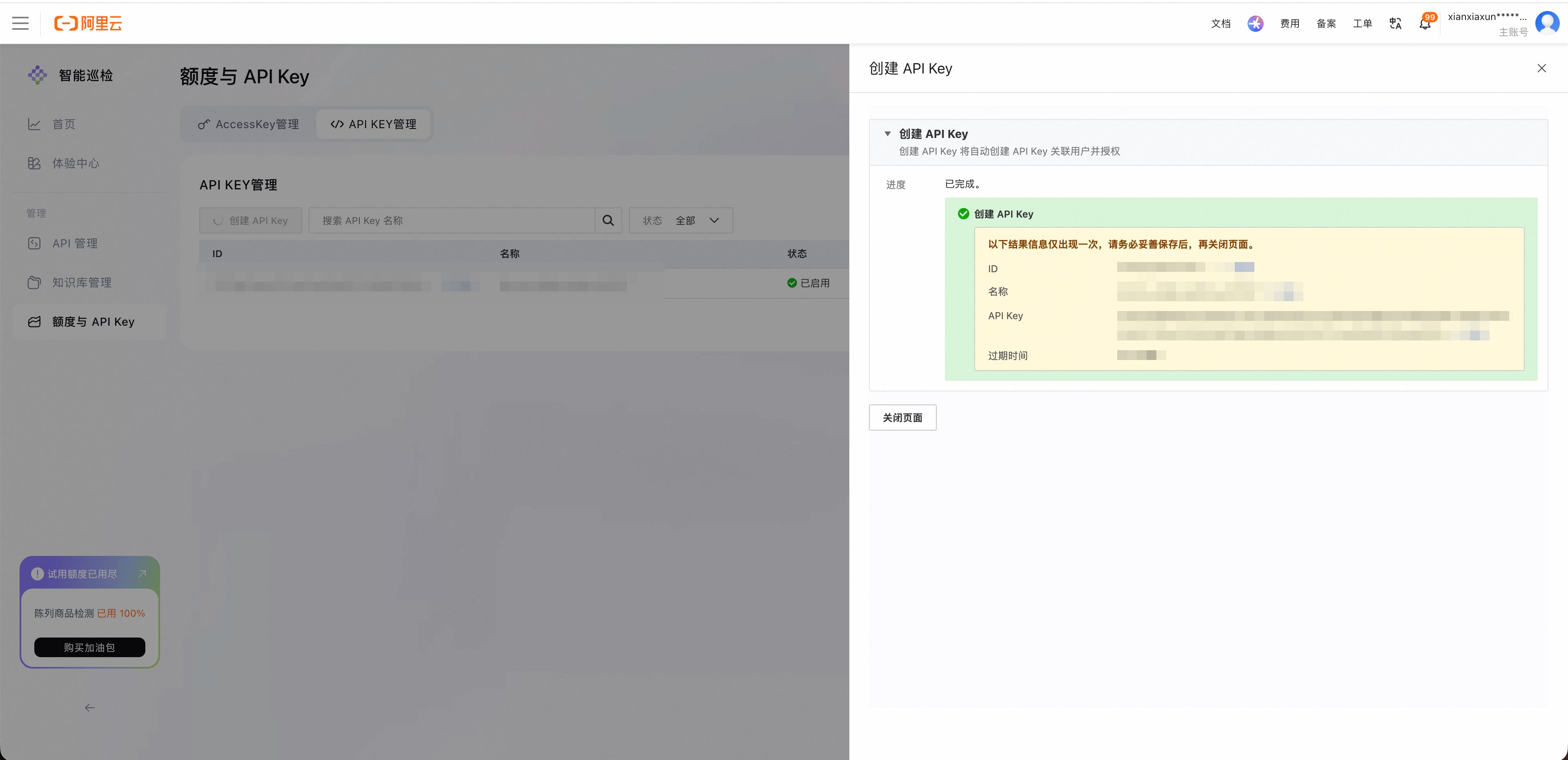
An API Key is a service credential issued by RAM for a specific cloud service. In OpenAPI, it is referred to as a ServiceCredential. It is bound to the Aidge service and is effective only within the scope of that service and the permissions of the associated RAM user. When you create an API Key from the product console, the creation process handles the user association and authorization. If an administrator creates it separately in the RAM console, they must ensure it is bound to the Aidge service and that the associated user has access to merchandise placement detection and the target knowledge base.
Parameter | Description |
ID ( | Used to manage the credential. It is not the key used for API calls. |
Name ( | Used to identify and manage the API Key. It is not the key used for API calls. |
API Key ( | Include this value in the |
For details about API Key concepts, permission scopes, validity periods, and key management, see the official documentation: Manage service credentials (API Keys).
API basics and throttling
Item | Value |
Product | Aidge |
Action |
|
API version |
|
Endpoint |
|
Region |
|
Interaction mode | Synchronous invocation. Returns the recognition result in the same response. |
Authentication method | API Key: Authenticate with the |
Synchronous invocation timeout | 60 seconds |
Sample client configuration | Connection timeout: 15 seconds. Read timeout: 60 seconds. |
This API has no fixed, publicly documented request rate limit. Throttling depends on your account and service-level limits. For batch workloads, send requests at a steady rate and adjust the sending frequency based on the success rate, response latency, and Throttling.User errors. Your provisioned service configuration determines the available QPS and concurrency capacity.
5. Manage product knowledge base
To create and manage a product knowledge base, go to the product console.
Aidge knowledge base management console
5.1 Select the generic path
In the Aidge console, go to product knowledge base management. To create a knowledge base, select generic path, choose the corresponding generic model from the selection options, and complete the process.
We recommend using the generic model for initial testing and integration. If you need a custom-trained model for a specific use case, contact the Intelligent Inspection team to confirm the collaboration plan and model suitability before you select it. Do not select a custom model without prior consultation.
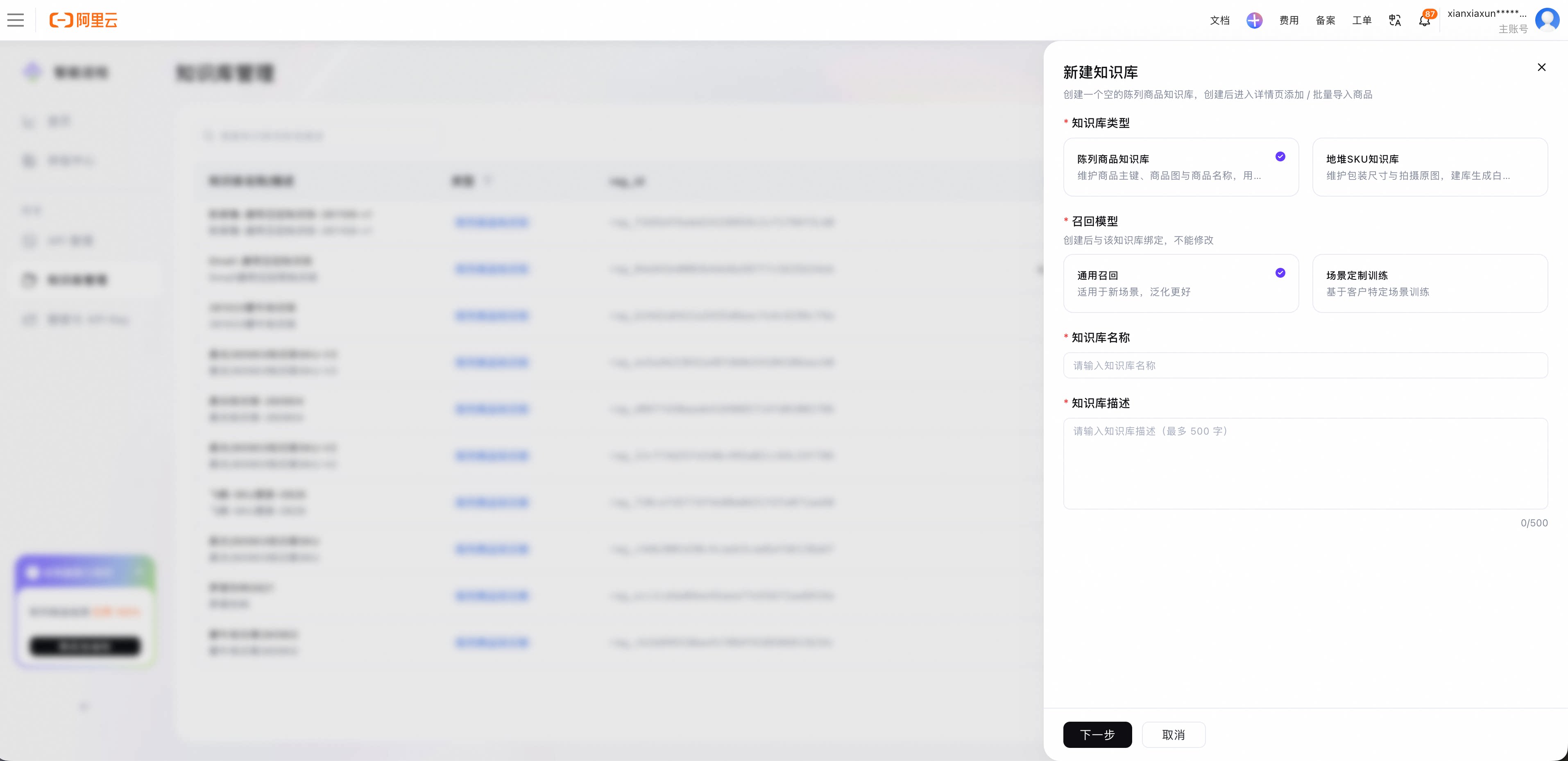
5.2 Prepare product data
Navigate to the knowledge base you created and follow the on-screen instructions to import your product data.
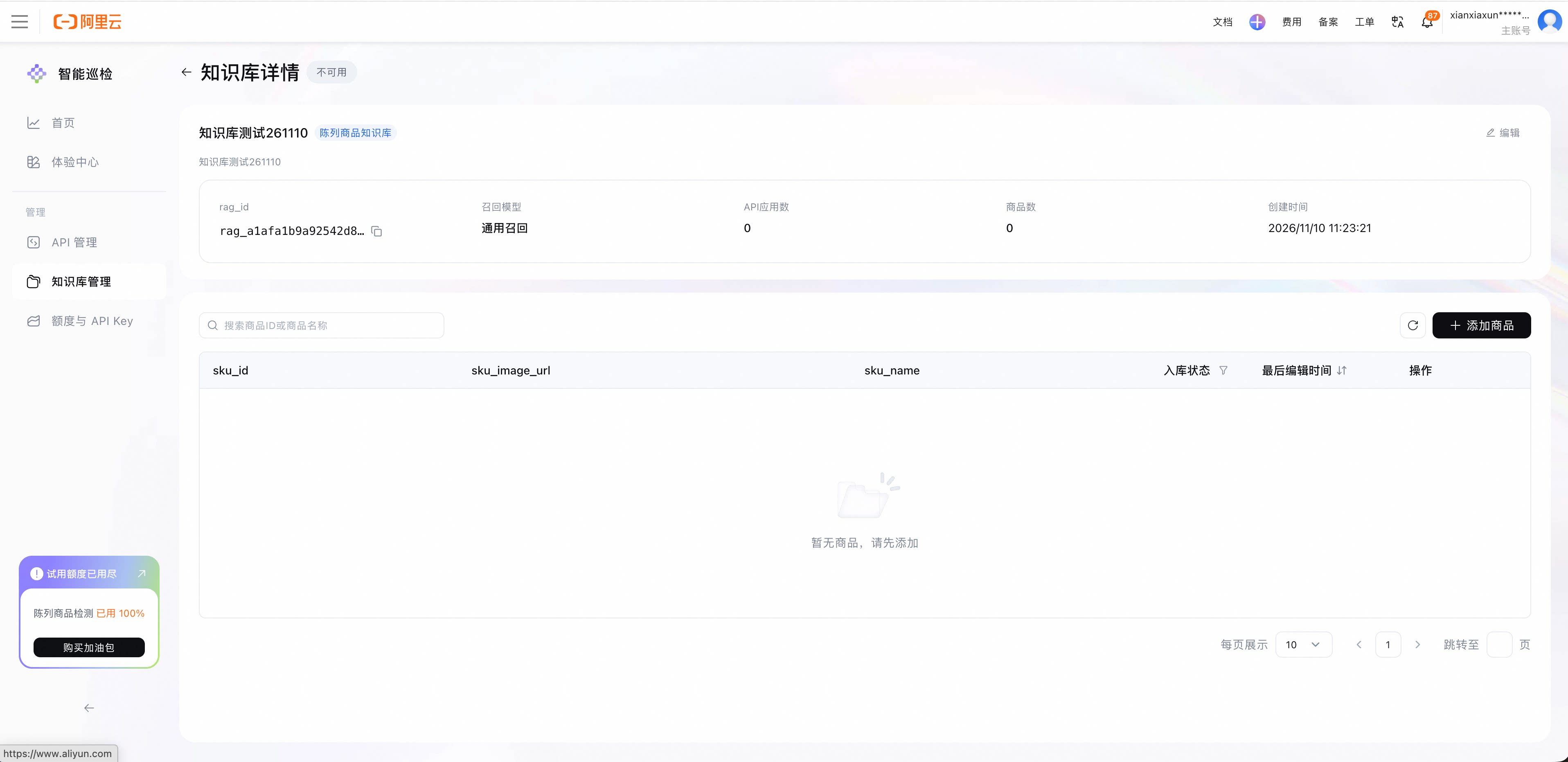
First, download the template from the console, fill it with your product information, and then upload it to the knowledge base. For the file format, column names, required fields, and batch requirements, refer to the downloaded template and the instructions in the console.
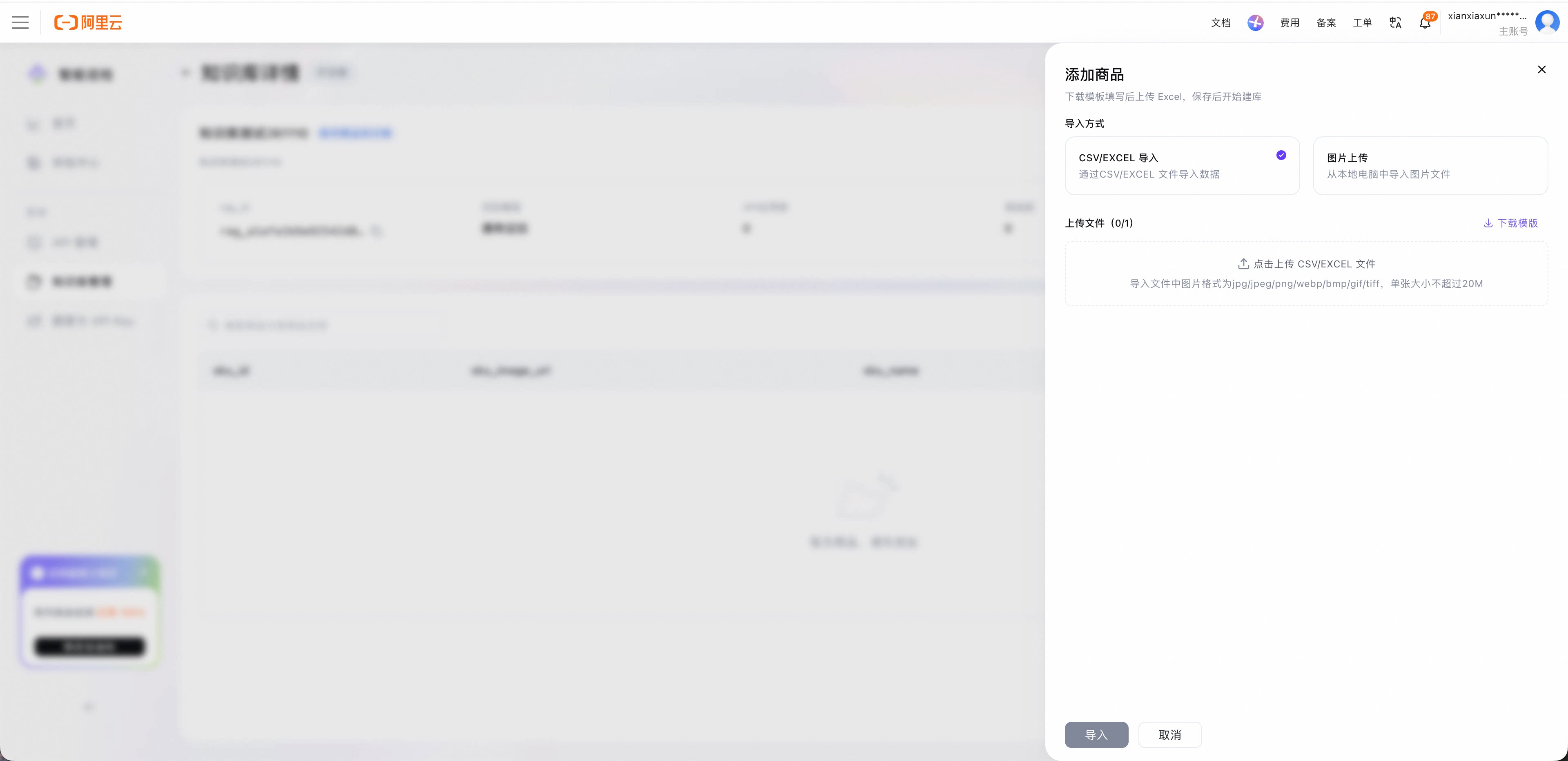
Your data must include a product identifier, product name, and product reference image. Organize your existing system fields as shown in the following table. When you upload the data, use the actual field names from the console's template.
Field | Description | Instructions |
| Product SKU identifier | Save as a string. Retain the full value, including any leading zeros. |
| Product name | Include information that helps distinguish the product, such as brand, series, and specifications. |
| Product reference image URL | The image URL must be publicly accessible, and the image must clearly show the product's packaging. |
The console may alternatively use the field names PrimaryKey, SkuName, and SkuImageUrl, which correspond to the product identifier, product name, and product image URL, respectively. You can associate multiple reference images with a single SKU. The number of products and the number of image records are counted separately.
5.3 Verify import results
After the upload is complete, verify the import results, resolve any failures, and wait for the product image processing and index building to finish. Once the knowledge base is available, obtain the knowledge base ID from the console and enter it as the RagId in your detection requests.
After you add or update a product, verify its processing status before you run recognition tests for that SKU.
5.4 Maintain content with APIs
You must create a knowledge base for the first time in the product console. After it is created, you can use APIs to add, delete, update, and query product image records in an existing display knowledge base.
Actions | API | Limit |
Add image records |
| Up to 500 records |
Query records with pagination |
| 20 records per page by default, up to 100 records |
Update image records |
| Up to 500 records |
Delete image records |
| Up to 500 record IDs |
Use RagId to specify an existing knowledge base and use the RecordId returned by the platform to locate a specific image record. After an add or update operation is accepted, use the query API to check the record's status. To maintain multiple images for a single SKU, you must check each image record individually.
For API parameters, statuses, and complete examples, see the official API reference.
6 Request parameters and call logic
6.1 Parameters
API parameter | Python SDK field | Type | Required | Description |
|
| String | Required | The URL of the original shelf or floor stack image to process. |
|
| String | Conditionally required | A custom prompt for product detection. If provided, the service uses custom rule logic. |
|
| String | Conditionally required | Specifies the business type for built-in detection rules. The value must correspond to a service type that is enabled for your account. |
|
| String | Conditionally required | Specifies your product knowledge base. Required for product retrieval. |
|
| String | Optional | The ID of a custom API version configured in the product console. This version can provide default business parameters. |
6.2 Parameter combinations
Invocation method | Parameter combination | Behavior |
Custom rule with knowledge base retrieval |
| Detects products based on the custom prompt and retrieves them from the specified knowledge base. |
Built-in rule with knowledge base retrieval |
| Detects products based on the enabled business type and retrieves them from the specified knowledge base. |
Configured custom API |
| Automatically populates default business parameters based on the configuration of the specified |
For your first integration, use ImageUrl + Rule + RagId to explicitly define the detection scope and the knowledge base scope.
The service validates parameters as follows:
Every request must include a valid
ImageUrl.Providing a
Ruleactivates custom rule logic, allowing you to omit theTypeparameter.To use product retrieval from a knowledge base, you must provide a valid
RagIdeither in the request or through the default configuration of the specifiedApiId.A request is considered incomplete if
Ruleis not provided, andTypecannot be determined from either the request or theApiId's default configuration.Before using an
ApiId, verify its functions and default parameters in the product console under Intelligent Inspection → API Management → My APIs.
6.3 Image input requirements
Use an HTTP(S) image URL accessible from the public network or OSS. Ensure the URL remains valid during processing.
The image response must include a valid
Content-Lengthheader.Provide a single image URL per request.
If an image includes EXIF orientation data, normalize the pixel orientation before you send it. Use the same orientation for display, coordinate conversion, and cropping.
6.4 Rule example
The following prompt is suitable for initial validation in a generic shelf scenario.
Please detect the products on the shelf in the image, one bounding box per item. Output the bounding box and product name for each item as a JSON array. Normalize the coordinates for the entire image to a scale of 0 to 1000. Return only the JSON array. Example output format: [{"bbox_2d":[100,200,250,600],"sku_name":"xxxx"}]When you adjust the Rule, clearly specify the target objects, detection scope, the "one box per item" requirement, and the coordinate format. The sku_name in the prompt represents the preliminary name from the detection phase. The final retrieved result is in the Top1 field.
6.5 Custom rule call example
{
  "ImageUrl": "https://<your-image-host>/shelf.jpg",
  "Rule": "Please detect the products on the shelf in the image, one bounding box per item. Output the bounding box and product name for each item as a JSON array. Normalize the coordinates for the entire image to a scale of 0 to 1000. Return only the JSON array. Example output format: [{\"bbox_2d\":[100,200,250,600],\"sku_name\":\"xxxx\"}]",
  "RagId": "<your-knowledge-base-id>"
}
6.6 Built-in rule call example
{
  "ImageUrl": "https://<your-image-host>/shelf.jpg",
  "Type": "<your-enabled-business-type>",
  "RagId": "<your-knowledge-base-id>"
}
The JSON examples above show the structure of the business parameters. If you use an API Key, encode these business parameters into the URL query string and authenticate using a Bearer token in the request header. If you use an AccessKey or STS, the official SDK or an OpenAPI calling tool handles the signature and parameter serialization.
7. Debugging and API key or SDK integration
7.1 Documentation and debugging
To review API parameter details, see code samples for SDKs in various languages, or perform small-scale online debugging, go to the official API page. Enter your own image URL, Rule, and knowledge base ID to test a few samples before integrating the generated code into your business system.
MerchandisePlacementDetection Official API Documentation and Debugging Page
7.2 Calling with an API key
The API key method does not require the Aidge SDK and is independent of an AccessKey ID, AccessKey Secret, or an ACS3-HMAC-SHA256 signature. You can use standard HTTP clients in Java, Python, or any other language to call the API. Using an API key only changes the authentication method. The business parameters, synchronous call method, and response parsing logic for Merchandise Placement Detection remain the same.
Parameter | Value |
Endpoint |
|
Request Method |
|
|
|
|
|
|
|
URL Query Parameters | Standard calls require |
The API key, image URL, Rule, and knowledge base ID are all provided via server-side configuration. The following example still includes common request headers like the UTC timestamp, nonce, and empty request body hash, but you do not need to calculate a signature based on them. The business parameters are placed in the URL query string, and the request body is empty.
7.2.1 Curl example
The API key, image URL, and knowledge base ID in the example are placeholders. Replace them with your own values.
export AIDGE_API_KEY='Replace with the API key created in the console'
export AIDGE_IMAGE_URL='https://example.com/shelf.jpg'
export AIDGE_RAG_ID='Replace with the ID of an available knowledge base from the console'
export AIDGE_RULE='Detect the products on the shelf in the image, one bounding box per item. Output the bounding box and product name for each item as a JSON array. Normalize coordinates for the entire image to a scale of 0 to 1000. Return only the JSON array. Example output format: [{"bbox_2d":[100,200,250,600],"sku_name":"xxxx"}]'

curl --silent --show-error --get --request POST \
  'https://aidge.cn-beijing.aliyuncs.com/' \
  --connect-timeout 15 --max-time 60 \
  --data-urlencode 'Format=JSON' \
  --data-urlencode "ImageUrl=${AIDGE_IMAGE_URL}" \
  --data-urlencode "RagId=${AIDGE_RAG_ID}" \
  --data-urlencode "Rule=${AIDGE_RULE}" \
  --header "Authorization: Bearer ${AIDGE_API_KEY}" \
  --header 'x-acs-action: MerchandisePlacementDetection' \
  --header 'x-acs-version: 2026-04-28' \
  --header "x-acs-date: $(date -u +%Y-%m-%dT%H:%M:%SZ)" \
  --header "x-acs-signature-nonce: $(uuidgen)" \
  --header 'x-acs-content-sha256: e3b0c44298fc1c149afbf4c8996fb92427ae41e4649b934ca495991b7852b855' \
  --header 'Accept: application/json'
The --get option appends the --data-urlencode parameters to the URL, while --request POST keeps the actual request method as POST. The image URL and the text in the Rule are automatically URL-encoded. This example sets a maximum request duration of 60 seconds. You need to handle timeouts based on your server-side synchronous timeout and client-side network conditions.
This API performs a synchronous call and returns the result in the response body, so you do not need to poll a task ID. After you receive an HTTP 200 status code, check the top-level Success field. If the call succeeds, parse the Data object to read BoxCount and the Data array, which contains the Top1 object and its score, as described in Section 8.
7.2.2 Java HTTP client example
The following example uses the HttpClient included in Java 11 and later, so you do not need to install the Aidge Java SDK. Before you run the code, set the four environment variables from the previous section.
import java.net.URI;
import java.net.URLEncoder;
import java.net.http.HttpClient;
import java.net.http.HttpRequest;
import java.net.http.HttpResponse;
import java.nio.charset.StandardCharsets;
import java.time.Duration;
import java.time.Instant;
import java.time.temporal.ChronoUnit;
import java.util.Map;
import java.util.UUID;
import java.util.stream.Collectors;

public class AidgeDisplayApiKeyExample {
    static String env(String name) {
        String value = System.getenv(name);
        if (value == null || value.isBlank()) {
            throw new IllegalArgumentException("Please set the environment variable " + name);
        }
        return value;
    }


    public static void main(String[ ] args) throws Exception {

        String key = env("AIDGE_API_KEY");
        Map<String, String> params = Map.of(
            "ImageUrl", env("AIDGE_IMAGE_URL"),
            "RagId", env("AIDGE_RAG_ID"),
            "Rule", env("AIDGE_RULE")
        );
        String query = params.entrySet().stream()
            .map(e -> URLEncoder.encode(e.getKey(), StandardCharsets.UTF_8)
                + "=" + URLEncoder.encode(e.getValue(), StandardCharsets.UTF_8))
            .collect(Collectors.joining("&"));
        HttpRequest request = HttpRequest.newBuilder()
            .uri(URI.create("https://aidge.cn-beijing.aliyuncs.com/?Format=JSON&" + query))
            .timeout(Duration.ofSeconds(60))
            .header("Authorization", "Bearer " + key)
            .header("x-acs-action", "MerchandisePlacementDetection")
            .header("x-acs-version", "2026-04-28")
            .header("x-acs-date", Instant.now().truncatedTo(ChronoUnit.SECONDS).toString())
            .header("x-acs-signature-nonce", UUID.randomUUID().toString())
            .header("x-acs-content-sha256",
                "e3b0c44298fc1c149afbf4c8996fb92427ae41e4649b934ca495991b7852b855")
            .header("Accept", "application/json")
            .POST(HttpRequest.BodyPublishers.noBody())
            .build();
        HttpClient client = HttpClient.newBuilder()
            .connectTimeout(Duration.ofSeconds(15)).build();
        HttpResponse<String> response = client.send(
            request, HttpResponse.BodyHandlers.ofString(StandardCharsets.UTF_8));
        if (response.statusCode() < 200 || response.statusCode() >= 300) {
            throw new IllegalStateException("HTTP " + response.statusCode()
                + ": " + response.body());
        }
        System.out.println(response.body());
        // Parse the JSON as described in Section 8. Check the Success field, then read the per-box results and the score from each Top1 object.
    }
}
This Java sample only shows how to make an HTTP request and read the raw response. When integrating it into your business system, use your project's existing JSON library to implement the business status checks and field parsing described in Section 8.
7.3 Install dependencies and configure credentials
Use version 5.8.0 or later of the Python SDK to support the rule field.
pip install "alibabacloud_aidge20260428>=5.8.0"Before you run the code, configure the following environment variables.
Environment variable | Description |
| Your AccessKey ID. |
| Your AccessKey Secret. |
| The public URL of the shelf image to analyze. |
| The ID of an available product knowledge base from the console. |
7.4 Python example (AccessKey)
import json
import os

from alibabacloud_aidge20260428.client import Client
from alibabacloud_aidge20260428.models import MerchandisePlacementDetectionRequest
from alibabacloud_tea_openapi.models import Config
from alibabacloud_tea_util.models import RuntimeOptions


RULE = (
    'Detect the products on the shelf in the image, one bounding box per item. '
    'Output the bounding box and product name for each item as a JSON array. '
    'Normalize coordinates for the entire image to a scale of 0 to 1000. '
    'Return only the JSON array. '
    'Example output format: [{"bbox_2d":[100,200,250,600],"sku_name":"xxxx"}]'
)


def main():
    client = Client(Config(
        access_key_id=os.environ["ALIBABA_CLOUD_ACCESS_KEY_ID"],
        access_key_secret=os.environ["ALIBABA_CLOUD_ACCESS_KEY_SECRET"],
        endpoint="aidge.cn-beijing.aliyuncs.com",
        region_id="cn-beijing",
    ))

    request = MerchandisePlacementDetectionRequest(
        image_url=os.environ["AIDGE_IMAGE_URL"],
        rule=RULE,
        rag_id=os.environ["AIDGE_RAG_ID"],
    )

    try:
        response = client.merchandise_placement_detection_with_options(
            request,
            RuntimeOptions(read_timeout=60000, connect_timeout=15000),
        )
    except Exception as error:
        print("API call error", str(error))
        raise

    body = response.body.to_map()
    print(json.dumps(body, ensure_ascii=False, indent=2))

    if body.get("Success") is not True:
        print(
            "Recognition call failed",
            "Code", body.get("Code"),
            "Message", body.get("Message"),
            "RequestId", body.get("RequestId"),
        )
        return

    data = body.get("Data") or {}

    items = data.get("Data") or [ ]

    print("Box count", data.get("BoxCount"))
    print("Usage", data.get("UsageMap"))

    for item in items:
        top1 = item.get("Top1") or {}
        if item.get("Error"):
            print("Per-box error", item.get("Idx"), item.get("Error"))
            continue

        print(
            "Box index", item.get("Idx"),
            "Coordinates", item.get("Bbox"),
            "SKU ID", top1.get("SkuId"),
            "Name", top1.get("SkuName"),
            "Score", top1.get("Score"),
        )


if __name__ == "__main__":
    main()
Retain the complete response and the RequestId to verify per-box results and troubleshoot exceptions.
8 Response fields and parsing logic
8.1 Response structure
The response structure described in this guide aligns with the current public OpenAPI parameters, the model in Python SDK version 5.8.0, and existing results from live API calls.
Response Body
├── Success
├── Code
├── Message
├── RequestId
└── Data
    ├── BoxCount
    ├── UsageMap

    └── Data[ ]

        ├── Idx
        ├── Bbox
        ├── Error
        ├── Top1
        │   ├── SkuId
        │   ├── SkuName
        │   └── Score

        └── Topk[ ]

            ├── Rank
            ├── SkuId
            ├── SkuName
└── Score8.2 Top-level fields
Field | Type | Description |
| Boolean | Indicates whether the API call was successful. |
| String | The value depends on the specific response. |
| String | A description of the call status or an error message. |
| String | The platform request ID for troubleshooting. |
| Object | The business result, including the product detection box count, per-box results, and usage information. |
Check the HTTP status and business status separately. After receiving an HTTP 200 response, read the Success, Code, and Message fields to determine if the display detection call was successful.
8.3 Business result fields
Field path | Type | Description |
| Integer | The number of product detection boxes. |
| Array | A list of per-box recall details. |
| Object | Usage information. The key is the usage name, and the value is the count. |
The UsageMap can contain ProcessingCount, for example, {"ProcessingCount": 1}. Refer to the actual service response and your billing statement for accurate usage and billing information.
8.4 Per-box result fields
The following fields describe each product object in the Data.Data array. Top1 is the top-ranked recalled product, and Topk is an array of candidate items. In the table, "candidate item" refers to a single record in the Topk array.
Field | Type | Description |
| Integer | The index of the box within the current image. |
| An array of four numbers | The coordinates x1, y1, x2, and y2, normalized to a scale of 0 to 1000 relative to the full image. |
| String or null | The processing error for the current box. This field may be null or omitted if processing is successful. |
| Object | The top-ranked recalled product for the current box. This may be empty if the recall fails. |
| String | The recalled SKU code. |
| String | The recalled SKU name. |
| Number | The similarity score. Use this value directly. |
| Array | A list of candidate items for the current box. |
Candidate item | Integer | The rank of the candidate, starting from 1. |
Candidate item | String | The candidate SKU code. |
Candidate item | String | The candidate SKU name. |
Candidate item | Number | The candidate similarity score. |
The current public API describes Score as a similarity score from 0 to 1. The client directly uses the API score, and the threshold is on the same scale as this score.
8.5 Success, empty, and per-box failure handling
If the top-level
Successisfalse, handle the call as a failure. Log the error details and theRequestId.If the call succeeds and
Data.BoxCount=0, treat the result as an empty result.If the call succeeds and detection boxes exist, check the
Error,Top1, and similarity score for each box.If one box fails, you can process the successful boxes and send the failed one for manual review.
Boxes that are successfully recalled but have a score below the business threshold should be classified according to the rules for low-score results.
To get a "successful recall count," count the number of boxes that have no per-box errors and a valid Top1.SkuName. Then, separately count how many of those boxes meet the business threshold.
8.6 Coordinate conversion
Let W be the width and H be the height of the original image. Assuming the image orientation matches the coordinate system, convert normalized coordinates to pixel coordinates as follows:
left   = x1 × W / 1000
top    = y1 × H / 1000
right  = x2 × W / 1000
bottom = y2 × H / 1000
Horizontal coordinates are converted based on the original image's width, and vertical coordinates are converted based on its height. If the displayed image is rotated, cropped, or scaled, the coordinates must be transformed accordingly.
8.7 Similarity threshold and business logic
Determine the similarity threshold by evaluating a sample set that includes the target product, other products, products with similar packaging, and out-of-set products. If your project's threshold is T, apply the following rules in your client application.
Condition | Business handling |
A numeric | Accept the recalled SKU for this box and treat it as the target product. |
A numeric | Treat as a different product or send for manual review, depending on your business rules. |
Missing Score, empty Top1, or frame-by-frame errors | Mark for manual review. |
Configure the threshold based on project validation results. Separately track metrics for successful API calls, the number of detected boxes, and the final count of business-confirmed items.
9 Responses
The following JSON examples illustrate the API's response structure. The returned error message and error code indicate the outcome of the request.
9.1 Successful recognition and SKU retrieval
{
  "Success": true,
  "Code": "success",
  "Message": "Success",
  "RequestId": "<request-id>",
  "Data": {
    "BoxCount": 2,
    "UsageMap": {"ProcessingCount": 1},
    "Data": [
      {
        "Idx": 0,
        "Bbox": [120.5, 88.0, 240.0, 360.5],
        "Top1": {
          "SkuId": "example-sku-001",
          "SkuName": "Example Brand Moisturizing Toner 200ml",
          "Score": 0.873
        },
        "Topk": [
          {
            "Rank": 1,
            "SkuId": "example-sku-001",
            "SkuName": "Example Brand Moisturizing Toner 200ml",
            "Score": 0.873
          }
        ]
      },
      {
        "Idx": 1,
        "Bbox": [240.0, 90.0, 360.0, 362.0],
        "Top1": {
          "SkuId": "example-sku-002",
          "SkuName": "Example Brand Moisturizing Lotion 150ml",
          "Score": 0.802
        },
        "Topk": [
          {
            "Rank": 1,
            "SkuId": "example-sku-002",
            "SkuName": "Example Brand Moisturizing Lotion 150ml",
            "Score": 0.802
          }
        ]
      }
    ]
  }
}
9.2 Box-level processing failure
The following example includes one successful box and one failed box. The caller must check the processing result for each box.
{
  "Success": true,
  "Code": "success",
  "Message": "Success",
  "RequestId": "<request-id>",
  "Data": {
    "BoxCount": 2,
    "UsageMap": {"ProcessingCount": 1},
    "Data": [
      {
        "Idx": 0,
        "Bbox": [120, 88, 240, 360],
        "Top1": {
          "SkuId": "example-sku-001",
          "SkuName": "Example Brand Moisturizing Toner 200ml",
          "Score": 0.861
        },
        "Topk": [
          {
            "Rank": 1,
            "SkuId": "example-sku-001",
            "SkuName": "Example Brand Moisturizing Toner 200ml",
            "Score": 0.861
          }
        ]
      },
      {
        "Idx": 1,
        "Bbox": [240, 90, 360, 362],
        "Top1": null,

        "Topk": [ ],

        "Error": "embedding_failed"
      }
    ]
  }
}
9.3 No SKUs detected
{
  "Success": true,
  "Code": "success",
  "Message": "Success",
  "RequestId": "<request-id>",
  "Data": {
    "BoxCount": 0,
    "UsageMap": {"ProcessingCount": 1},

    "Data": [ ]

  }
}
9.4 Invalid or unavailable knowledge base
{
  "Success": false,
  "Code": "InvalidParameter",
  "Message": "Invalid request parameter: ragId is invalid, not found or unavailable: <your-knowledge-base-id>",
  "RequestId": "<request-id>"
}
Error handling and batch invocation
Common scenarios
Scenario | Resolution |
| Check the image URL, rule, knowledge base ID, and knowledge base status. |
| Check service activation, RAM authorization, and access permissions for the target knowledge base. |
API key authentication fails | Use the API key from the creation result, not its ID or name. Send it as |
| Reduce the request frequency and retry after a delay. |
The knowledge base does not exist, is empty, or is not yet available | Verify the knowledge base ID, product records, and processing status in the console. |
Image response is missing | Use an image URL that returns a valid content length, such as an OSS object URL. |
SDK request class does not support | Install |
Synchronous call timeout | Configure the client with a 60-second timeout. Log the image, parameters, and error information for troubleshooting. |
A per-box Error field is not empty | Review the input, image, and knowledge base content based on the error provided for that box. |
Unexpected results for name or specification recall | Verify the reference image, SKU code, name, packaging version, and similarity threshold. |
The display box is misaligned with the product | Check the EXIF orientation. Ensure consistent display, cropping, and coordinate conversion. |
Batch invocation and retries
For batch tasks, send a separate request for each image and save its result. For traceability, log the image's business ID, invocation time, duration, parameters, RequestId, call status, box count, and any per-box errors.
If you encounter throttling or transient service errors, reduce the request frequency and use a delayed retry strategy with a maximum number of attempts. For parameter or permission errors, retry the request only after correcting the issue. A request re-initiated after a timeout counts as a new call and is billed according to the service's billing rules.
Before running large-scale invocations, test the send rate, concurrency, response time, and success rate using the target account. Then, determine the appropriate task scheduling parameters based on the results.
11 Billing method and budget examples
11.1 Detection API reference pricing
The reference unit price for MerchandisePlacementDetection is CNY 0.096 per call. Each request processes one image, and the service is billed per call. The final price, discounts, and billing details are subject to the official pricing page, your service activation configuration, and your business agreement.
Capability | Billing unit | Reference unit price |
| Per call | CNY 0.096 |
11.2 Cost estimation
The following examples show how to estimate your costs based on a rate of CNY 0.096 per call.
Billable calls | Estimated cost |
1,000 calls | CNY 96 |
10,000 calls | CNY 960 |
100,000 calls | CNY 9,600 |
Estimated cost = Number of billable calls × CNY 0.096 per callBilling for failed requests, timed-out requests, retries, and other capabilities is determined by the official billing rules and your final bill.
11.3 Monthly and annual resource packages
MerchandisePlacementDetection offers monthly and annual resource packages. You can choose a package based on your expected call volume. Tiers include 10,000 to 100,000 calls, as well as 500,000 and 1,000,000 calls, with discounts of up to 19%. The purchase page lists the available tiers, validity periods, prices, and discounts.
Resource package type | Purchase link |
Monthly resource package | Buy monthly resource package for MerchandisePlacementDetection |
Annual resource package | Buy annual resource package for MerchandisePlacementDetection |
The cost estimation in Section 11.2 is based on the pay-as-you-go rate of CNY 0.096 per call. If you purchase a resource package, recalculate your costs based on its price.
11.4 Knowledge base maintenance billing
The fees for the knowledge base content management API are determined by your service activation configuration or business agreement. Refer to the billing rules for this API for details.
12 Field version mapping
Existing documentation may refer to the Data.Result.Items encapsulation format. When integrating with an existing system, confirm the target interface version and the actual response, and then apply the corresponding parsing logic.
In the table below, the arrow (→) indicates how to access a field within a single product result. For example, Data.Data → Top1.SkuName means you first iterate through the Data.Data array and then read the Top1.SkuName from each result.
Description | Current structure | Legacy format |
box count |
|
|
frame-by-frame list |
|
|
SKU name |
|
|
SKU ID |
|
|
score |
|
|
Per-box error |
|
|
The fields Data.Result.RagId and Data.Result.RecalledCount belong to the legacy encapsulation format. When using the SDK examples in this guide, use the current OpenAPI structure described in Section 8 to read the data.
13 Official resources and references
Purpose | Link |
Service activation | |
Product console access and API key creation | intelligent inspection product console, and then navigate to "Quota & API key → API key Management" |
API key concepts and management | |
Create and manage a knowledge base | |
API documentation, code samples for multiple languages, and online debugging | |
Detection request and response parameters | |
Manage knowledge base content (CRUD) | Merchandise Placement Detection knowledge base Content Management API |
Pricing and billing |
14 Changelog
Date | Description |
2026-11-10 | Consolidated customer integration, knowledge base setup, invocation logic, response structure, exception handling, billing, and field version mapping. |
2026-11-16 | Added steps to create an API key in the product console, two screenshots, a link to the RAM documentation, and curl and Java HTTP examples for Bearer authentication, while retaining the existing SDK access method. |