Quick start/Data analysis agent
This guide walks you through the entire process—from activating the service to launching your first AI-powered conversational analysis—in under 30 minutes.
Background
In traditional Business Intelligence (BI), data analysts build dashboards while business users passively consume charts. If a business question falls outside the scope of existing reports, it requires a new development request, which can cause significant delays. Quick BI AIPro revolutionizes this process by integrating large model capabilities into the core BI platform. It lets business users analyze data through natural language conversations, guiding them through a complete decision-making workflow: overview, breakdown, attribution, diagnosis, and action.
The following table compares Quick BI AIPro with traditional BI:
Comparison | Traditional BI | Quick BI AIPro |
Usage | Drag and drop fields, write SQL, and view static dashboards. | Ask questions in natural language and engage in multi-turn follow-up conversations. |
Response time | Fulfilling requests is scheduled and can take days or weeks. | Returns data and analysis results in seconds. |
Analysis model | Business users depend on analysts for attribution analysis. | The AI deconstructs problems and generates in-depth, comprehensive attribution analyses. |
Analysis method | Users perform manual operations like drill down and interactive filtering, and create reports manually. | Explore and analyze through conversation, connecting ideas on the Free Canvas to focus your analysis. Results are generated automatically. |
Barrier to entry | Requires SQL and BI modeling skills, familiarity with module configurations, and a steep learning curve. | No barrier to entry for business users. |
Asset accumulation | dashboards | Analysis artifacts (such as reports and documents) with dynamically updated data, one-time analytical reports, and scheduled subscription tasks. |
Typical use cases:
A business manager asks, "What was the week-over-week sales comparison by region?" 5 minutes before a morning meeting and instantly receives charts and an attribution analysis.
An operations team member asks, "Why did Gross Merchandise Volume (GMV) in East China decline?" and the system automatically performs a drill down to provide a three-level attribution analysis by category, channel, and store.
A finance team member uses conversation to generate a "monthly business dashboard" and creates a task to push a monthly report on the first day of every month.
AIPro workflow
Implementing Quick BI AIPro involves two main tracks: administrator configuration and user adoption. For the initial setup, we recommend following the sequence in the diagram below.
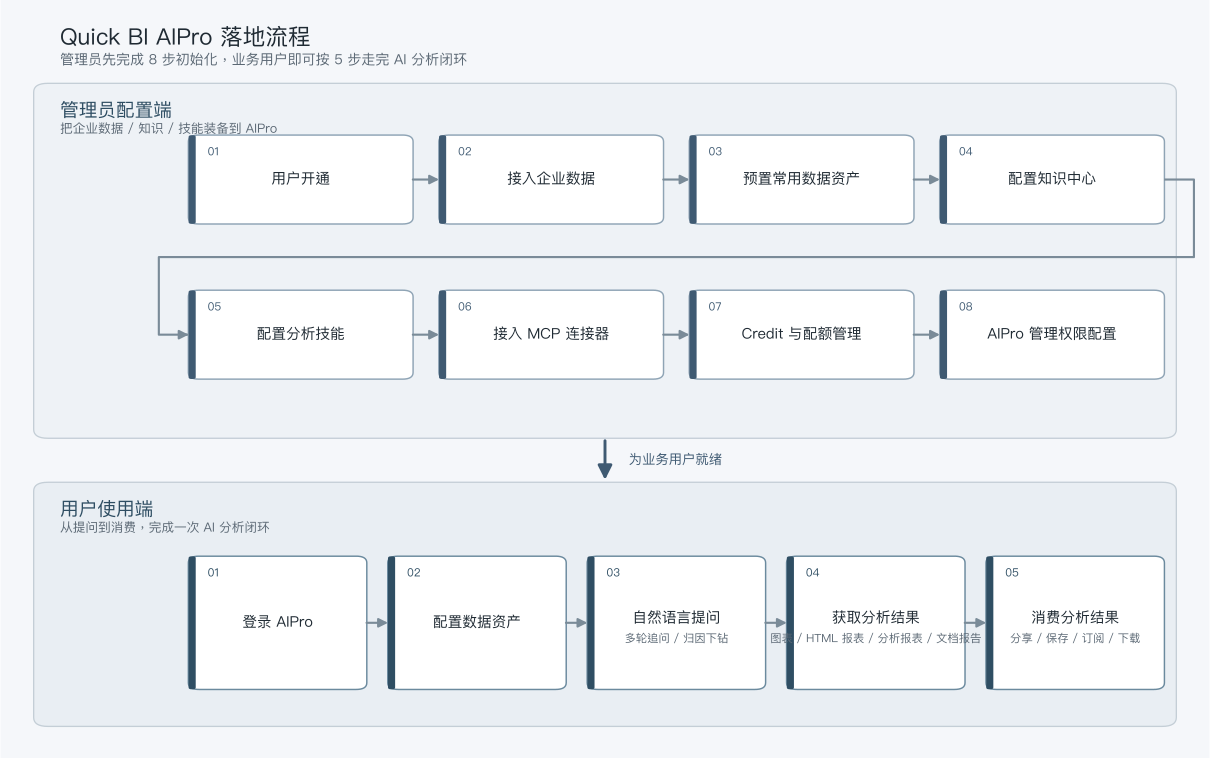
AIPro setup for administrators
These steps are for organization administrators and workspace developers. You will manage users and configure corporate data, knowledge, and skills to give business users an out-of-the-box experience.
1. Configure user permissions
Log in to the Quick BI Admin Center as an organization administrator.
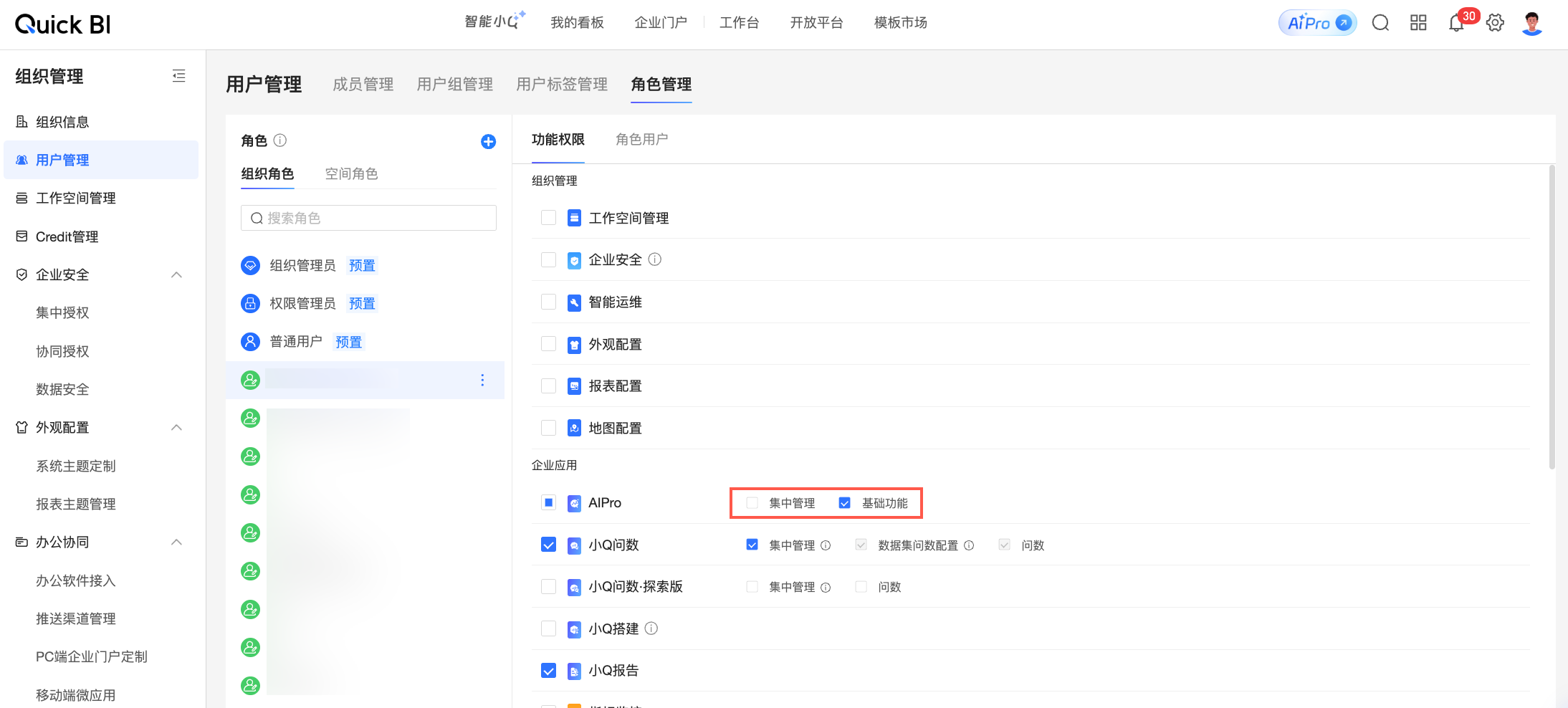
Go to Organization Management → Role Management.
Configure the relevant Quick BI AIPro permissions for a custom role.
 Note
The preset roles in Quick BI have the necessary AIPro permissions by default:
The organization administrator role has Centralized Management Permissions and Basic Feature Permissions by default.
The permission administrator role has Basic Feature Permissions by default.
The standard user role has Basic Feature Permissions by default.
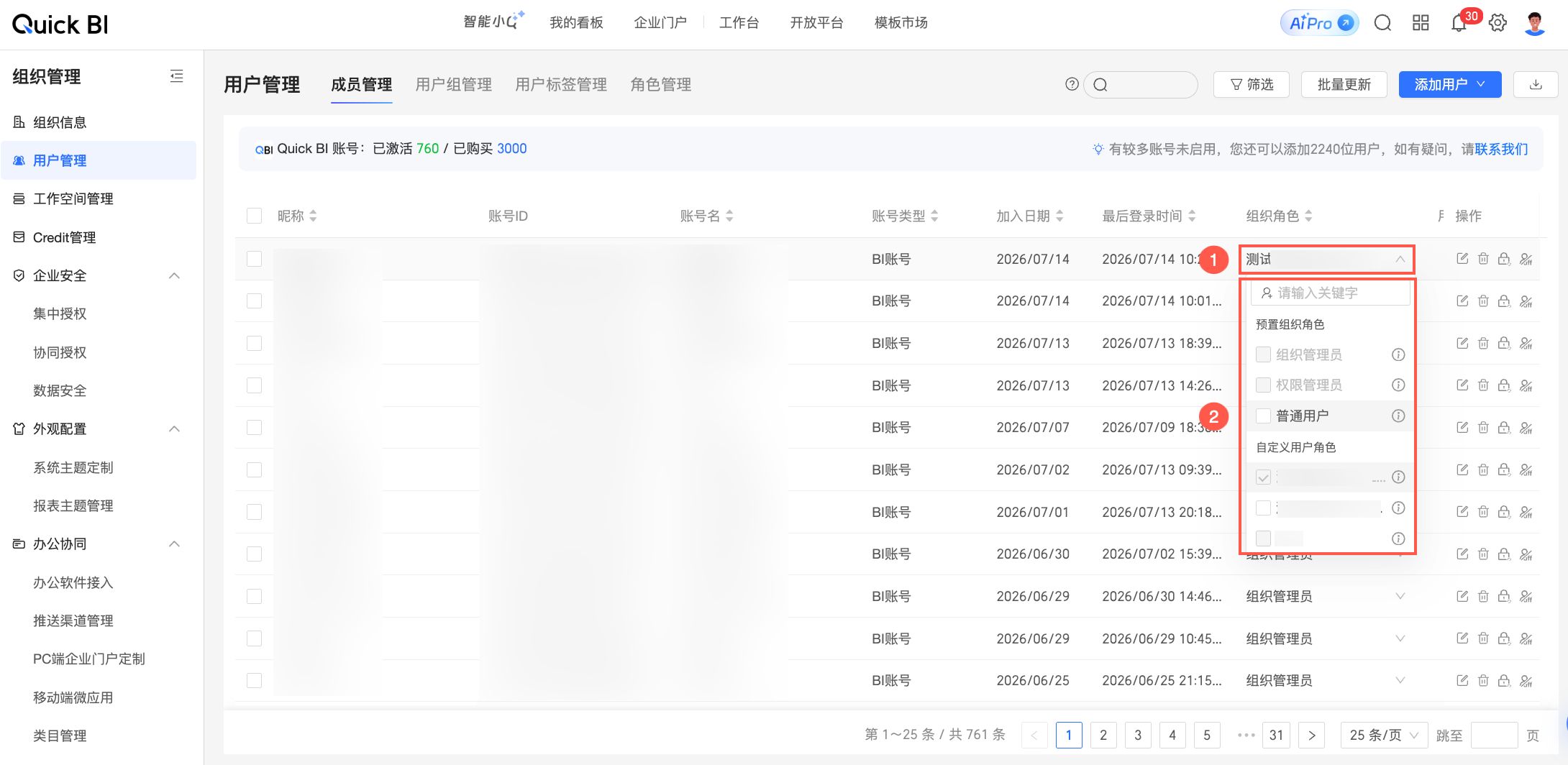
On the Member Management page, assign roles with AIPro permissions to the required members.
2. Connect enterprise data
Goal: Enable business users to find and use your company's pre-configured data assets, including data tables, datasets, files, and APIs.
Create data source and dataset resources in a workspace.
Go to a Quick BI workspace.
Create a data source: On the Workbench, go to Data Source and add a database connection, such as MySQL, MaxCompute, PostgreSQL, or Oracle.
Create a dataset: On the Workbench, go to Data and configure a dataset.
In Workspace Management, grant members or roles access to the dataset.
Create File, Data Table Combination, and API Data resources in AIPro.
Go to AIPro → Enterprise → Data Management.
Create Data Table Combination, File, and API Data resources.
Select a data resource, click More, and grant collaborative permissions to users.
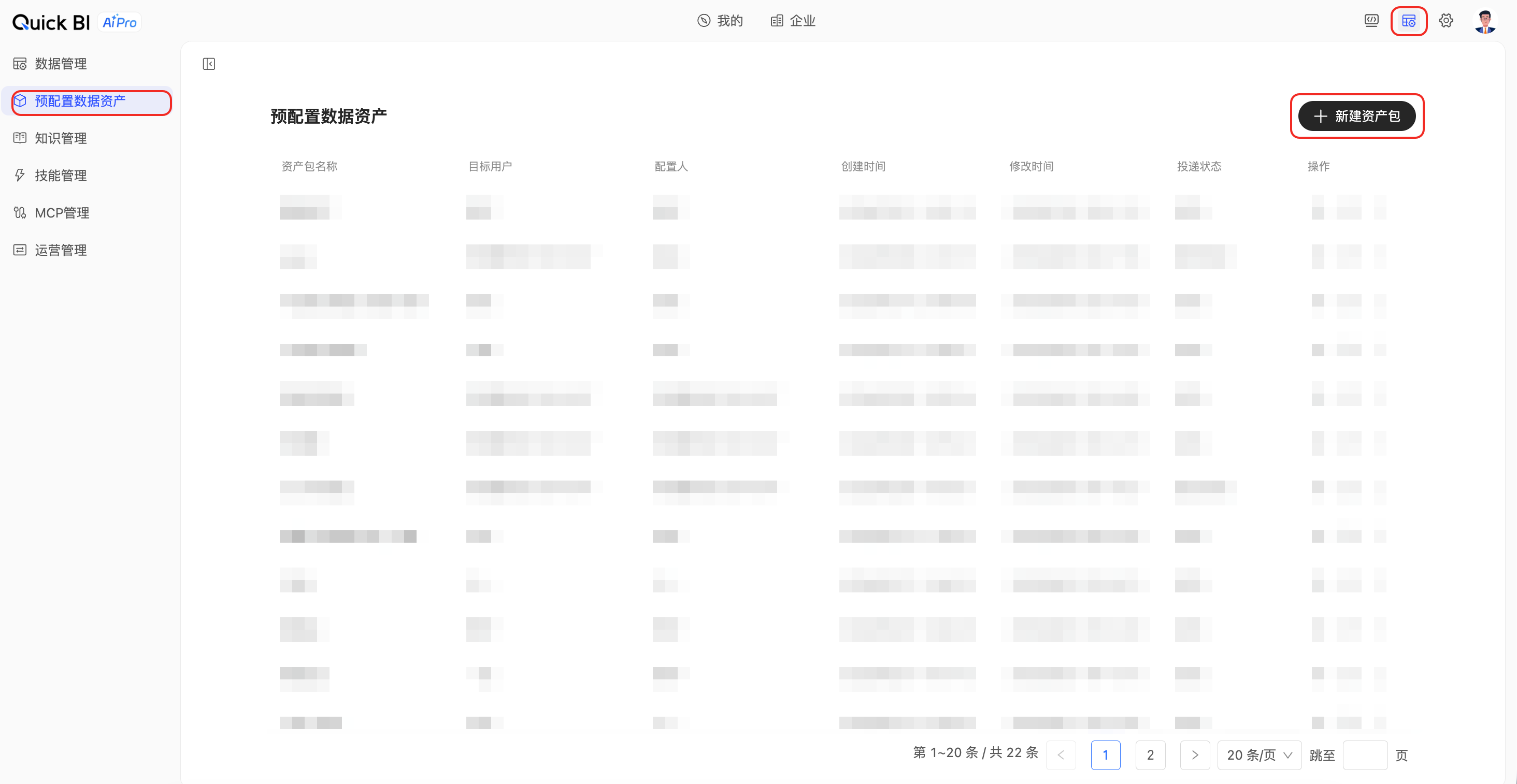
3. Pre-configure common data assets (Optional)
Goal: Let business users immediately see frequently used data assets after logging in, so they do not need to search for or configure them.
Administrators go to Admin Center → Pre-configured Data Assets (Path:
ai/org/pre-asset).Click New Asset Package to configure the datasets or data tables you want to recommend to business users.
After saving, business users will see these data assets first when they type @ in the conversation input box.
4. Configure the Knowledge Center
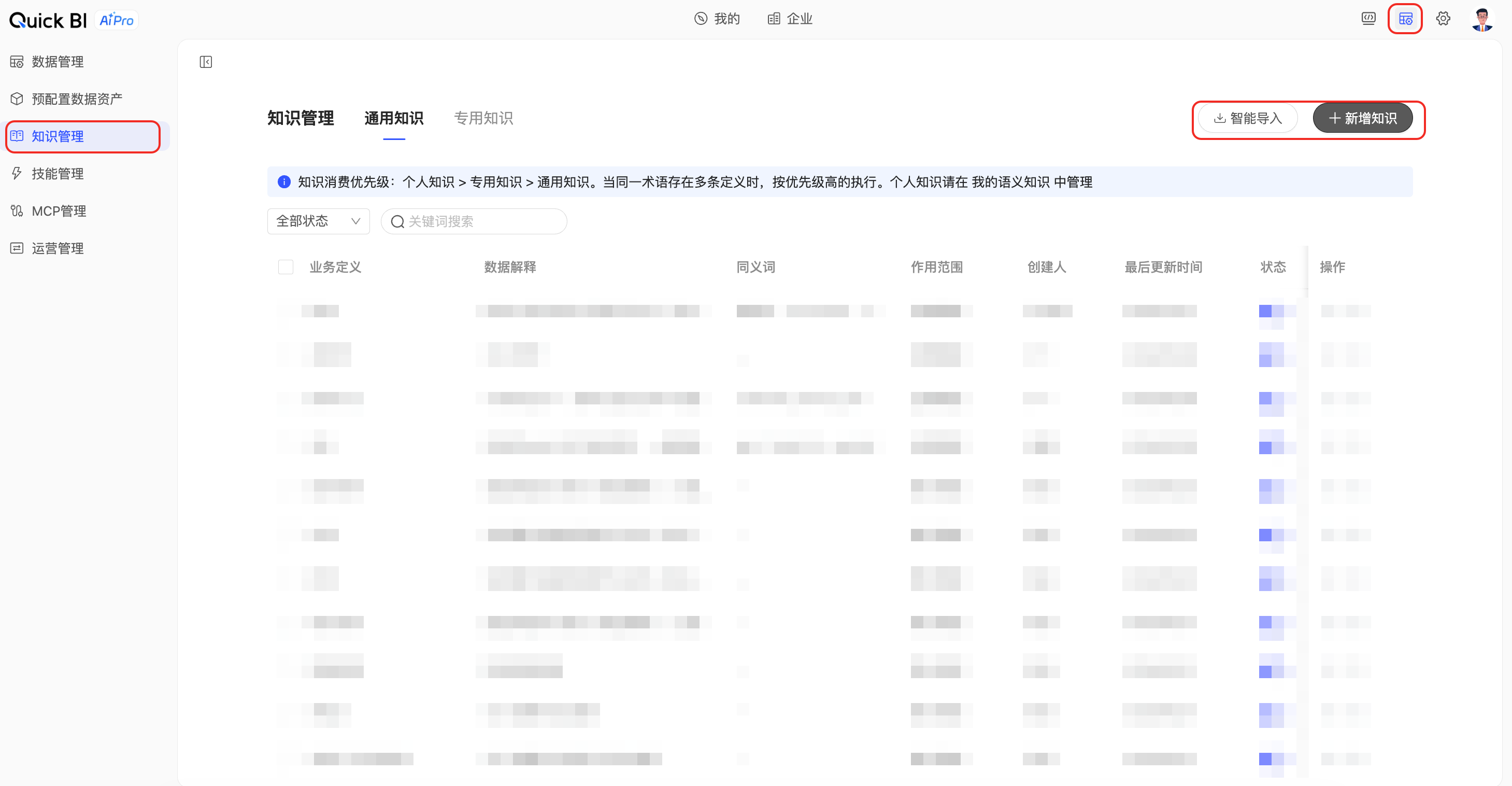
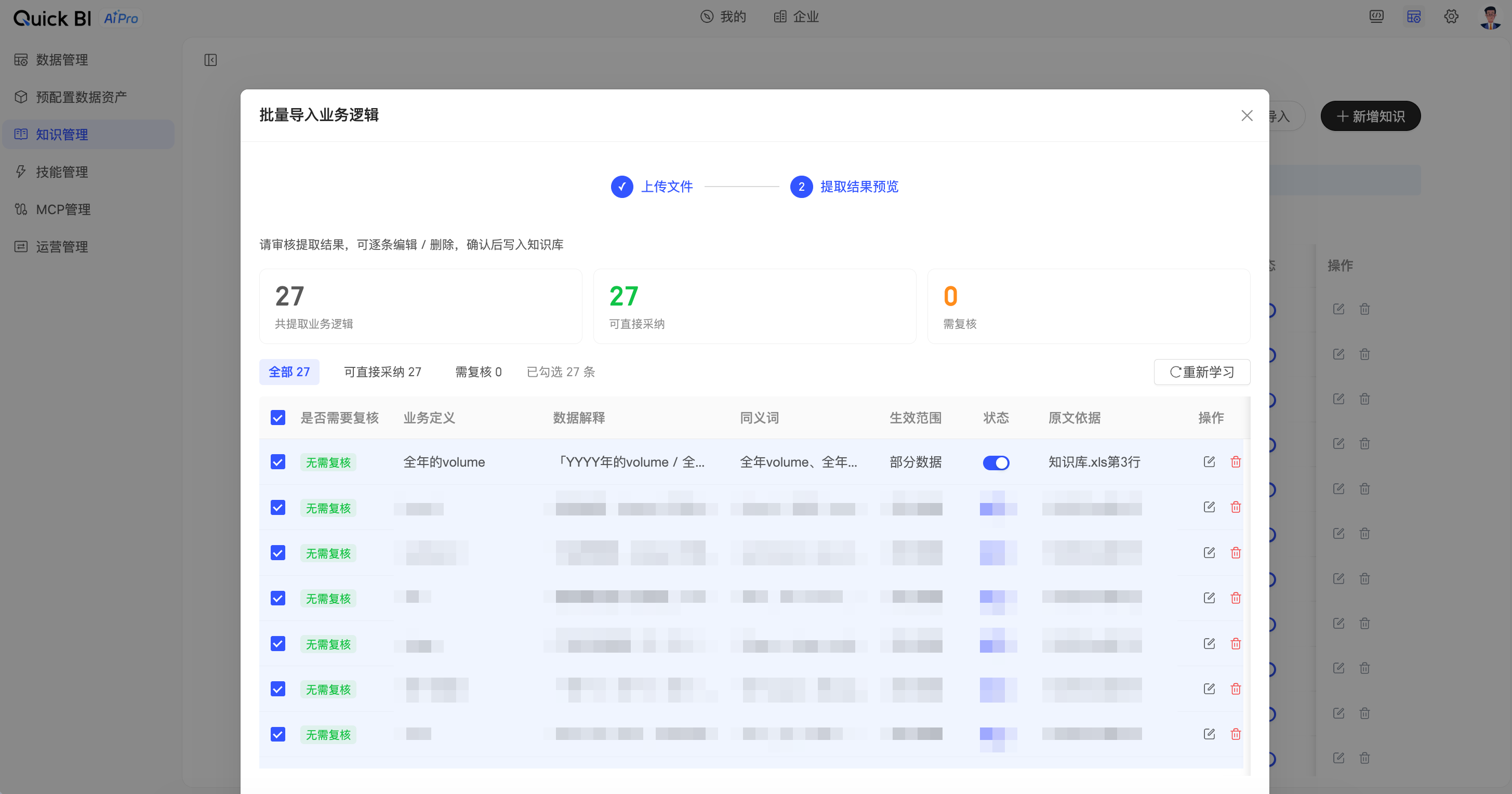
Goal: Add your company's business terminology, metric definitions, and field descriptions to the Knowledge Center to ensure that AI analysis results align with your enterprise standards.
Go to Admin Center > Knowledge Management (path:
/ai/org/knowledge).Click Add Knowledge to create knowledge entries that contain business logic.
Click Smart Import to import enterprise knowledge by parsing and learning business logic from your documents.
After saving, the AI will retrieve and reference this knowledge during conversations about datasets.
5. Configure analysis skills (Optional)
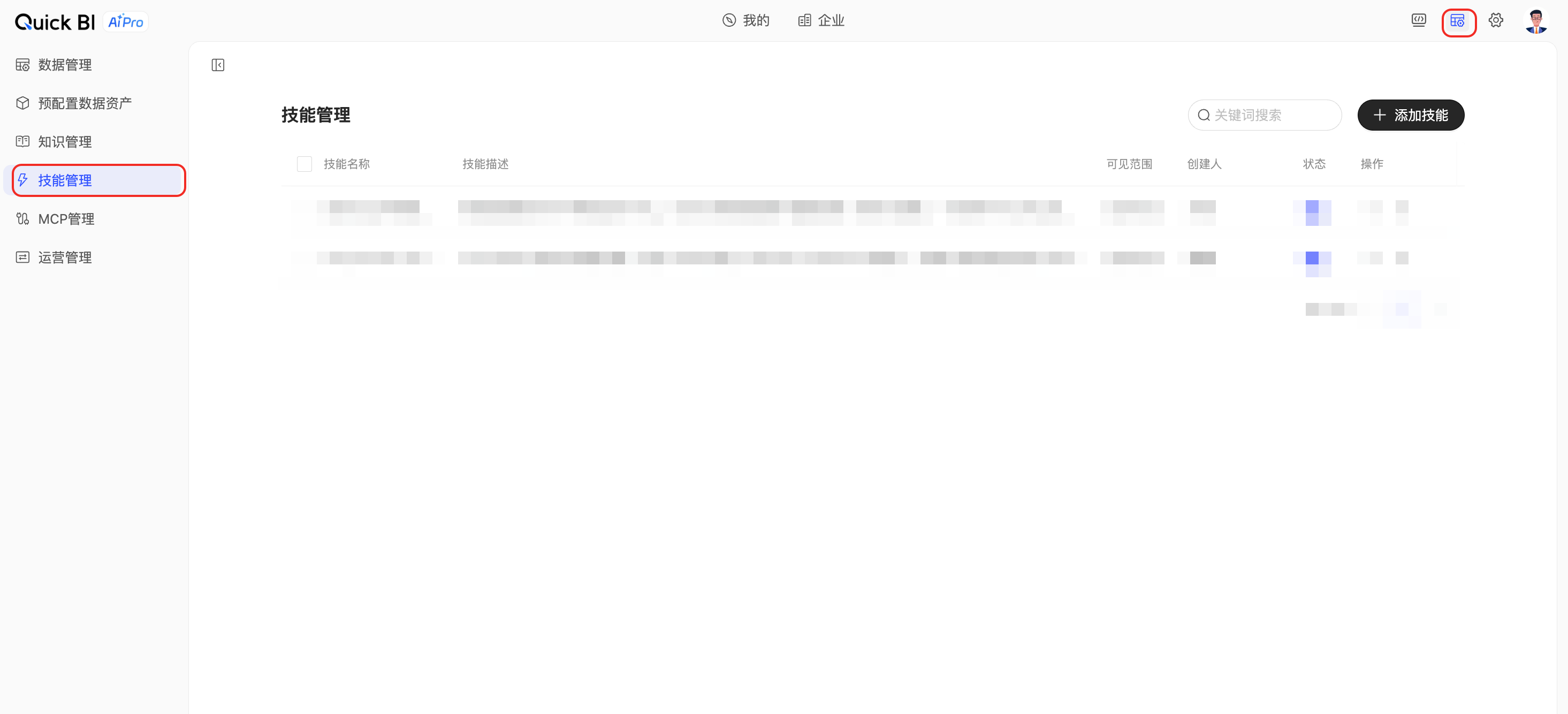
Goal: Convert your company's standard analysis frameworks and methods—such as monthly business reviews, anomaly attribution, and store performance dashboards—into reusable AI skills.
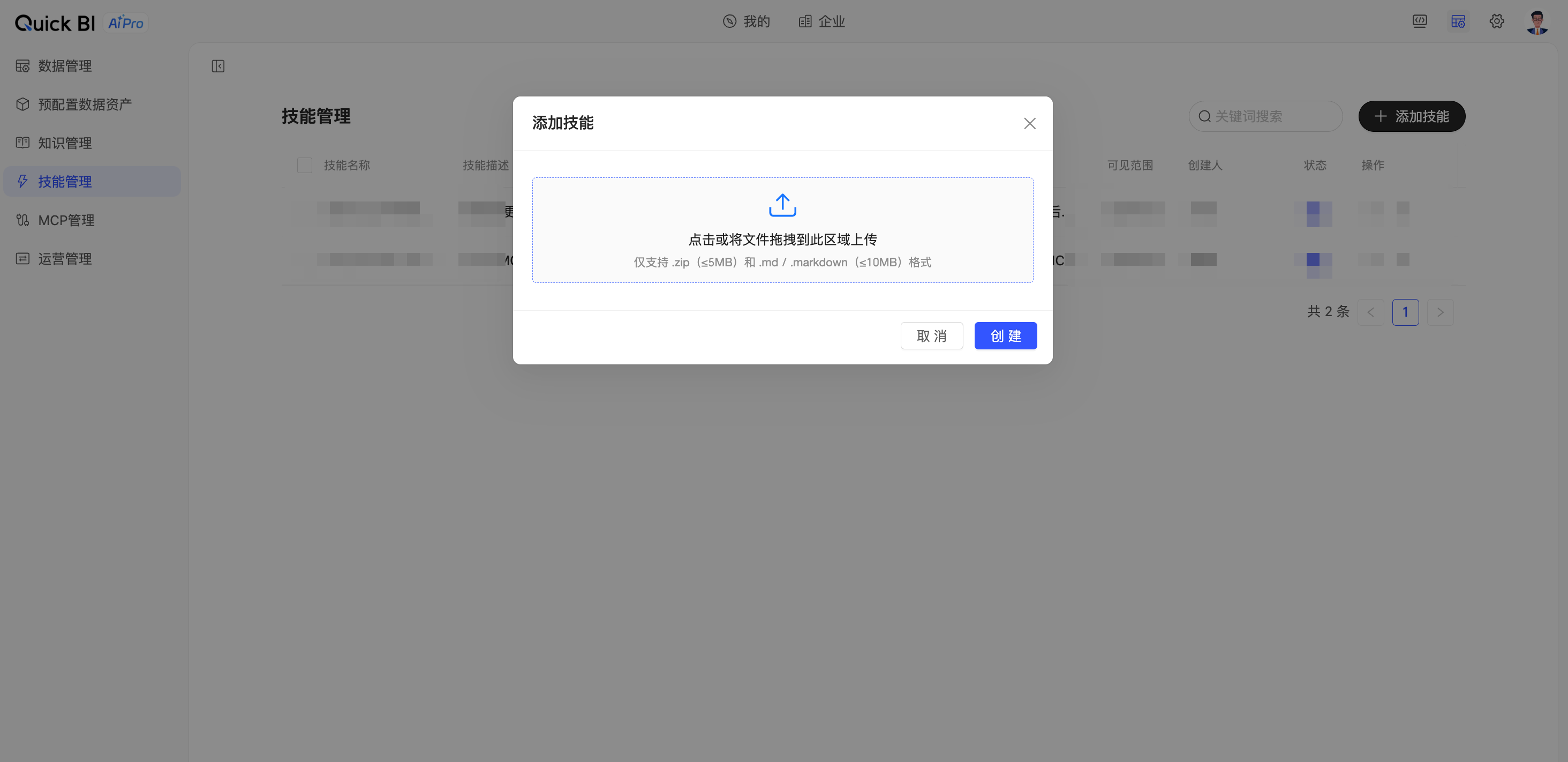
Go to Admin Center > Skill Management (path:
/ai/org/skill).Click Add Skill and upload the skill's ZIP package.
Set the Visibility for the skill to All Members or Specific Users.
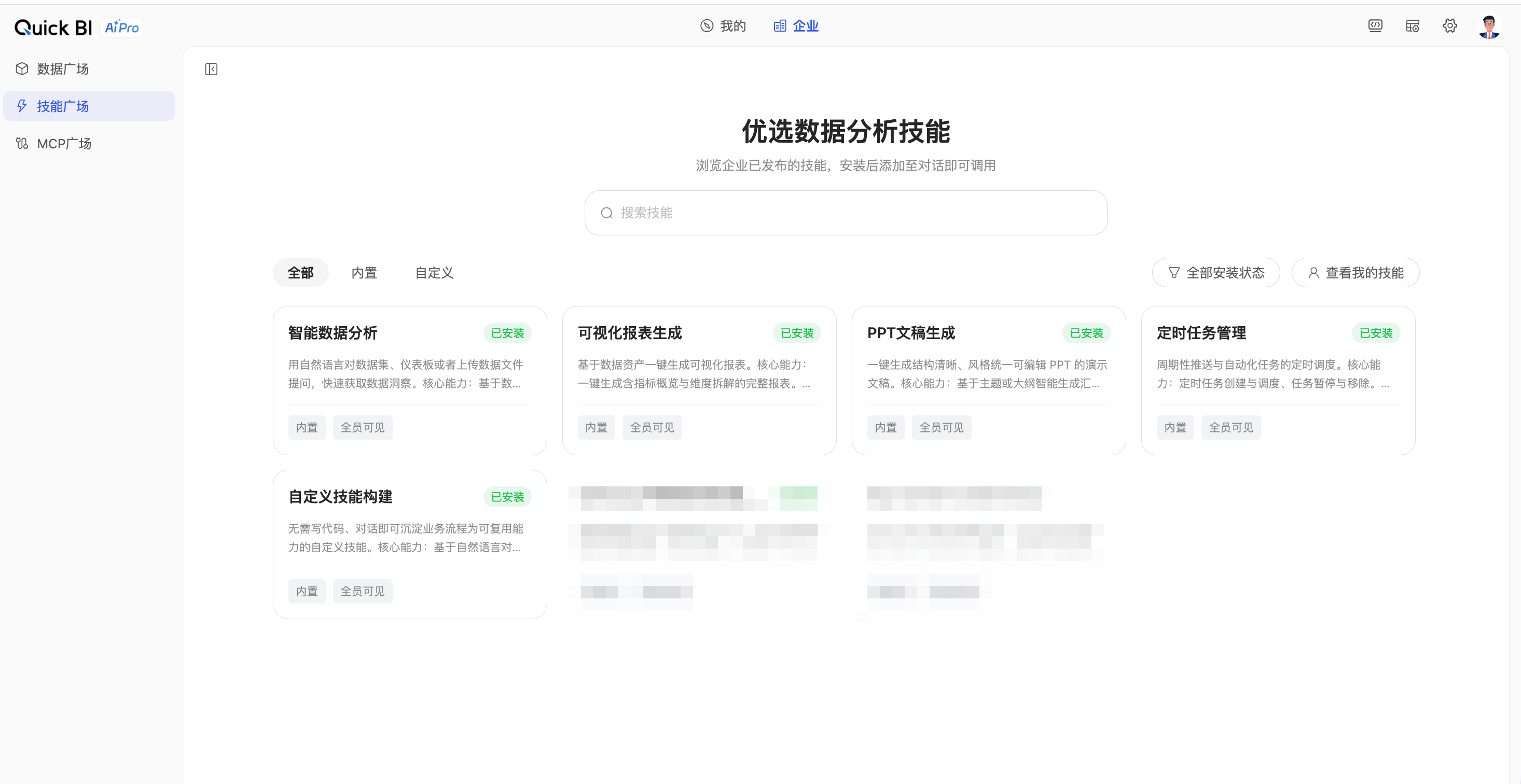
After saving and publishing, business users can find the skill in Enterprise > Skill Marketplace for quick use, or enter
/in the dialog input box to use it.
6. Integrate MCP connectors (Optional)
Goal: Connect external tools like DingTalk, Lark, internal APIs, and industry data sources to the AI analysis workflow by using the Model Context Protocol (MCP) to expand your analytical capabilities.
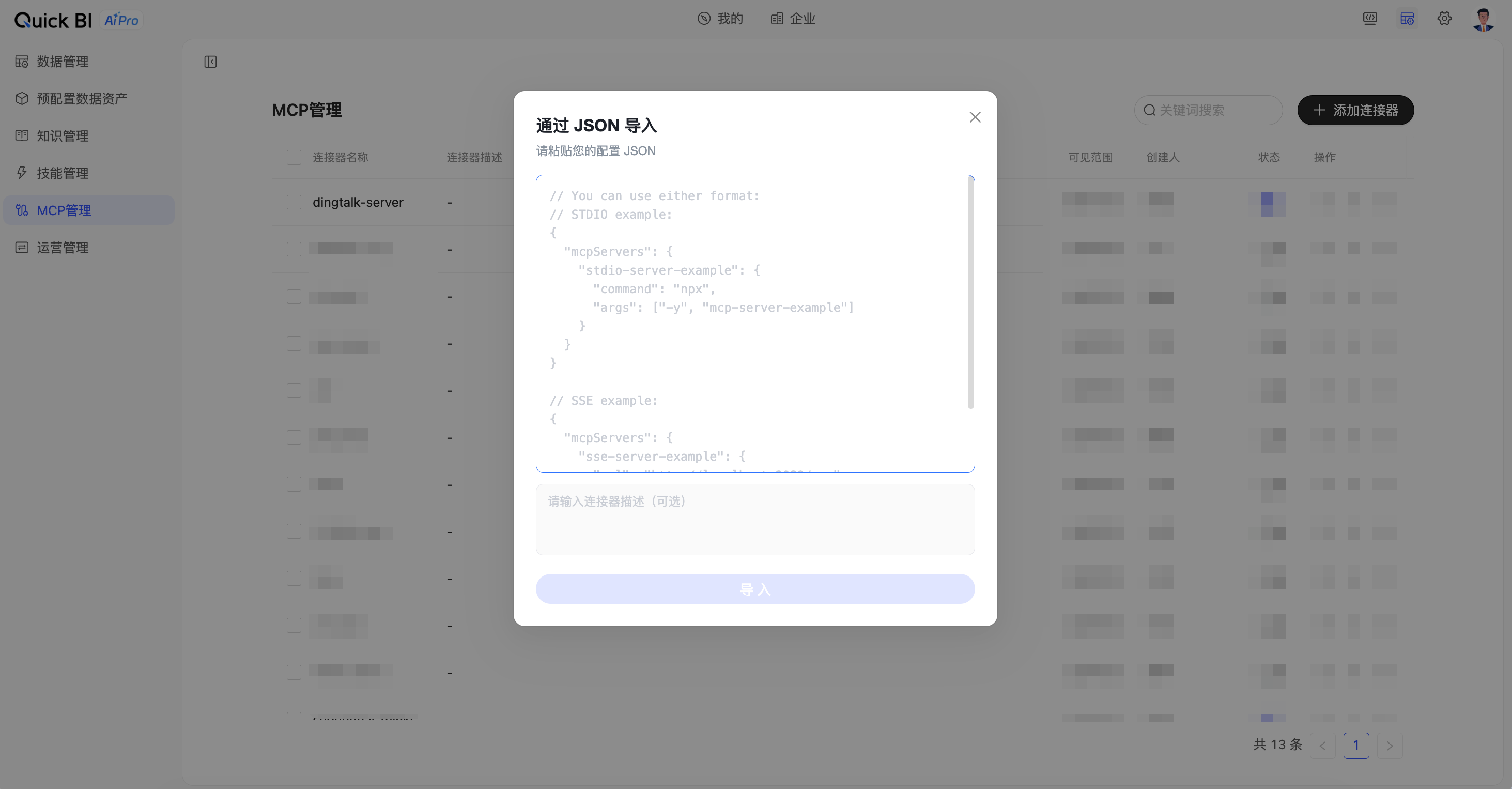
Go to Admin Center > MCP Management (path:
/ai/org/mcp).Click Add Connector and enter the MCP configuration information.
Set the connector's visibility and invocation permissions.
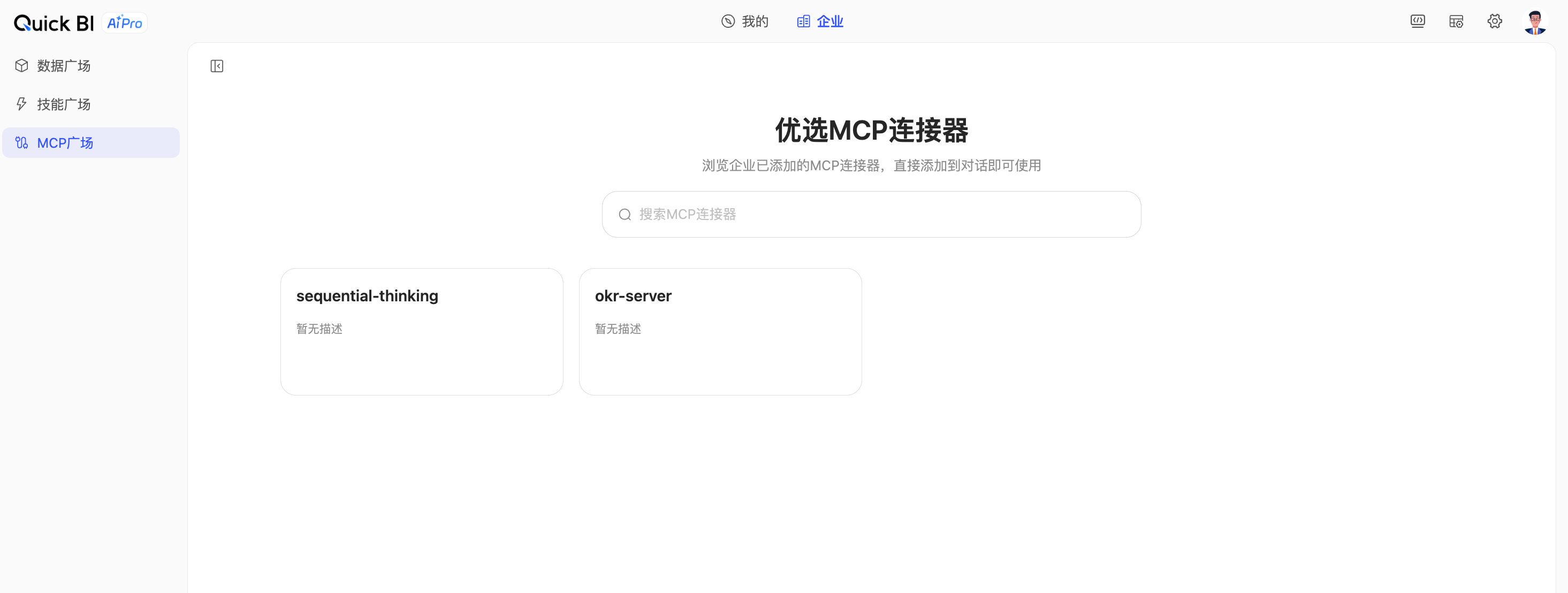
Business users can enable and invoke the connector from Enterprise → MCP Marketplace.
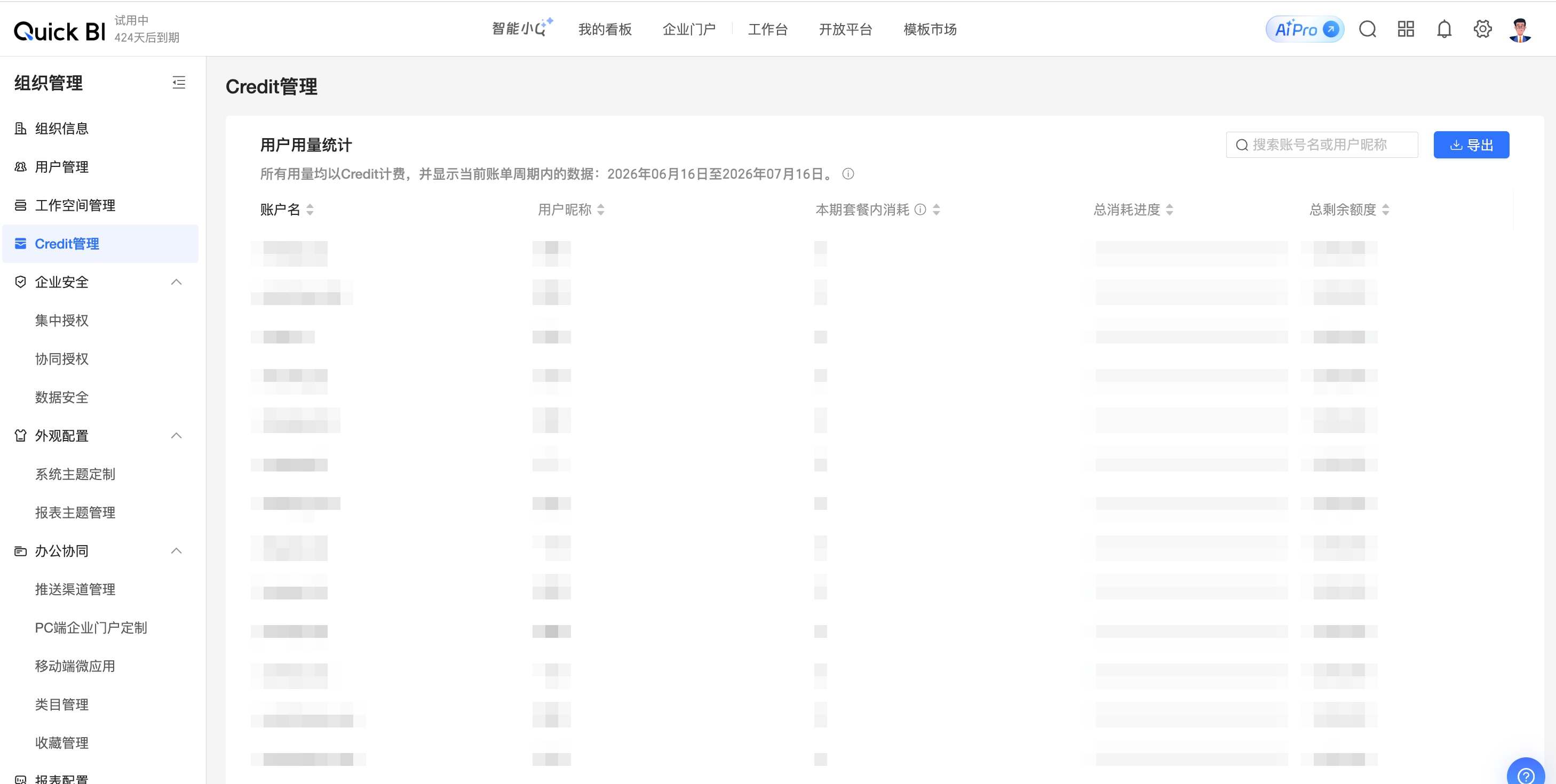
7. Manage Credits and quotas
Goal: Control and audit resource usage by users within your organization.
Go to Organization Management → Credit Management (path:
/org/admin/creditManage).View the Credit balance and consumption details for users in your organization.
8. Configure AIPro permissions
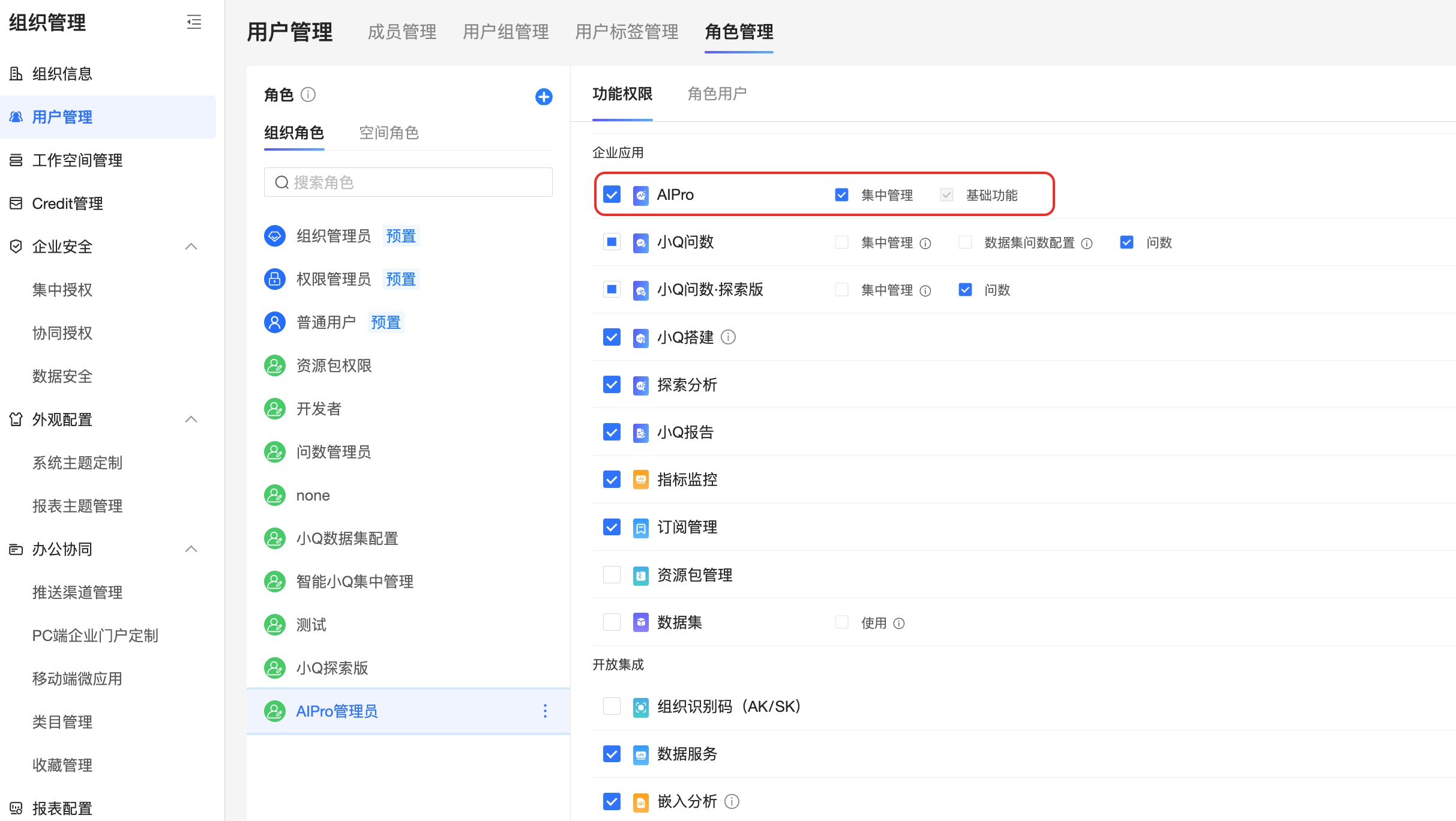
Goal: Ensure data visibility and operational permissions meet corporate governance requirements. You can use custom roles to grant users AIPro administrative privileges.
Go to Admin Center → Organization Management → Role Configuration (Path:
/org/admin/user/role).Quick BI AIPro provides the following preset roles:
Role | Primary permissions | AIPro administration |
organization administrator | Organization-level administration | Yes |
workspace administrator | Manage members, data assets, artifacts, and subscriptions within a workspace. | No |
workspace developer | Create datasets, reports, and skills, and publish assets to the enterprise. | No |
Custom Role | Grants permissions to assist the organization administrator with managing AIPro capabilities. | Yes |
AIPro steps for business users
This section is for business users with an AIPro seat. Follow these steps to conduct your first AI-powered conversational analysis.
1. Log in to AIPro
Log in to Quick BI with your Alibaba Cloud account.
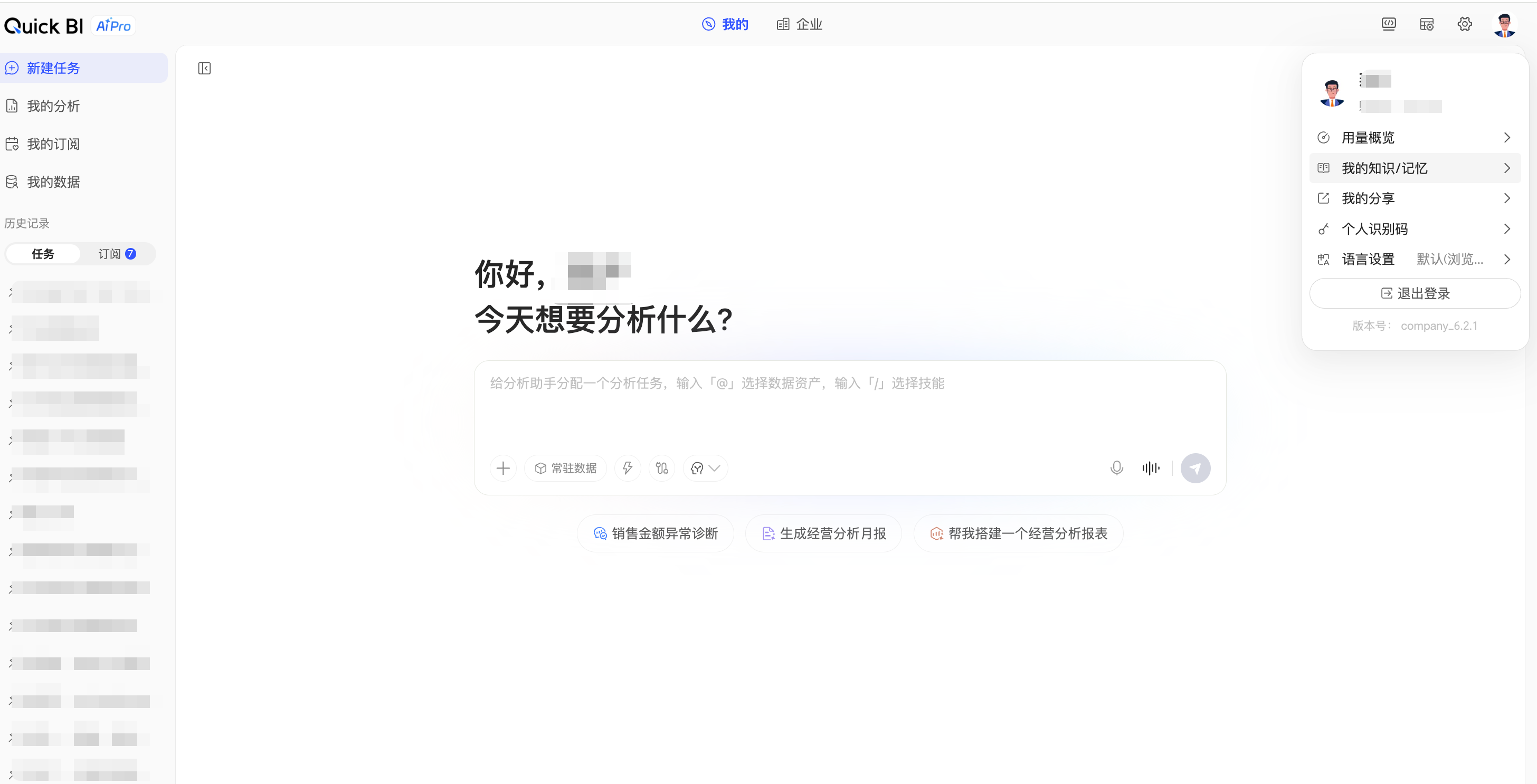
In the top navigation bar, click AIPro to go to the AIPro homepage.
The homepage displays two tabs: My and Enterprise. The My tab is shown by default.
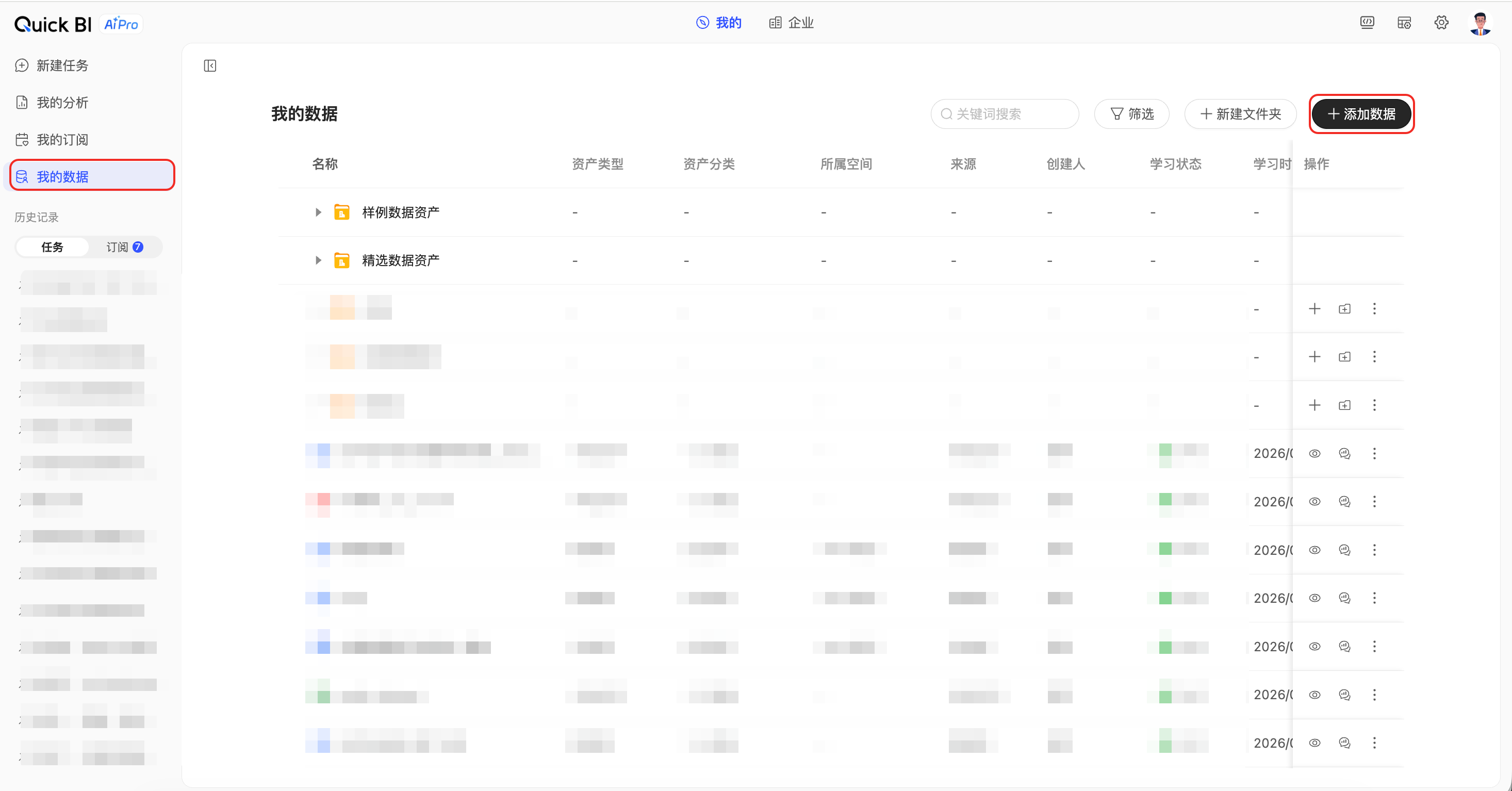
2. Configure data assets
Go to My Data.
Add data: You can add enterprise data from the Data Marketplace or upload your own local files. Supported file types include Excel, PDF, Word, Markdown, and TXT.
Data learning: After you add data, the AI takes one to two minutes to learn its semantics. Once complete, go to New Task to start your analysis.
3. Ask questions in natural language
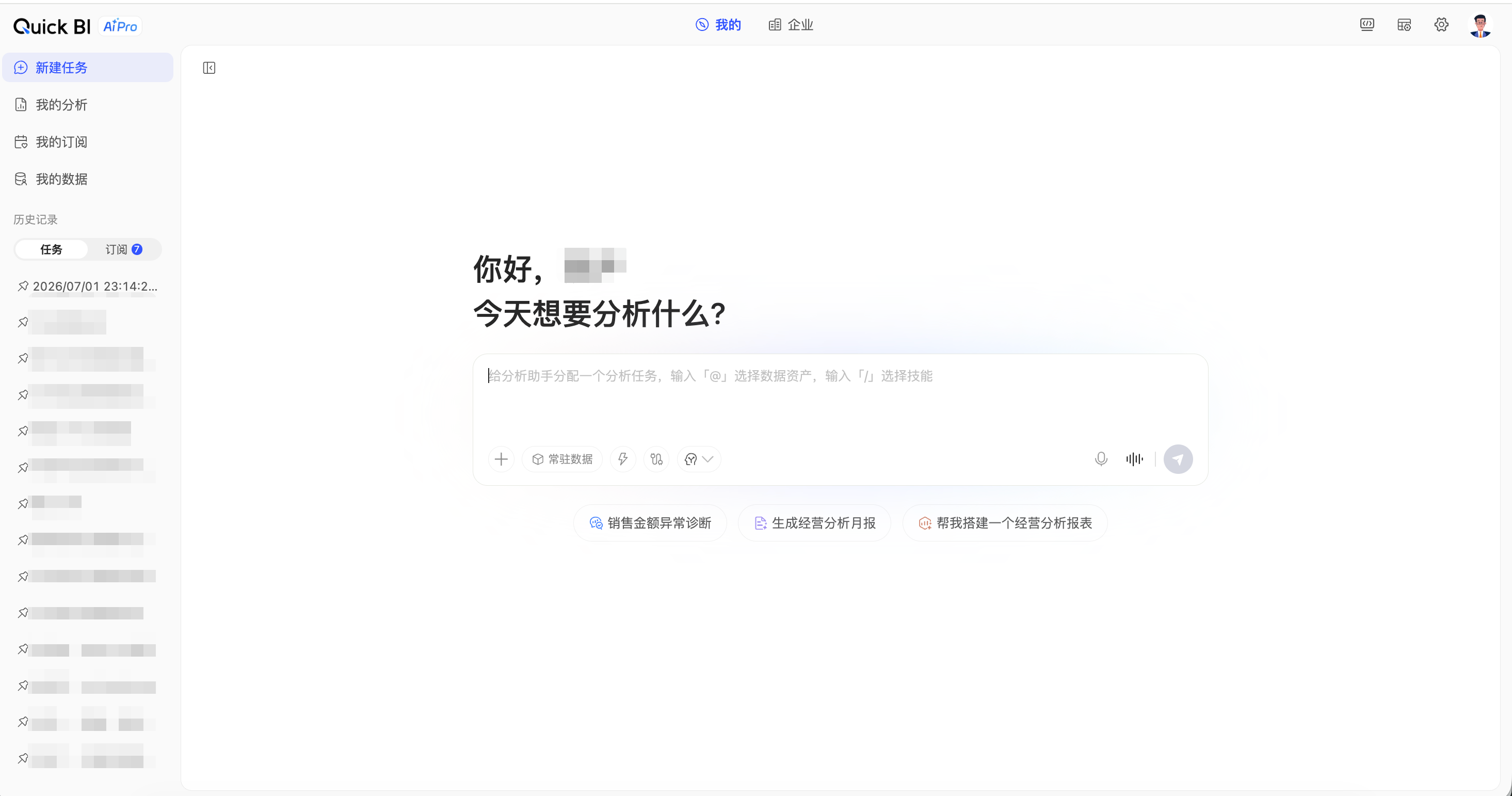
Go to New Task and type your analysis question in the input box. For example:
"What is the month-over-month change in sales for each region?"
"What are the main reasons for the decline in GMV in the East China region?"
"Generate a business analysis report for Q2 2026."
You can also ask follow-up questions in a multi-turn conversation. For example:
"What were the sales figures for each category in June?"
"Which were the top 5 fastest-growing categories?"
"Analyze the reasons for this growth."
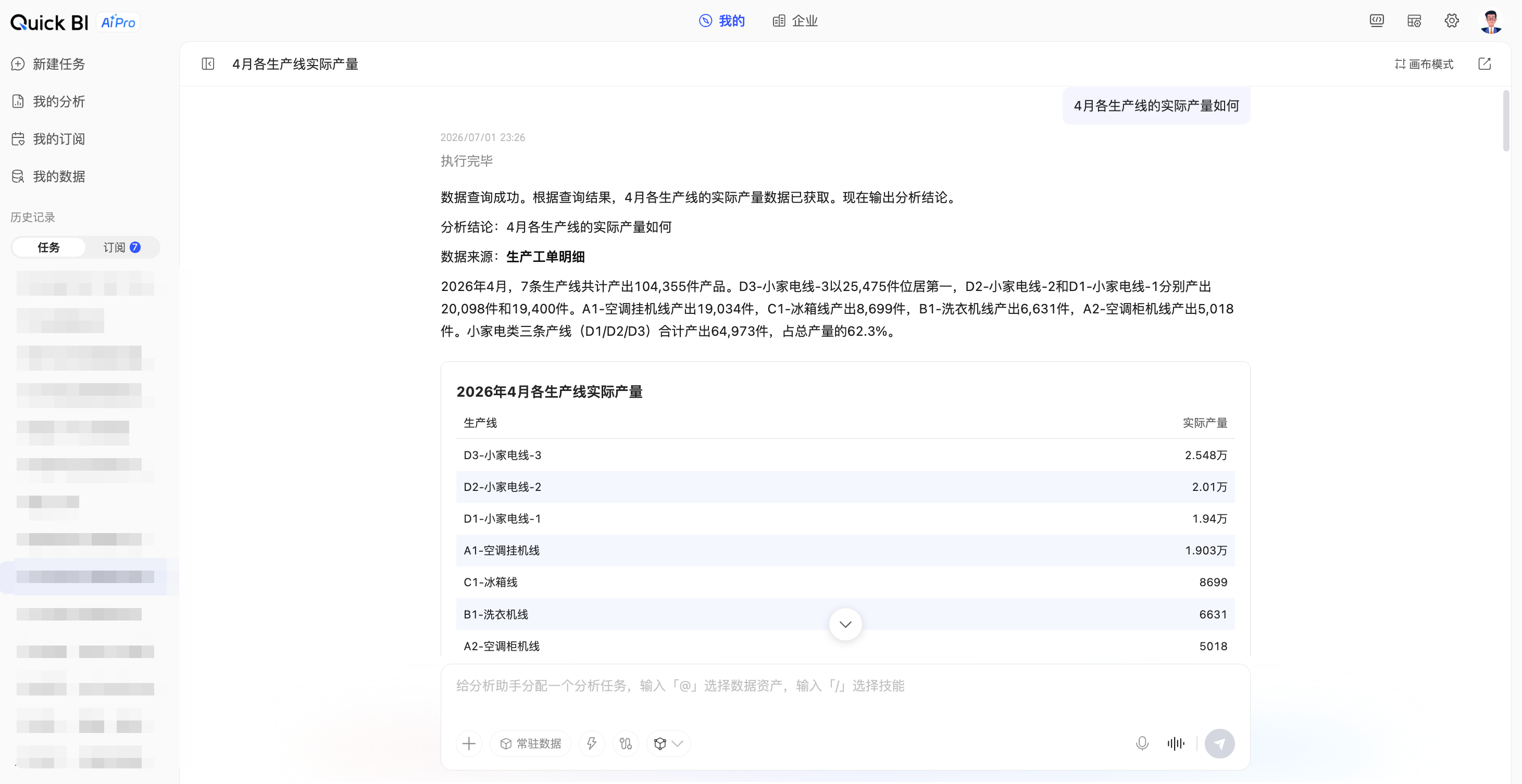
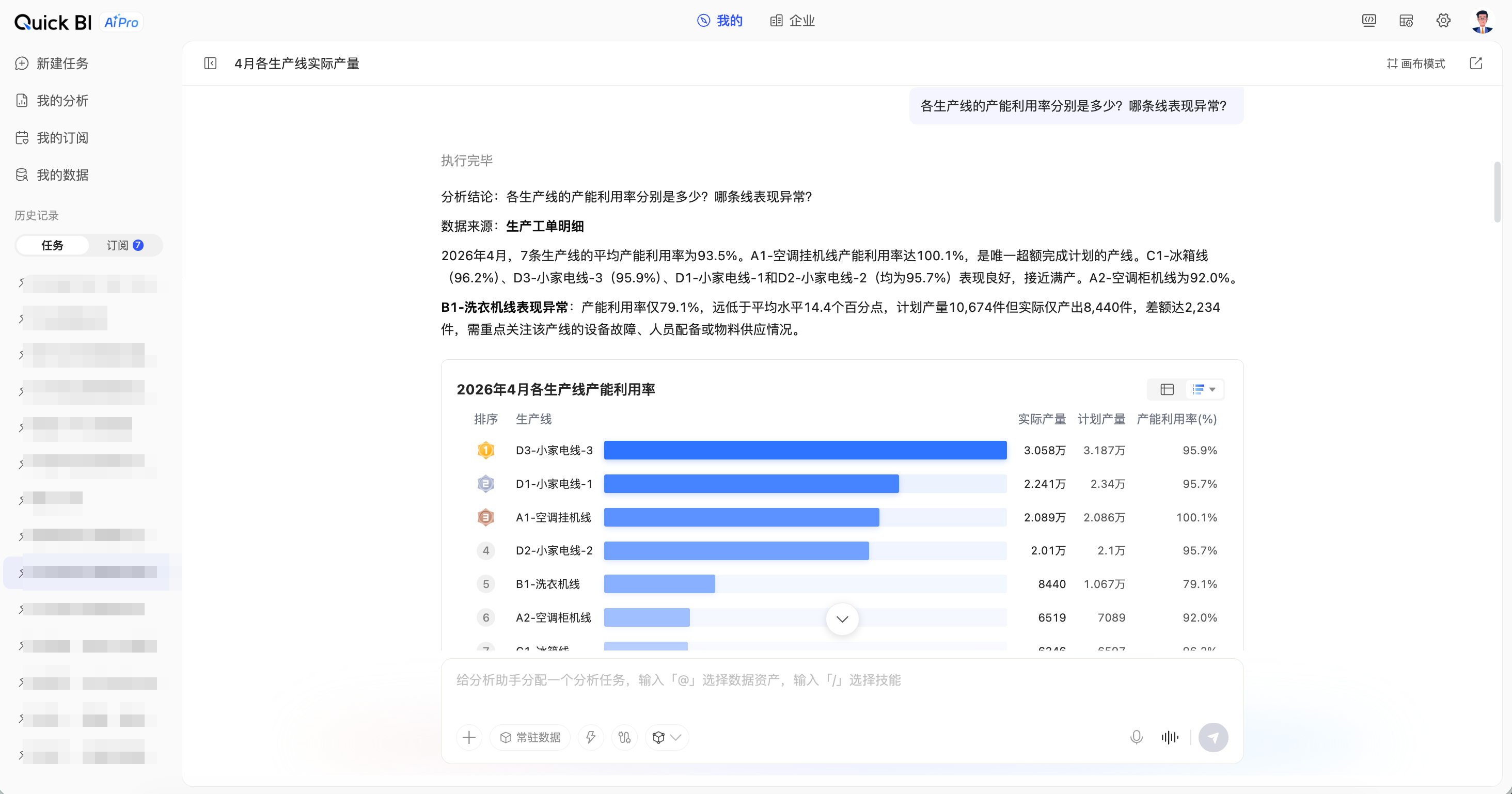
After you enter your question, the AI returns structured analysis results, including charts, tables, and text summaries.
4. Get your analysis results
The AI generates analysis results based on your questions.
Charts and interpretations: The data is retrieved and presented visually.

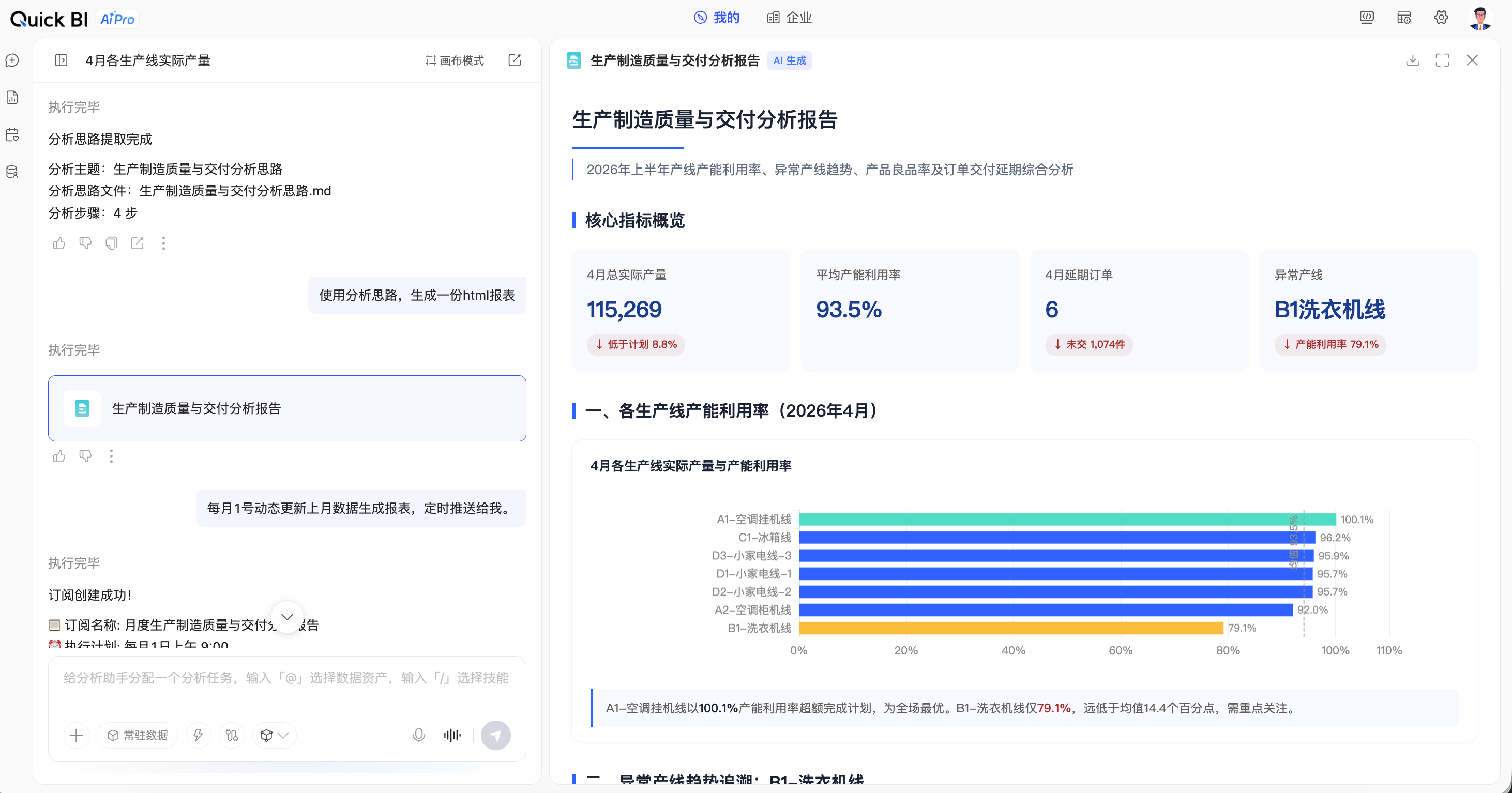
HTML report: Presents analysis conclusions visually. This format is often used for one-time exploratory analysis and creating personalized reports.
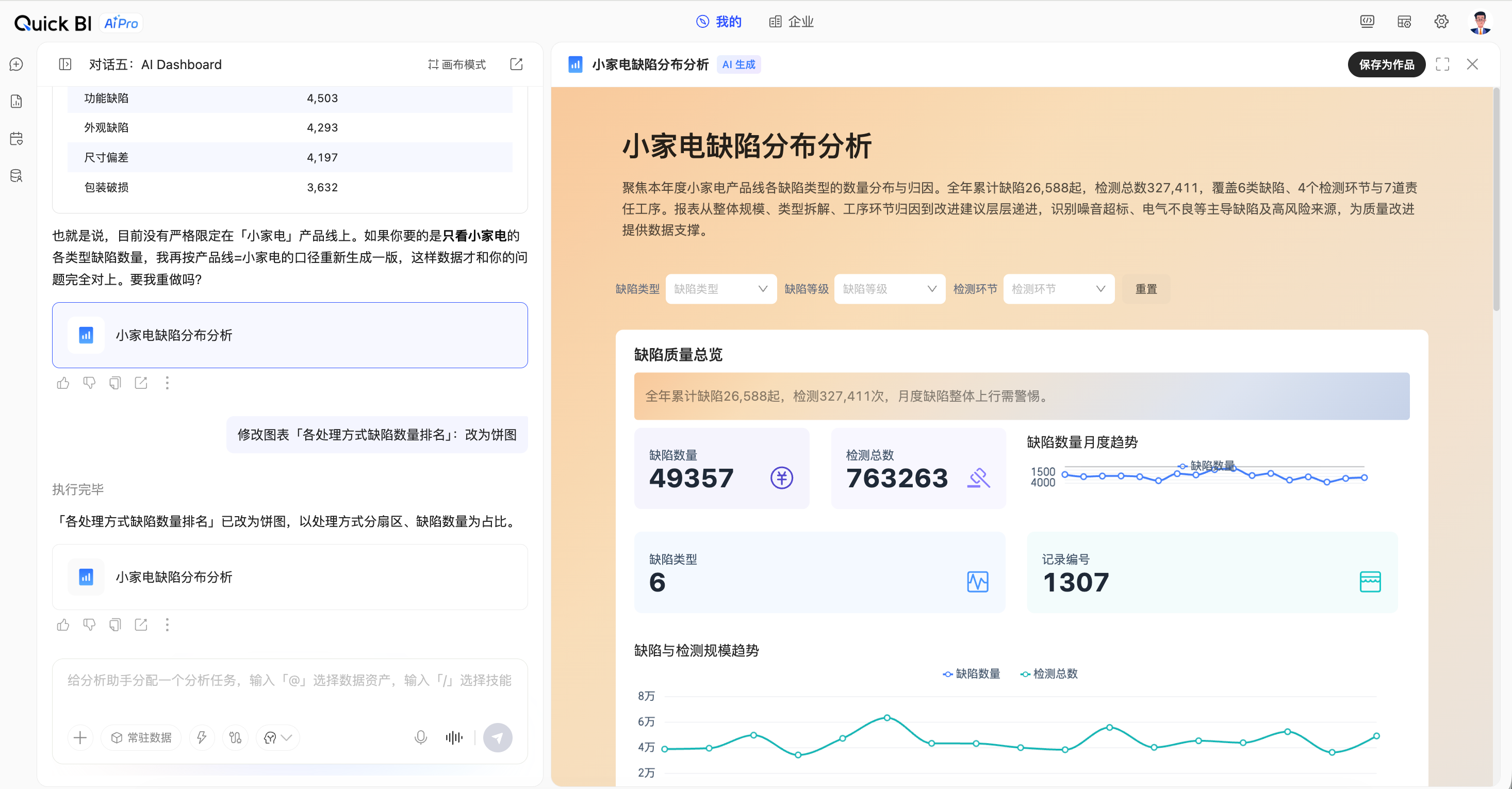
Analysis report: Supports dynamic updates, filtering, and drill down analysis. This format is ideal for scenarios that require regular data refreshes and sharing results for collaboration.
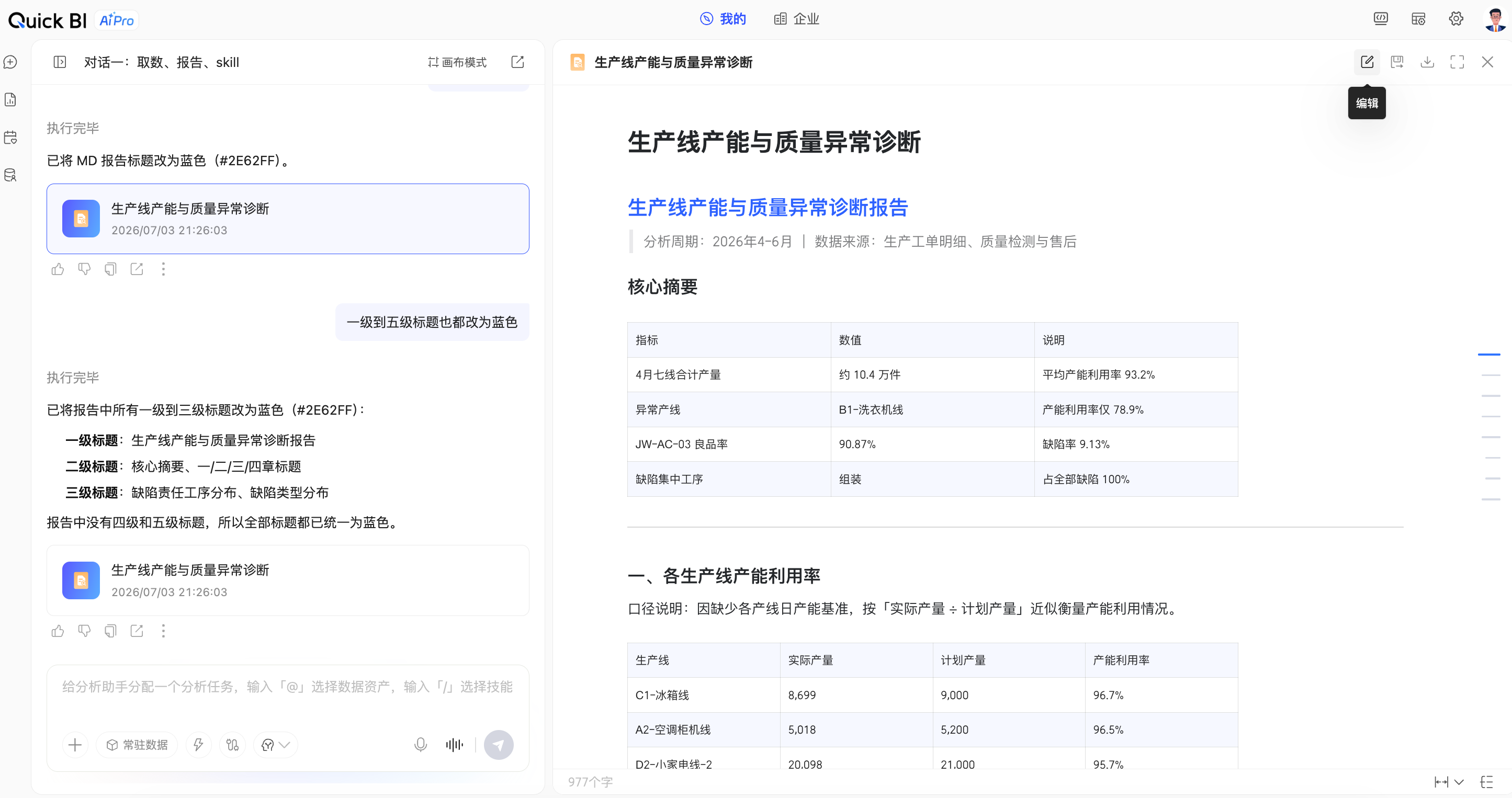
Document report: Generates a document-style analysis based on the charts and text interpretations, offering flexible editing capabilities.
5. Use your analysis results
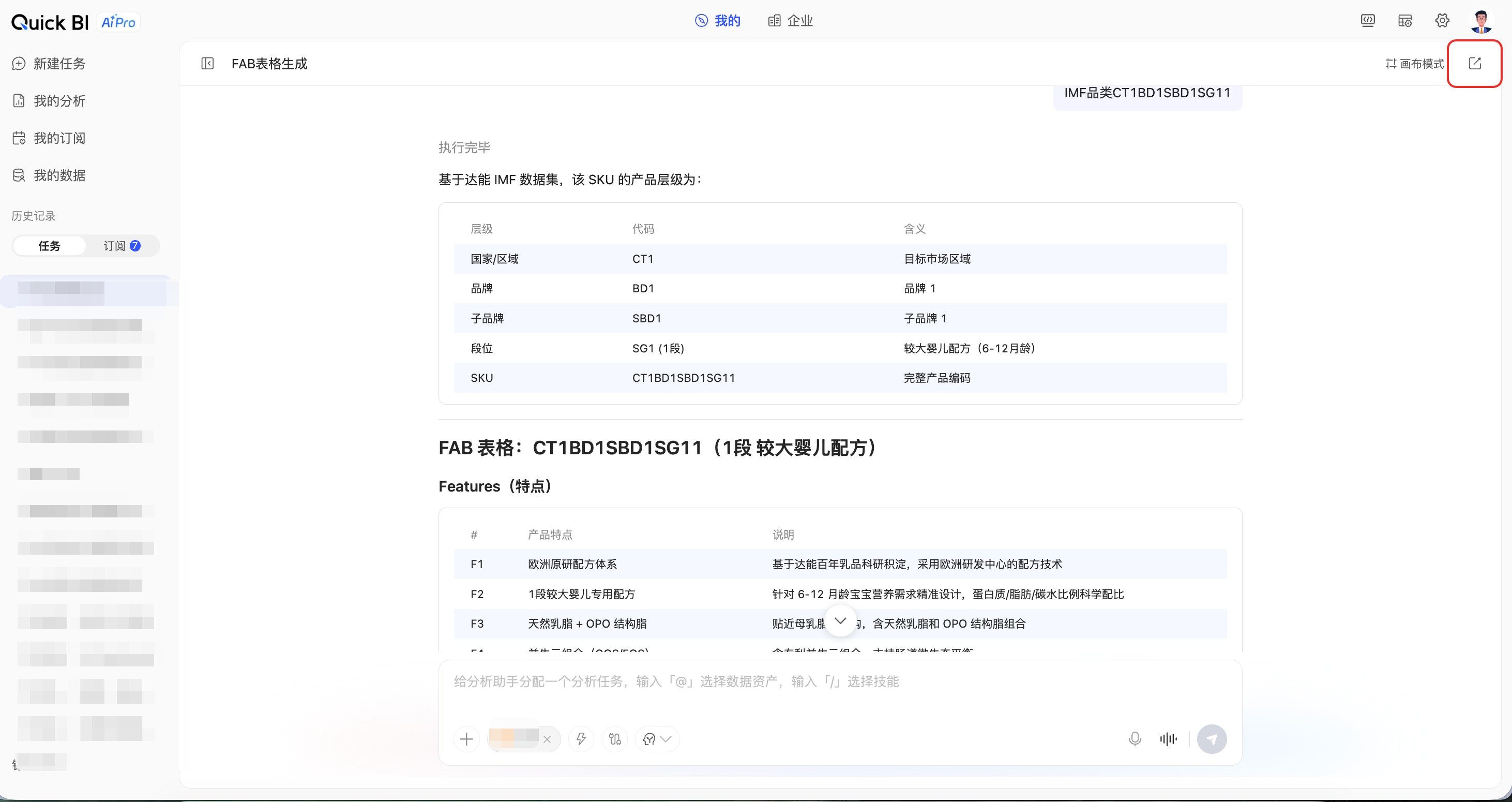
Share: Share conversation results publicly or privately, and set an expiration period for the share link.
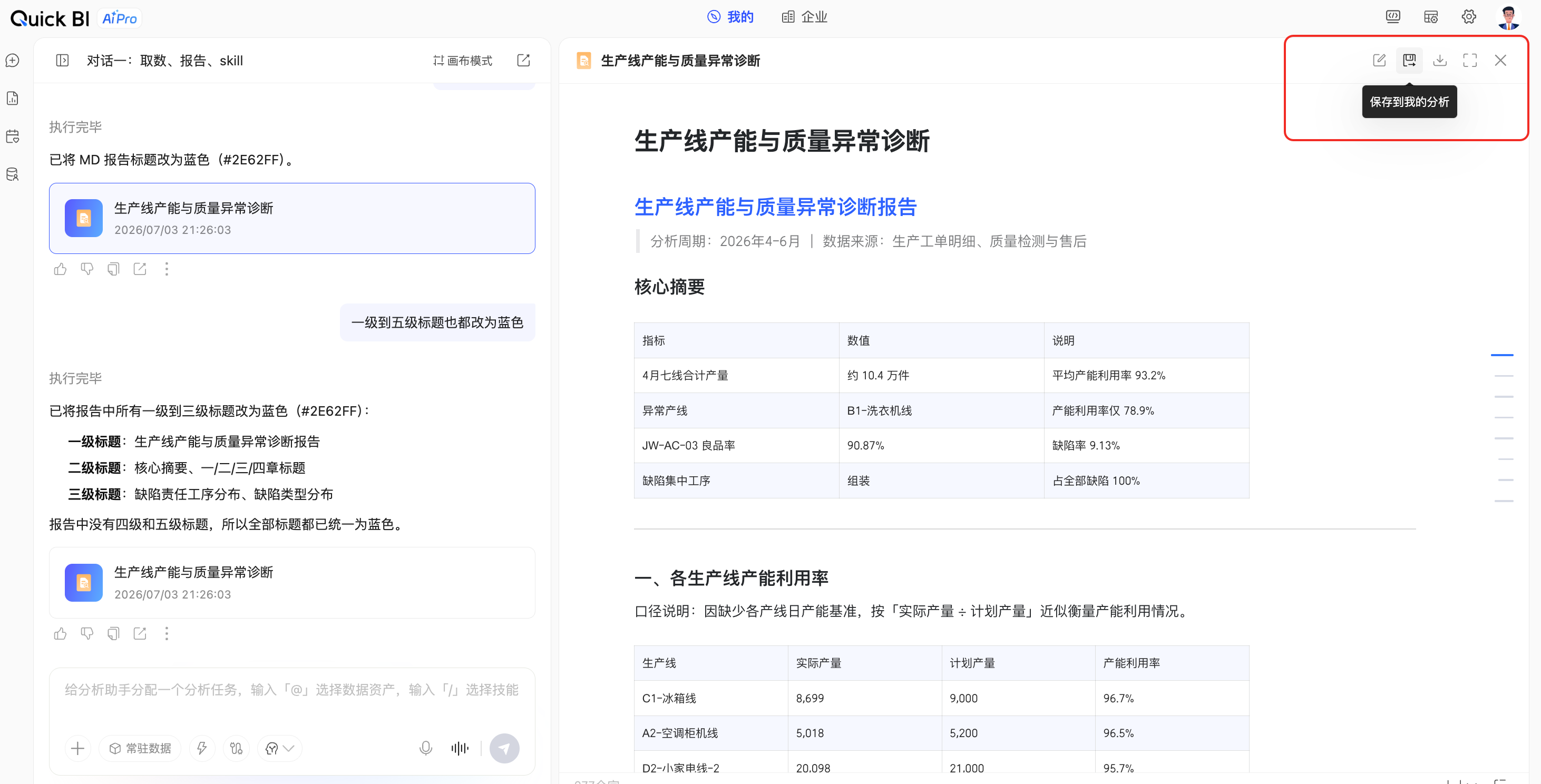
Save: For document and analysis reports, click Save to My Analysis in the upper-right corner to save the results to your personal collection of artifacts.
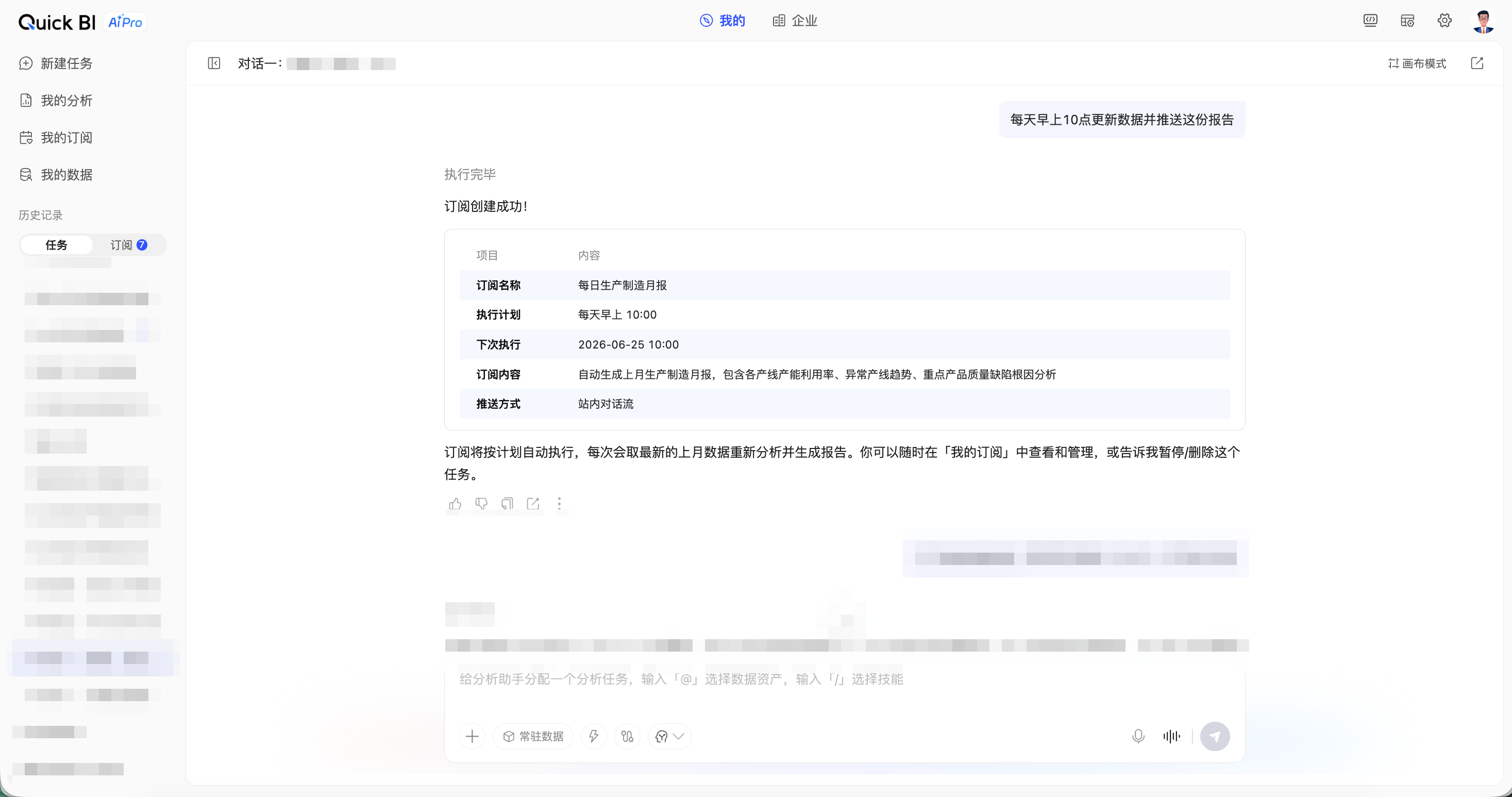
Subscribe: Create subscription tasks through conversation. AIPro will run them on schedule and push the latest results. You can also manually edit the schedule and delivery channels.
Download: You can download HTML reports and document reports as local files.
Modules
Quick BI AIPro consists of the following modules, which cover the entire workflow from personal use and enterprise assets to administrative configuration.
View | Module | Core function | Primary user |
My | New Task | Drives AI analysis using natural language to produce charts, reports, and presentations. | business user |
My | My Analysis | Stores personal analysis artifacts, which can be edited and shared. | business user |
My | My Subscriptions | Manages scheduled push tasks and supports multi-channel distribution. | business user |
My | My Data | Manages personally uploaded data files and data assets. | business user |
Enterprise | Data Marketplace | Browse datasets, data tables, files, and API data shared by the enterprise. | All members |
Enterprise | Skill Marketplace | Browse AI analysis skills published by the enterprise. Enable them with one click for use in conversations. | All members |
Enterprise | MCP Marketplace | Browse integrated MCP connectors to expand AI analysis capabilities. | All members |
Admin Center | AIPro Management | Configure data, knowledge, skills, and MCP connectors. | organization administrator, roles with AIPro management permissions |
Admin Center | Role Configuration | Manage organization roles and permissions. | organization administrator |
Organization Management | Credit Management | View AI compute Credit balance and consumption details. | organization administrator |
More features
After completing the basic setup and your first conversation, you can explore the following advanced features:
Free Canvas: Drag and drop charts, tables, and insight cards from multiple conversations onto the canvas. Arrange and combine them to create a thematic analysis dashboard. The canvas can be exported as an HTML snapshot, a report, or a PowerPoint presentation.
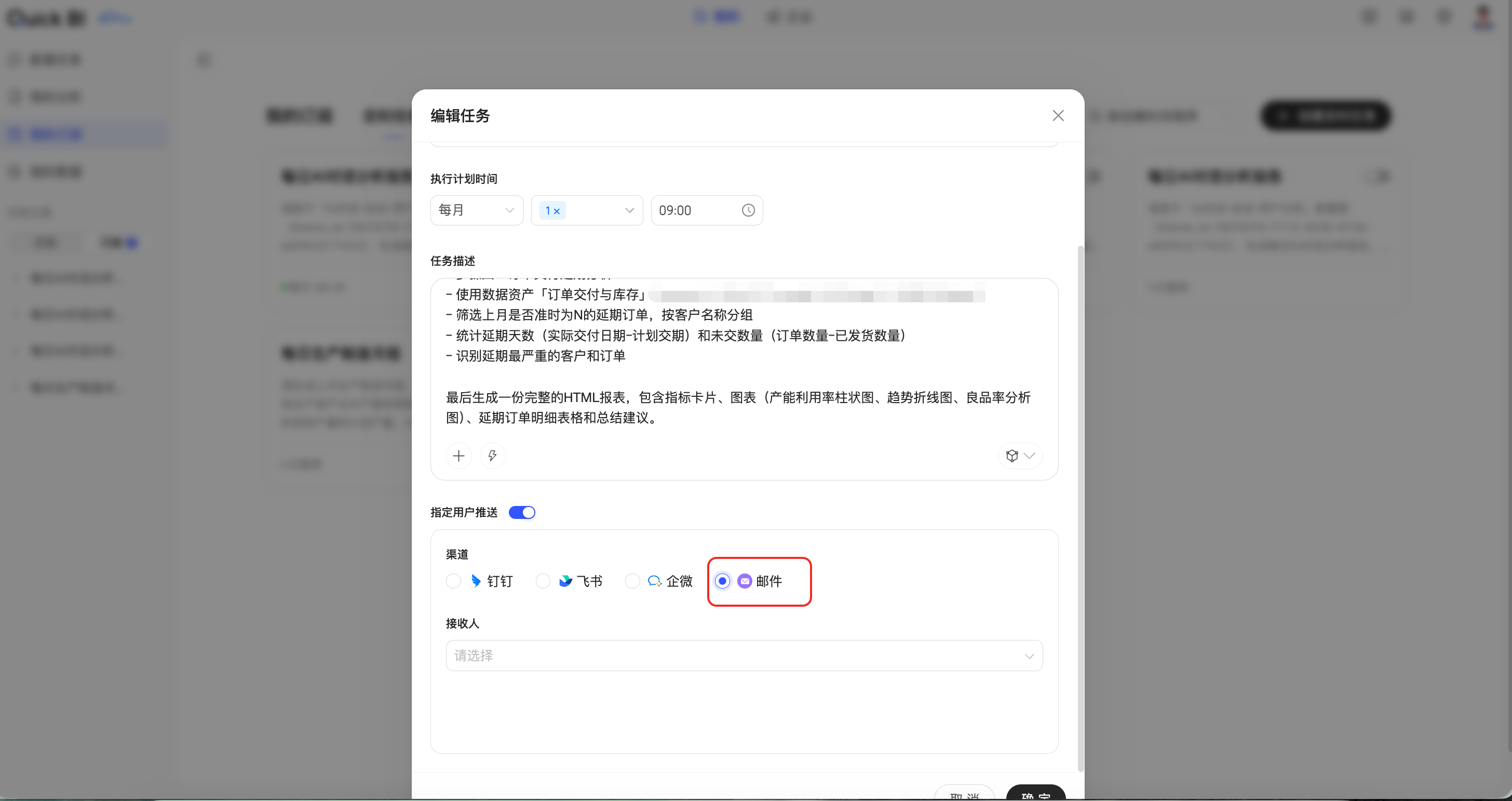
Scheduled subscriptions: Convert any analysis result into a subscription task. Choose a push frequency (daily, weekly, monthly, or a Cron expression) and a push channel (email, DingTalk, Lark group, or webhook). The AI will run the task on schedule and push the latest data snapshot.
PowerPoint presentation generation: Generate a PPTX file based on the analysis results from your data assets, ready for business presentations.
FAQ
Q1: Why can't a business user see the AIPro entry point after logging in?
The user's role might not be set to Developer or Analyst. Contact your organization administrator to assign the correct seat.
Q2: Why is the data list empty when I type @ to select data?
Make sure you have at least one data asset file in My Data and that the initial data learning process is complete.
Q3: The system shows an "Insufficient Quota" message during a conversation. What should I do?
You have used up your monthly personal Credit. Contact your organization administrator to request an additional quota, or wait for the next billing cycle.
Q4: The AI's results do not align with our business terminology. How can I fix this?
You can ask an administrator to configure the enterprise knowledge base, or you can configure your own. If you are satisfied with the results, you can then contribute your personal knowledge to the enterprise knowledge base.
Q5: How can I automatically push analysis results to my email or DingTalk?
In My Subscriptions, enable Push to Specified Users and configure the recipients.