My subscriptions
My Subscriptions is the module in Quick BI AIPro for managing scheduled analysis tasks. You can schedule important analyses to run automatically and have the results delivered through various channels. This topic describes how to create and manage your subscriptions.
Access the feature
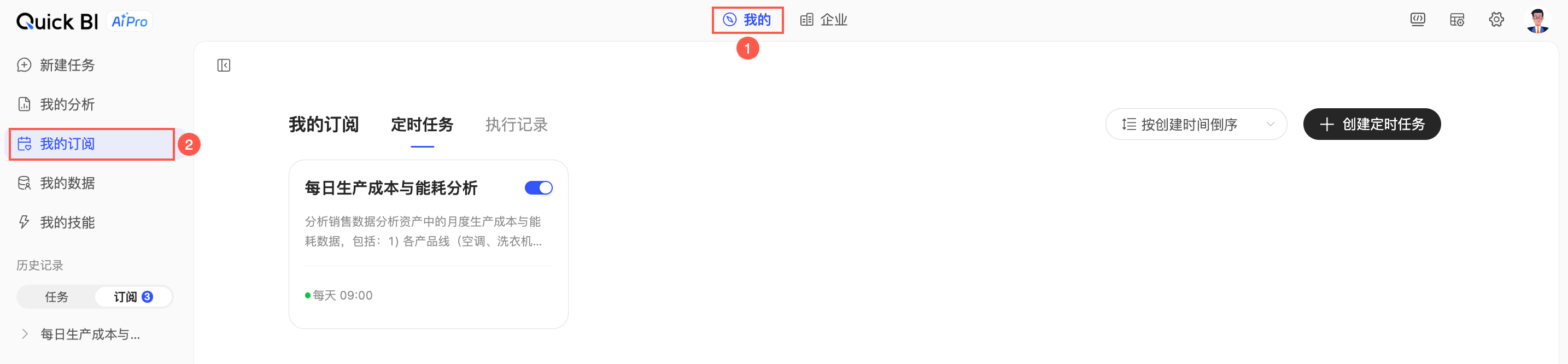
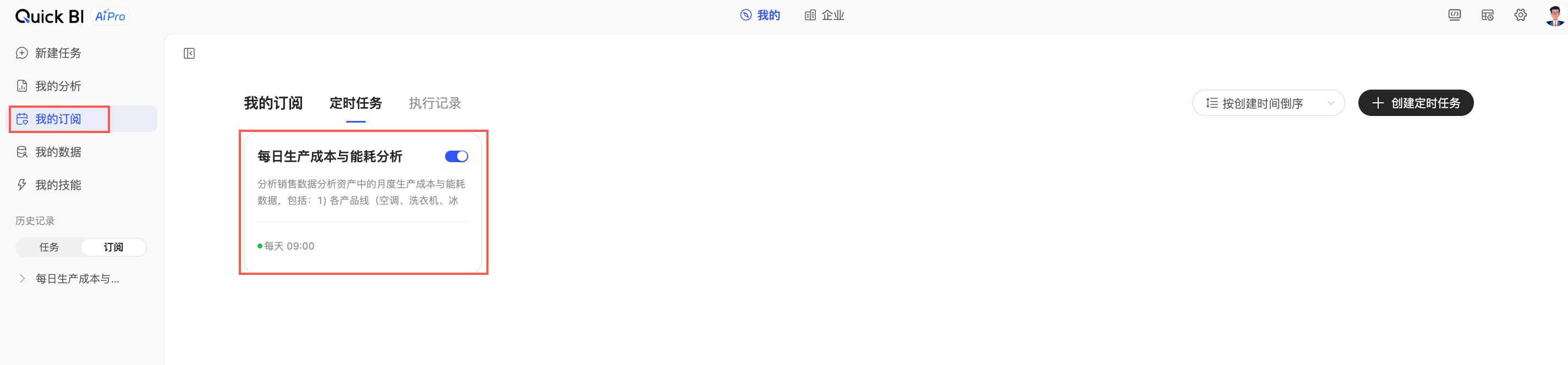
Log on to Quick BI AIPro and navigate to My > My Subscriptions.
Create a scheduled task
Create from the UI
Click Create Scheduled Task.
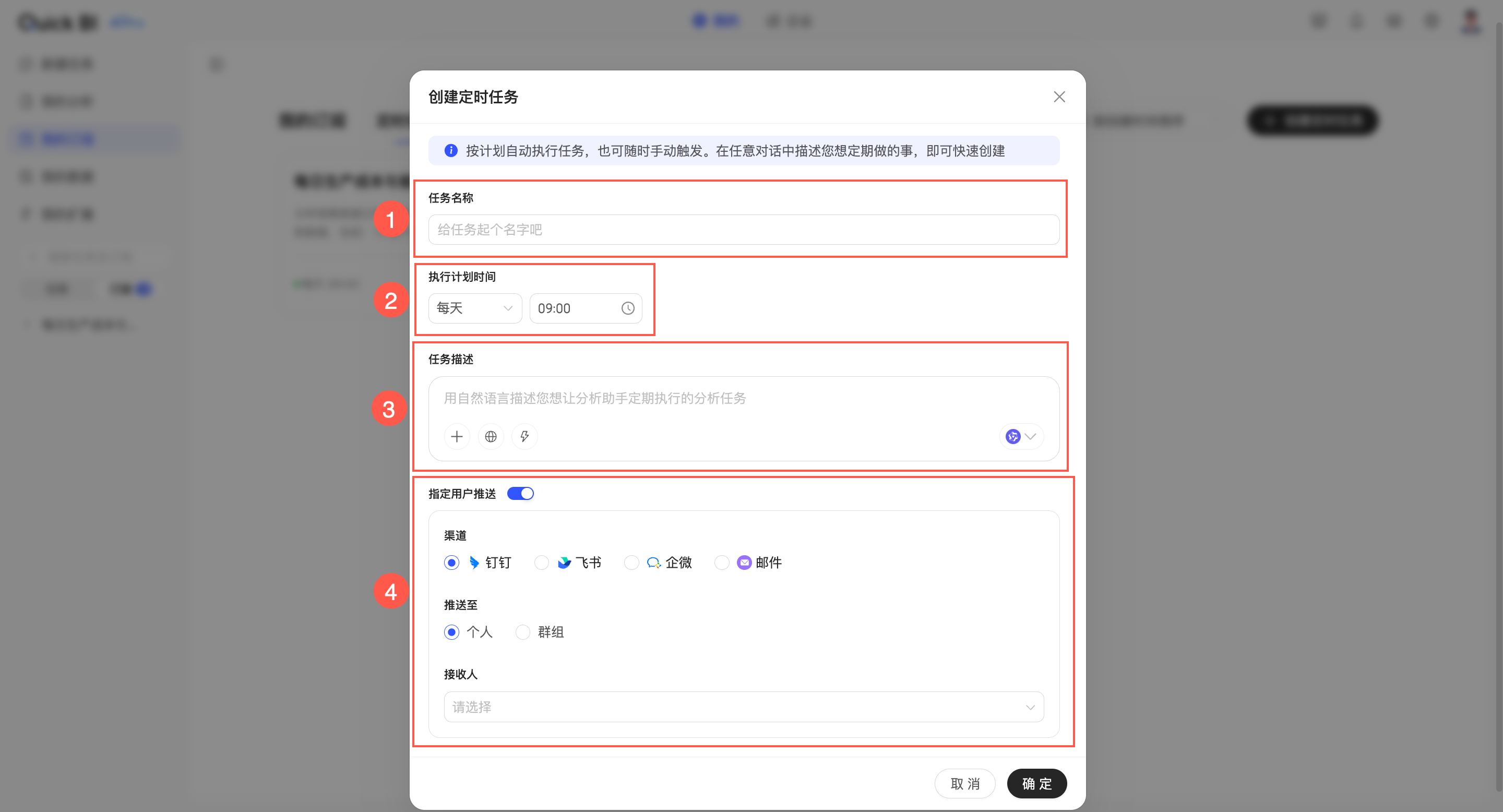
On the task creation page, configure the following settings.
Parameter
Description
Task name
Enter a custom task name.
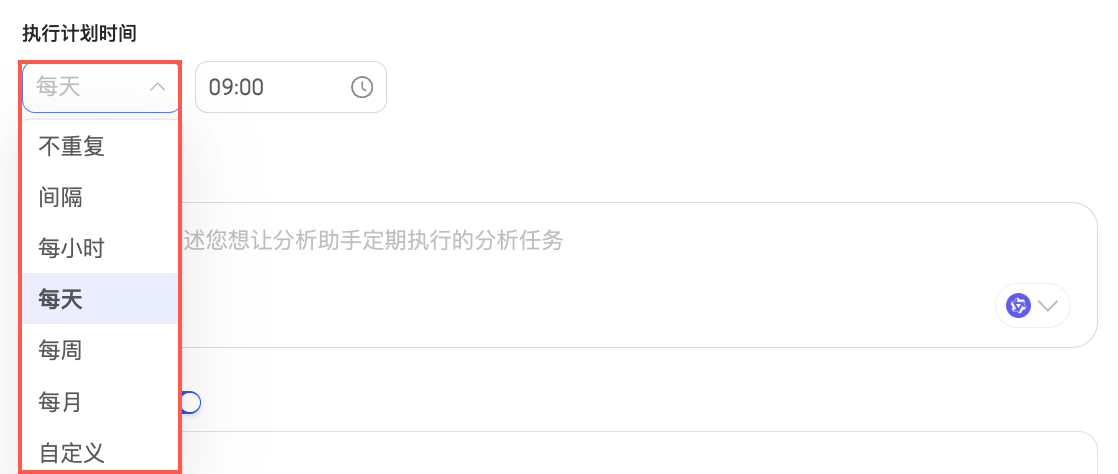
Scheduled execution time
Set a schedule for the subscription task.
Task description
Use natural language to describe the analysis task for the assistant to run on a schedule. You can select the data asset (①), skill (②), internet search (③), and large model (④) to use for the analysis.
 Note
The internet search feature is available only in the public cloud and is not supported in independent deployments.
Push to specified users
You can push task results to DingTalk, Lark, WeCom, and email. For DingTalk, Lark, and WeCom, you can send notifications to an Individual or a Group.
Create in a conversation
Enter a command to create a subscription.
For example, enter "Push this analysis result to me at 9:00 AM every day." The system will then automatically create the subscription.
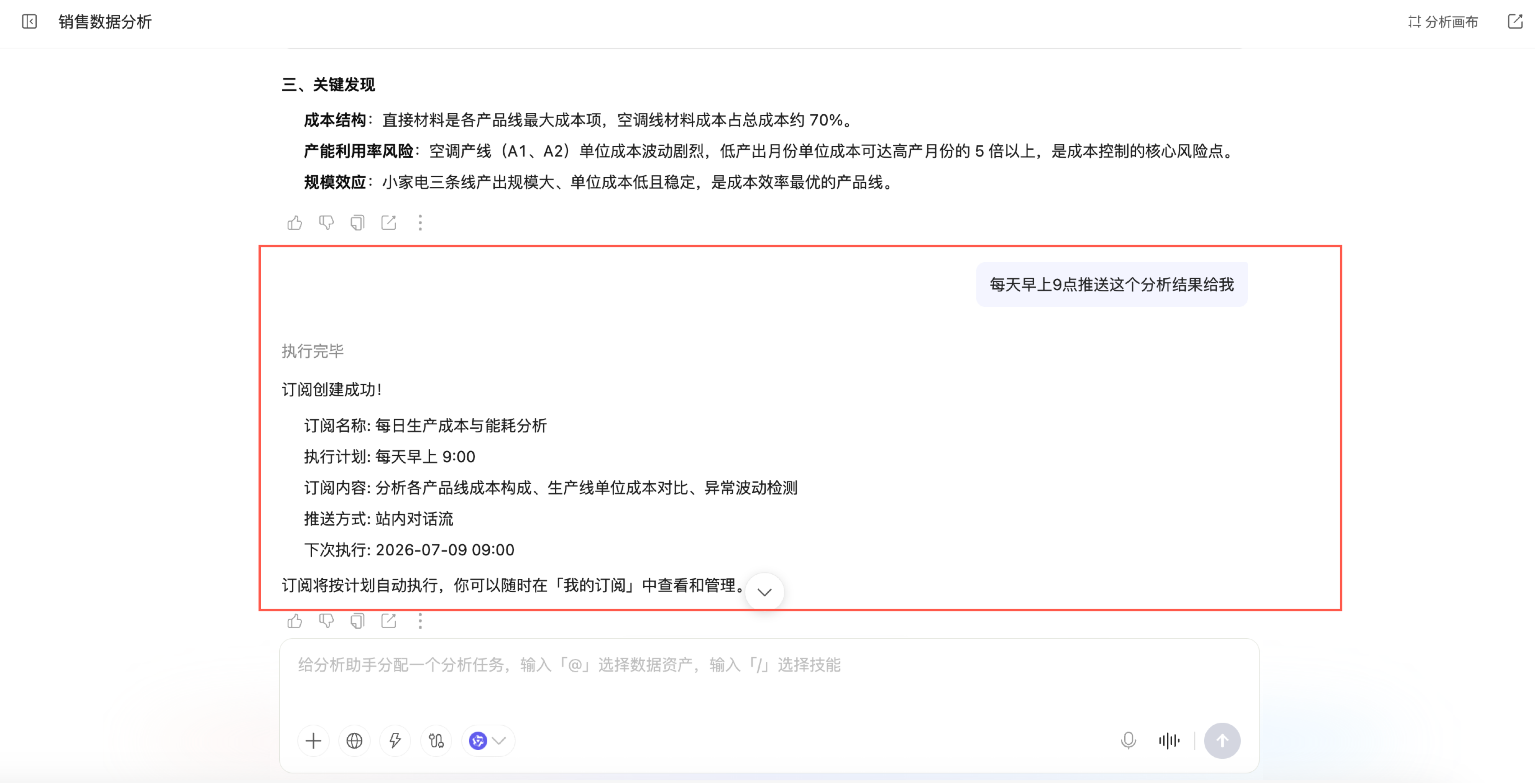
After the subscription is created, you can view and manage it in the My Subscriptions module.

Manage scheduled tasks
On the Scheduled Tasks page, you can perform the following actions.
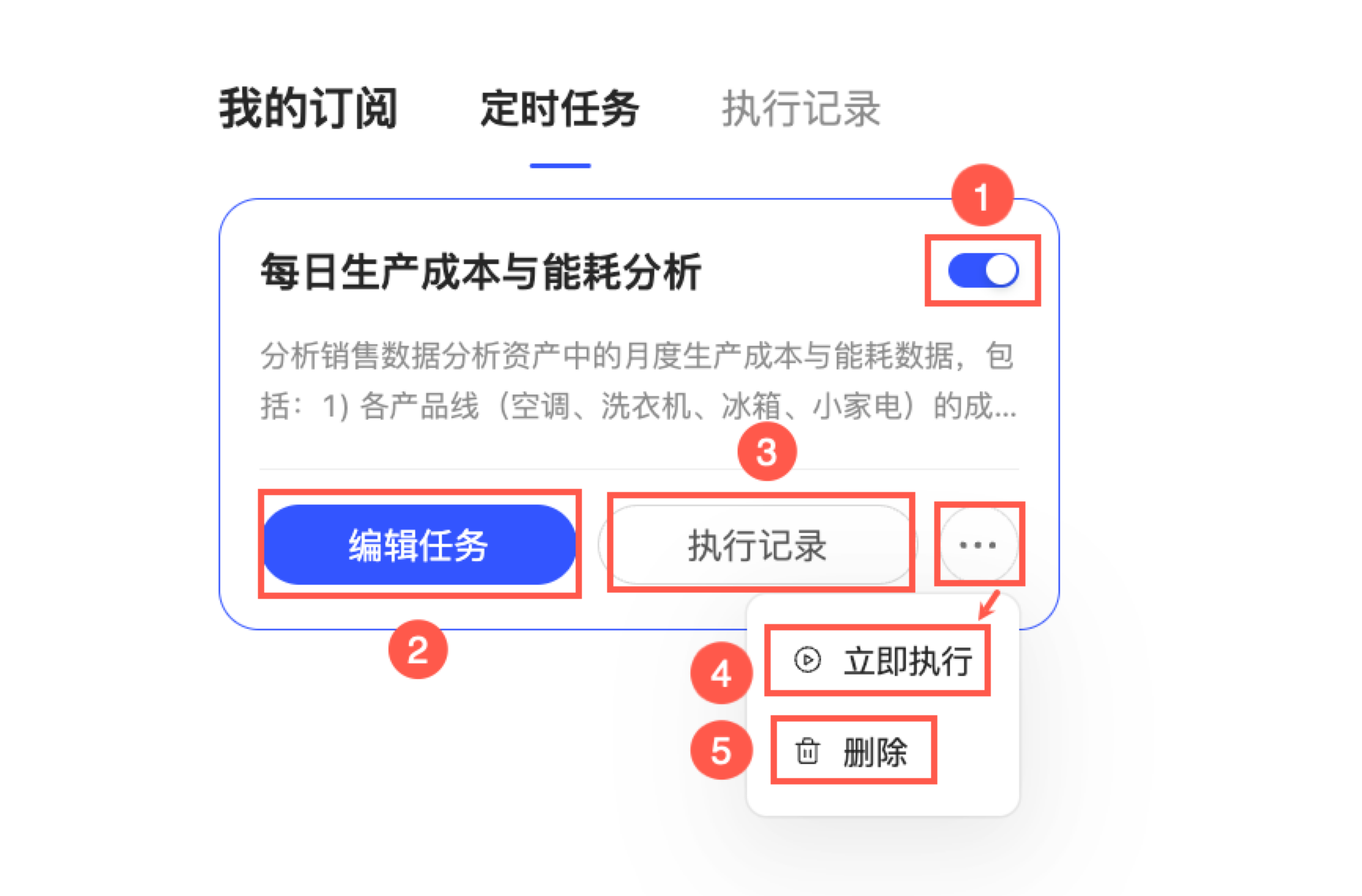
No. | Actions | Description |
① | Enable scheduled task | When enabled, the task runs as scheduled. You can disable this option to stop scheduled executions. |
② | Edit task | Edit the selected task's configuration. |
③ | Execution History | Click to view the execution history.
|
④ | Execute now | Run the task immediately. |
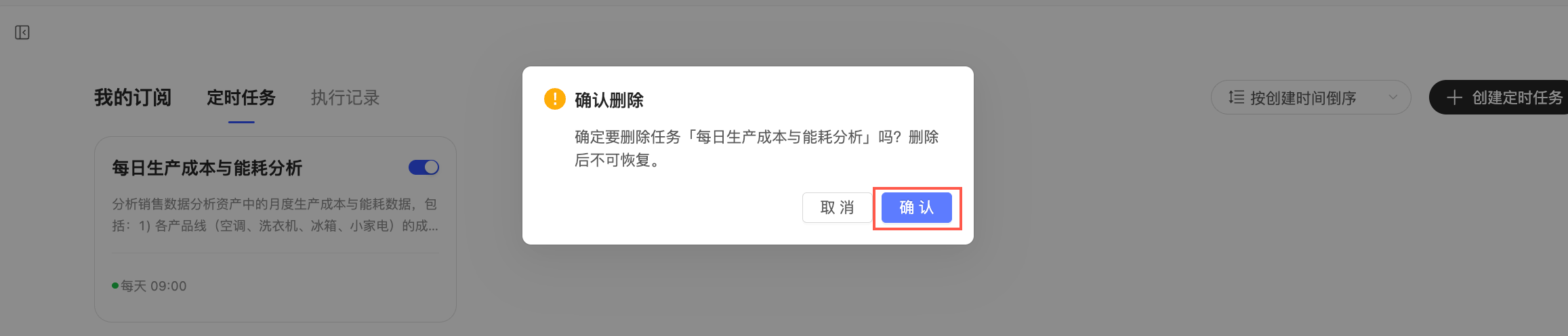
⑤ | Delete | Click Delete and then Confirm in the dialog box to delete the task.
|

View execution history
In addition to receiving subscription messages through channels like DingTalk, Lark, WeCom, and email, you can also view the execution history in the following ways:
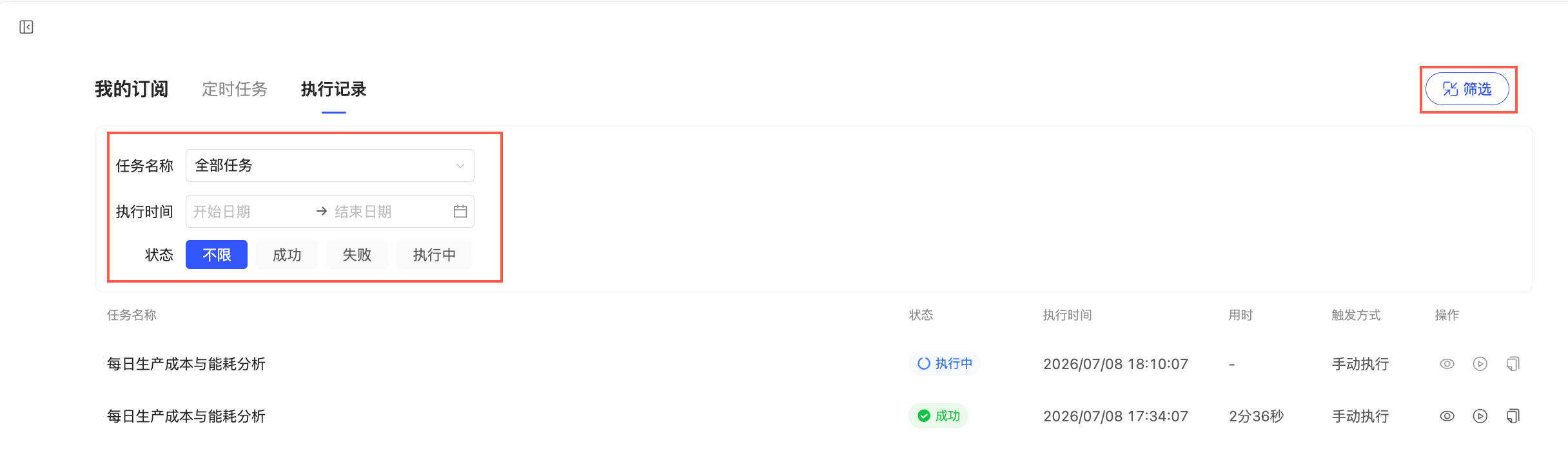
You can view the history on the My Subscriptions > Execution History page.
Click to open the Execution History page.
You can quickly find the records you want by filtering on Task name, Execution time, and Status.
On the Execution History page, you can select a record and perform the following actions.
No.
Actions
Description
①
View conversation
Click to view the conversation history for the subscription.
②
Re-execute
Re-run the task.
③
Copy TraceId
Copy the TraceId of the selected execution record.
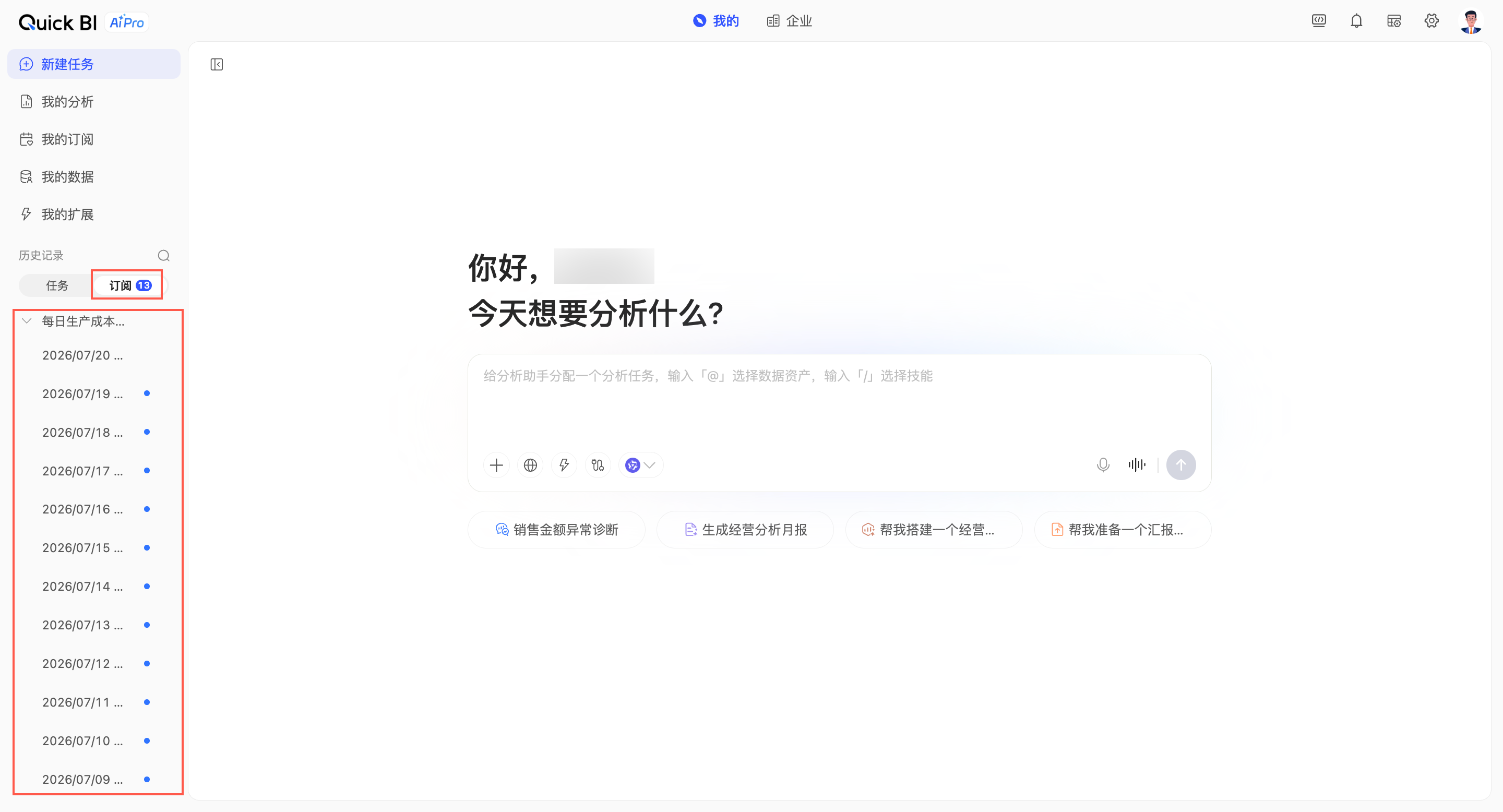
You can also view these records by navigating to History > Subscriptions.