Skill management
On the Skill Management page, you can publish and maintain enterprise-level skills for users to invoke in conversations. This topic describes how to manage skills.
Prerequisites
Edition requirement: Your organization must have the Quick BI AIPro edition.
Permissions: Only an administrator (a user with AIPro centralized management permissions) can access the Management Center to add and manage skills. For more information about how to configure permissions, see User Permissions.
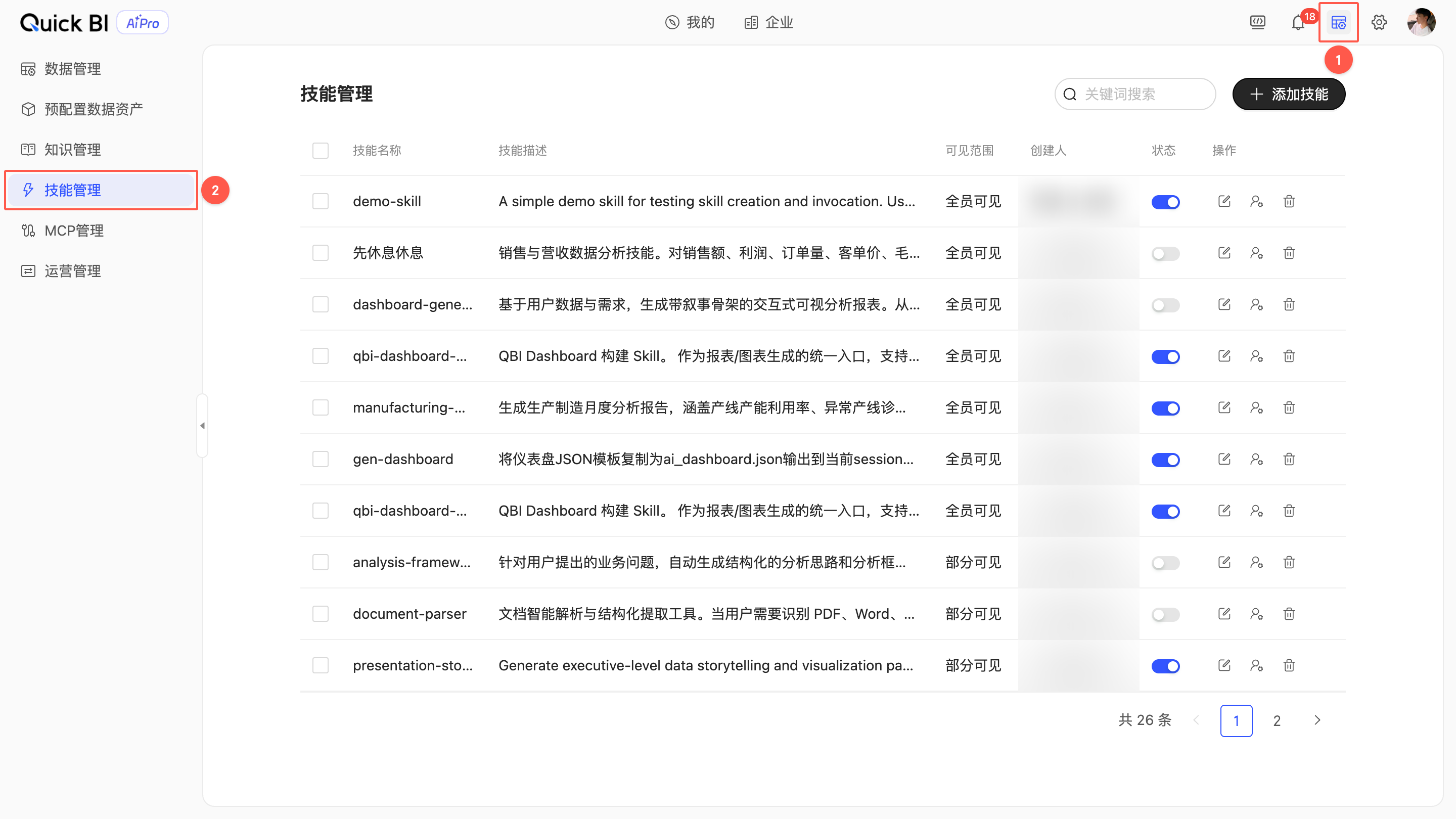
Access the feature
In the Quick BI AIPro Management Center, click Skill Management in the left-side navigation pane.
Add a skill
Follow the steps in the figure below to add a skill.
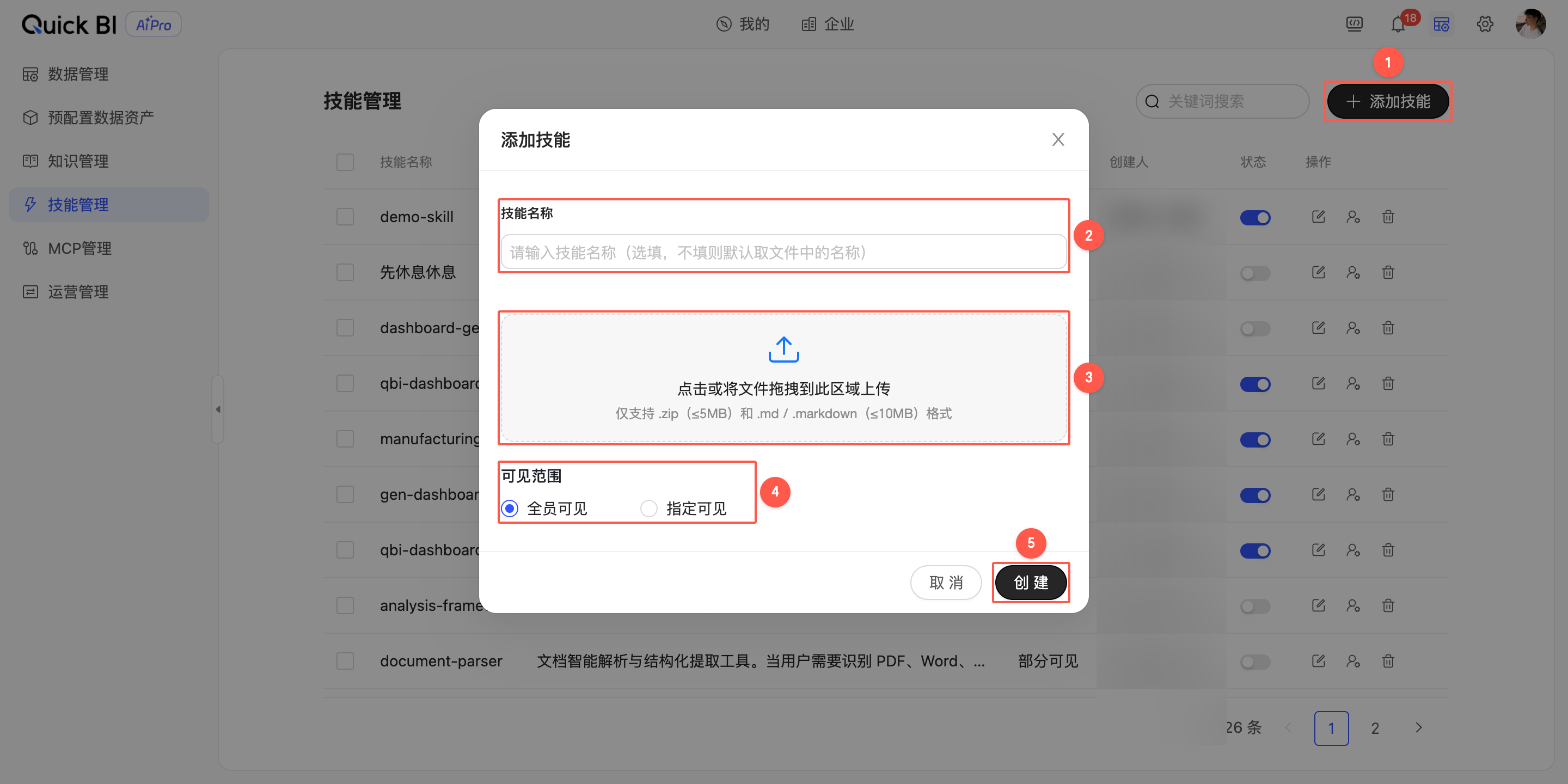
Click Add Skill.
Enter a Skill Name. This field is optional. If you leave it blank, the system uses the name defined in the skill file by default.
Upload a file.
NoteOnly .zip (≤ 5 MB) and .md / .markdown (≤ 10 MB) files are supported.
Set the visibility. You can set it to Visible to All or Visible to Specified Members.
Click Create.
View and manage skills
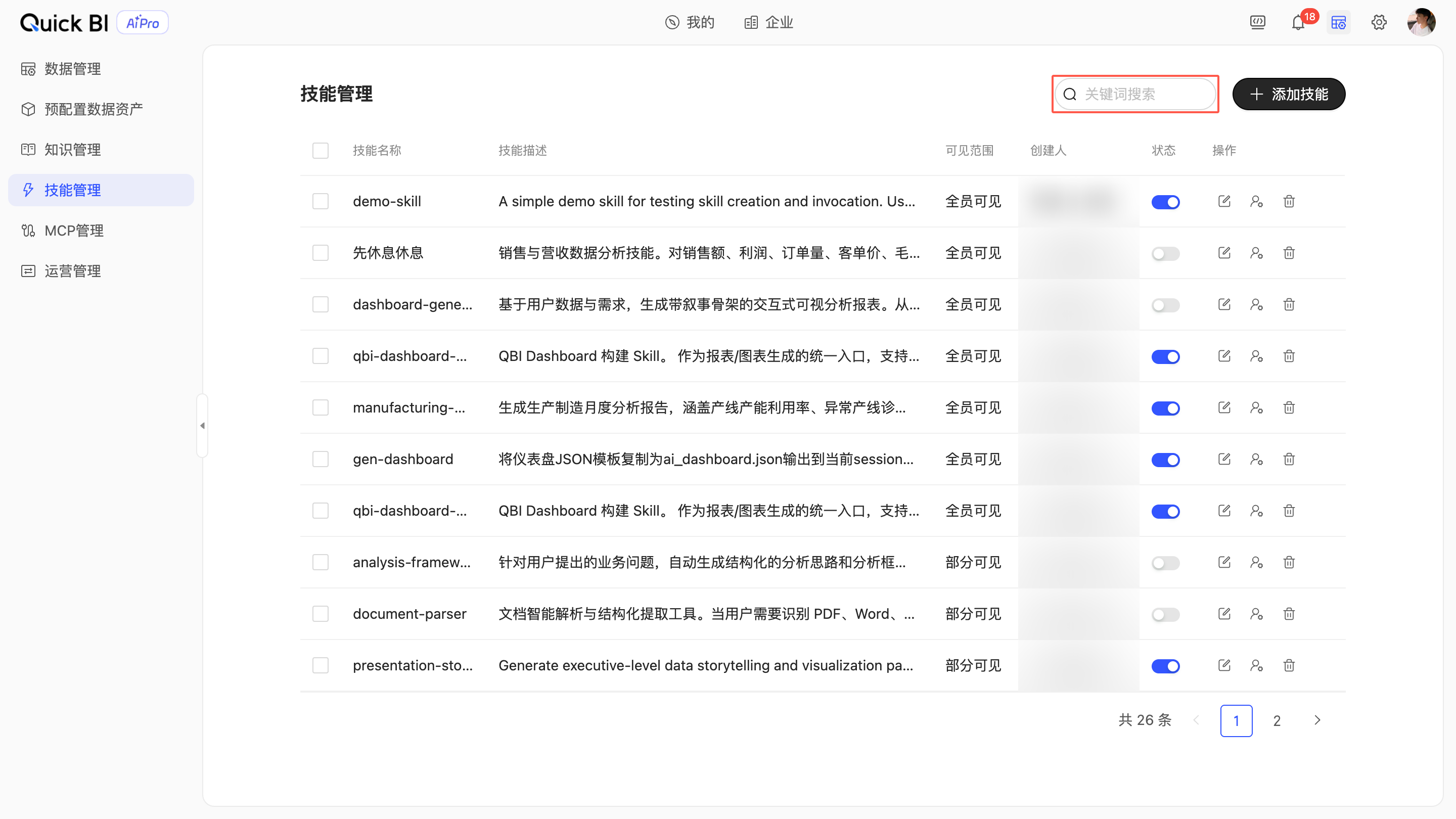
You can use the search function to quickly find a specific skill.
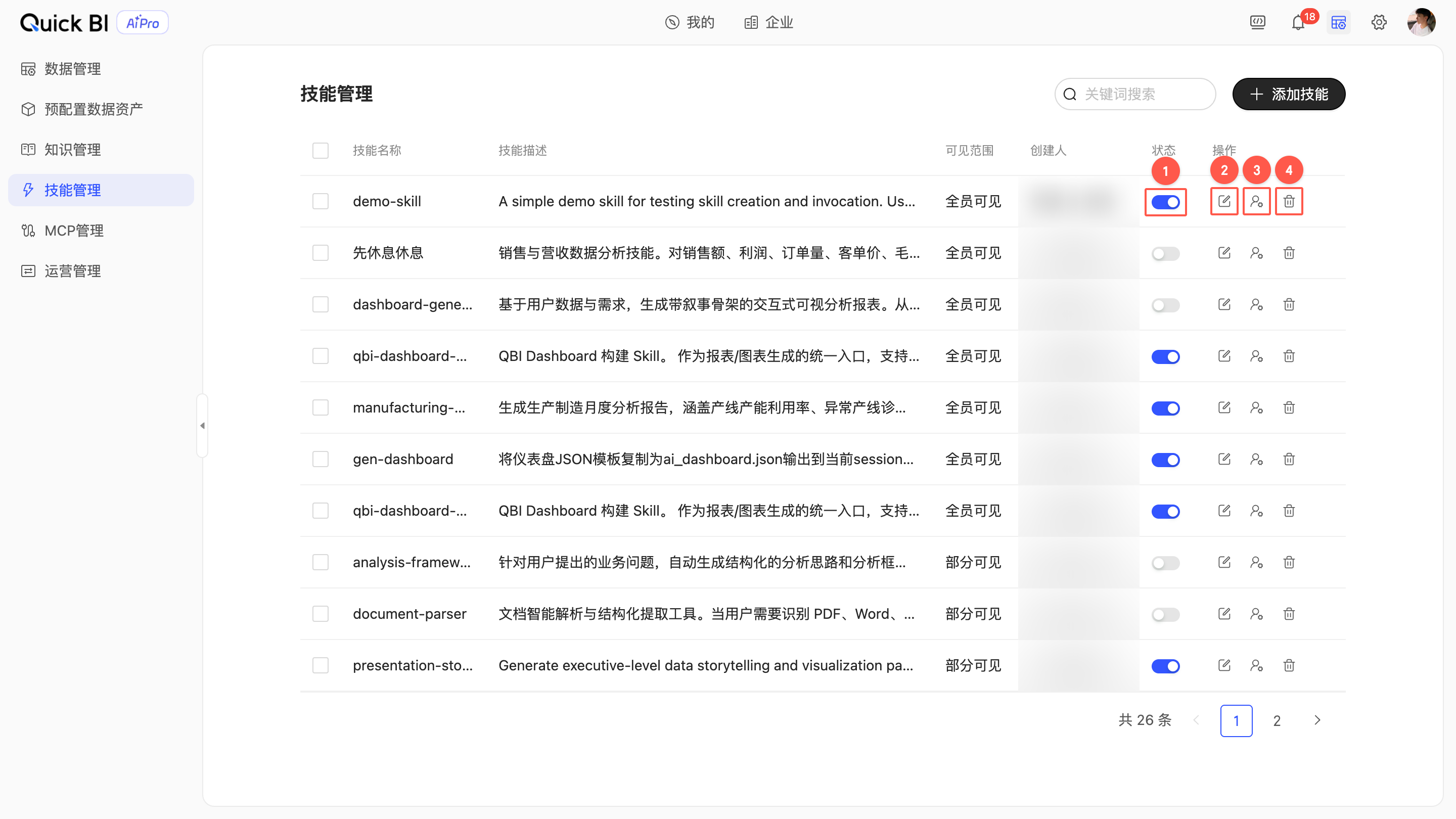
You can perform the following operations on skills.
No.
Operation
Description
①
Enable/disable a skill
The skill can be called only after it is enabled.
②
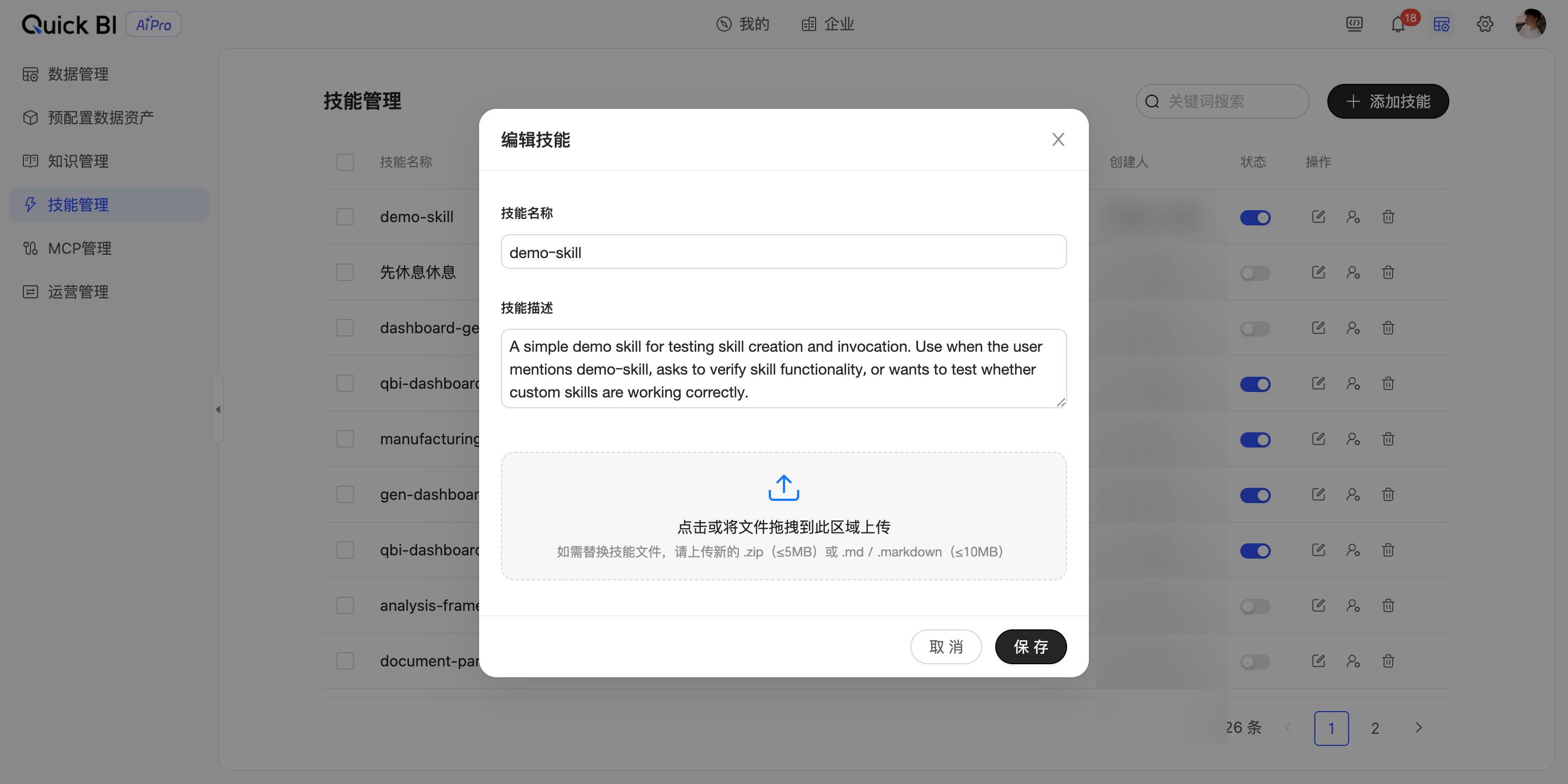
Edit a skill
Modify the name and description of the skill, or re-upload the skill file to update its content.
 Note
When a skill's ZIP file is updated on the backend, it automatically updates for users who have installed it. No reinstallation is required.
③
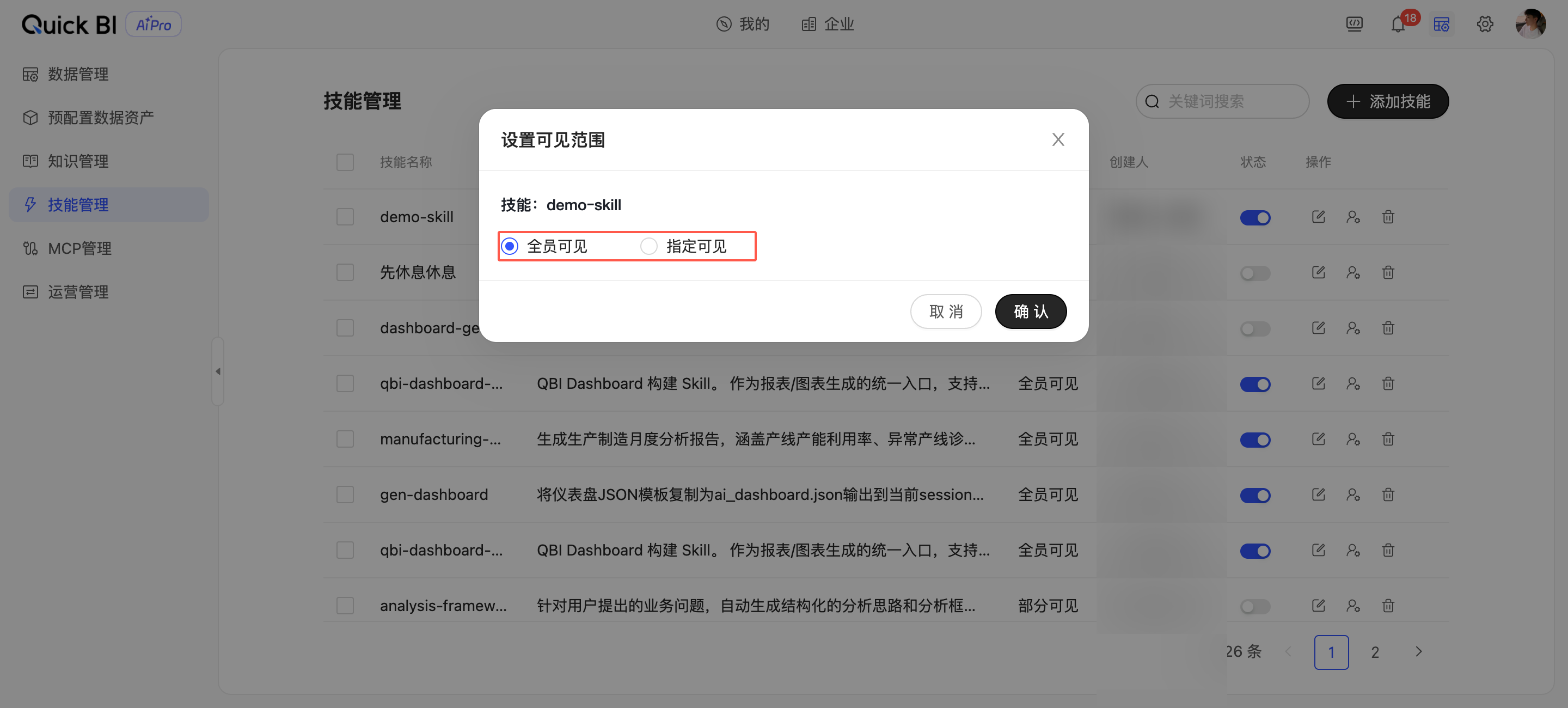
Set visibility
Set the visibility to Visible to all or Visible to specified users.

④
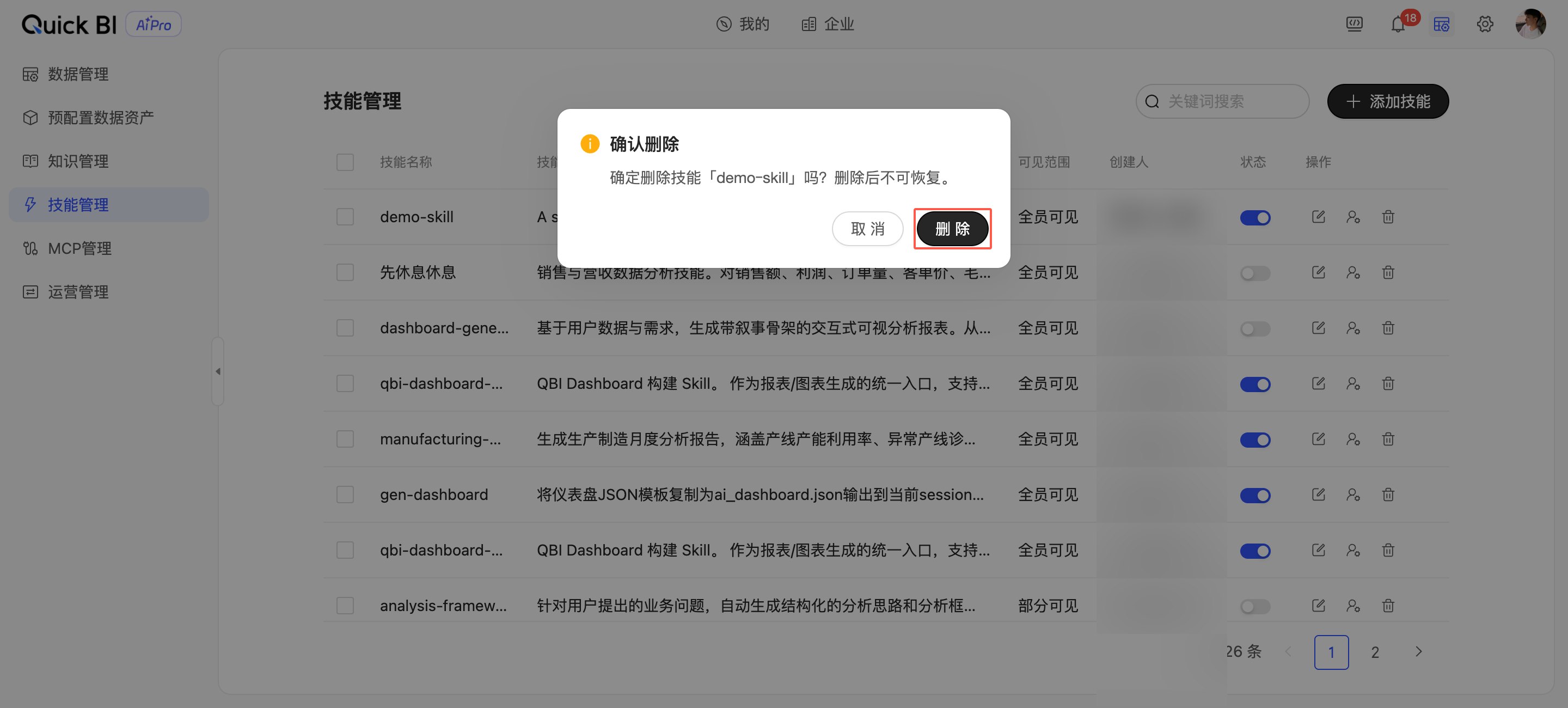
Delete
Click Delete in the confirmation dialog box. This action cannot be undone.