Troubleshoot Android push failures
Overview
This topic explains how to troubleshoot and resolve push notification failures on Android.
Details
Initial integration failures
If push notifications fail during initial integration, follow these steps to identify and resolve the issue:
Check if the push channel is initialized. Make sure the
onSuccesscallback function you registered during initialization is called.If the push channel fails to initialize, check the error logs and refer to the error codes. Use the error message to verify your configurations, such as the
appKeyandappSecret.Messages do not automatically appear in the notification bar on the client. You must implement a message callback to define how the message is displayed.
Test with the official Demo to rule out configuration issues in your code. When you use the Demo, you must set your
appKeyandappSecretand modify the package name. If the Demo works correctly, compare its implementation with your own to identify any differences.If your device has the Alibaba Cloud Mobile Push Android SDK integrated, the console shows that the device is online, and device logs indicate successful initialization, but push notifications still fail, check if the parameters are valid. The
versionNameparameter cannot be null and its length must not exceed 32 characters. If theversionNameparameter does not meet the requirements, modify it.NoteNote: After making changes, you must uninstall and then reinstall the app. Do not overwrite the existing installation.
If the integration is successful and you push a notification to a device, but the notification does not appear on the device even though its status shows as delivered, confirm if you sent a notification or a message. Only a notification appears in the notification bar. A message is not automatically displayed and must be handled in the
onMessageinterface of the SDK. If your custom receiver does not receive data, check if it is registered.When you push a message, the device logs show the push was received, but the user callback is not invoked. The routing process for a message on the client involves sending an in-app broadcast. Some devices may intercept these broadcasts. Check if your device has this issue:
The following log shows a normal scenario. The first
handleRemoteMessagelog entry indicates that the message has reached the client. The secondAgooMessageReceiverlog entry indicates that the custom receiver received the broadcast.
If you see only the first log entry but not the second, the receiver did not receive the broadcast. To check if your device is intercepting broadcasts, use the following code to send a broadcast to your custom receiver and see if it is received. If it is not, the broadcast is being intercepted.
Intent intent = new Intent();
intent.setAction("org.agoo.android.intent.action.RECEIVE");
intent.setPackage(pack); // pack is the package name of the application.
intent.putExtra("type", "common-push");
intent.addFlags(32);
context.sendBroadcast(intent); // Use ApplicationContext for this test.
If interception occurs, check if your device disallows listening for system broadcasts. In the
manifest.xmlfile, comment out the system broadcasts your custom receiver listens for, as shown in the following code.<!-- Message receiver (can be extended by users) --> <receiver android:name=".demo.MyMessageReceiver" android:exported="true"> <intent-filter> <action android:name="com.alibaba.push2.action.NOTIFICATION_OPENED" /> </intent-filter> <intent-filter> <action android:name="com.alibaba.push2.action.NOTIFICATION_REMOVED" /> </intent-filter> <intent-filter> <action android:name="com.taobao.accs.intent.action.COMMAND" /> </intent-filter> <intent-filter> <action android:name="com.taobao.taobao.intent.action.COMMAND" /> </intent-filter> <intent-filter> <action android:name="org.agoo.android.intent.action.RECEIVE" /> </intent-filter> <!--<intent-filter>--> <!--<action android:name="android.net.conn.CONNECTIVITY_CHANGE" />--> <!--</intent-filter>--> <!--<intent-filter>--> <!--<action android:name="android.intent.action.USER_PRESENT" />--> <!--</intent-filter>--> <!--<intent-filter>--> <!--<action android:name="android.intent.action.BOOT_COMPLETED" />--> <!--</intent-filter>--> <!--<intent-filter>--> <!--<action android:name="android.intent.action.PACKAGE_REMOVED" />--> <!--<data android:scheme="package" />--> <!--</intent-filter>--> </receiver>Repeat the test from step 2 to see if the broadcast is received. If so, this confirms your device does not allow listening for system broadcasts. Note that preventing the receiver from listening for system broadcasts does not affect the core functionality but may impact the SDK's keep-alive capability.
After you bind a tag to a device, delivering a push notification to that tag may take up to 15 minutes. For more information, see Android tag API.
If your device runs Android 8.0 or later, see Notifications are not received on devices running Android 8.0 or later.
Issues after successful integration
When you push a notification, if some devices receive it but others do not, check the settings on the devices that are not receiving the notification. Verify that the app's notification permissions are enabled.
If your app receives push notifications in the foreground but not in the background, check if you initialized the push service in the channel process.
To determine if the channel process was initialized, check for the following log output in the channel process. If these log entries are missing, initialization did not occur in the channel process.
12-26 11:26:19.673 1951-1951/com.alibaba.push2:channel I/SecurityBoxService: Aliyun
12-26 11:26:19.677 1951-1951/com.alibaba.push2:channel I/MPS:CloudPushService: [AMS]Initialize Mobile Push service...
12-26 11:26:19.727 1951-1951/com.alibaba.push2:channel D/MPS:CloudPushService: load utdid: Vs6CkGxR86QDANku3NiLD/yA
12-26 11:26:19.743 1951-1951/com.alibaba.push2:channel D/MPS:AppRegister: getLooper called.
12-26 11:26:19.744 1951-1989/com.alibaba.push2:channel D/MPS:AppRegister: Looping Prepared.
12-26 11:26:19.744 1951-1989/com.alibaba.push2:channel D/MPS:AppRegister: Looping handleMessage: 1
12-26 11:26:19.747 1951-1989/com.alibaba.push2:channel D/MPS:AppRegister: accs init.
12-26 11:26:19.747 1951-1989/com.alibaba.push2:channel D/MPS:AppRegister: initAccsChannel...
12-26 11:26:19.748 1951-1989/com.alibaba.push2:channel I/MPS:AppRegister: [AMS]appkey:23552881
Common mistakes:
Performing a process check in the custom
Applicationclass causes the SDK initialization to run only in the main process. The following code shows an example of this mistake:public class MyApplication extends Application { @override public void onCreate() { super.onCreate(); if(XXX) { initCloudChannel(this); } } ...... }Initializing in an
Activity, which is created only in the main process, also causes the initialization to run only in the main process. The following code shows an example of this mistake:public class MyActivity extends Activity { @override public void onCreate(Bundle savedInstanceState) { super.onCreate(savedInstanceState); initCloudChannel(getApplicationContext()); ...... } ...... }
Some custom ROMs have strict controls on auto-launching apps. If you are using a Xiaomi or Huawei device and the app has been terminated, configure the auxiliary third-party channels for Xiaomi and Huawei and use the Xiaomi-hosted pop-up window to improve the delivery rate. For more information, see Integrate third-party channels.
Use the push troubleshooting system to diagnose errors: Get the device's
deviceIDand push a test message to it. Log on to the Mobile App Service (EMAS) console, click Mobile Push, select the target project and application, and then click troubleshoot messages.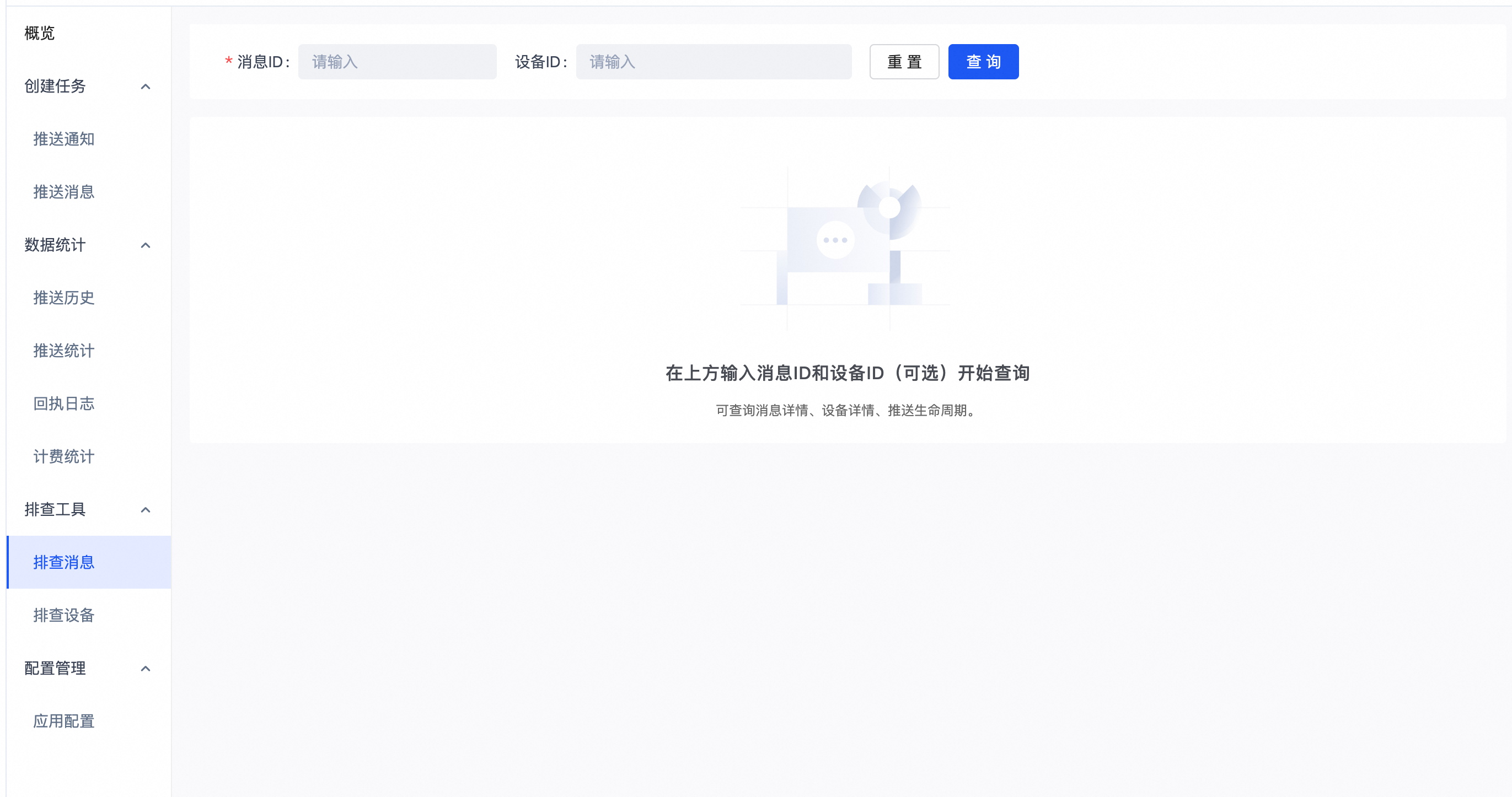
If the troubleshooting page displays an "Unknown Error", confirm if the push channel was disabled on the test device, for example, by calling the
turnOffPushChannelinterface. If it was, you must call theturnOnPushChannelinterface to re-enable the push channel.If tests with a test environment
appKeyare successful, but push notifications are not received after you switch to a production environmentappKeyfor the same package name, local caching may be the cause. The SDK caches requests locally. When you change theappKey, you must clear the local cache or uninstall the test app and reinstall the production app.If push notifications are not received after you upgrade the SDK from v2.x to v3.x, the configuration between v2.x and v3.x differs. For more information, see Notifications or messages are not received after upgrading the Alibaba Cloud Mobile Push Android SDK from v2.x to v3.x.
If the issue persists
Join our DingTalk group for assistance:
DingTalk download link: Download DingTalk
DingTalk group ID: 35248489
Alternatively, submit a ticket and select the Mobile Push category.
When you report an issue, provide the following formatted information to help us identify the problem quickly. Items marked with an asterisk (*) are required:
Actions you performed:
Observed behavior:
Device platform (Android or iOS), model, and OS version:
Push type (message or notification):
Push target (all, account, device, tag, or alias):
* appKey:
* message ID (available in the console):
* deviceID (available in terminal logs):
Applicable to
Mobile Push