Marketing campaign
This feature is available only to existing paid customers and is no longer offered to new customers.
1. Coupon
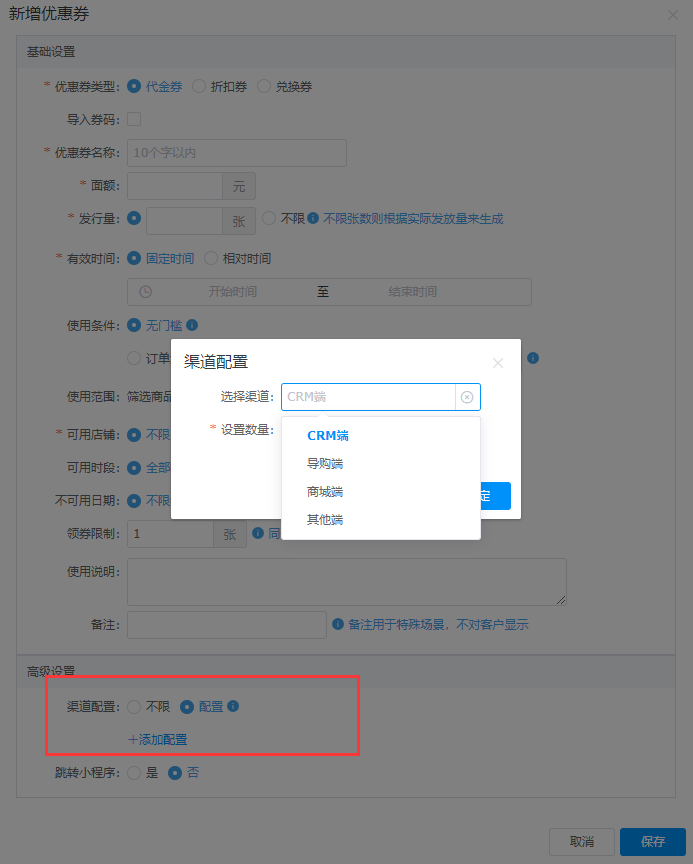
To add a coupon, you can pull enabled coupons from the data mid-end. The Membership Club retrieves coupons for outlets in your account's region. The channel for these coupons must be set to 'unlimited' or for use in the mall. After you save a coupon, it appears in the coupon list and can be used in the mall.
To add a coupon, go to Membership Platform > Promotion Hub > Marketing Campaign > Coupon > Add. The Membership Club can use coupons if the channel is set to 'unlimited' or configured for the mall.
In the Add Coupon dialog box, click the input box to open the coupon list. You can search for coupons by type, name, or code. For redemption coupons, you can also view the products that can be redeemed. After you select a coupon, the dialog box displays its basic information and the configurable quota.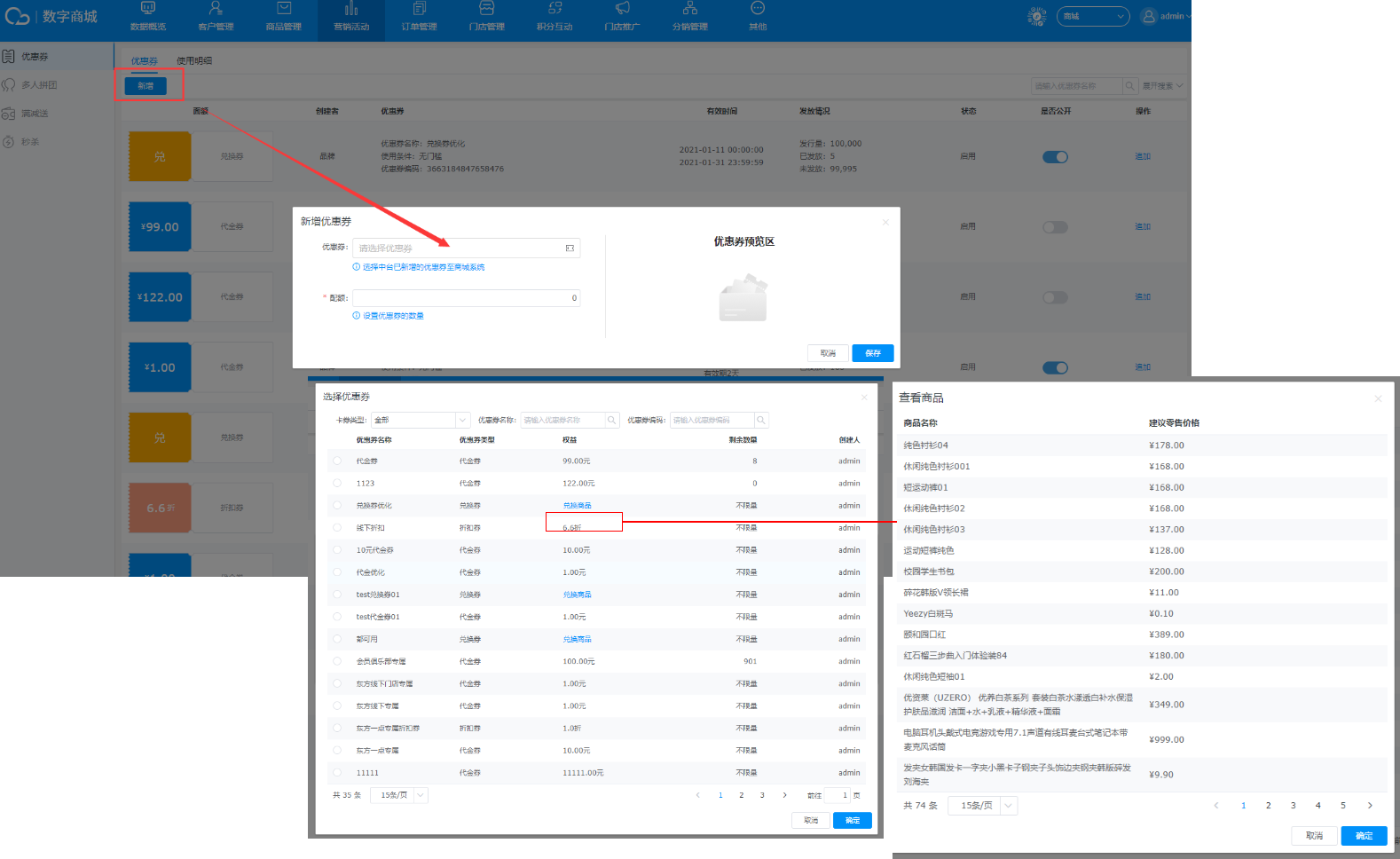
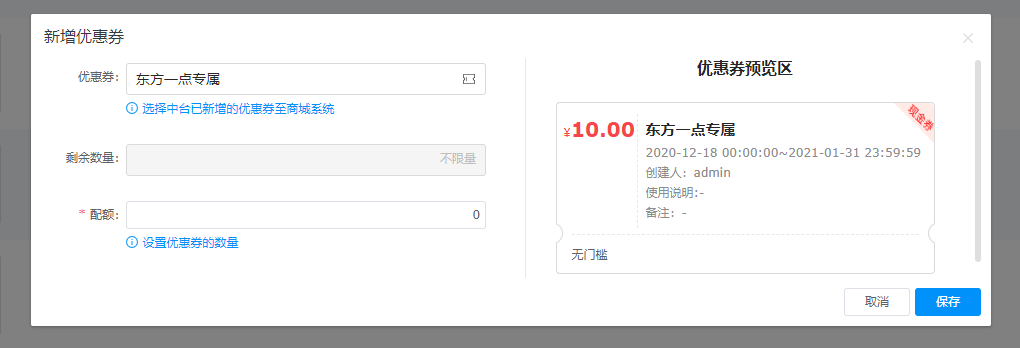
Allocate coupon quota: You can increase the coupon quota.
Note: You can add more coupons based on the available pull quantity. You cannot add more coupons if the coupon is disabled or has expired.
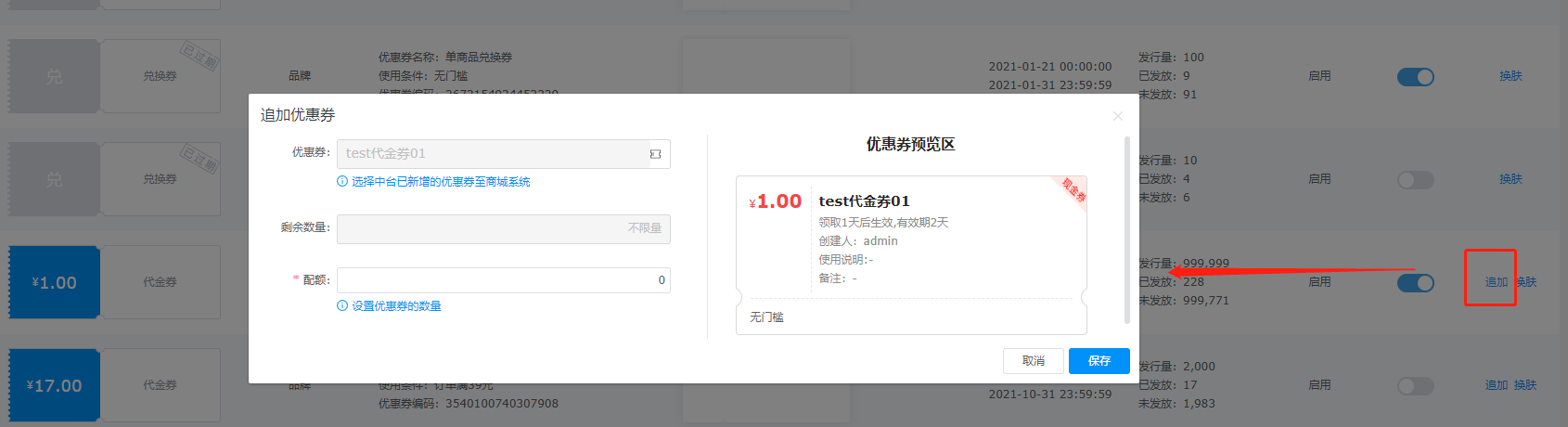
Customize coupon background images: You can set a custom background image for a coupon.
You can upload a 343 px × 119 px image in JPG or PNG format. After a user claims the coupon, the background image appears on the My Coupons page.
Mini Program display
Go to My > My Assets > Coupons to view claimed coupons. You can see the coupon type and its background image.
Note: Values can be displayed with up to two decimal places.
(4) Redemption coupons: The following image shows how redemption coupons work for a single product and for multiple products.
If the coupon is for a single product, that product is redeemed by default. If it is for multiple products, you must select one product to redeem.
Important: One redemption coupon can only be used for one product. If an order contains multiple products that can be redeemed, the coupon is applied to the most expensive product by default.
(5) Coupons for different channels
In the My Coupons list, each coupon is marked with its usage scope (online or offline). On the coupon's product page, buttons indicate how to use it. If a coupon is for offline outlets only, a Redeem in Outlet button appears. If it is for online use only, a Place Online Order button appears. If the coupon can be used in both channels, both buttons are displayed.
The coupon code is displayed and can be copied. Sales associates can use the code to quickly find the corresponding coupon.
If a third-party AppID and path are entered during coupon setup, customers who claim the coupon in the Membership Club are automatically redirected to the third-party page when they click the Use button. For in-store redemption, a verification code is displayed.
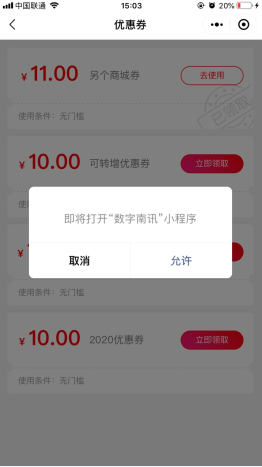
If a claimed coupon is disabled, it is marked as 'Disabled' in the list and cannot be redeemed. Once the coupon is enabled again, it can be redeemed as normal. To disable a coupon, go to Promotion Hub > Marketing Campaign > Coupon and disable the coupon.
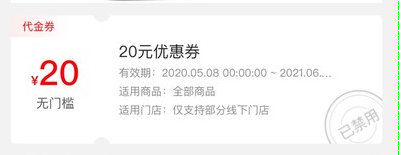
(5) Coupon transfer
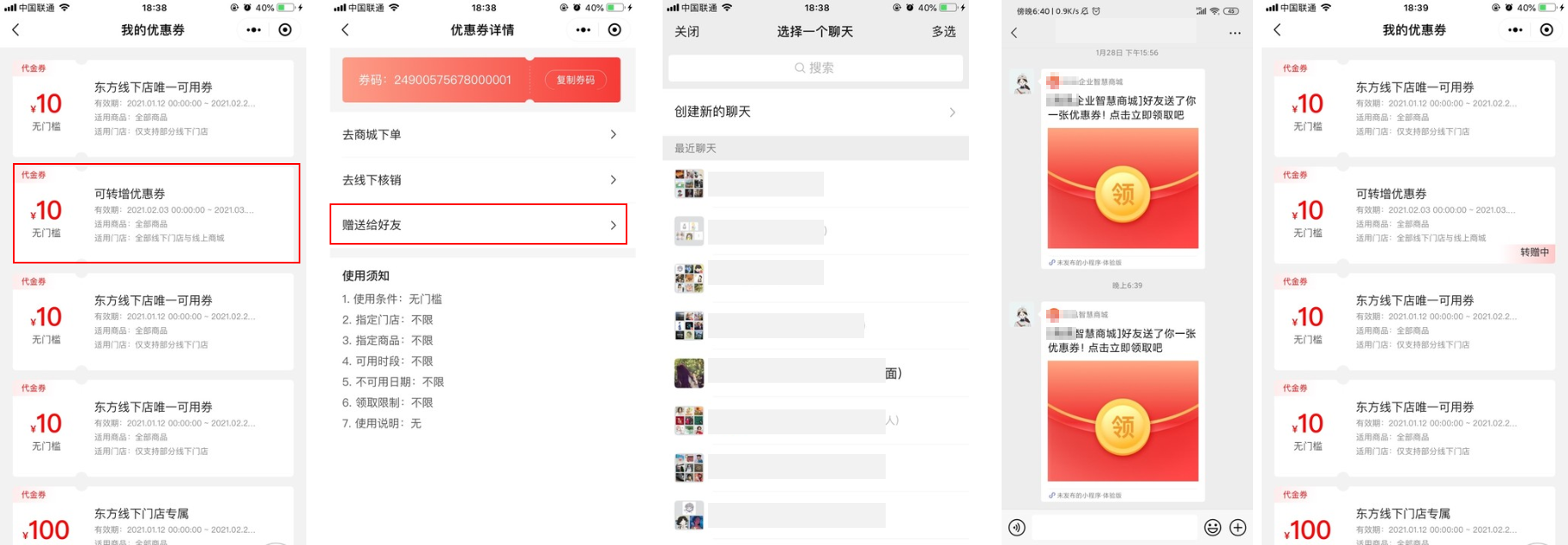
When creating a coupon, you can set it as forwardable. After claiming the coupon, a user can forward it to a friend. The friend can click the link to become a member and claim the coupon. A user can use a coupon that is in the 'Forwarding' state. However, the friend's claim will fail if the coupon is in an abnormal state or has already been used. After a friend successfully claims the coupon, the original user can no longer use it.
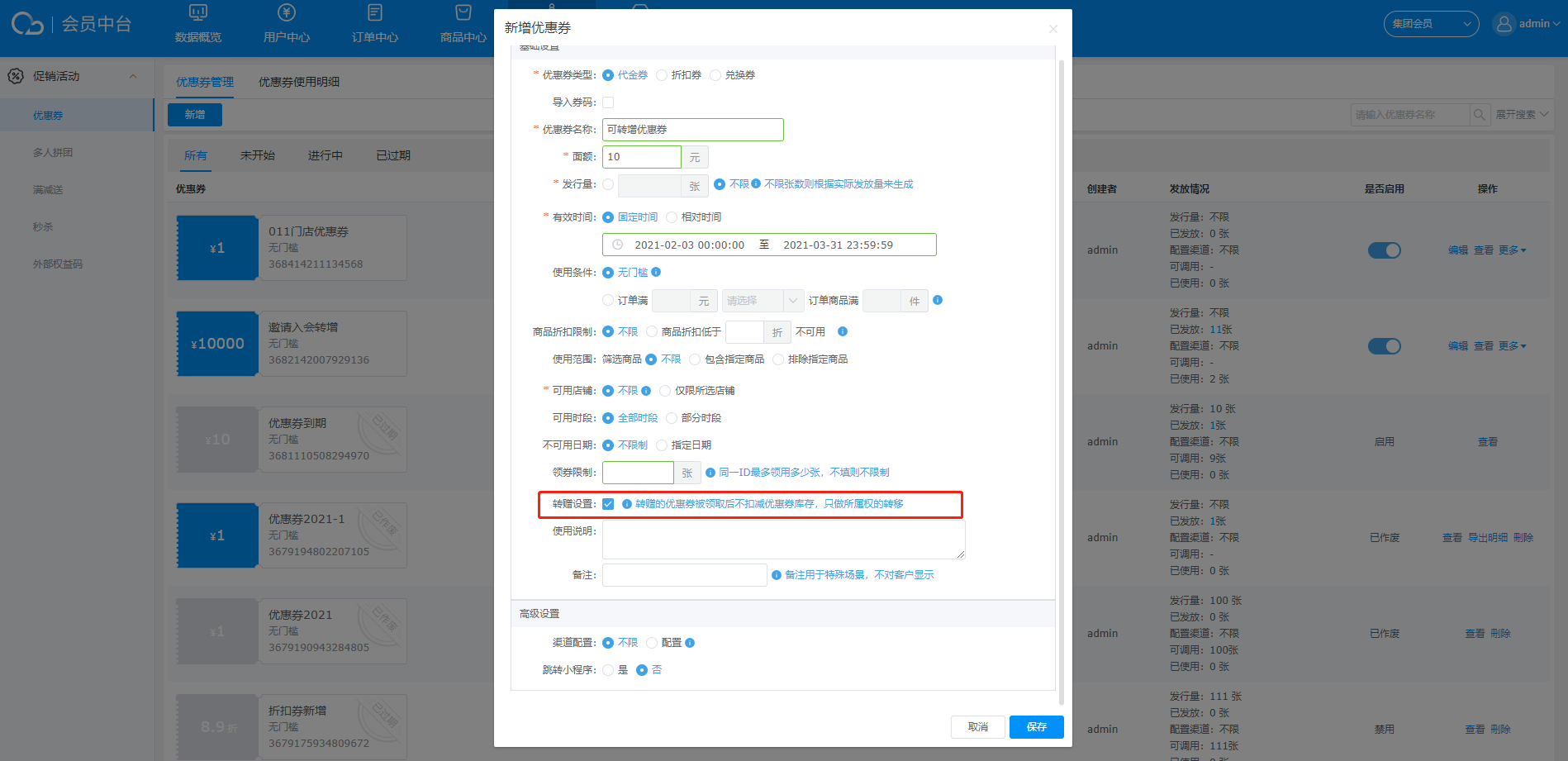
In the Membership Club, a user can claim a coupon and forward it to a friend. After the forward message is sent but before the friend claims it, the coupon's status changes to 'Forwarding'. A coupon can be forwarded to multiple friends, but only one person can claim it. The original user can still use the coupon while it is in the 'Forwarding' state, but doing so will cause any claim attempts by the friend to fail.
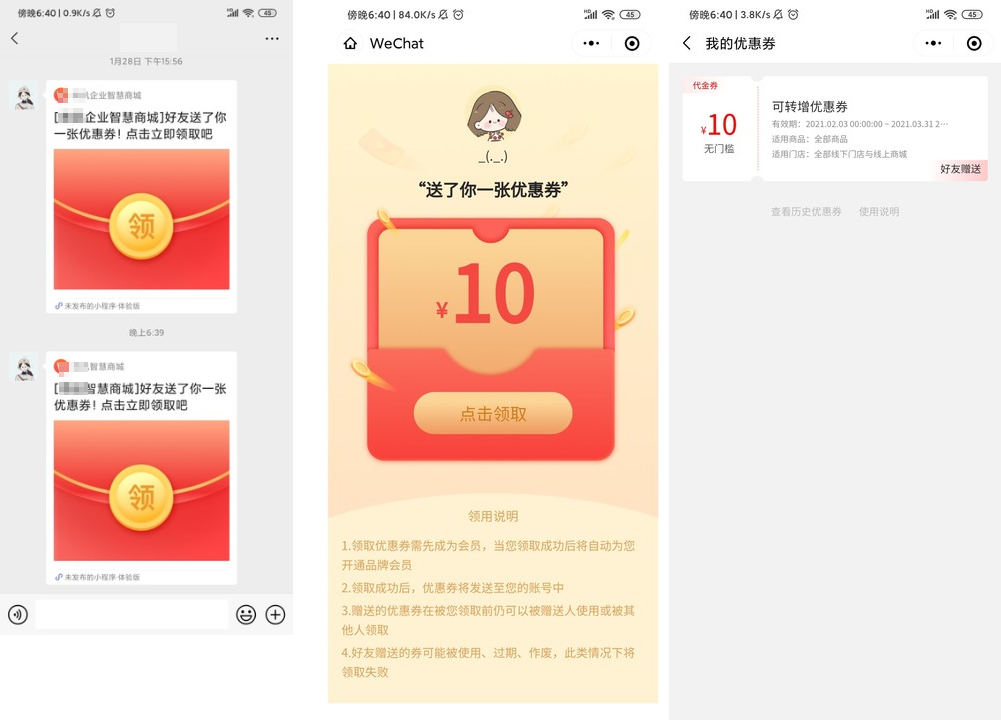
The friend clicks the link to claim the coupon. The claimed coupon is marked as 'Gift from a friend' and can be used normally. The claim will fail if the coupon is in an abnormal state.
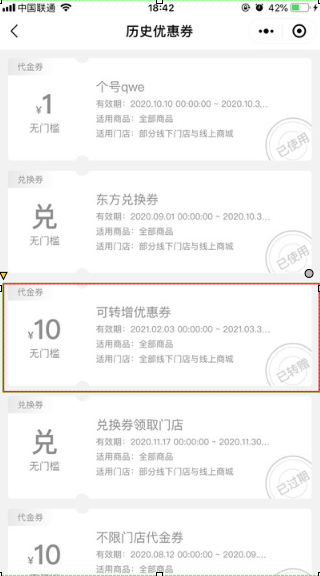
A coupon that has been successfully forwarded appears on the original user's coupon history page and is marked as 'Forwarded'.
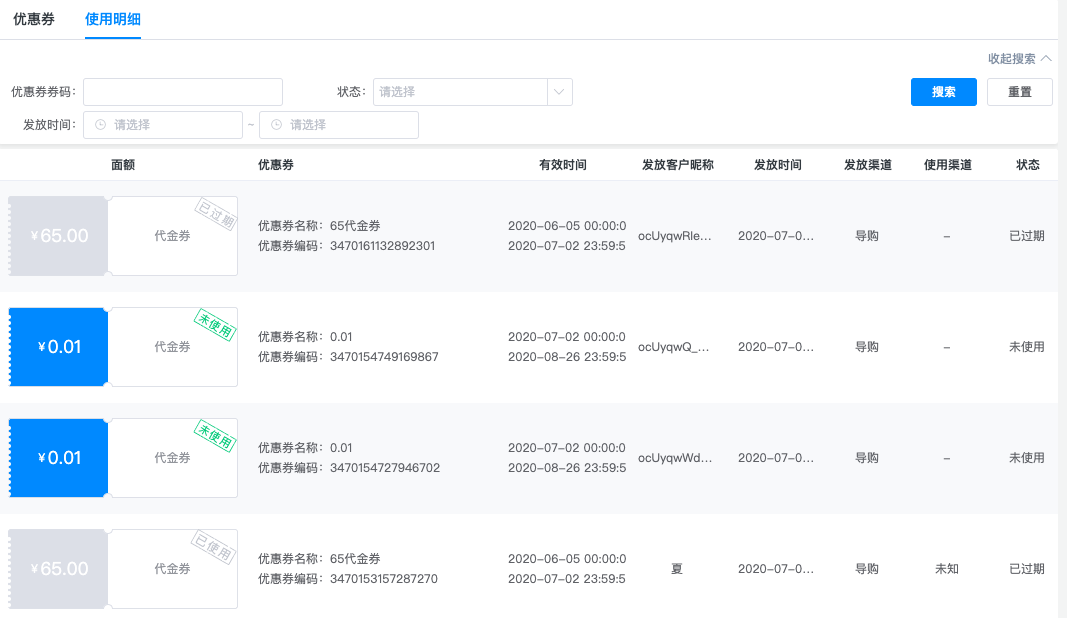
Usage details: You can view the recipient's nickname, distribution time, distribution channel, and usage channel.