Develop a DingTalk miniapp
This topic describes how to use the EMAS Serverless service to develop a simple DingTalk miniapp.
Tutorial overview
This tutorial uses a sample to-do list miniapp to demonstrate how to use the EMAS Serverless software development kit (SDK) to call ApsaraDB APIs and develop a DingTalk miniapp. The business logic for the sample miniapp is already written. To run the miniapp, you only need to activate the Serverless service and configure the miniapp as described in this tutorial.
Currently, the EMAS Serverless service supports only DingTalk miniapps that are third-party individual applications.
Preparations
Before you start, complete the following preparations:
Register a DingTalk developer account.
If you do not have a DingTalk developer account, use your DingTalk account to log on to the DingTalk Open Platform.
Download and install the miniapp developer tool (v1.0 or later).
For more information, see the download instructions.
Activate the EMAS service.
Before you use the EMAS Serverless service for the first time, you must activate the EMAS service. For more information, see Create your first service space.
Grant DingTalk developer permissions.
Contact the administrator of your organization. In the OA management console, go to Settings > Permission Management > Management Group and grant the required developer permissions.
Step 1: Create a service space
The cloud resources that you create during mini program development are associated with a service space. Each service space has a globally unique space ID. Cloud resources are associated with your project through this space ID.
For instructions on how to create a service space, see Create your first service space.
Step 2: Set database permissions
Log on to the EMAS console, select Serverless, and click Enter to open the Serverless console.
In the navigation pane on the left, select ApsaraDB. Then, in the upper-left corner of the page, select the service space that you created.
On the ApsaraDB page, click Add Now.
Click your data table, and then select Permissions > Edit Permissions.
NoteTo ensure data security, database access is restricted by default. Set database permissions as needed. For more information, see Data permission management.
On the Permission Management page, click Custom Security Rules and set the write permission to true.
Click OK.
Step 3: Create a DingTalk miniapp application
Follow these steps to create a DingTalk miniapp on the DingTalk Open Platform:
Use your DingTalk account to log on to the DingTalk Open Platform and select your organization.
On the DingTalk Open Platform, choose .
Fill in the basic information for the application, and then click Create.
Click the miniapp that you created and go to the Homepage tab. In the Application Information section, click View Details to retrieve the AppID and AppSecret for the miniapp.
Application details
Miniapp AppID and AppSecret
Go to the Set Security Domain Names tab. In the HTTP Security Domain Names area, click Add to add the Alibaba Cloud security domain name
aliyuncs.comand the space Endpoint that was generated in Step 1: Create a service space.
Step 4: Add the DingTalk miniapp
Before you start development, you must add the DingTalk miniapp to the EMAS Serverless service.
Follow these steps to add the DingTalk miniapp:
Log on to the EMAS console, choose Serverless, and then click Enter.
In the navigation pane on the left, choose Settings.
Choose the DingTalk tab.
Click Add Key and enter the AppID and AppSecret for the DingTalk miniapp.
NoteYou can obtain the AppID and AppSecret from the DingTalk miniapp details page. For more information, see Miniapp AppID and AppSecret.
Step 5: Develop the DingTalk miniapp
This tutorial uses a pre-developed To Do miniapp as an example. Before you start, make sure you understand the file structure of a miniapp. For more information, see Understand the miniapp file structure.
Follow these steps to develop the DingTalk miniapp:
Click here to download the To Do miniapp sample project, and then extract the downloaded file.
Open the Alibaba Cloud miniapp developer tool, choose , click Open Project, and then select the extracted project folder.
Associate the DingTalk miniapp that you added in Step 3. Then, log on to the IDE with your DingTalk account and complete the authorization.
In the left-side menu bar, click the NPM module and install the Mini Program Cloud SDK.
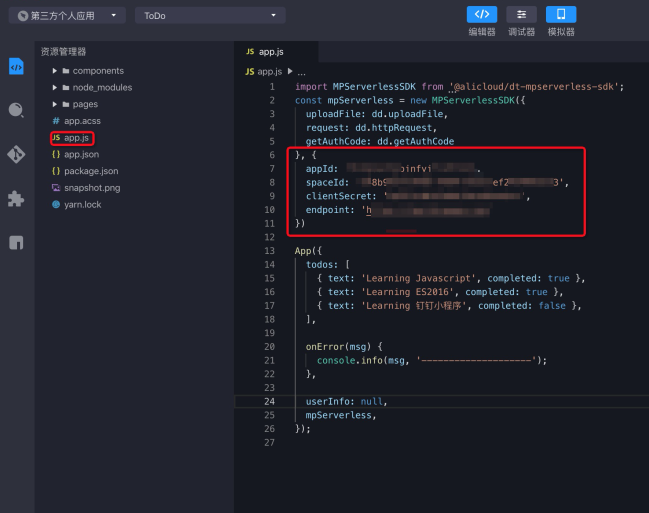
In the project file list, find the app.js file, configure the following information, and then save the file.
appId is the ID of the miniapp. You can view the AppID on the miniapp details page in the DingTalk Open Platform.
spaceId, clientSecret, and endpoint can be obtained from the EMAS Serverless console after you create a service space. For more information, see Step 1: Create a service space.
Step 6: Debug the miniapp
Open the miniapp emulator and click +AddTodo to add a to-do item.