Enable and Set Up a Third-Party Client Security Password
A third-party client security password is a dedicated password for email clients like Outlook and Foxmail, independent of your web login password. You can revoke it anytime if compromised.
Prerequisites
Before you begin, verify the following:
-
The administrator has enabled third-party client logon in the mailbox backend.
-
The administrator has enabled the POP3/IMAP/SMTP service protocol for your account.
Enable third-party client security password
Enable the service in your Alibaba Mail web security settings.
-
Log on to Alibaba Mail webmail.
Standard edition
Domestic edition
-
Click Settings in the upper-right corner, then click View More Settings.
-
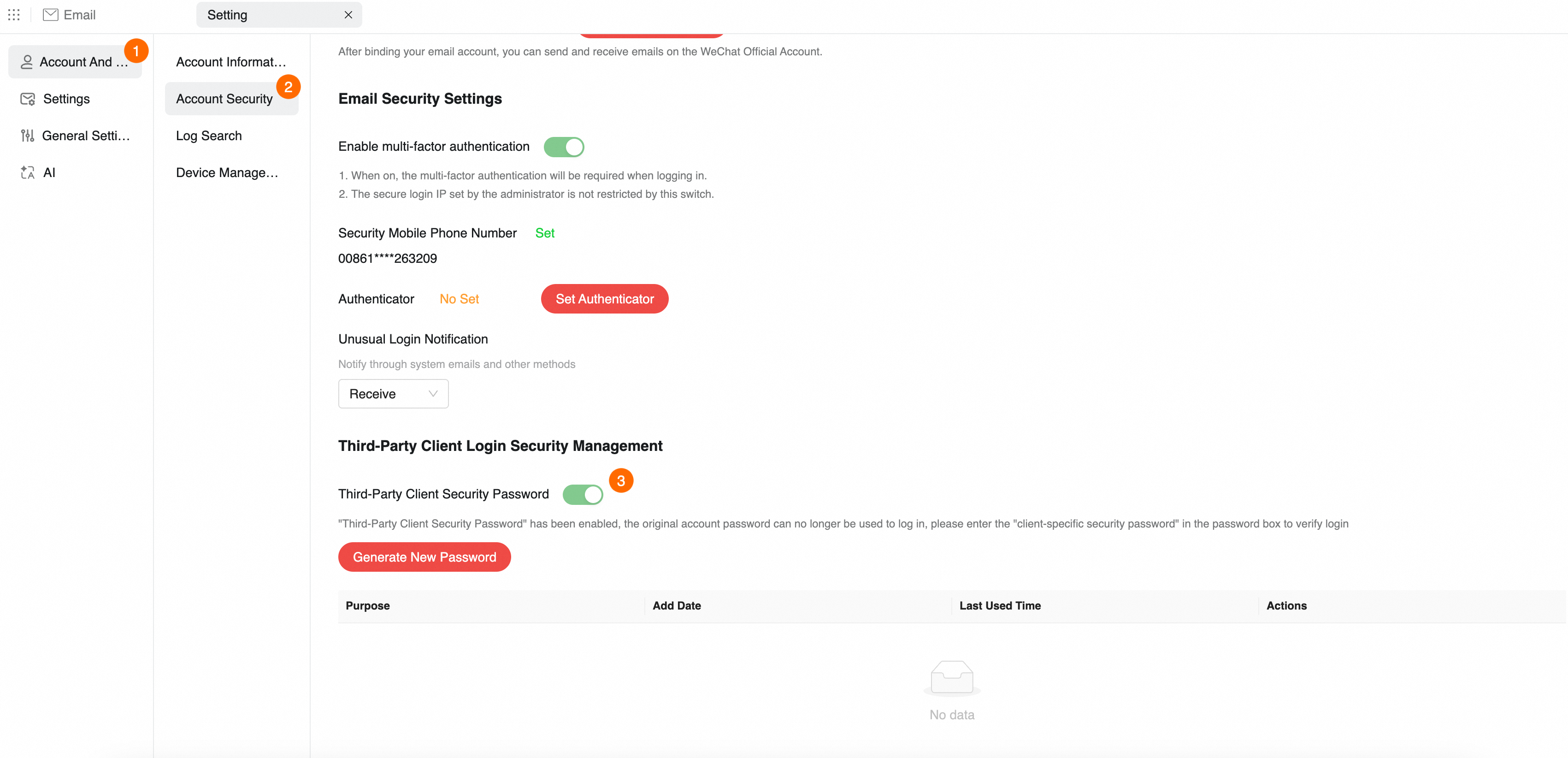
In the left navigation pane, click .
-
In the Third-Party Client Logon Security Management area, turn on the Third-Party Client Security Password toggle.
If the toggle is locked on, the administrator has enforced the use of a third-party client security password. Skip to generate and use a security password.
Generate and Use a Security Password
Generate a random security password. After generation, third-party clients no longer accept your web login password — only the security password works.
-
Generate a new password
On the Third-Party Client Logon Security Management page, click Generate New Password. In the identity verification window, click Get Dynamic Captcha, enter the code sent to your phone, and click Next.
-
Copy and save the password (important)
After verification, the system displays a 16-digit security password.
-
Click Copy and paste the password into a notepad or directly into your email client.
-
In the Device field, enter a label (such as "My iPhone") and click OK.
ImportantThis password is displayed once. If you close the window without copying it, generate a new password.
-
-
Log on to the client
Open Outlook, Foxmail, or your mobile email app and configure the account:
-
Account: Enter your full Alibaba Mail address.
-
Password: Paste the "third-party client security password" you just generated.
ImportantAfter enabling this feature, third-party clients only accept the security password, not your web login password.
-
If the client syncs emails normally, the setup is complete.
Manage passwords and disable the service
Delete generated passwords
If a device is lost or replaced, delete its password to revoke access:
-
Go to the Third-Party Client Logon Security Management page.
-
Find the device in the password list and click Delete.
-
The device immediately loses email access.
Disable the security password service
To stop using security passwords and revert to your web login password:
-
On the Third-Party Client Logon Security Management page, click the toggle switch to the right of Third-Party Client Security Password.
-
Click OK in the confirmation dialog. Then update all clients to use your web login password.
If the administrator enforces this service, employees cannot disable it.
FAQs
-
What if I cannot find "Third-Party Client Logon Security Management" on the Settings page?
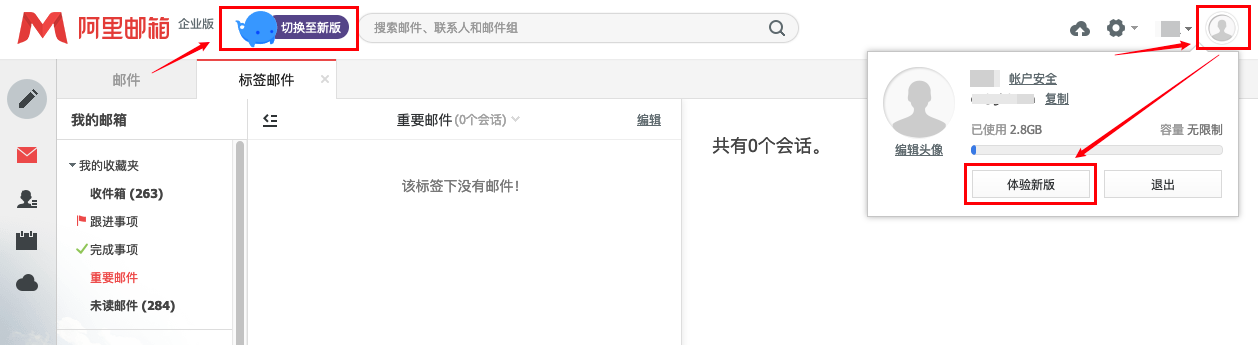
If your interface looks different, click Switch to New Version in the upper-left corner, or click your profile picture and select Experience New Version. Then navigate to .
-
After enabling, can I still use my original mailbox password to log on to Outlook?
No. Once enabled, third-party clients require the security password. Using your web login password returns an "Incorrect password" or "Authentication failed" error.
-
How many security passwords can I generate?
You can generate up to 10 security passwords. Use a separate password per device for easier management and revocation. Quantity limits are defined in common parameters for standard accounts.
-
How do I modify a third-party client security password?
Security passwords are randomly generated and cannot be customized. To change one, delete the existing password and generate a new one.