Traffic rules
In a unitized architecture, traffic rules consist of two main parts: UID assignment and deployment unit traffic ratio. UID assignment specifies which UID shards (00–99) correspond to each local region logical unit group (RZoneGroup). The deployment unit traffic ratio specifies the traffic weight of each deployment unit within its corresponding logical unit group (GZoneGroup, CZoneGroup, or RZoneGroup).
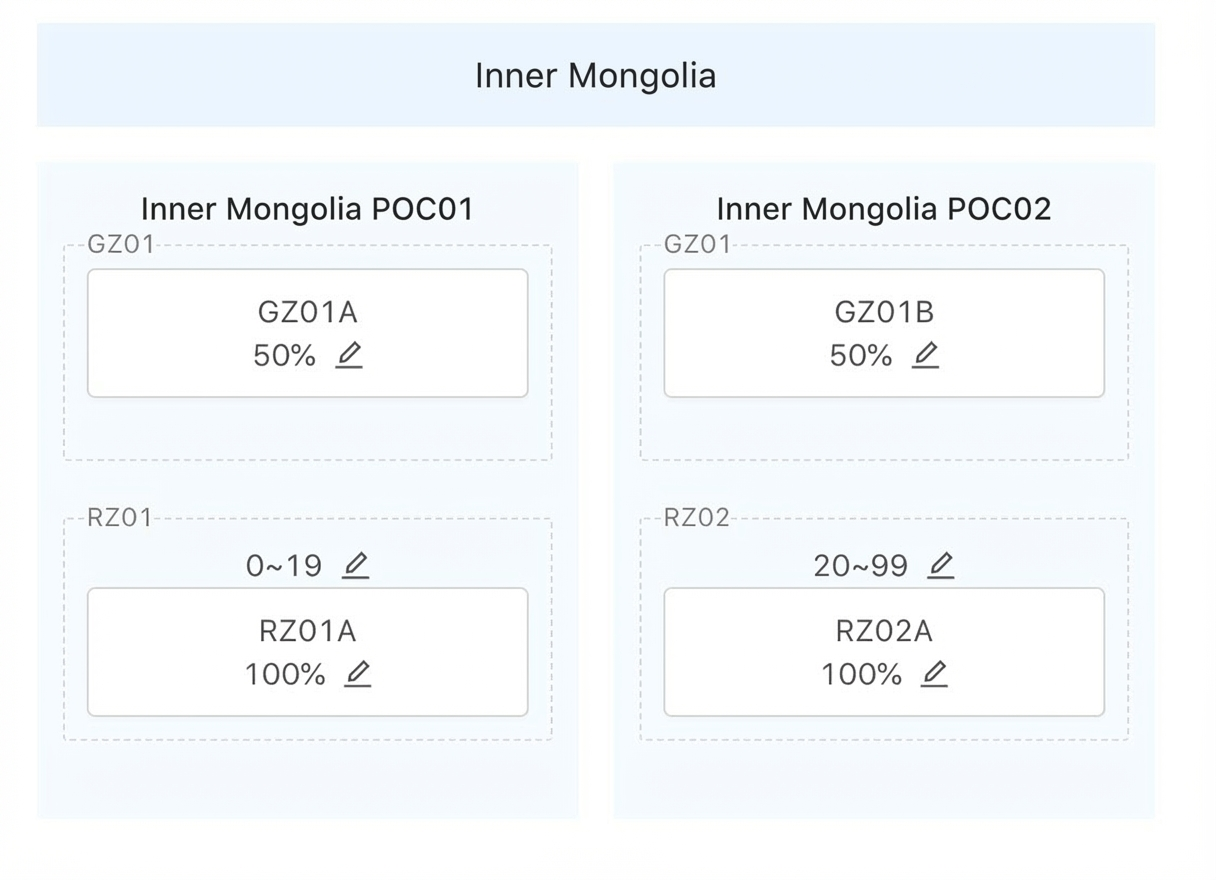
The figure shows an example of traffic allocation. In this example, two RZones, RZ01 and RZ02, both handle traffic. Requests with UID shards from 00 to 19 access RZ01, and requests with UID shards from 20 to 99 access RZ02. The RZ01 and RZ02 logical units each contain only one deployment unit: RZ01A and RZ02A. Therefore, each deployment unit handles 100% of the traffic for its logical unit. The GZ01 logical unit contains two deployment units, GZ01A and GZ01B, and each handles 50% of the traffic for the logical unit.
Current rule
In the navigation pane on the left, click Unitized Management > Traffic Rules. On the Current Rule tab, the system displays the most recent global traffic rule that was successfully pushed. This rule is the currently active global traffic snapshot. During environment initialization, if no traffic push records exist or if a non-global traffic rule was pushed, nothing is displayed.
Rule configuration
Click the Rule Configuration tab to go to the Production Traffic Rule Configuration page. This page displays the currently configured rules, which may not be active yet.
Click a logical unit card or shard data to open the edit page. Enter the following configuration information:
For RZone deployment units, configure the UID shard settings and traffic weight for the corresponding deployment unit.
For GZone deployment units, configure the traffic weight for the corresponding deployment unit.
NoteMake sure that the total traffic ratio of all deployment units is 100% after the adjustment. The value range for UID shards is 00 to 99.
After you adjust the weights or UID shards, click Save to apply the configuration.
Push traffic rules
In the navigation pane on the left, click Unitized Management > Traffic Rules.
Select the level where you want to configure the rule.
Click the Rule Configuration tab to go to the Production Traffic Rule Configuration page.
Click Push Traffic Rule, select the target components, and then click OK.
Push history
On the Push History tab, you can view recent push records and their statuses.
Associated Application: `routeClient` indicates that a global application rule was pushed. Otherwise, the specific target applications that were selected are displayed.
Pushed Content: Click View Details to see the specific content that was pushed.
Push Target Type: Displays the type of the push target.
Rule Type: Currently, only routing rules are supported.
Push Result: Displays the status of the push, which can be success or failure. If a push fails, an error message is displayed with information to help you troubleshoot the cause.