Sync an Alibaba Mail address book with Outlook using LDAP
Sync your Alibaba Mail enterprise address book to Outlook so you can look up recipients directly when composing emails.
Configure the address book so you can look up recipients when composing emails.
1. Open Outlook and click Tools > Account Settings.
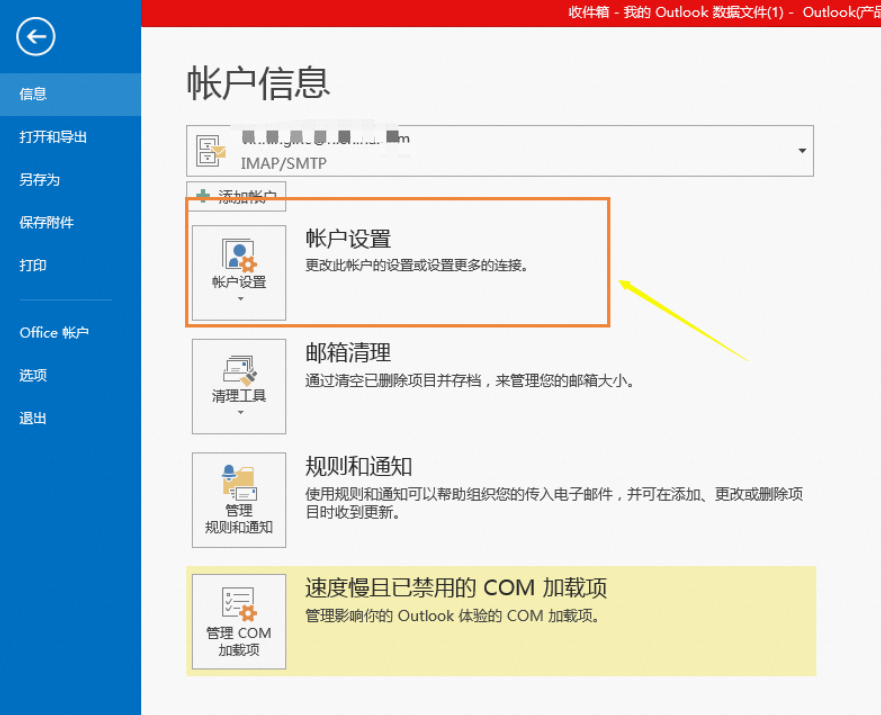
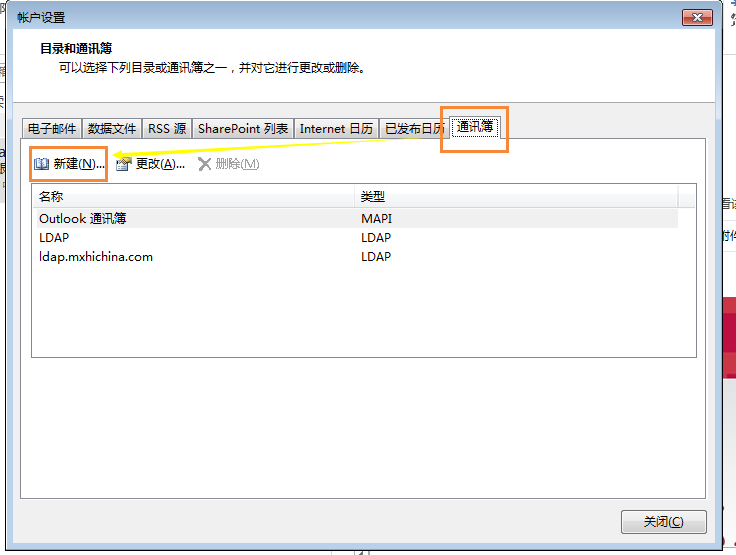
2. In the Account Settings dialog box, click the Address Books tab, and then click New.
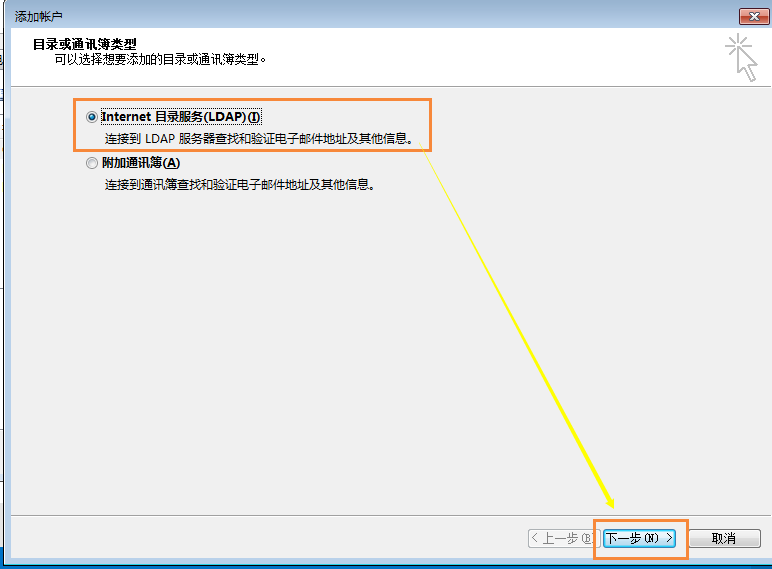
3. Select Internet Directory Service (Lightweight Directory Access Protocol, LDAP) and click Next.
4. Enter the server configuration as shown in the image.
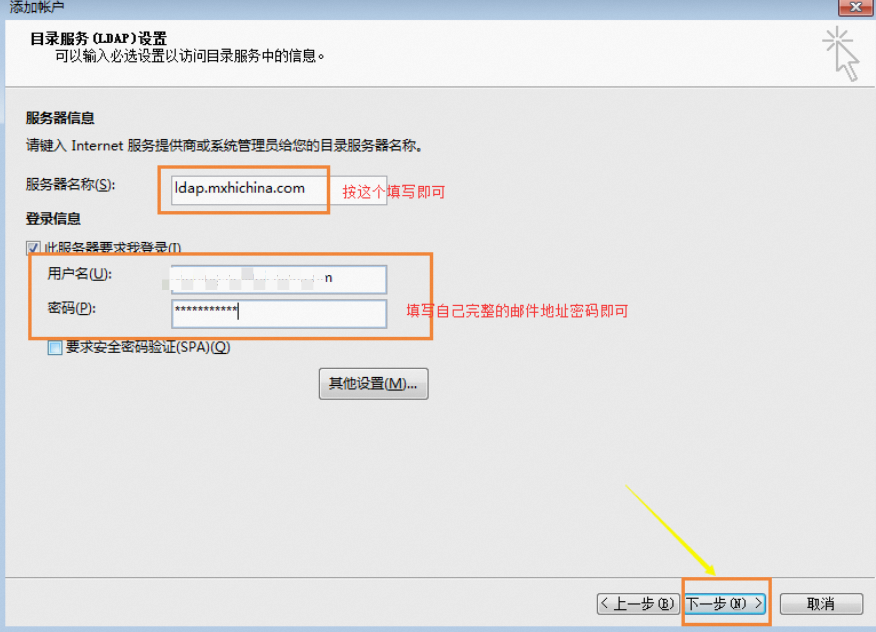
Server Name: ldap.mxhichina.com
Select the This server requires me to log on check box.
User Name: Your email address, such as a***@example.net
Password: Your mailbox password
Clear the Require Secure Password Authentication (SPA) check box.
5. Click More Settings, then click OK in the dialog box that appears.
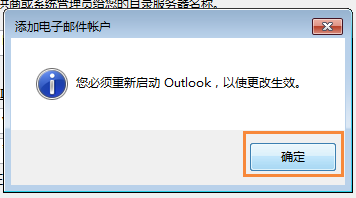
6. In the More Settings dialog box, configure the settings as shown in the image.
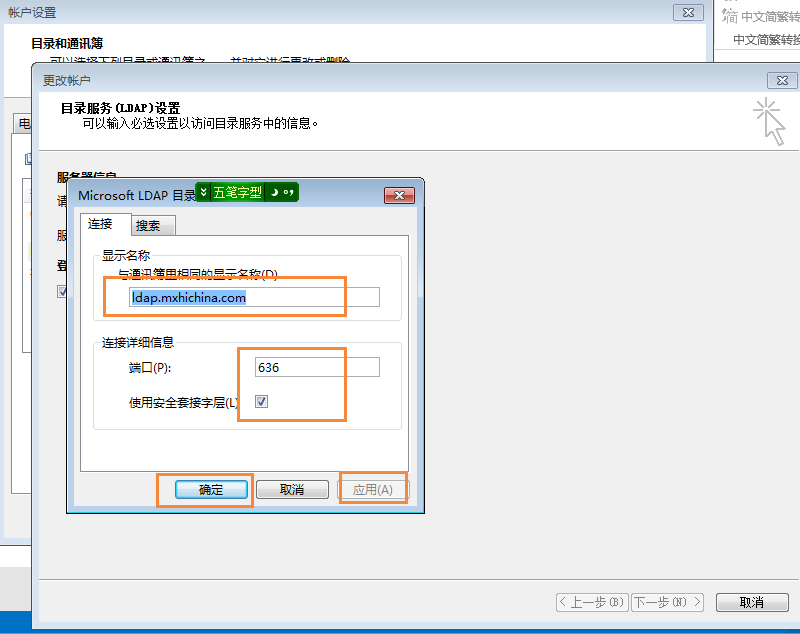
7. Click OK, then click Next to complete the configuration. Close the dialog box.
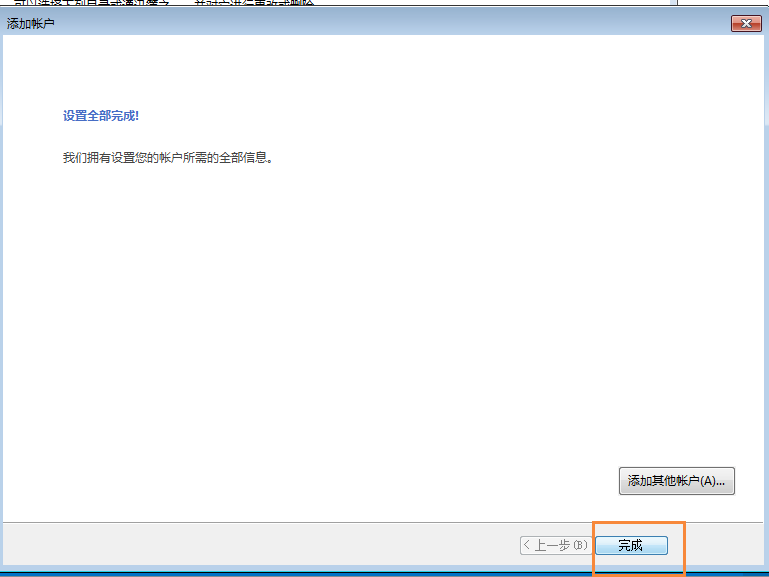
8. Restart Outlook for the settings to take effect.
9. Set up the address book.
a. Open the address book.

b. Click Tools > Options.
Configure the address book search priority.
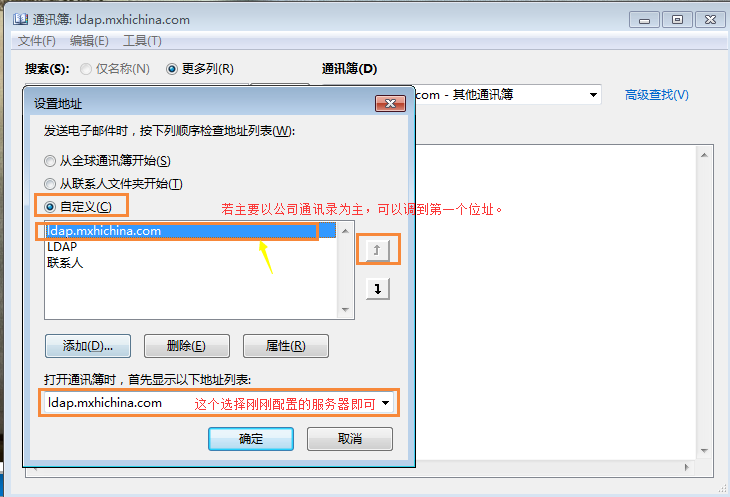
The address book is ready for use.
Accounts are not displayed by default. To test the configuration, search for an account.

Configure the address book in Outlook for Mac
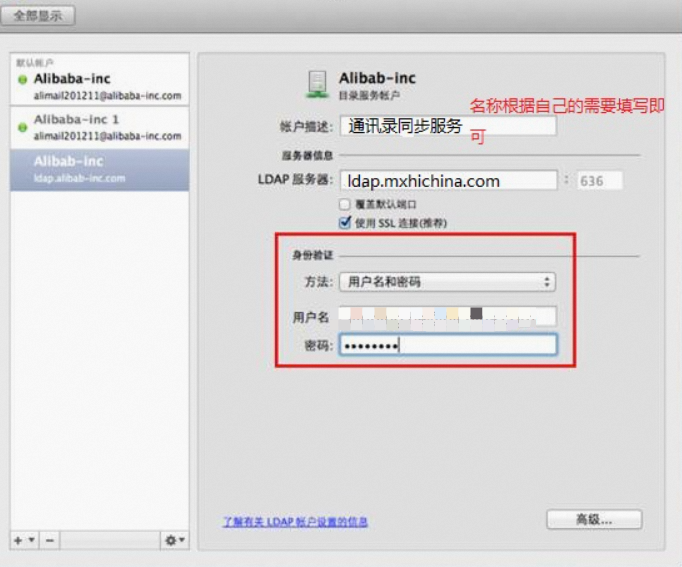
1. To configure LDAP, add a Directory Service as shown in the image.
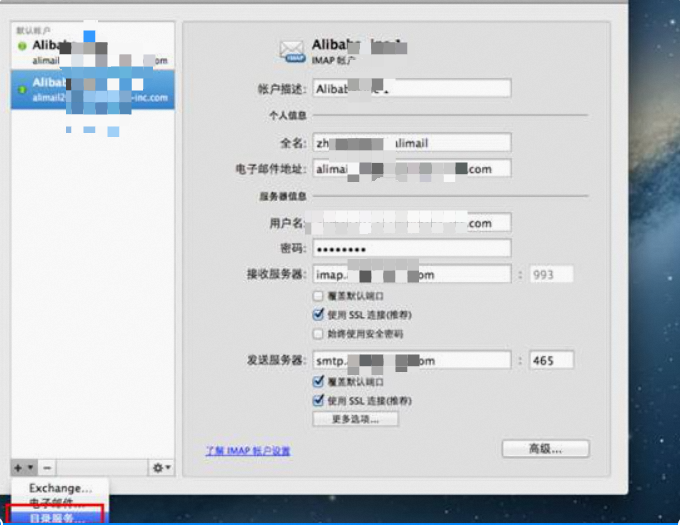
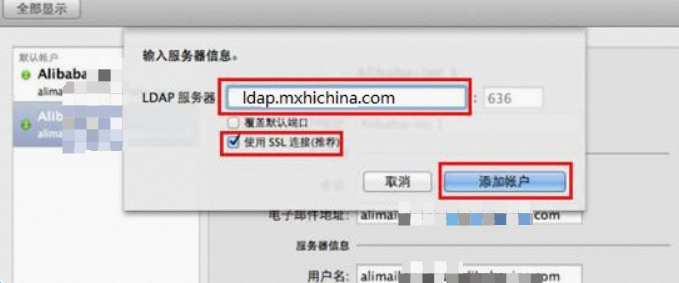
2. Add the server information and click Add Account:
Enter ldap.mxhichina.com for the LDAP Server and 636 for the Port. Select the Use SSL to connect check box.
3. Set the Authentication method to User Name and Password and complete the settings as shown. The LDAP service is ready after you save the configuration.