Troubleshoot connection failures to a Linux instance
This topic describes how to troubleshoot remote connection failures to a Linux instance.
Emergency access: For emergency access or maintenance on a Linux instance, first connect by using VNC. For more information, see Connect to an instance by using VNC.
Causes
An SSH remote connection may fail for several reasons, such as issues with the PAM security framework, security groups, or SSH configuration. Identify the cause that applies to your instance, and then use the corresponding troubleshooting method to resolve the connection failure.
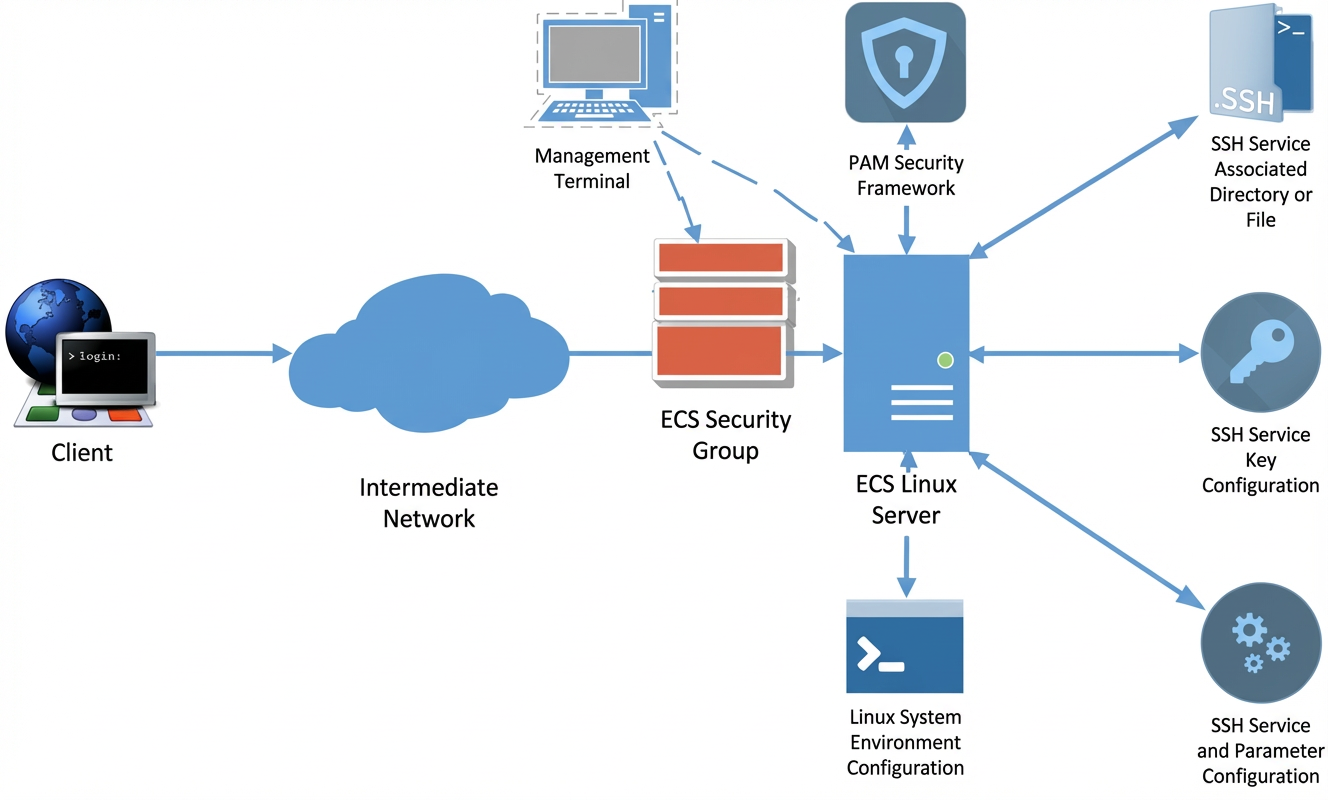
No specific error message
Use the self-service troubleshooting tool
The Alibaba Cloud self-service troubleshooting tool automatically checks security group configurations, the instance's internal firewall, and the listener status of common application ports. The tool then provides a clear diagnostic report.
Click Diagnostics to open the Self-service Troubleshooting page and select the target region.
The diagnostic report lists detected issues and their details. For example, it might indicate that inbound rules for common ports are not configured in the security group. The report also details the direction, protocol (such as ICMP), port, policy (Not Allowed), and impact for each issue, and provides a link to a suggested fix, such as Modify security group rules.
If the self-service troubleshooting tool cannot identify the issue, follow these manual troubleshooting steps.
Manually troubleshoot the issue
If the remote connection fails and you do not receive an error message, follow these steps to manually troubleshoot the issue:
Step 1: Test remote connection with Workbench
Use Workbench, a tool provided by Alibaba Cloud, to test the remote connection. If an issue occurs during the remote connection, Workbench returns a specific error message and a solution. Follow these steps to perform the test:
Go to ECS console - Instances.
In the upper-left corner of the page, select a region and resource group.
Click the ID of the target instance to open its details page, and then click Remote connection.
In the Remote connection dialog box, find Workbench and click Sign in now.
Test if you can remotely log on to the instance.
Workbench automatically fills in the basic information required to log on to the target instance. Confirm that the information is correct, enter your username and authentication credentials, and then attempt to log on. For instructions on remotely logging on to a Linux instance by using Workbench, see Connect to a Linux instance by using Workbench.
If the logon still fails, Workbench returns an error message and a solution. Follow the prompts to resolve the issue, and then try to connect again by using Workbench. For common Workbench issues, see Issues with VNC connections to an instance.
If you can log on using Workbench, the SSH service on the target instance is running properly. This rules out an SSH server-side issue. Continue to Step 2: Check the network.
Step 2: Check the network
If you cannot remotely connect to the Linux instance, first check if the network is working correctly.
Test the connection from a computer in a different network environment, such as a different network segment or from a different ISP, to determine whether the issue is with your local network or on the server side.
If the issue is with your local network or ISP, contact your local IT staff or ISP for a solution.
If the network adapter driver is faulty, reinstall it.
On your local client, use the ping command to test network connectivity to the instance.
If you detect a network anomaly, perform a packet capture for analysis. For more information, see Use a packet capture tool to capture network packets.
If ping requests time out or packets are lost, use a tool like
tracertormtrto perform link analysis and identify the source of the problem. For more information, see Use MTR for network link analysis.If ping is not disabled in the system kernel but your ping test to the ECS instance fails, the internal firewall on the server may be dropping packets from your client.
For more information, see Troubleshoot a failure to ping the public IP address of an ECS instance.
Step 3: Check port and security group
Check whether the security group configuration allows traffic on the remote connection port.
Go to ECS console - Instances.
In the upper-left corner of the page, select a region and resource group.
On the Instances page, click the ID of the target instance.
Click the Security Groups tab. In the Firewall (Security Group) Rules section, on the Inbound tab, click Add Rule and add a rule with the following parameters.
Action: Allow
Priority: 1 (A smaller value indicates a higher priority. 1 is the highest priority.)
Protocol: Custom TCP
Source: Set this to your local IP address. You can visit
https://cip.cc/to get your IP address.Destination (Current Instance): Select SSH(22).
Use the following command to test the port.
telnet [$IP] [$Port]Note[$IP] refers to the IP address of the Linux instance.
[$Port] refers to the SSH port number of the Linux instance.
For example, if you run the
telnet 192.168.0.1 22command, a successful response is similar to the following.Trying 192.168.0.1 ... Connected to 192.168.0.1. Escape character is '^]'If the port test fails, see Troubleshoot port failures when an ECS instance can be pinged.
Step 4: Check CPU load, bandwidth, and memory
Remote connection failures can be caused by high CPU load, insufficient public bandwidth, or insufficient memory.
Check whether the CPU load is high.
The CPU load is high.
A high CPU load is expected if your application has intensive disk access, network access, or high computing requirements. To resolve this resource bottleneck, upgrade the instance type. For more information, see Overview of instance configuration changes.
NoteFor more information about how to resolve high CPU load, see Query and analyze CPU load on Linux systems.
NoteCheck for virus infections: If CPU resources remain abnormally high after you rule out normal application activities, the instance may be infected with a mining virus. Mining malware maliciously consumes resources like the CPU, which causes the instance to lag, respond slowly, and in severe cases, become unreachable. For troubleshooting and protection, see Guide to handling and preventing mining viruses. If the instance is infected with ransomware, system files may be encrypted and locked, which can also prevent you from logging on. For more information, see Guide to enhancing instance protection against ransomware.
If the CPU load is not high, proceed to the next step.
Check for insufficient public bandwidth.
A remote connection may fail due to insufficient public bandwidth. Follow these steps to check the bandwidth.
Go to ECS console - Instances.
In the upper-left corner of the page, select a region and resource group.
In the instance list, click the ID of the corresponding instance. In the Configuration Information section, check the public bandwidth.
If the public bandwidth is 0 Mbit/s, the instance has no public bandwidth allocation. To fix this, upgrade the bandwidth. For more information, see Modify the peak public bandwidth.
Check for insufficient memory.
After you remotely connect to a Linux instance, the desktop may fail to display and the connection immediately closes without an error message. Insufficient memory can cause this issue. Follow these steps to check memory usage.
Log on to the Linux instance by using VNC.
For more information, see Log on to a Linux instance by using password authentication.
Check the memory usage. If the memory is insufficient, we recommend that you upgrade the instance type to resolve the resource bottleneck. For more information, see Overview of instance configuration changes.
A specific error message is returned
When a remote connection fails, the system usually returns an error message. Use the error message to identify the cause and find a solution.
PAM security framework
The Pluggable Authentication Modules (PAM) security framework in Linux can load security modules to control access to accounts and logon policies on the instance. Incorrect PAM configurations or triggering of a policy can cause SSH logon to fail. Common examples include:
Linux system environment
Issues in the Linux system environment, such as a virus infection, incorrect account configuration, or environment variable issues, can also cause SSH logon failures. Common cases:
"fatal: mm_request_send: write: Broken pipe" error due to an SSH service exception caused by a virus
"main process exited, code=exited" error when the SSH service starts
System exception after SSH logon to a Linux instance due to ulimit restrictions
Error when you use the SSH command to log on to a Linux ECS instance
SSH remote connection exception on a Linux instance because the SELinux service is enabled
SSH service and parameter configuration
The default configuration file for the SSH service is /etc/ssh/sshd_config. Incorrect parameter settings, or enabling certain features or policies in this file, can also cause SSH logon failures. Common cases:
"Too many authentication failures for root" error when you use SSH to log on to an instance
"error while loading shared libraries" error when the SSH service starts
"fatal: Cannot bind any address" error when the SSH service starts on a Linux ECS instance
"Bad configuration options" error when the SSH service starts
SSH logon or data transmission slows down because UseDNS is enabled for SSH
SSH directory and file configuration
For security reasons, the SSH service checks the permissions and ownership (user and group) of related directories and files at runtime. Permissions that are set too high or too low can cause service exceptions and lead to client logon failures. Common cases:
SSH key configuration
The SSH service uses asymmetric encryption to encrypt transmitted data. The client and server exchange and validate key information. A common case is:
"Host key verification failed" error when you use SSH to log on to an ECS instance