Troubleshoot invisible data disks on Windows instances
When working with disks, you might find that a data disk partition is not visible in the operating system. This topic describes common causes for a data disk partition to become unavailable on a Windows system and provides solutions.
Prerequisites
Before you try to repair the data, you must create a snapshot of the data disk. If a problem occurs during the repair process, you can use the snapshot to roll back the data disk. For more information, see Create a snapshot and Roll back a disk by using a snapshot.
You are charged for using snapshots. For more information, see Snapshot pricing.
Symptoms
A data disk may not be visible for the following reasons:
Solutions
Disk appears as Foreign
In the Windows Disk Management console, the disk status is Foreign, and its partitions are not visible.
Solution: Right-click the Foreign disk and select Import Foreign Disks.
Disk appears as Offline
In the Windows Disk Management console, the disk status is Offline, and its partitions are not visible, as shown in the following figure.
Solution: Right-click the Offline disk (for example, Disk 1 in the figure) and select Online. After the disk status changes to Online, the disk functions normally.
No drive letter assigned
In Disk Management, you can see the data disk, but no drive letter is assigned to it, as shown in the following figure.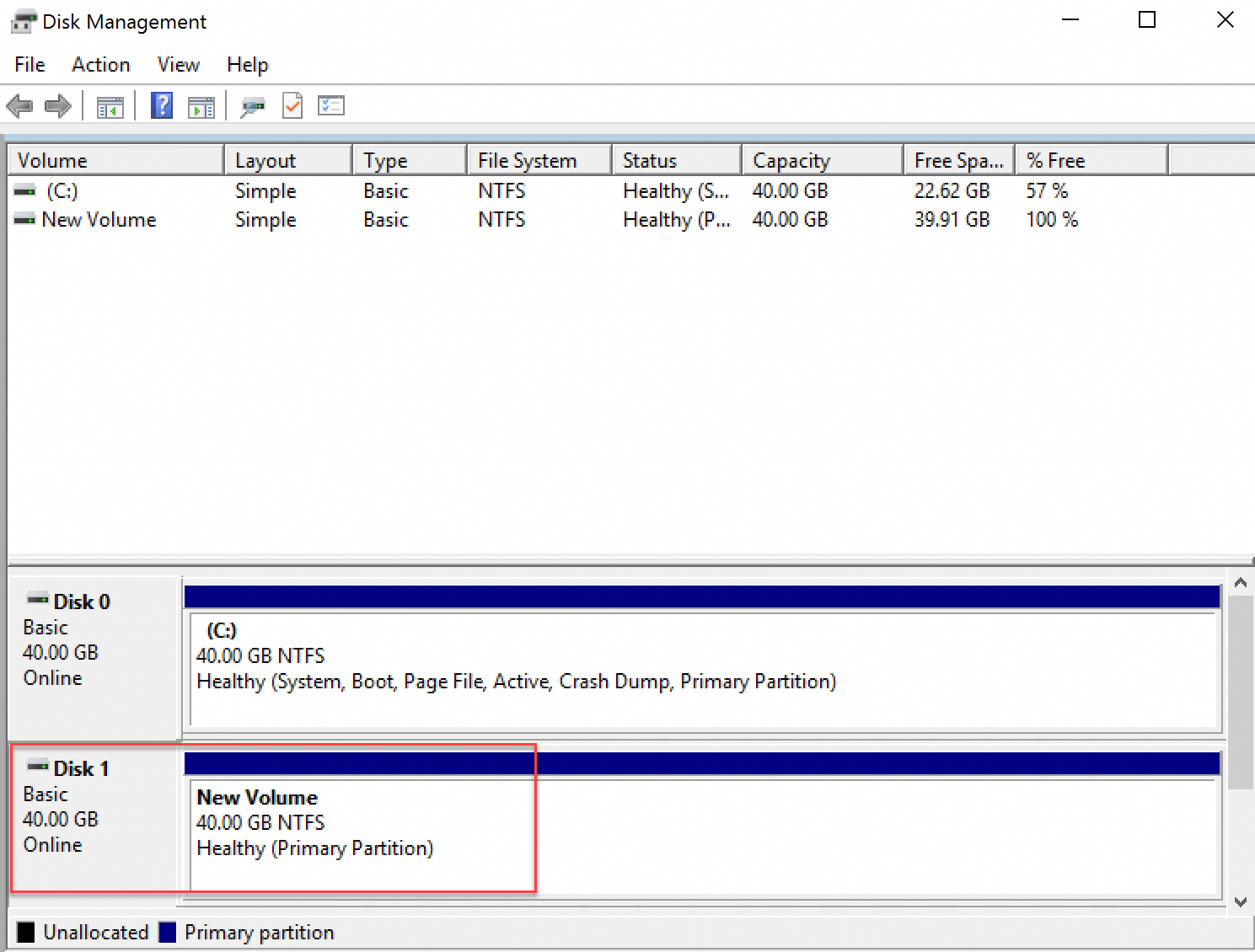
Solution: Right-click the primary partition of the disk (for example, Disk 1 in the figure), select Change Drive Letter and Paths, and then follow the on-screen instructions to assign a drive letter.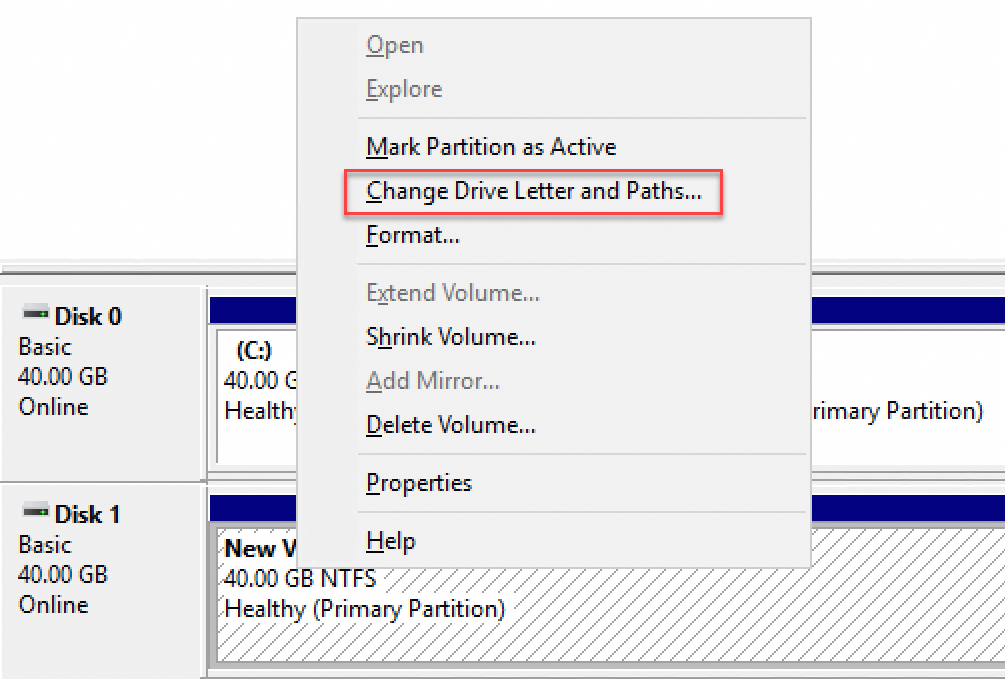
Disk not visible due to an enumeration error
In Windows, the data disk is not visible in Disk Management. The system log reports an "Error occurred during storage enumeration" error.
Depending on the operating system version, the error message might be "An error occurred during enumeration of volumes".
Solution:
Open the Run dialog box.
Enter powershell to open PowerShell.
Run the
winrm quickconfigcommand to check and configure the Windows Remote Management (WinRM) service settings.When prompted with
Make these changes [y/n]?, enteryto confirm.
After the fix is complete, open Disk Management. The data disk should now appear correctly.
Disk in RAW format
Under certain circumstances, a disk in Windows may change to the RAW format.
A disk appears in RAW format when Windows cannot recognize its original file system, such as NTFS. This issue typically occurs when information that records the file system type or location, such as the partition table or boot sector, is lost or damaged. Common causes include the following:
Disconnecting an external hard drive without using the Safely Remove Hardware option.
Disk issues caused by an unexpected power outage.
Hardware-level failures that lead to the loss of disk partition information.
Issues caused by underlying drivers or applications. For example, if you improperly use a tool such as DiskProbe to modify the disk's table structure, you can easily damage the disk's data structure, making the partition inaccessible.
A computer virus.
Solution: Use data recovery software to repair the file system and restore the data. For example, you can use a tool such as Disk Genius to repair the disk to its previous file system, such as NTFS, and then attempt to recover the data.
Using Disk Genius to repair the file system is risky and may cause data loss. Before you proceed, make sure to create a snapshot to back up your data.
The instance is in safe mode
When a Windows instance is in safe mode, the data disk might not be visible because the system does not load the necessary disk drivers. To resolve this issue, exit safe mode by following these steps.
Choose Start > Run. In the Run dialog box, enter msconfig and click OK.
On the System Configuration page, click the Boot tab and clear the Safe boot checkbox.
Click OK to exit safe mode.
The disk drive is disabled
On an ECS instance that runs Windows Server 2019, a data disk may not be visible after startup if its corresponding disk drive is disabled. Follow these steps to re-enable the drive.
In the Computer Management page, choose System tools > Device Manager > Disk drives.
Find the disabled drive, right-click it, and select Enable device.
Open Disk Management and check whether the data disk appears correctly.
New disk is not partitioned and formatted
Disk partitioning and formatting are high-risk operations. Proceed with caution. Before you begin, you must create a snapshot of the data disk of the ECS instance to prevent data loss.
A new data disk is not visible in the Windows operating system until you partition and format it. By default, a new data disk has a RAW file system, which Windows cannot recognize. To initialize the disk, see Format a data disk on a Windows instance.
Common pitfalls and best practices
Data is a core asset. Many users build websites and self-hosted databases, such as MySQL, MongoDB, and Redis, on ECS instances. Data loss can pose significant risks to your business. The following section describes common pitfalls and best practices for data security.
Common pitfalls
Alibaba Cloud's underlying storage uses triplicate technology. Consequently, some users mistakenly believe their data in the operating system is completely safe from loss. The triplicate technology provides physical-layer protection for the data disk. However, data loss can still occur due to logical issues within the system, such as virus attacks, accidental deletions, or file system corruption. In these cases, you must use technologies such as snapshots and geo-redundancy to ensure data security.
Best practices
Restoring a data disk partition and recovering data are last-resort measures and are not always successful. We strongly recommend that you proactively use backup solutions, such as snapshots, to maximize the security of your cloud disk data. For more information, see ECS disaster recovery solutions.
Related documents
For best practices for data recovery on Windows instances, see Best practices for data recovery on Windows instances.