Automated regression testing for Dubbo service use cases
The automated regression testing feature uses service contract information to orchestrate services under test and manage automated test use cases. This lets you efficiently run regression tests for business scenarios to quickly verify and deliver your services. This topic describes how to create and execute Dubbo test use cases.
Create a Dubbo test use case
-
Log on to the EDAS consoleEDAS console.
-
In the left-side navigation pane, choose .
Under Dubbo in the navigation pane on the left, click Automated Regression (Use Case Management).
In the menu bar at the top of the Automated Regression (Use Case Management) page, select a region. On the page, select a microservices namespace and then click Create Use Case.
On the Create Use Case page, click the
 icon and set the parameters.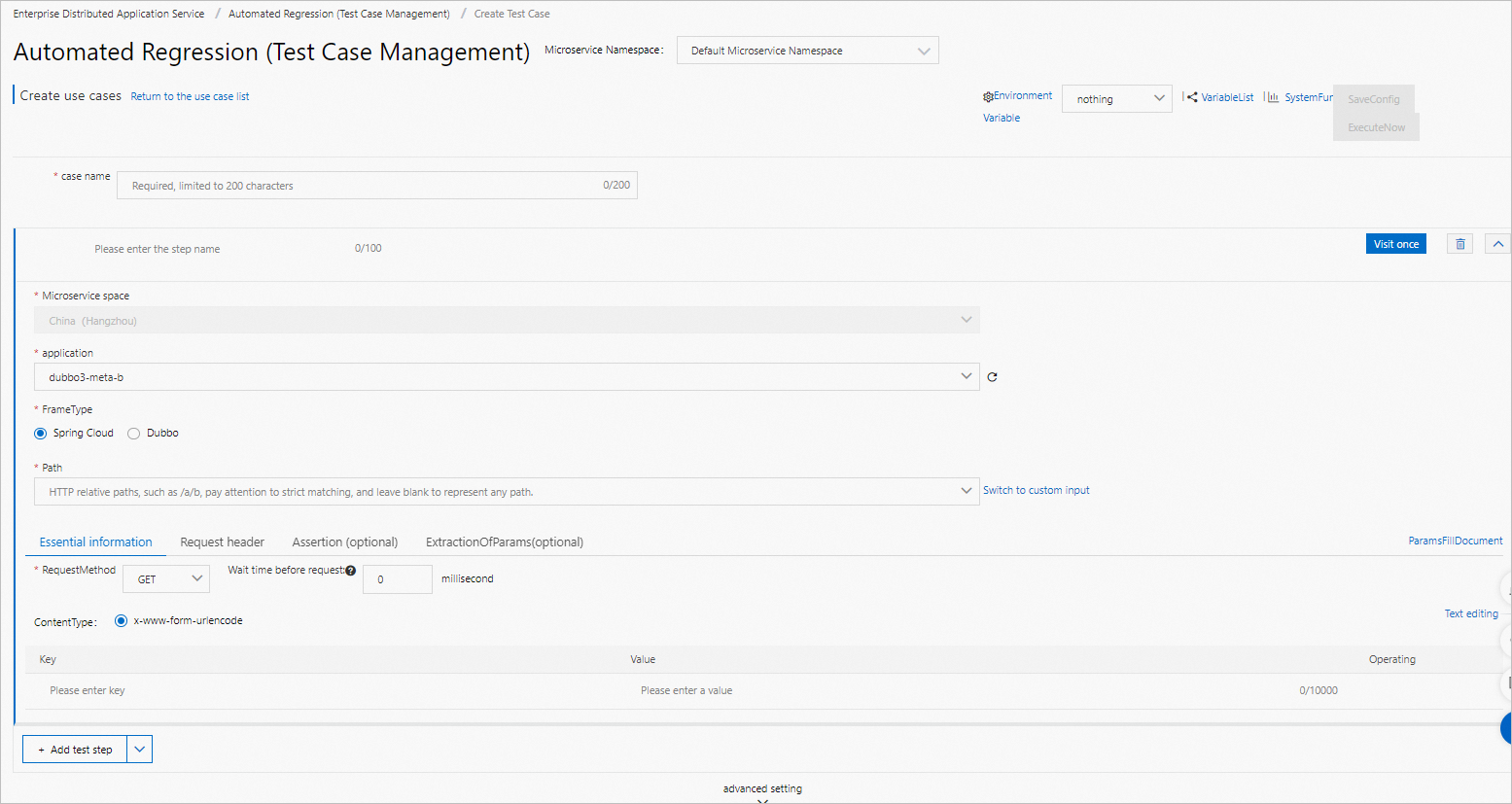
Configuration item
Description
Use Case Name
A custom name for the test use case.
Application
Select the application to test.
Framework Type
Select the Dubbo framework.
Service
Select a service of the application.
Method
Select a method of the service.
Basic Information
Supports parameter input in JSON format. The default request parameter is [].
For more information about the parameter types and configuration methods for Dubbo services, see Dubbo reference examples.
Assertion (Optional)
Enter the Check Object and Check Content, and select a Check Condition.
Response Parameter Extraction (Optional)
Enter the Response Parameter Name and Response Parameter Extraction Expression.
In the right-side pane, click Access Once. In the Single-step Debugging Result panel, you can view the request and response parameters.
Click Response Parameter Extraction Helper. In the Response Parameter Extraction Helper dialog box, click the name of the response parameter that you want to extract and then copy the parameter expression.
Under Assertion (Optional), paste the copied expression into the Check Object field. Select a Check Condition and enter a value for Check Content.
Under Response Parameter Extraction (Optional), paste the copied expression into the Response Parameter Extraction Expression field and specify a custom Response Parameter Name. After you complete the settings, click Save Configuration in the upper-right corner.
You can view the created test use case in the use case list.
Create a multi-step chained test use case
-
Log on to the EDAS consoleEDAS console.
-
In the left-side navigation pane, choose .
Under Dubbo in the navigation pane on the left, click Automated Regression (Use Case Management).
On the Use Case Details page, click Access Once in the right-side pane. In the Single-step Debugging Result panel, you can view the request and response parameters.
Click Response Parameter Extraction Helper. In the Response Parameter Extraction Helper dialog box, copy the expression of the response parameter that you want to extract.
Under Response Parameter Extraction (Optional), paste the copied expression into the Response Parameter Extraction Expression field and specify a custom Response Parameter Name.
Click +Add Test Step to add more test steps.
In the JSON Formatting section of the Basic Information area for the test step, enter the reference variable name ${XXX}.
NoteXXXis the Response Parameter Name that you specified in the Response Parameter Extraction (Optional) section of the previous step. You must reference the variable using the${ }format.In the upper-right corner, click Save Configuration and then click Execute Now.
Create a multi-step test case with chained sub-use cases
A test case can contain multiple test steps. To reuse a use case as a sub-use case, you can chain steps by importing other test cases from the same use case set. Subsequent steps can fetch variables from the response parameters of preceding steps. This improves use case reusability.
-
Log on to the MSE console, and select a region in the top navigation bar.
-
In the top menu bar, select a Region, and then click Details in the Operation column for the target use case.
On the Use Case Details page, click the drop-down arrow next to Add Test Step, and then click Add Sub-use Case.
In the Step Configuration list, click the drop-down arrow next to the test step, and select a sub-use case from the Select Sub-use Case drop-down list.
NoteIf no options are available in the Select Sub-use Case list, first add the current use case to a use case set in the Advanced Settings area on the Use Case Details page. You can select only other use cases from the same Use Case Set.
If no use case set exists, or if no sub-use cases are available after you add the use case to a set, verify that the use case set contains other test cases.
In the upper-right corner, click Save Configuration, and then click Variable List.
The Sub-use Case Variables appear in the Variable List panel. Subsequent test steps can directly reference these variables. These variables are fetched from the response parameters of the sub-use case.
Continue to add other test steps. In the upper-right corner, click Save Configuration, and then click Execute Now.
On the Execution History tab, the parameters are correctly replaced and executed in the subsequent steps that reference the sub-use case variables.
Execute a test use case
-
Log on to the EDAS consoleEDAS console.
-
In the left-side navigation pane, choose .
Under Dubbo in the navigation pane on the left, click Automated Regression (Use Case Management).
In the top menu bar, select a region.
You can execute the test use case in one of the following two ways.
On the Use Case List (Use Case Management) page, find the target use case and click Execute in the Actions column.
On the Use Case List (Use Case Management) page, find the target use case and click Details in the Actions column. On the Use Case Details page, click Execute Now.
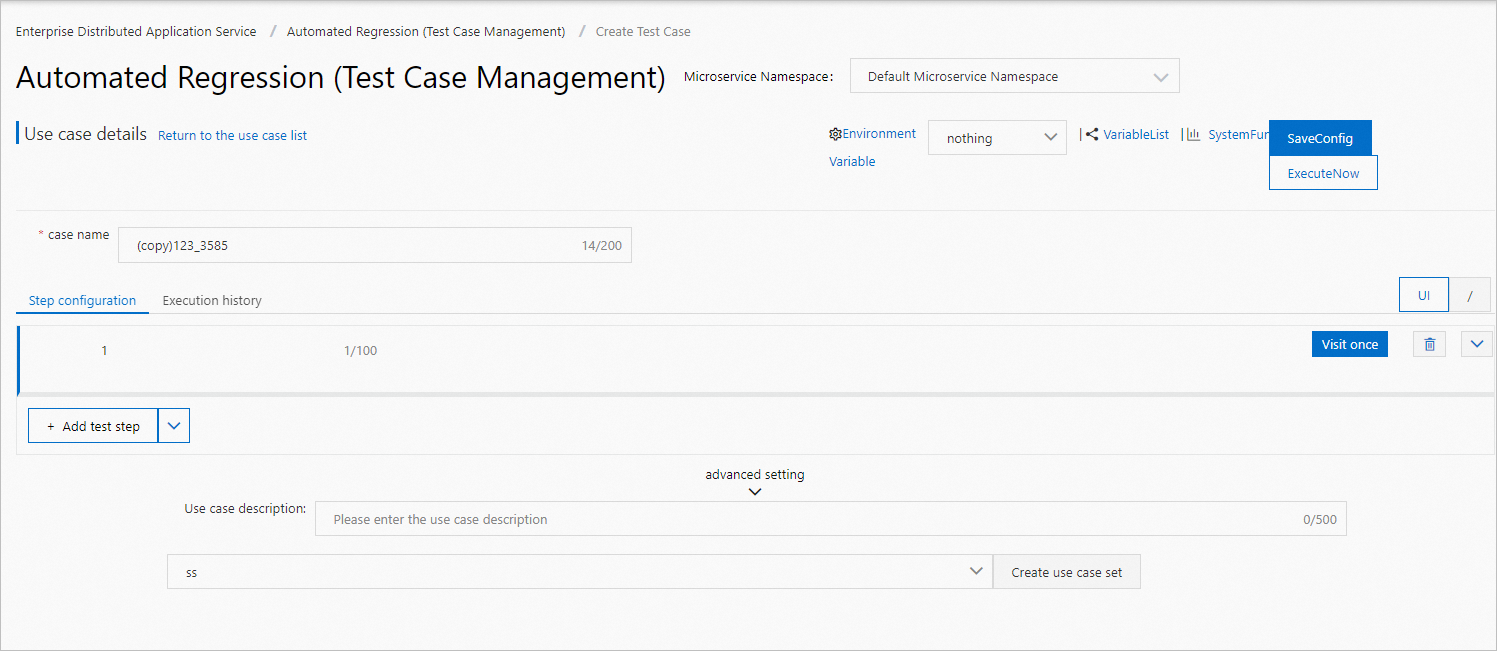
You can view the detailed execution results on the Execution History tab.
Related operations
You can also perform the following operations to manage test use cases.
Copy a test use case: On the Automated Regression (Use Case Management) page, click Copy in the Actions column to generate a new test use case.
Delete a test use case: On the Automated Regression (Use Case Management) page, click Delete in the Actions column to delete the test use case.
Dubbo reference examples
Method | How to enter parameter types | How to enter parameters |
String sayHello(String name); | ["java.lang.String"] | ["hello, dubbo"] |
String helloBean(HelloBean helloBean); | ["com.alibaba.dubbo.api.DemoService"] | [{"booleanValue":true,"helloSubValue":{"booleanValue":false,"intValue":2,"stringValue":"subbean"},"intValue":1,"stringValue":"bean"}] |
String helloBean(HelloBean helloBean1, HelloBean helloBean2); | ["com.alibaba.dubbo.api.DemoService","com.alibaba.pts.dubbo.api.DemoService"] | [{"booleanValue":true,"helloSubValue":{"booleanValue":false,"intValue":2,"stringValue":"subbean"},"intValue":1,"stringValue":"bean"},{"booleanValue":true,"helloSubValue":{"booleanValue":false,"intValue":2,"stringValue":"subbean"},"intValue":1,"stringValue":"bean"}] |
String helloMap(Map helloMap); | ["java.util.Map"] | [{"booleanValue":true,"helloSubValue":{"booleanValue":false,"intValue":2,"stringValue":"subbean"},"intValue":1,"stringValue":"bean"}] |
String helloMap(Map helloMap1, Map helloMap2); | ["java.util.Map", "java.util.Map"] | [{"booleanValue":true,"helloSubValue":{"booleanValue":false,"intValue":2,"stringValue":"subbean"},"intValue":1,"stringValue":"bean"},{"booleanValue":true,"helloSubValue":{"booleanValue":false,"intValue":2,"stringValue":"subbean"},"intValue":1,"stringValue":"bean"}] |
String helloList(List helloList); | ["java.util.List"] | [[1]] |
String helloList(List helloList1, List helloList2); | ["java.util.List","java.util.List"] | [[1],[1,2]] |
String helloString(String helloString); | ["java.lang.String"] | [[1],[1,2],[1,3]] |
String helloString(String helloString1, String helloString2); | ["java.lang.String","java.lang.String"] | ["hello, dubbo", "hello, dubbo"] |
String helloInt(int helloInt); | ["int"] | ["hello, dubbo", "hello, dubbo"] |
String helloInt(int helloInt1, int helloInt2); | ["int","int"] | ["1","2"] |
String helloBoolean(boolean helloBoolean); | ["boolean"] | ["true"] |
String helloBoolean(boolean helloBoolean1, boolean helloBoolean2); | ["boolean","boolean"] | ["true","false"] |
String helloVoid(); | [] | [] |