This topic describes how to create applications, check the workers that are connected to an application, authorize one or more RAM users to access an application, and delete applications on the Applications page of the SchedulerX console.
Create an application
Before you create a job, you must create an application.
-
In the top navigation bar, select a region.
On the Applications page, select the microservices namespace in which you want to create an application from the Microservices Namespace drop-down list and click Create application.
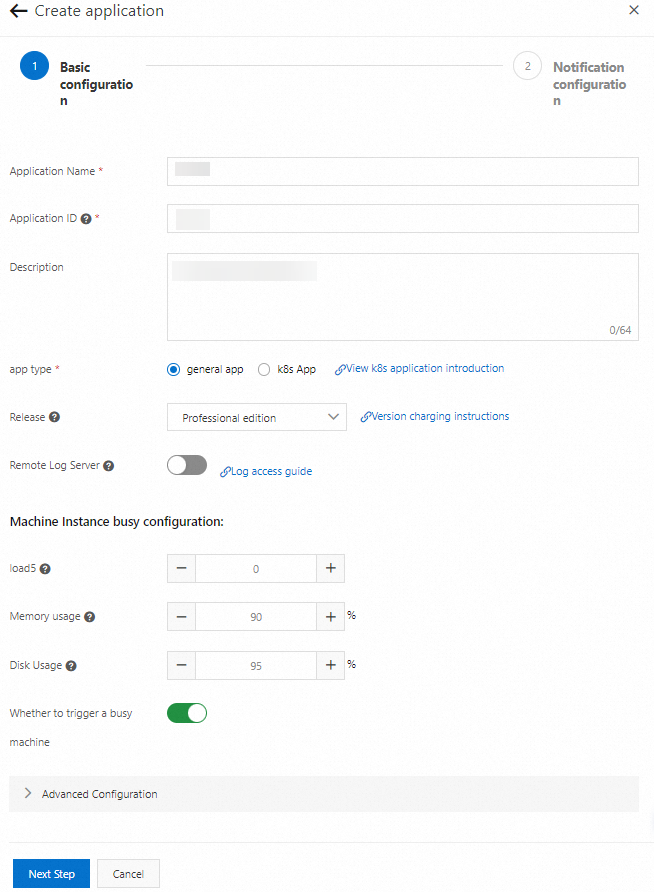
In the Basic configuration step, specify Application Name, Application ID, and app type, configure parameters in the Advanced Configuration section based on your business requirements, and then click Next Step.
Parameter
Description
Default value
Application Name
Specify a name for the application.
N/A
Application ID
Specify an ID for the application. The ID of an application is also the ID of a job group after the application is connected to SchedulerX. Make sure that the application ID is unique in a namespace. Otherwise, the application fails to be created. You can use the value of the Application Name parameter as the application ID.
N/A
app type
general app: Select this option if you do not want to deploy the application in a Kubernetes cluster or do not require Kubernetes jobs.
k8s App: Select this option if you want to deploy the application in a Kubernetes environment and require Kubernetes jobs.
general app
load5
The value cannot be greater than the number of CPU cores available on the worker where the agent is deployed.
0
Memory usage
If the average memory usage within the previous five minutes exceeds the threshold that is specified by this parameter, the instance is considered busy.
90%
Disk Usage
If the disk usage exceeds the threshold that is specified by this parameter, the instance is considered busy.
95%
Whether to trigger a busy machine
Specify whether to trigger jobs on busy workers.
Enabled
Advanced Configuration
Maximum number of tasks
Set the maximum number of jobs that are supported by the application.
1000
Automatic expansion
Specifies whether to enable auto scale-out. If you enable this feature, you must specify the Number of global tasks parameter.
Disabled
Flow Control
Specifies whether to enable traffic throttling. If you enable this feature, you must specify the Number of concurrent task instances parameter.
Disabled
Calendar
Select Financial day or Workday based on your business requirements.
N/A
In the Notification configuration step of the Create application wizard, configure the Notification channel and Contact parameters. You can set the Contact parameter to Contact group or user-defined.
Contact group
If you select this option, you must specify a contact group. All contacts in the specified contact group can receive notifications. For more information about how to create a contact group, see the "Create a notification contact and a notification contact group" section of the Notification contacts and notification contact groups topic.
user-defined
If you select this option, you must add one or more contacts to receive notifications. To add a contact, click Add contact and specify the contact information.
Parameter
Description
Notification channel
Valid values: SMS, Mail, webhook, and Telephone.
Nickname
Specify a nickname for the contact.
Mail
Specify the email address of the contact.
Webhook
WeCom, Lark, and DingTalk webhooks are supported. You can specify multiple webhook chatbots at a time. Separate multiple chatbot links with commas (,).
If you use a DingTalk chatbot to send alert notifications, you must add the keyword SchedulerX, which is case-sensitive, to the security settings of the DingTalk chatbot. Otherwise, the contact cannot receive alert notifications from the DingTalk chatbot.
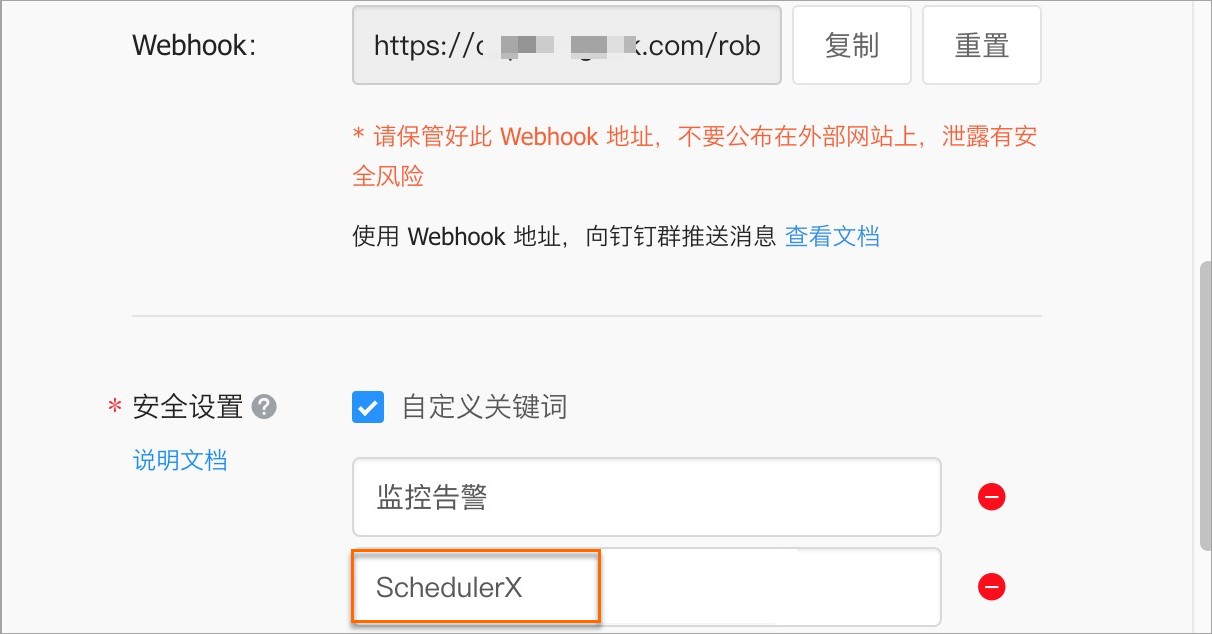
For more information about how to obtain a webhook, see DingTalk development document, WeCom development documentation, and Lark development documentation.
Mobile phone number
Specify the mobile phone number of the contact.
After the application is created, the application list is automatically refreshed.
 Important
Application ID: This parameter is required for agent initialization. The ID of an application is also the unique identifier of a job group.
Application Key: This parameter is required for SDK request verification. Keep your application key confidential. For more information, see the SDK documentation.
View workers
After you connect an application to SchedulerX, you can view the workers that are scheduled to the application. To view the workers, perform the following operations:
On the Applications page, find the created application and check the number displayed in the Total number of instances column.
NoteIf the number displayed in the Total number of instances column is 0, the job fails to be scheduled.
Click View instances in the Operation column.
In the Connect to an instance panel, view the workers that run for the application and the state of the workers.
The IP address of an worker is followed by a number that is enclosed in a pair of parentheses ( ). The number indicates the number of SchedulerX agents that run on the worker. A worker can host one or more SchedulerX agents. In most cases, only one agent runs on a worker.
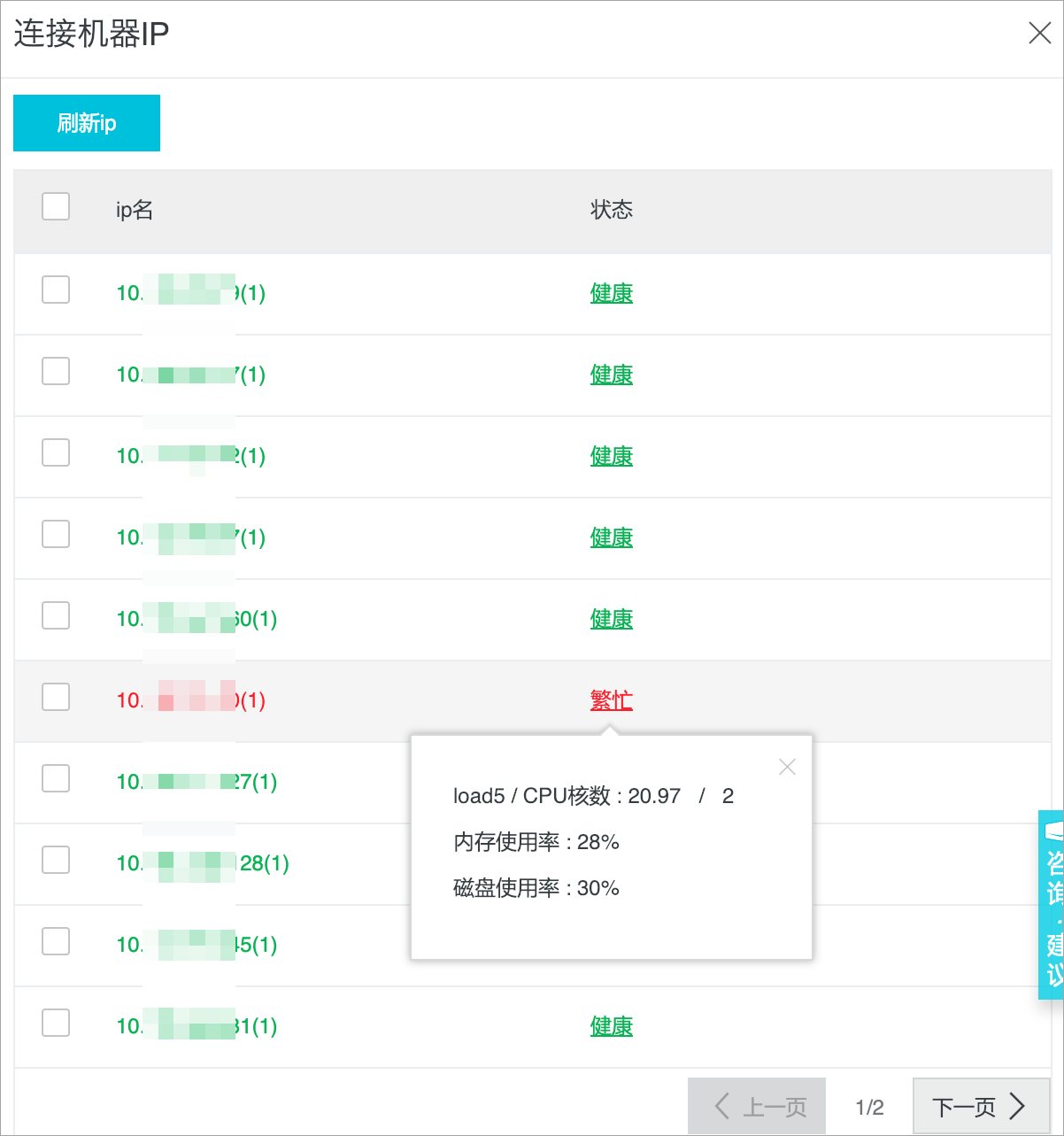
The state of workers can be healthy or busy. By default, SchedulerX does not schedule jobs to busy workers. If all workers are busy, SchedulerX fails to schedule jobs. If you want to force SchedulerX to schedule jobs to busy workers, turn off Filter out busy machines in the alerting settings.
Authorize RAM users to access an application
Application-level authorization is supported. You can use an Alibaba Cloud account or a RAM user to grant permissions to other RAM users.
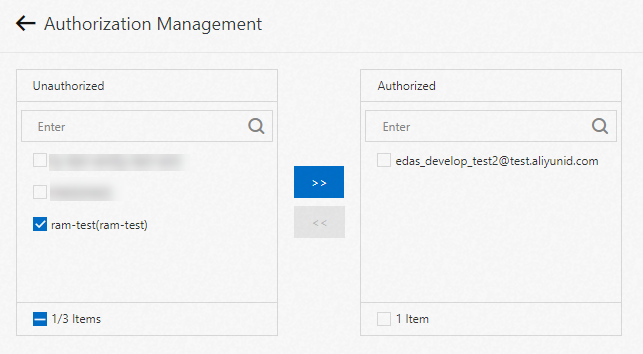
If the system indicates that the RAM user has no permissions when you use a RAM user to authorize other RAM users to access a specific application, you need to use your Alibaba Cloud account to add a custom permission policy for the RAM user. The following code provides a policy example:
{
    "Version": "1",
    "Statement": [
        {
            "Action": "ram:ListUsers",
            "Resource": "*",
            "Effect": "Allow"
        }
    ]
}
Delete an application
If you no longer want to create jobs for an application, you can delete the application. After you delete an application, the jobs that belong to the application cannot be triggered.
On the Application Management page, find the application that you want to delete and click Delete in the Operation column.
In the Delete application dialog box, confirm the application information, enter the application name, and then click OK.
After you delete an application, the application is removed from the list.
After you delete an application, the jobs that are associated with the application cannot be triggered, and the Application Management page does not display the application.
If you delete an application by mistake, you must submit a ticket to restore the application.