Spring Cloud Gateway application routing
EDAS uses Java Agent technology to enhance managed Spring Cloud Gateway applications without requiring code changes. This enhancement adds support for dynamic routing and plugin configuration. This topic describes how to configure routes and GatewayFilter plugins for Spring Cloud Gateway in EDAS.
Limits
Supported Spring Cloud Gateway versions: 2.x and 3.x. Version 4.x is not supported because it depends on features from newer software, such as Spring Boot 3.0.
Supported application type: Spring Cloud Gateway.
Notes
This feature was released on September 27, 2023. If your application was deployed before this date, you must restart the application. This action triggers a pull of the latest Java Agent to enable this feature. After you deploy your Spring Cloud Gateway application, if the application gateway menus do not appear on the application details page, this issue may be caused by the probe version attached to the application. For assistance, join the DingTalk group (ID: 23197114) and contact our technical experts.
EDAS enhances Spring Cloud Gateway without affecting your application's original logic. The configurations that you create using this feature do not conflict with your application's existing configurations for routes, assertions, plugins, or custom plugins.
Create a route
-
Log on to the EDAS consoleEDAS console.
-
In the left-side navigation pane, choose . In the top navigation bar, select a region. In the upper part of the Applications page, select a microservices namespace from the Microservices Namespace drop-down list.
On the Applications page, select a Spring Cloud Gateway application and click its name to go to the application details page. In the navigation pane on the left, click Application Gateway > Route Management.
Method 1
On the Route Management page, click Create. In the Create Route panel, set the parameters and click OK.
Configuration item
Description
Route ID
A custom route ID. EDAS automatically adds the
r-prefix to prevent conflicts with existing route IDs in your application.URI
The URI of the upstream service for the gateway. The URI can have one of the following prefixes:
http://,https://, orlb://. Thelb://prefix indicates a service discovery scenario.NoteWhen you configure a URI for service discovery, such as
lb://svcName, make sure that the Spring Cloud Gateway application references the required service discovery dependencies. Also, ensure that svcName is in the same microservices namespace as the current gateway.Route priority
If multiple routes conflict, the route with the lower priority value is matched first.
Request path
Multiple match patterns are supported.
Exact match:
/red.Placeholder match:
/red/{blue}.Fuzzy match:
/red/**.
Click + Add Parameter to add multiple paths.
Request domain name
Matches the Host parameter in the HTTP request header. If you leave this blank, all hosts are matched. Click + Add Parameter to add a domain name.
Request method
Matches the Method parameter in the HTTP request. If you leave this blank, all methods are matched. You can select multiple HTTP methods.
Request header
Matches parameters in the HTTP request header. For rules with the same match pattern, the one with more parameters has a higher priority. Click + Add Parameter to add a header.
Request cookie
Matches parameters in the HTTP request cookie. For rules with the same match pattern, the one with more parameters has a higher priority. Click + Add Parameter to add a cookie.
Request query
Matches parameters in the HTTP request query. For rules with the same match pattern, the one with more parameters has a higher priority. Click + Add Parameter to add a query parameter.
Path prefix stripping level
Deletes the specified number of path prefix segments. For example, if the level is 1, a request for
/red/blueis rewritten to/blue. This action generates a StripPrefix plugin.Metadata
Route metadata is an extension field. For example, you can configure
{"response-timeout": 2000,"connect-timeout": 2000}to control the request timeout and connection timeout. You can retrieve metadata configuration information in custom plugins.Method 2
On the Route Management page, click Create with YAML.
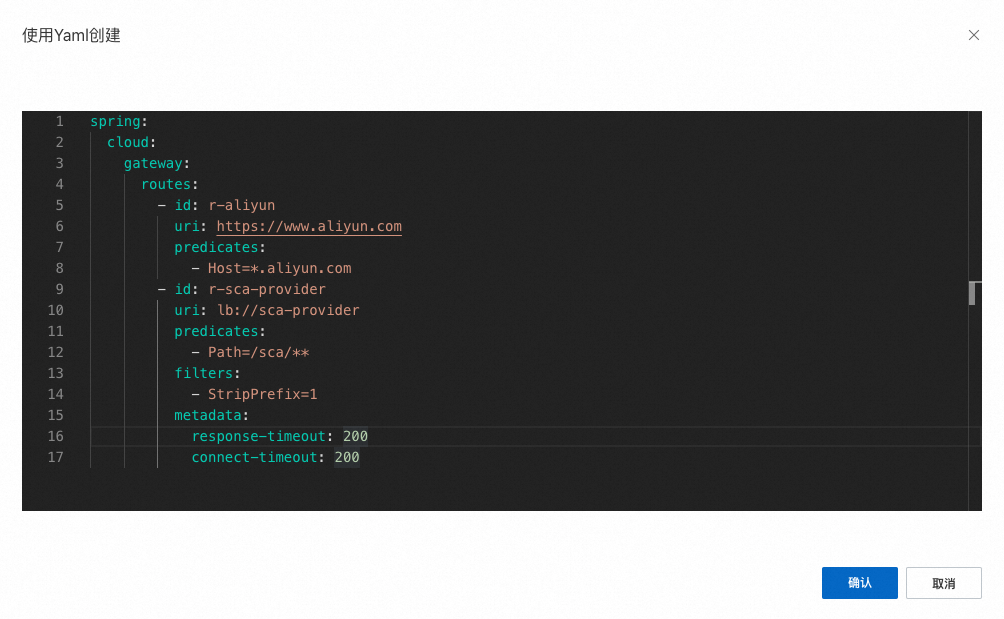
When you create routes using YAML, the definition must follow the standard Spring Cloud Gateway format. Batch import is supported, with a text size limit of 512 KB. You can use this feature to migrate route configurations from static files to EDAS. After the migration, you can delete the local configuration files to manage routes dynamically.
Edit a route
-
Log on to the EDAS consoleEDAS console.
-
In the left-side navigation pane, choose . In the top navigation bar, select a region. In the upper part of the Applications page, select a microservices namespace from the Microservices Namespace drop-down list.
On the Applications page, select a Spring Cloud Gateway application and click its name to go to the application details page. In the navigation pane on the left, click Application Gateway > Route Management.
On the Route Management page, find the route that you want to modify and click Edit in the Actions column.
Configure plugins
-
Log on to the EDAS consoleEDAS console.
-
In the left-side navigation pane, choose . In the top navigation bar, select a region. In the upper part of the Applications page, select a microservices namespace from the Microservices Namespace drop-down list.
On the Applications page, select a Spring Cloud Gateway application and click its name to go to the application details page. In the navigation pane on the left, click Application Gateway > Route Management.
On the Route Management page, find the desired route and click Bind Plugin in the Actions column. On the Plugin Configuration tab, click Add Route Plugin.
EDAS supports most of the existing plugins for Spring Cloud Gateway. The following table lists the available plugins:
Plugin name
Description
AddRequestHeader
Adds a request header.
AddRequestParameter
Adds a request parameter.
AddResponseHeader
Adds a response header.
SetRequestHeader
Modifies a request header.
SetResponseHeader
Modifies a response header.
SetStatus
Modifies the response status code.
SetPath
Modifies the request path.
MapRequestHeader
Maps a request header parameter.
PrefixPath
Adds a prefix to the request path.
StripPrefix
Strips the prefix from the request path.
RemoveRequestHeader
Removes a request header.
RemoveResponseHeader
Removes a response header.
RemoveRequestParameter
Removes a request parameter.
DedupeResponseHeader
Removes duplicate response headers.
PreserveHostHeader
Retains the request's domain name property.
RedirectTo
Performs a redirection.
RequestSize
Limits the request size.
RequestHeaderSize
Limits the request header size.
RewritePath
Rewrites the request path.
RewriteResponseHeader
Rewrites a response header.
Global plugins
-
Log on to the EDAS consoleEDAS console.
-
In the left-side navigation pane, choose . In the top navigation bar, select a region. In the upper part of the Applications page, select a microservices namespace from the Microservices Namespace drop-down list.
On the Applications page, select a Spring Cloud Gateway application and click its name to go to the application details page. In the navigation pane on the left, click Application Gateway > Global Plugins.
On the Global Plugins page, click Add Global Plugin or Create with YAML to add a plugin.
Configuring global plugins is similar to configuring route plugins. A global plugin applies to all routes on the current gateway instance. Global plugins support state management, so you can disable a plugin if it is not needed.
Result verification
After you complete the configuration, you can verify it by sending a request to the application's route path. If the gateway forwards the request correctly and the plugin works as expected, it indicates that the route and plugin are configured successfully.