When you deploy microservices across multiple environments (development, staging) or regions, you need to keep configurations consistent. You can create multiple microservices namespaces, create a configuration in one namespace, and then synchronize the configuration to other namespaces. Enterprise Distributed Application Service (EDAS) supports two synchronization methods:
| Method | Scope | How it works |
|---|---|---|
| Clone | Same region | Copy configurations from one microservices namespace to another |
| Export and import | Cross-region | Download configurations as a ZIP file, then upload the file to the destination namespace |
Prerequisites
Before you begin, make sure that you have:
Access to the EDAS console
At least two microservices namespaces, with the source namespace containing the configurations to synchronize
Clone configurations within the same region
Use the clone feature to copy configurations between microservices namespaces in the same region.
Log on to the EDAS console.
In the left-side navigation pane, choose Application Management > Microservice Configurations. The Configurations page appears.
(Optional) Select the microservices namespace that contains the configurations to synchronize. To narrow the list, filter by Group, Data ID, or Label.
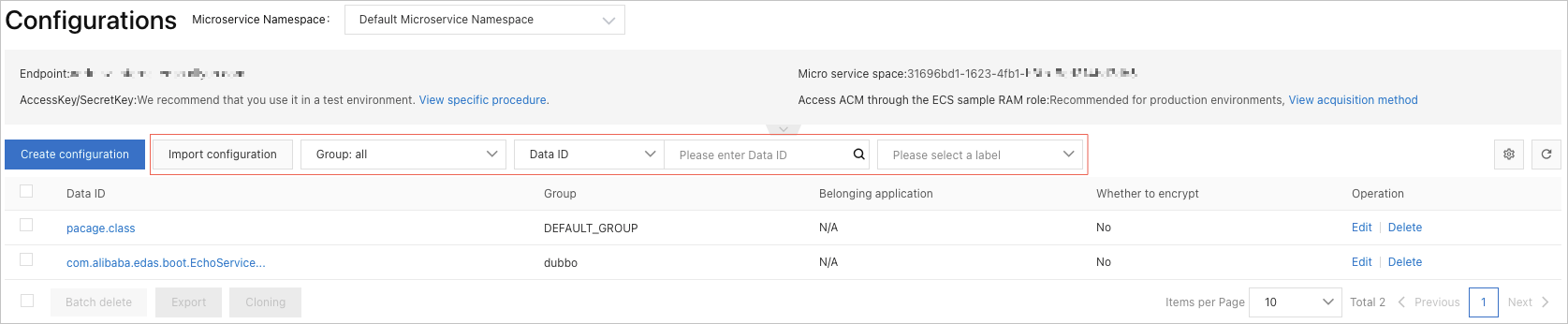
Select the configurations to synchronize, then click Clone below the configuration list.
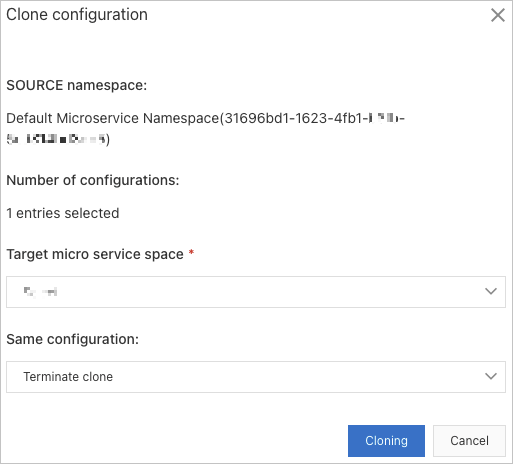
In the Clone configuration dialog box, configure the following parameters, then click Clone.
Parameter Description Target micro service space The destination microservices namespace. Same configuration How to handle duplicates. Two configurations are duplicates when they share the same data ID and group. Options: - Terminate clone: Cancel the entire clone operation. No configurations are synchronized.
- Skip: Skip duplicate configurations and synchronize the rest.
- Overwrite: Replace duplicate configurations in the destination with the source configurations.
Export and import configurations across regions
To synchronize configurations between microservices namespaces in different regions, export the configurations from the source region and then import them into the destination region.
Export configurations
Log on to the EDAS console.
In the left-side navigation pane, choose Application Management > Microservice Configurations. The Configurations page appears.
From the top navigation bar, select the region of the source microservices namespace.
Select the microservices namespace, select the configurations to export, then click Export below the configuration list.
In the Export configuration dialog box, verify the selected configurations and click Export. The configurations are downloaded as a ZIP file.
Import configurations
After you export the configurations, import them into the destination region.
From the top navigation bar, select the region of the destination microservices namespace.
Select the destination microservices namespace, then click Import configuration.
In the Import configuration dialog box, configure the following parameters, then click Import.
ImportantDo not modify the contents of the ZIP file before uploading. Modifications may cause the import to fail. To change configurations, import the ZIP file first, then edit the configurations in the destination microservices namespace.
Parameter Description Target micro service space The destination microservices namespace. This value is pre-selected based on the namespace you chose on the Configurations page and cannot be changed here. Same configuration How to handle duplicates. Two configurations are duplicates when they share the same data ID and group. Options: - Terminate import: Cancel the entire import operation. No configurations are synchronized.
- Skip: Skip duplicate configurations and synchronize the rest.
- Overwrite: Replace duplicate configurations in the destination with the imported configurations.
Configuration file Click Upload a file and select the exported ZIP file. 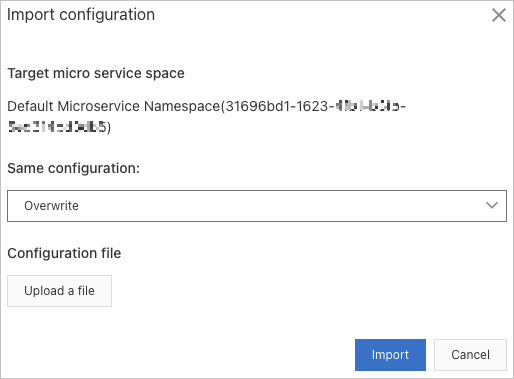
Duplicate handling behavior
The duplicate handling option (Terminate clone/Terminate import, Skip, or Overwrite) determines what happens when the destination namespace already contains a configuration with the same data ID and group as one being synchronized.
| Option | Behavior |
|---|---|
| Terminate | Cancels the entire operation. No configurations are added or changed. |
| Skip | Leaves existing duplicates unchanged and synchronizes all non-duplicate configurations. |
| Overwrite | Replaces duplicates in the destination with the source versions and synchronizes all non-duplicate configurations. |