Update job outputs
The job output update feature lets you rerun job instances from a specified time period to update their output.
Backfill a scheduling task
If your business requirements change, you may need to re-run tasks from a past period. For example, a field may be added to a database, or data from the previous month may be incorrect. You can re-run past tasks by backfilling the scheduling task data.
Both tasks and workflows support data backfilling. Only day-level scheduling cycles are supported.
If data from a previously executed scheduling task has drifted or is missing, you can reset the runtime parameters and run a specific task property to retrieve the correct data.
On the Task Management page, find the target task, click More in the Actions column, and then click Backfill Task.
In the Backfill Task panel, set Start and End Date and Data Timestamp, and then click OK.
Start and End Date: The date range to backfill.
Data Timestamp: The specific time within the date range to backfill.
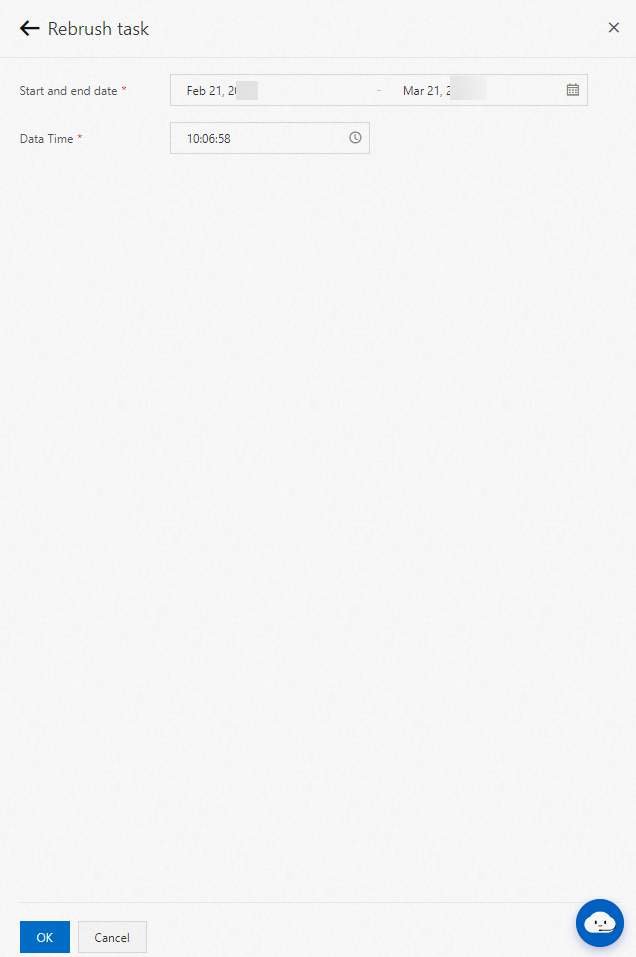
The following is a sample backfill configuration:
Current time: 2019-01-01 10:00:00.
The backfill start and end dates are 2018-10-01 to 2018-10-07. By default, this period starts at 00:00:00 on October 1, 2018, and ends at 23:59:59 on October 7, 2018.
The data timestamp is 11:11:11.
The task is backfilled seven times, which generates seven instances.
No.
Scheduled Time
Data Timestamp
1
2019.1.1 10:00:00
2018.10.1 11:11:11
2
2019.1.1 10:00:00
2018.10.2 11:11:11
3
2019.1.1 10:00:00
2018.10.3 11:11:11
4
2019.1.1 10:00:00
2018.10.4 11:11:11
5
2019.1.1 10:00:00
2018.10.5 11:11:11
6
2019.1.1 10:00:00
2018.10.6 11:11:11
7
2019.1.1 10:00:00
2018.10.7 11:11:11