Manage edge containers
After your container application is running, you can monitor its status and performance through metrics and logs, manage domain name access through triggers, and manage the full application lifecycle through version management.
Container metrics
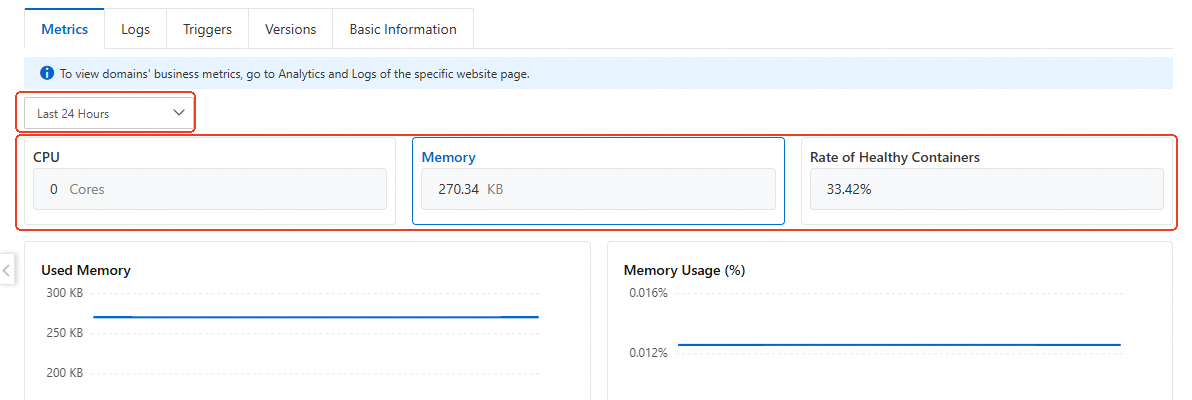
View CPU usage, memory usage, and instance health rate over a specific time period to monitor your container's performance.
-
Log on to the ESA console. In the navigation pane on the left, choose .
-
Select an existing application and click Application ID or View Details in the Actions column to go to the Metrics page.
-
On the Metrics page, set a time range and click the CPU, Memory, or Rate of Healthy Containers area to view the corresponding container metrics.
Log delivery
Deliver container application logs to a specified platform for storage and analysis to monitor running status and performance.
-
Log on to the ESA console. In the navigation pane on the left, choose .
-
Select a created application. Click the Application ID or View Details in the Actions column to go to the Metrics page.
-
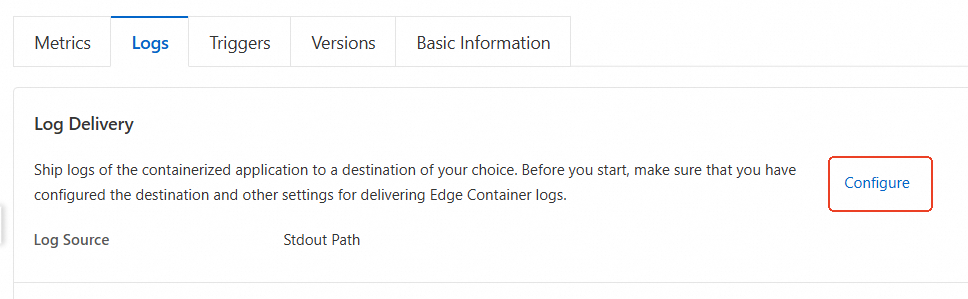
Select the Logs tab, click Configure, set Log Source to Stdout Path or Disk File based on your actual needs, and then click OK.
-
Standard output: Logs from the container application are written directly to the terminal or log files.
-
Disk file: Logs from the container application are written to the configured disk file path.
-
-
Click Configure, and on the Real-time Logs page, create an edge container log delivery task. For more information, see Create a real-time log delivery task.
Triggers
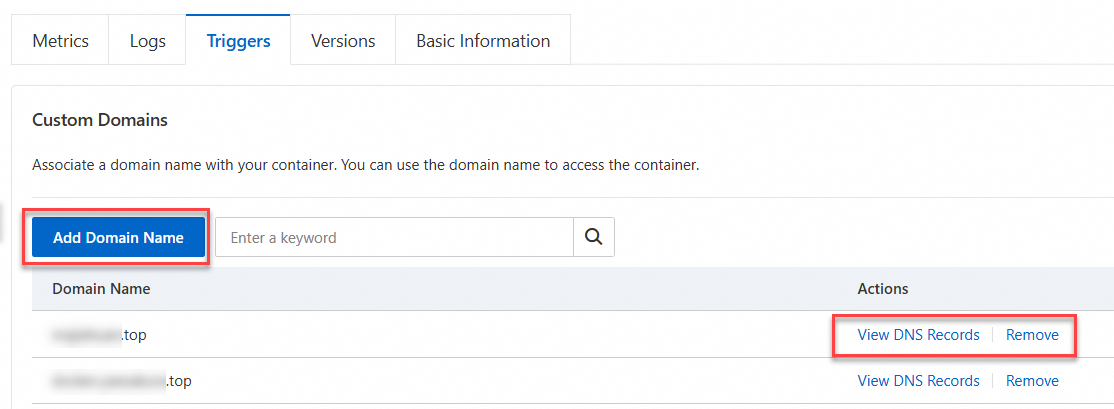
On the Triggers tab, you can add a domain name to associate it with your container application. The system automatically creates a DNS record so you can access the application through that domain name. You can also delete a domain name if it is no longer needed.
-
Log on to the ESA console. In the navigation pane on the left, choose .
-
Select an application that you created and click the Application ID or View Details in the Actions column to go to the Metrics page.
-
Select the Triggers tab to add or delete domain names.
-
Add a domain name: Click Add Domain Name, enter the domain name to bind to the container application, and then click OK.
After the domain name is added, you can click View DNS Records to view the added DNS record. If your site connects to ESA by using a CNAME record, you need to configure the CNAME record with your DNS provider.
-
To delete a domain name, click Remove in the Actions column, and follow the on-screen instructions to delete the domain name.
When you delete the domain name, the system also deletes the associated DNS record.
-
Version management
Manage the full lifecycle of your container application. You can create a new version with its image, container parameters, and health check settings, debug the version in a testing environment, deploy it to production, or roll back to the baseline version.
-
Log on to the ESA console. In the navigation pane on the left, choose .
-
Select an existing application, and click the Application ID or the Actions column's View Details to go to the Metrics page.
-
Select the Versions tab to perform the following operations.
-
Create a version
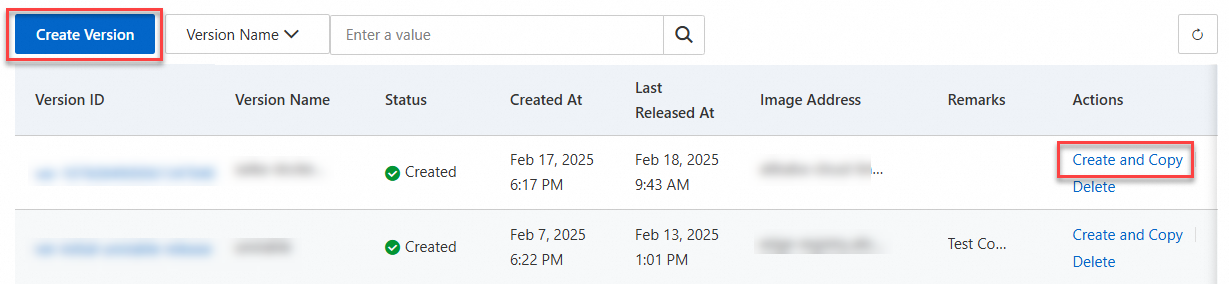
Click Create Version, and follow the on-screen instructions to configure parameters such as version information, image settings, and container settings. If some of your version parameters are the same as those of an existing version, you can click Create and Copy to quickly create the version.
-
Debug a version
-
In the Staging Environment area, click Release, select the target version, and then click Release.
-
After the version is released, click Instance Logon to debug the version in the command window.
You can also click Instance Logs to view logs generated during application startup or runtime.
-
-
Deploy to the production environment
In the Production Environment section, click Release. In the dialog box that appears, select the version that has completed debugging and set the release ratio, and then click Release.
-
Roll back a version
In the Production Environment area, click Roll Back, and follow the on-screen instructions to revert the version to the baseline version.
-
Delete a container application
If you no longer need a container application, delete it by using one of the following methods.
-
Method 1:
-
Log on to the ESA console. In the navigation pane on the left, choose .
-
Select the application that you want to delete, and click Delete in the Actions column.
-
In the dialog box that appears, read the information carefully and follow the prompts to delete the application.
-
-
Method 2:
-
Log on to the ESA console. In the navigation pane on the left, choose .
-
Select an application that you created and click its Application ID or View Details in the Actions column to go to the Metrics page.
-
Select the Basic Information tab and click Delete to delete the application.
-
In the dialog box that appears, carefully read the prompt message, manually enter the application name, and click OK.
-